








Docs·Settings
Account settings
Your account is you, the person, as opposed to a workspace you belong to. It holds your name, your sign-in, and your account API keys, and it comes with you into every workspace you join. Plans, members and audiences are not here: they belong to a workspace (see Workspace settings).
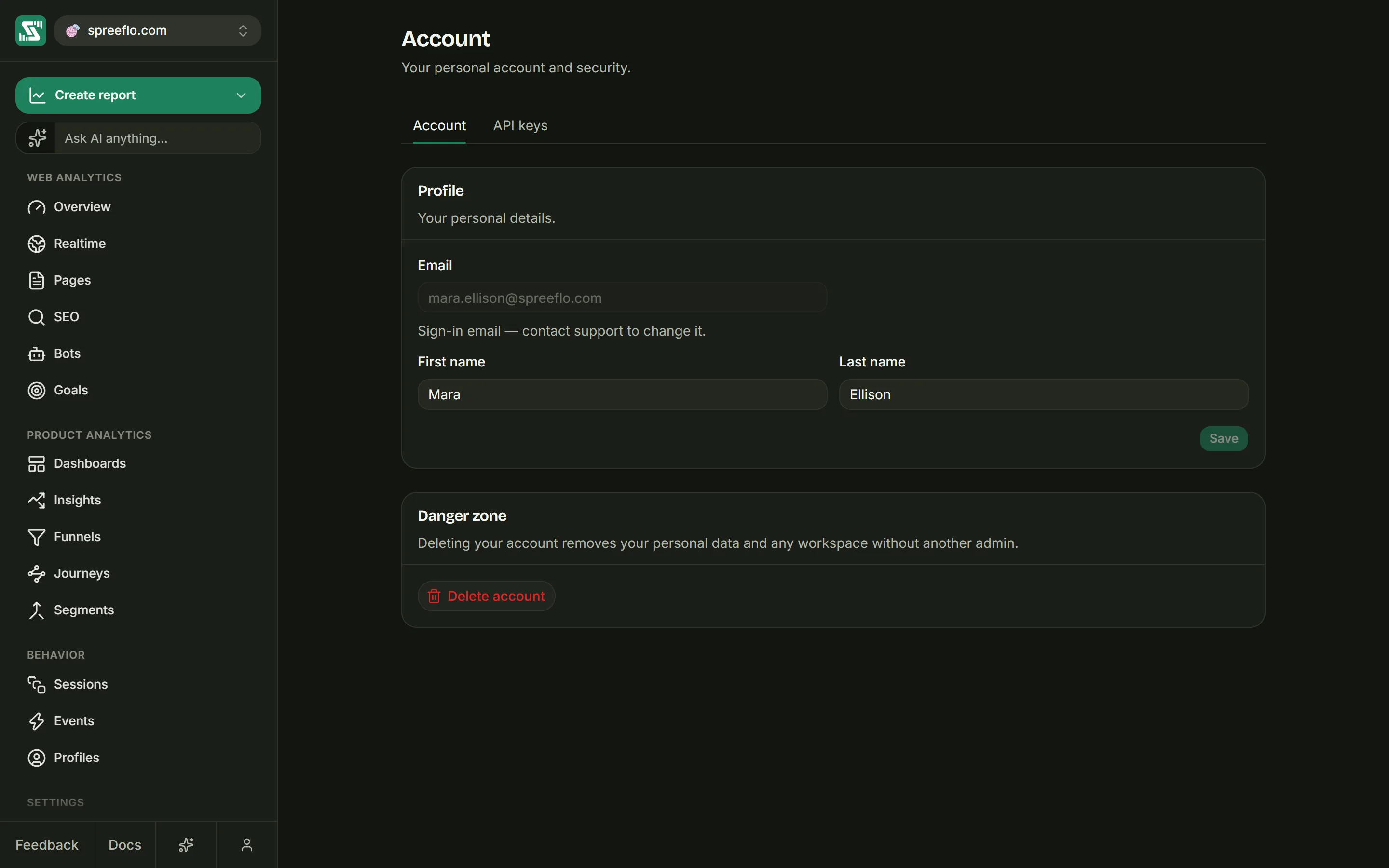
Opening your account page
Click the person icon at the bottom right of the sidebar to open the profile menu, then choose Account. The page has two tabs:
| Tab | What it holds |
|---|---|
| Account | Your profile: email, first name and last name. |
| API keys | Your account API keys, for connecting AI apps over MCP. |
The open tab is kept in the address (/account?tab=account or /account?tab=api-keys), so you can
bookmark either one. The page works whether or not you have an audience open.
Your profile
The Profile section on the Account tab has three fields.
| Field | What it is |
|---|---|
| The address you sign in with. It is greyed out because it cannot be changed here. | |
| First name | Required. Save stays off while it is empty. |
| Last name | Optional. |
Save turns on once you have changed a name, and a "Profile saved" message confirms it. Your name is what your teammates see in the Members list and in the invitations you send. While your account has no name, invitations from you say "A teammate" invited them.
Changing your email
The note under Email asks you to contact support to change it. Email contact@spreelytics.com, or send a message from Feedback at the bottom of the sidebar, with the address you have now and the one you want.
Theme
The theme lives in the same profile menu, not on the Account page. Open the menu, point at Theme and pick one of:
| Option | What it does |
|---|---|
| Light | Always light. |
| Dark | Always dark. This is what a browser starts on until you choose. |
| System | Follows your device's light or dark setting each time the app loads. |
The current choice is shown next to Theme in the menu. It is saved in this browser only, so a second browser or computer keeps its own setting.
Account API keys
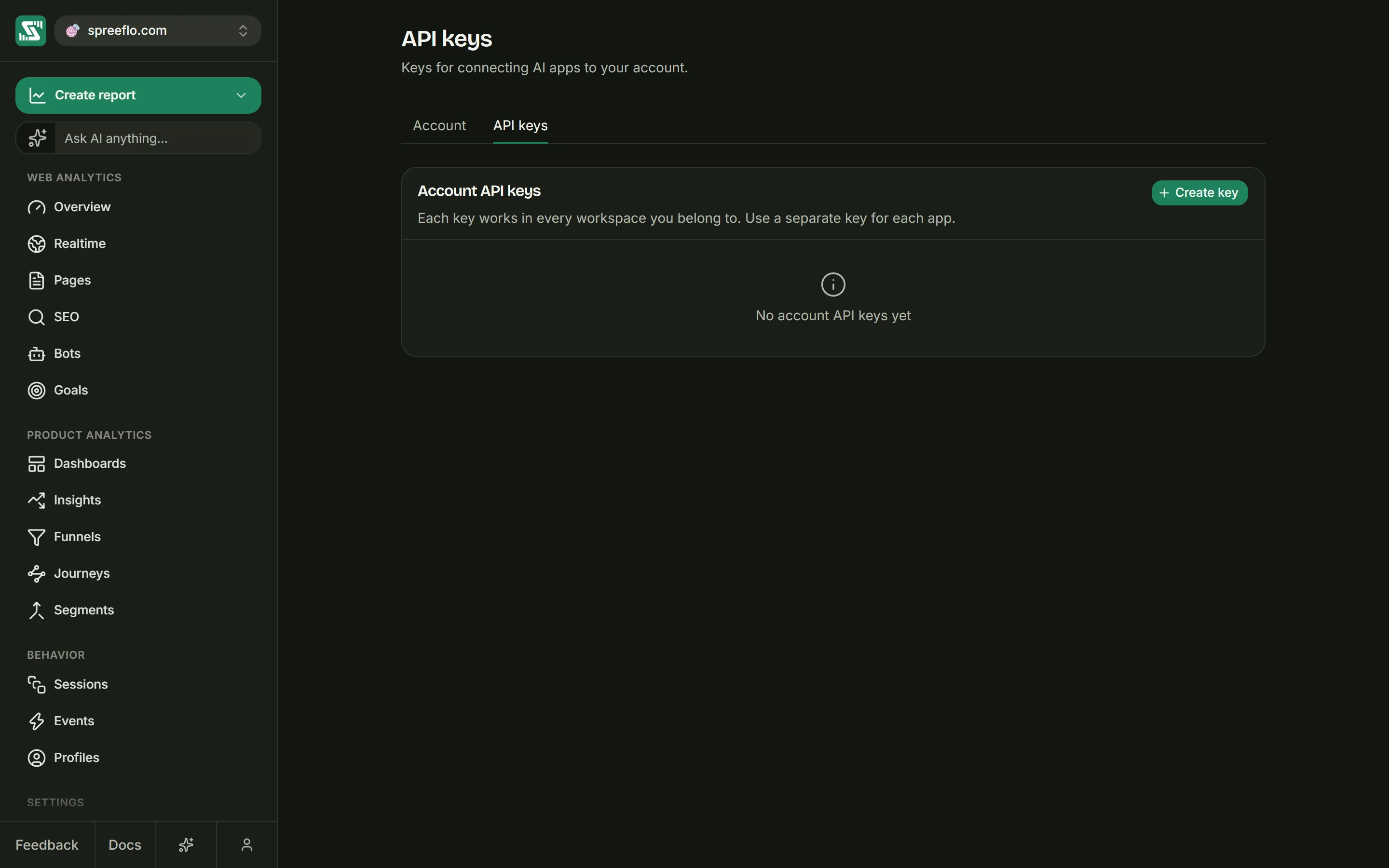
An account API key lets an AI app, such as Claude Code or Cursor, use Spreelytics as you. It is the key the MCP server accepts, and it also works on the parts of the Spreelytics API that list account keys as accepted.
Three things decide what a key can reach:
- Every workspace you belong to. One key covers all of them, and every audience in them.
- Your role in each one. The key can never do more than you can. Where you are a Viewer, an app using it can read but cannot change anything.
- Your membership, checked on every request. If an admin removes you from a workspace, your keys stop reaching that workspace at once.
This is a different key from the audience API keys in Settings → API keys, which read one audience only and are refused by the MCP server. See Audience settings for those.
Creating a key
Click Create key. The Create an account API key window asks for one thing:
- Key name: a label for you, such as the app it is for. The field suggests "Claude Code". It is required, and the hint says why it matters: give each tool its own key, so you can revoke one without breaking the others.
Click Create key. The new key appears at the top of the list.
Showing and copying a key
The Key column shows the first eight characters followed by dots. Click the eye button (Show key) to see the whole key, and again (Hide key) to mask it. To copy it, open the … menu on the row and choose Copy key.
Unlike an audience API key, an account key can be shown and copied again at any time, so there is no need to store it the moment you create it.
Revoking a key
Open the … menu on the row and choose Revoke. The window asks you to confirm, and warns that anything still calling with the key stops working immediately and that this cannot be undone. Click Revoke to confirm.
Any AI app or script using that key loses access straight away, including a session that is already running. To reconnect it, create a new key and put it in the app's settings.
Passwords
There is no change-password screen inside the app. To change your password, or to set a new one when you have forgotten it, use the reset on the sign-in page:
- If you are signed in, choose Log out in the profile menu first. The sign-in page sends signed-in people straight to their dashboard.
- On the sign-in page, click Forgot? next to Password.
- Type your Email and click Send reset code.
- On the Choose a new password screen, enter the six-digit Reset code from the email and a New password of at least 8 characters, then click Set new password.
You are signed in and taken to your dashboard. Spreelytics also signs out the other sessions you had open, so if you reset because you think someone else got in, their session ends too.
A few rules about the code:
- A code works for one hour. Only the newest one works, so if you asked twice, use the latest email.
- Each code can be tried five times. If those run out, ask for a new one.
- You can ask for three codes per hour. Past that, the screen tells you how many minutes to wait, and the code you already have still works.
- Use a different email goes back to the first step if you typed the wrong address.
The screen moves on to the code step whether or not the address has an account, so it never reveals who is signed up. If no email arrives, check your spam folder and the spelling of the address. Two cases send a different email instead of a code: an account created with Google gets a reminder to sign in with Google, and an account that was never verified gets its verification link again.
Signing in with Google
Continue with Google on the sign-in page opens Google in a small window. If an account already uses that Google address, you are signed in to it, even if you created it with a password. If none does, a new account is created.
An account created with Google has no Spreelytics password. Trying to sign in to it with a password shows "This account signs in with Google", so use the Google button instead. The button does not appear inside some in-app browsers, such as TikTok's. Open the page in your normal browser to use it.
Log out
Choose Log out at the bottom of the profile menu. Your session ends, this browser forgets which workspace and audience you had open, and you land on the sign-in page.
Related
- MCP: connect an AI app with an account API key.
- Members and roles: what your role lets you and your keys do.
- Audience settings: audience API keys and the tracking key.
- Workspace settings: the workspaces your account belongs to.