








Docs·Settings
Audience settings
The audience settings hold everything about the audience you have open: its name and time zone, which sites may send it data, which traffic it leaves out, how revenue is credited and converted, its keys, its tracking script and its Search Console connection. Open Settings in the sidebar's Settings group. The page is titled "Audience settings".
Everything here applies to the open audience only. To change another audience, switch to it first (see Workspace settings).
The tabs and who can change them
| Tab | What it holds | Who can change it |
|---|---|---|
| Details | Name, domain, reporting timezone, allowed domains, and deleting the audience | Admin |
| Revenue | The reporting currency, payment providers and attribution: how revenue is credited to traffic sources | Admin |
| API keys | The site tracking key and audience API keys | Admin |
| Tracking script | Install status, the snippet, cookieless tracking, session replay and bot traffic | Anyone can copy the snippet. Cookieless and session replay need Admin; the bot traffic card switch needs Editor or Admin. |
| Excluded traffic | The IP addresses, pages and profiles whose visits are not counted | Editor or Admin |
| MCP | How to connect an AI app | Nothing to change; anyone can read it |
| Google Search | The Search Console connection | Admin |
Every member can open every tab. On the admin-only tabs, members without the Admin role see the settings greyed out under the note "You need the admin role in this team to change these settings." See Members and roles.
The open tab is kept in the address, such as /settings?tab=tracking, so a link or a reload brings
you back to the same tab.
Details
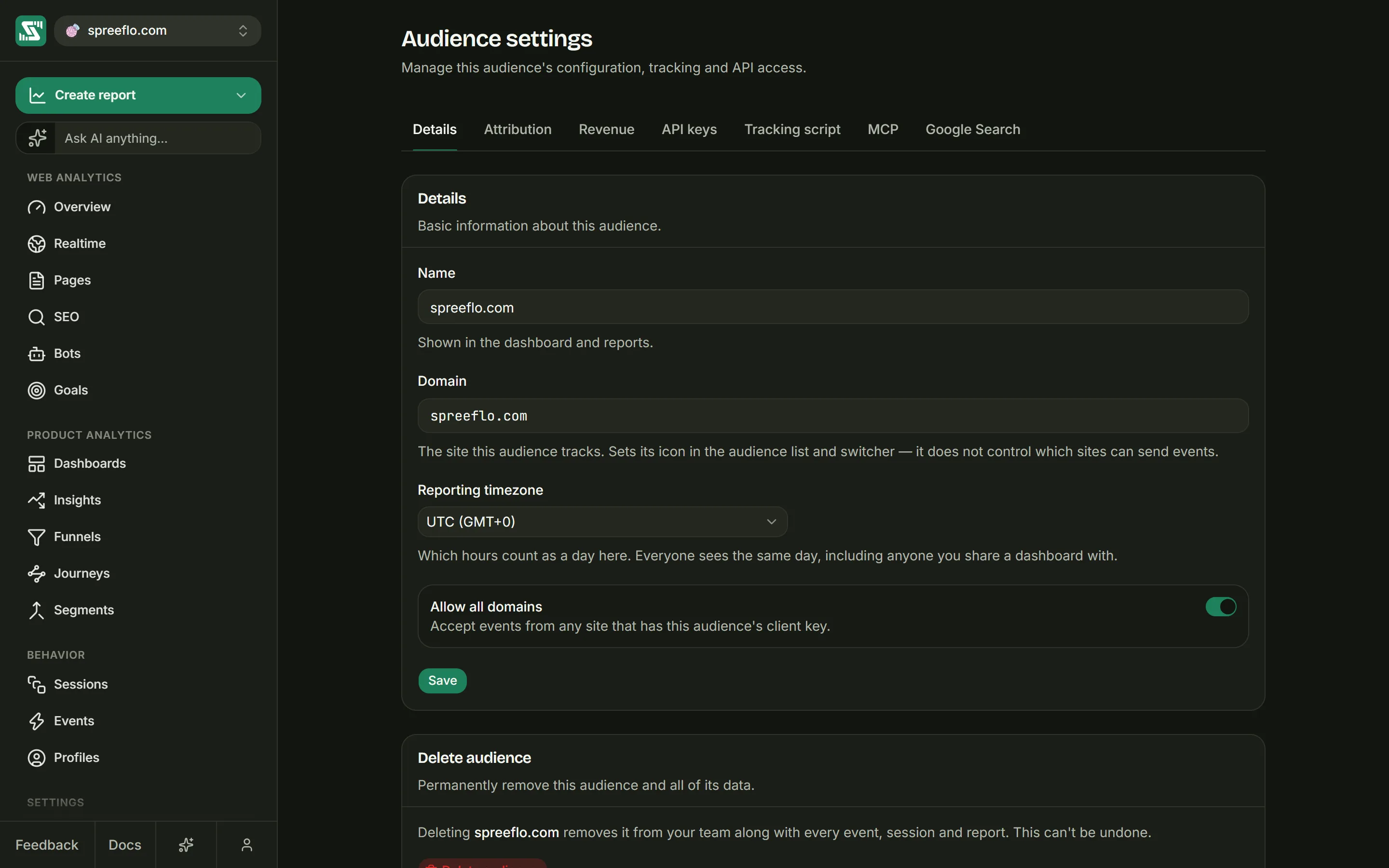
The Details section, "Basic information about this audience.", has these fields. One Save button at the bottom saves them all, confirmed by "Audience settings saved".
| Field | What it does |
|---|---|
| Name | "Shown in the dashboard and reports." |
| Domain | The site this audience tracks. It sets the audience's icon in the audience list and the switcher. It does not decide which sites can send events; that is Allowed domains. A value that is not a hostname shows "Invalid domain". You can leave it empty. |
| Reporting timezone | Which hours count as one day for this audience. See below. |
| Allow all domains | "Accept events from any site that has this audience's client key." |
| Allowed domains | The sites allowed to send events, shown while Allow all domains is off. See below. |
Reporting timezone
The help text reads "Which hours count as a day here. Everyone sees the same day, including anyone you share a dashboard with."
The time zone sets the calendar that reports and dashboards are read in: where one day's bar ends and the next begins, where weeks and months start, and what Today or Yesterday covers. It belongs to the audience, not to your browser, so every member, and anyone viewing a shared dashboard, sees the same days wherever they are.
Pick from the full list of time zones, each shown with its current offset from GMT, such as
Europe/Paris (GMT+2). Typing a few letters jumps to a match. The new audience window fills in your
browser's time zone, and an audience that never had one chosen uses UTC.
The time zone is applied when a report is read, not when data is stored. Changing it redraws past days in the new time zone too, and no data is lost.
Allowed domains
With Allow all domains off, the audience accepts events only from the sites in Allowed domains, and refuses the rest. This matters because the tracking key is public: it sits in your page source, so without a list any site could copy it and send events into your audience.
The help text explains how to add one: "Type one and press space or enter." Each entry becomes a tag.
- Pasting a full address works: the
https://, the path and any port are dropped. - Entries match exactly.
example.comandwww.example.comare separate entries, and every subdomain your site uses needs its own. - Names without a dot, such as
localhost, cannot be added. - Save stays off while the list is empty, with the note "Add at least one domain, or turn on “Allow all domains”."
Turning Allow all domains on asks first. The Allow all domains? window shows a Security Warning that any website will then be able to send tracking data to your dashboard and pollute it. It lists when that is useful: code of yours that runs on your customers' sites, such as a booking system or a chat box, custom domains you do not want to add one by one, and multi-tenant apps whose domains are added on the fly. Click Confirm, then Save.
An audience made with the new audience window starts with one allowed domain: the one typed there. Filter traffic explains how the check works and what else is filtered.
Deleting an audience
The Delete audience section, "Permanently remove this audience and all of its data.", warns that deleting it removes it from the workspace along with every event, session and report, and that this cannot be undone.
Click Delete audience. A window asks you to confirm, naming the audience and repeating that this can't be undone; click Delete audience there to go ahead, or Cancel. "Audience deleted" confirms it, and you land on the workspace's Audiences tab.
A workspace always keeps at least one audience, so deleting the last one fails with "Could not delete this audience. Try again.", shown in the same window. Create another audience first, or delete the whole workspace from Workspace → Settings.
Revenue
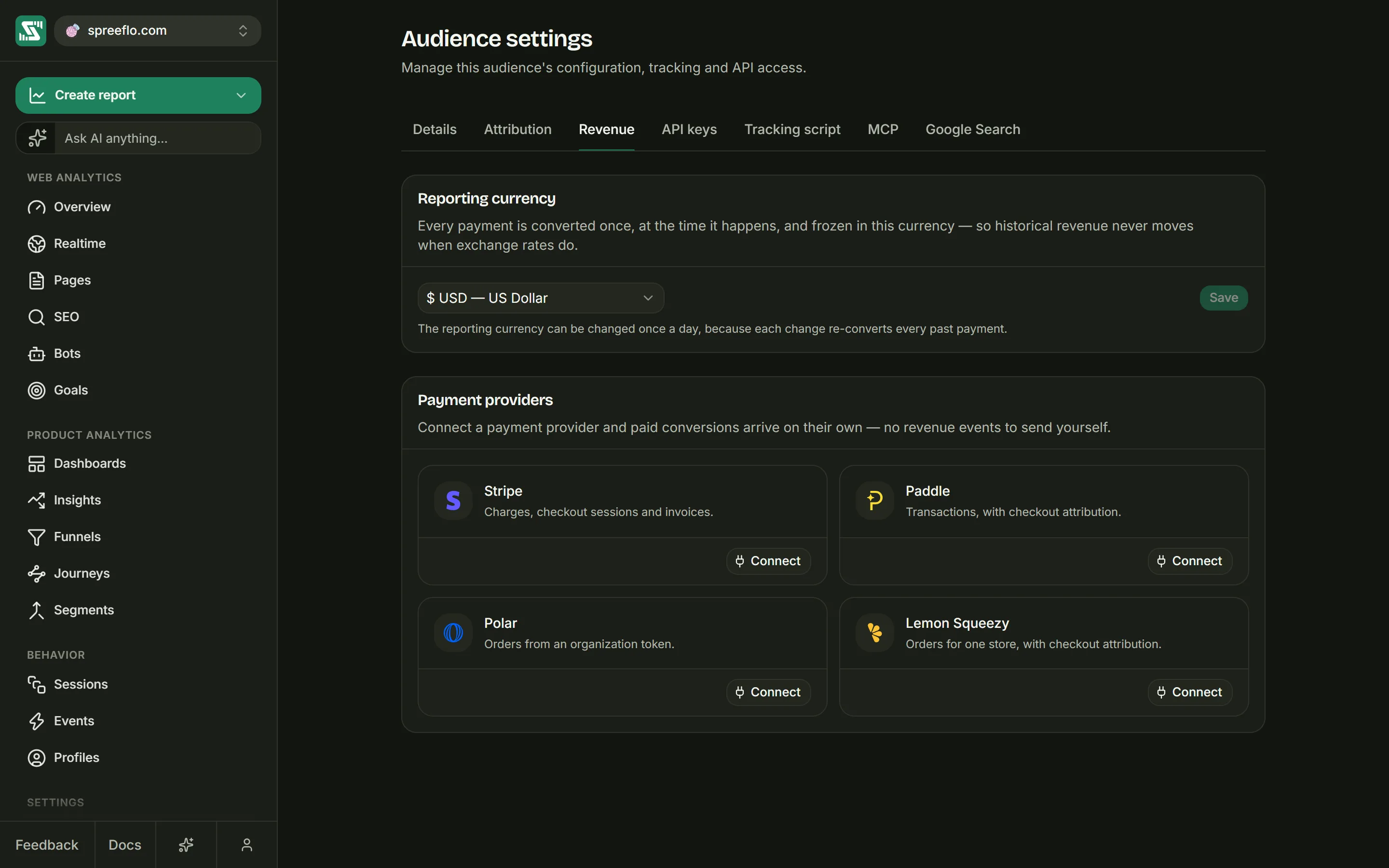
The tab holds the reporting currency, the payment providers and, below them, attribution: which traffic source gets the credit for a payment.
Reporting currency
All revenue in this audience is shown in one currency. Each payment is converted into it once, at the moment it happens, and kept at that value, so past revenue does not move when exchange rates do.
Pick one of these and click Save:
| Code | Currency |
|---|---|
| USD | US Dollar |
| EUR | Euro |
| GBP | British Pound |
| AUD | Australian Dollar |
| CAD | Canadian Dollar |
| JPY | Japanese Yen |
| SGD | Singapore Dollar |
| INR | Indian Rupee |
| VND | Vietnamese Dong |
Changing the currency re-converts every past payment in the background. While that runs, the tab says so, and past totals stay in the previous currency until it finishes. Because of that work, the currency can be changed once a day: after a change, Save stays off and the note tells you when it was changed and when you can change it again.
Payment providers
Connect a payment provider and its payments arrive in Spreelytics on their own, with no revenue events for you to send. Each provider has a card with a Connect button. Clicking it opens a drawer with numbered steps for making the key in that provider, and the fields to paste it into:
| Provider | What the form asks for | What the steps have you set |
|---|---|---|
| Stripe | Restricted API key | Webhook Endpoints set to Write, and Checkout Sessions, PaymentIntents, Invoices and Charges set to Read. The Open Stripe button opens Stripe's new key page with all five already picked. |
| Paddle | API key | Write under Notification settings, and Read under Transactions and Adjustments |
| Polar | Organization access token | The webhooks:write, orders:read and refunds:read scopes |
| Lemon Squeezy | Store ID and API key | Nothing. Lemon Squeezy keys have no permissions to pick. |
Below the fields, an Import past payments menu adds the payments you took before connecting, as soon as the provider is connected. It starts on Don't import; the other choices are Last 3 months, Last 6 months, Last 12 months and Last 24 months. When you pick a range, the key is checked for the permissions an import needs before Spreelytics connects, and the drawer names any that are missing. The menu only shows while the provider has no import.
A note above Connect says what the key is used for. Every key sets up the webhook that sends payments to Spreelytics, deletes it when you disconnect, and reads your past payments when you import them. A Stripe or Lemon Squeezy key also looks up product names. No key ever needs permission to move money. Click Connect to save it. Spreelytics never shows a saved key again.
A connected provider's card shows the date it was connected and its status, and a Disconnect button. Disconnecting takes effect when you click; there is no confirmation step. See Revenue for what each provider sends and how payments are matched to visitors.
The card also has an Import past payments button, which adds the payments you took before you connected, going back up to 24 months. See Import past payments for how an import runs and what it can't bring in.
Attribution
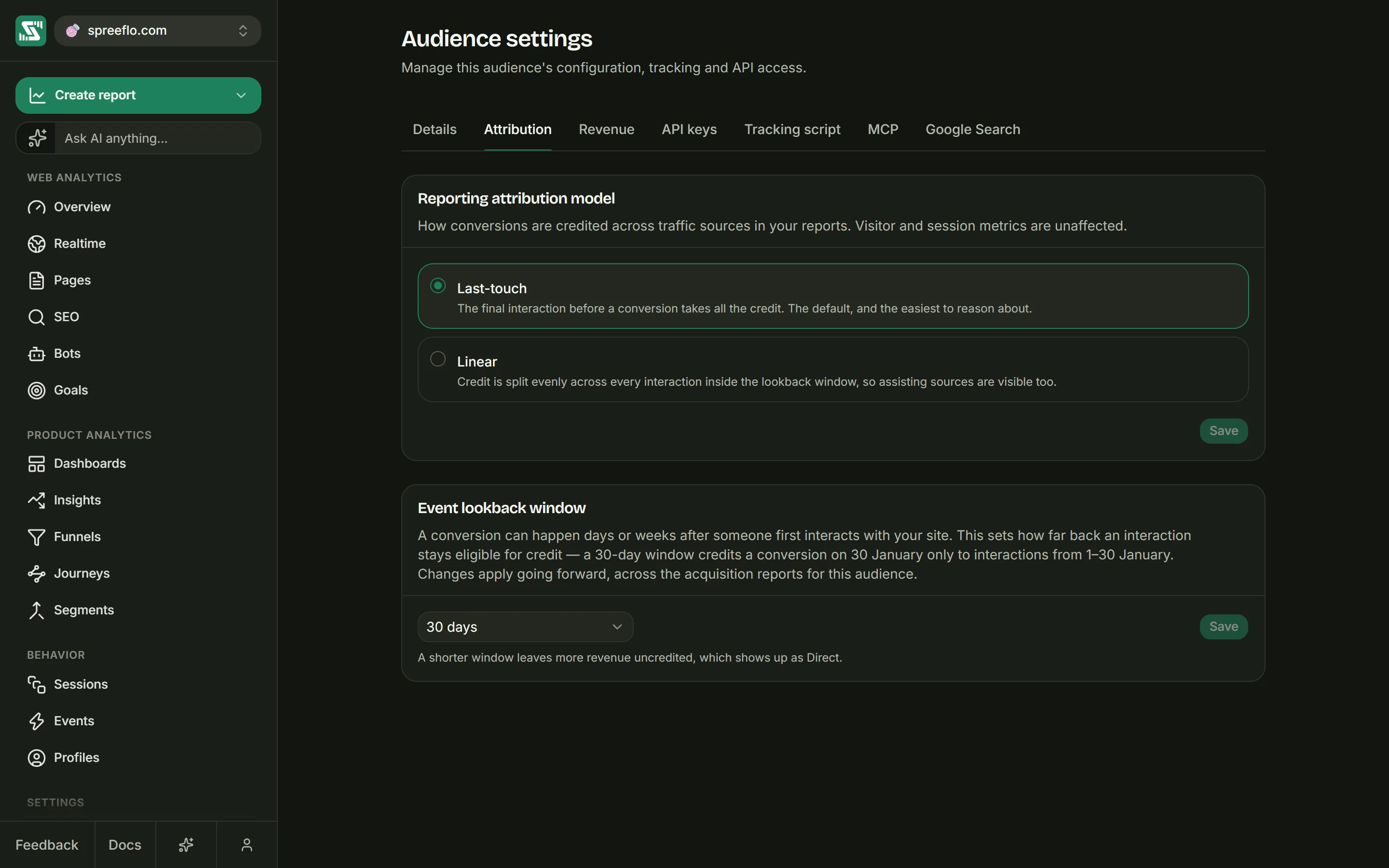
When a visitor pays, attribution decides which traffic source gets the credit for the money. These two settings set how that credit is shared, which changes the revenue shown against channels, sources and campaigns. Visitor and session counts are not affected. Revenue covers how payments reach Spreelytics in the first place.
Reporting attribution model
The section reads "How conversions are credited across traffic sources in your reports. Visitor and session metrics are unaffected." Pick one model and click Save.
| Model | Help text |
|---|---|
| Last-touch | "The final interaction before a conversion takes all the credit. The default, and the easiest to reason about." |
| Linear | "Credit is split evenly across every interaction inside the lookback window, so assisting sources are visible too." |
An interaction here is a visit that came from somewhere, so visits with no source (Direct) are left out. For example, someone arrives from a Google search on Monday, comes back from your newsletter on Wednesday, then types your address on Thursday and pays $90. With Last-touch the newsletter gets the $90. With Linear, Google search and the newsletter get $45 each. A payment from someone whose visits were all Direct stays with Direct.
Event lookback window
"A conversion can happen days or weeks after someone first interacts with your site." The lookback window sets how far back from a payment a visit can still earn credit for it. Choose 1, 7, 14, 30, 60 or 90 days (30 is the default) and click Save.
With a 30-day window, a payment on 30 January can only credit visits from 1 to 30 January. The note under the menu gives the trade-off: "A shorter window leaves more revenue uncredited, which shows up as Direct."
Both settings are applied when a report is read, so a change re-credits every date range, past ones included.
API keys
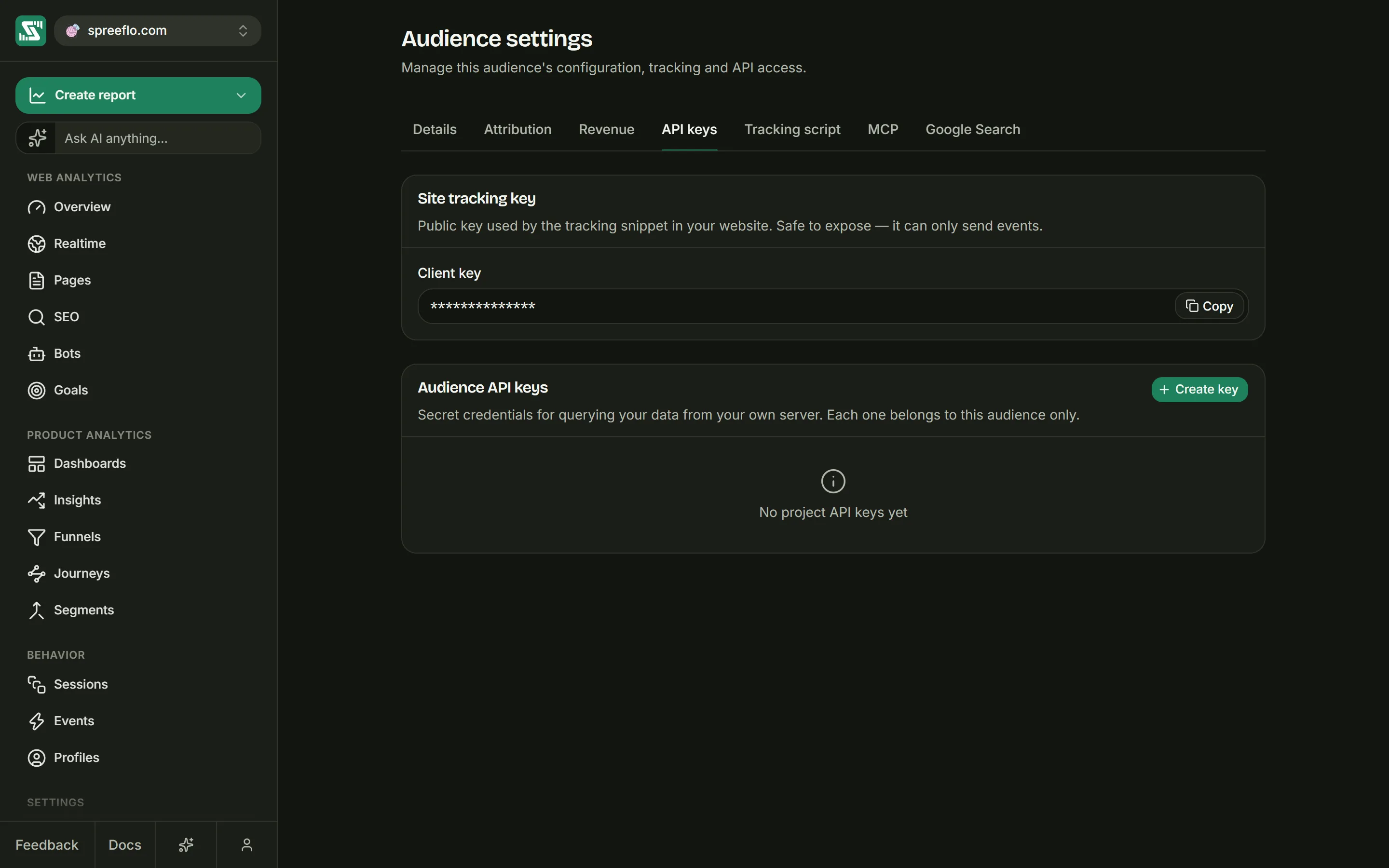
This tab holds two different kinds of key, and the difference matters.
Site tracking key
"Public key used by the tracking snippet in your website." It is the client_key in your snippet. It
sends events to this audience and cannot open your reports, so it is safe in your page source.
Client key shows it with a copy button. It cannot be changed or revoked here.
Audience API keys
"Secret credentials for querying your data from your own server. Each one belongs to this audience only." Use one when a script or a back-end of yours needs to read this audience's data through the API.
The table lists each key's Name, a shortened Token, its Type, when it was Last used ("Never" until its first use) and when it was Created.
Creating a key. Click Create key. The Create an API key window asks for a Key name, such as "Reporting script". A name longer than 200 characters is cut short. The hint suggests giving each tool its own key, so you can revoke one without breaking the others. Click Create key.
The window then shows Copy your token: the API token with a copy button, and how to send it,
as Authorization: Bearer <token>. Click Done when you have stored it.
Every audience API key is created read-only. It can read this audience's data through the API, and nothing else: it cannot change anything, cannot read another audience, and is refused by the MCP server.
The … menu on each row has:
- Copy client ID: copies the key's ID, which names the key without revealing its secret.
- Rename: edit the name in place, then press Enter to save or Esc to cancel.
- Revoke: asks you to confirm, warning that anything still calling with the key stops working immediately and that this cannot be undone.
Which key to use
| Key | Where it lives | What it can do |
|---|---|---|
| Site tracking key | Settings → API keys (also in the snippet) | Send events to this audience. Public. |
| Audience API key | Settings → API keys | Read this audience's data through the API. Secret, shown once. |
| Account API key | Account → API keys | Act as you in every workspace you belong to, over MCP and the API. Secret. See Account settings. |
Tracking script
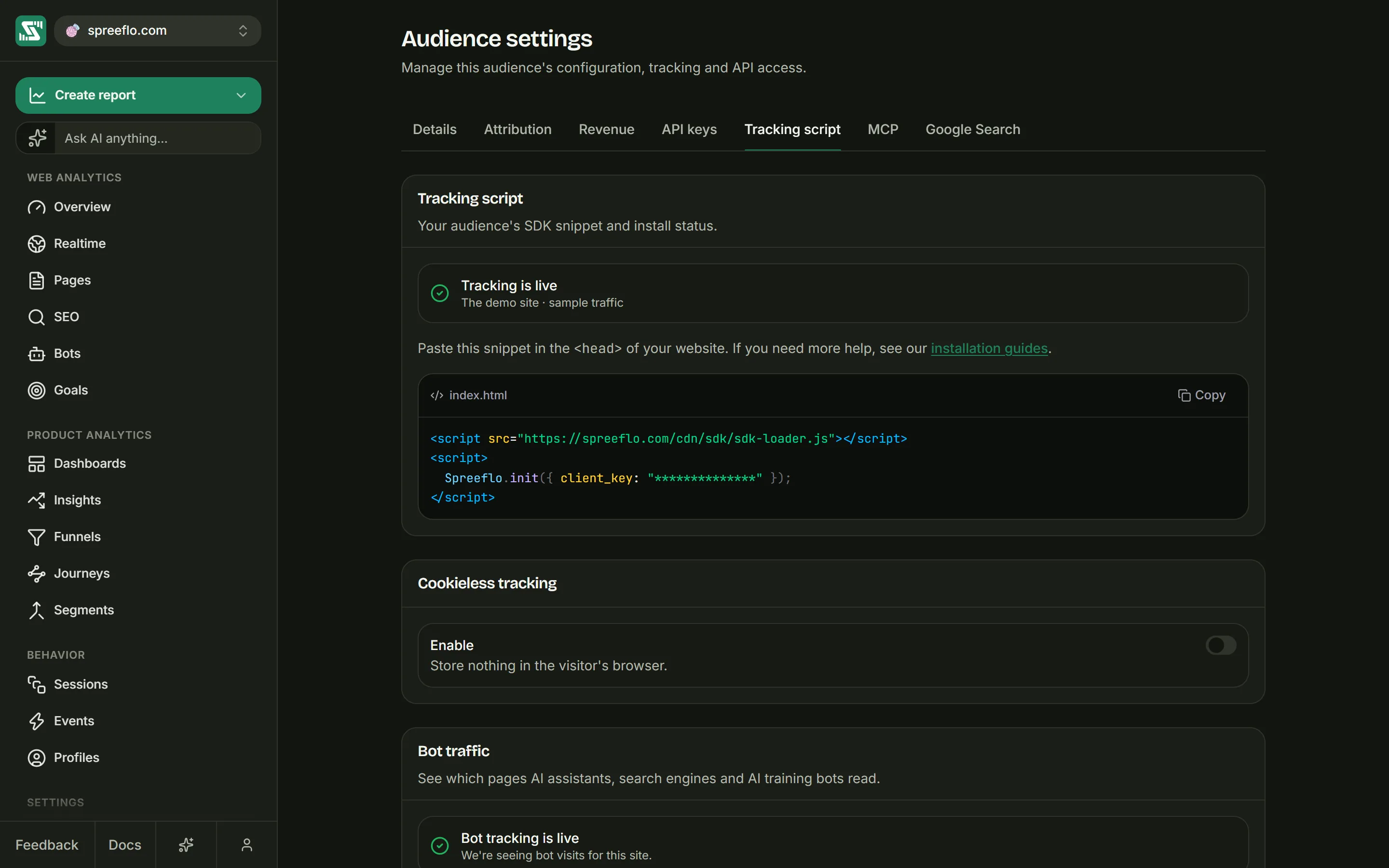
Install status
The box at the top of the Tracking script section says either Tracking is live, once the script on your site has reported in at least once, or Waiting for the first event. Under it, the line shows when the script was last seen and on which domain, such as "Last seen 5m ago · example.com", or "Install the snippet, then check back here."
While it is waiting, a Verify button checks again: up to five times, two seconds apart, stopping as soon as it goes green.
The snippet
Until tracking is live, the tab shows the snippet to paste into the <head> of every page of your
site, with your key already filled in, and a Copy button:
<script src="https://cdn.spreelytics.com/cdn/sdk/spreelytics-loader.js"></script>
<script>
  Spreelytics.init({ client_key: "YOUR_CLIENT_KEY" });
</script>
The script's global object is named Spreelytics, as in the snippet. Once tracking is live, the tab
shows only the status. Your key stays available under API keys → Site tracking key, and the
Tracking script guide covers every way to install it.
Cookieless tracking
Switch on Enable in the Cookieless tracking section to stop the script storing anything in your visitors' browsers. Only admins can change it. Cookieless tracking explains what it does and what it costs; the short version is in the window that asks you to confirm. Turning it on warns that numbers from before and after the change are not comparable, and that:
- anonymous visitors count as new each UTC day, so unique visitors over several days read higher, which is counting, not growth;
- retention and segments cover identified people only, and only from the day you identified them;
- funnels and attribution spanning more than one day lose their anonymous completions;
- page views, sessions and bounce rate are unaffected;
- it cannot be used with your own domain in front of the script (
api_host), because behind your proxy every visitor would look like one person.
Click Turn on to confirm. The change reaches your site within about a minute. Turning it off asks too, and returning visitors are recognised across days again from then on.
Session replay
"Record how visitors use your site, and watch it on each session's page." Switch on Record sessions to record visits, up to your plan's monthly replays, and watch them under Replays. Only admins can change it, and it needs the tracking script installed first. The app confirms with "Session replay on — recording starts within a minute." Nothing changes on your site.
The line under the switch is the short version of who is recorded: "Every visit tracked with cookies is
recorded, up to your plan's monthly replays. In the EU and UK, ask for consent first, as you would for
the cookie." With it on, a second line says what is masked, and how to mask or leave out more with
data-spree-mask and data-spree-block. On Free, the section says "Session replay is on the Growth
plan." and shows Upgrade plan instead of the switch.
Session replay covers who is recorded, masking and the player.
Bot traffic
"See which pages AI assistants, search engines and AI training bots read." Bots skip the tracking script, so this needs a small package on your server. The box says Bot tracking is live once the package has reported in, or Not set up yet.
Until it is live, the tab shows the setup in two steps:
- Install it on your server:
npm i @spreelytics/ai-crawl, with a copy button. - Add it to your code: pick Express, Next.js, Fetch handler or Manual to see a ready-to-paste example with your key already in it.
Deploy it, and the status turns green. AI crawler tracking covers the options.
Show the bot traffic card controls the Bot traffic card on the Overview. Turning it off only hides the card: "We keep collecting the data either way." Editors and admins can change it.
Excluded traffic
"Visits that match are never counted, from the moment you add them. What was already recorded stays." Use it to keep your own visits, your team and your test pages out of your numbers. Matching page views and events are dropped before anything is stored, the same way bot traffic is, so they never appear in a report and do not count toward your monthly events. A change applies to the next event that arrives; past data does not change, apart from the visit an excluded person identifies in (see Profiles below).
The same rules apply to session replay: excluded addresses and profiles are never recorded, and recording pauses on an excluded page.
There are three kinds of rule. Editors and admins can change them, and viewers see them read-only. The tab needs the tracking script installed first, because the rules are kept with the audience's tracking key; until then it says "Install the tracking script first — this setting lives on it."
IP addresses
"One address or a range, IPv4 or IPv6. Type one and press space or enter." Each entry becomes a tag:
a single address such as 203.0.113.7, or a range written with a slash, such as 203.0.113.0/24 or
2001:db8:1::/64. Anything else stays in the field and is not added.
The rule checks the address a visitor connects from, so it suits an office or a team on a fixed address. Home and mobile addresses change from time to time, and one address on a phone network can be shared by many people, so for a single person Profiles below is usually the better fit.
Pages
"A path, with * for anything: /admin/* skips every page under /admin." Each entry is a path that
starts with /:
| Entry | Matches |
|---|---|
/admin | That page only |
/admin/* | Every page under /admin, but not /admin itself |
/admin* | /admin and every path that starts with it, such as /admin/users and /administrator |
/blog/*/edit | /blog/hello/edit, /blog/2026/news/edit and so on |
Letter case does not matter, and a trailing slash is ignored, so /Pricing/ matches /pricing. A
path never includes the query string or the part after #, so an entry containing ? or # is
refused.
A page rule drops page views of matching pages and the scroll depth measured on them. A visit that ends
on an excluded page still ends, with its last counted page as its exit page. Events you send with
track() and link clicks carry no page, so they still count.
Profiles
Profiles are picked, never typed:
- Add profiles opens a list of every profile, most recent first, over all time: the date range and filters you set on the dashboard don't narrow it. It starts on Identified, which lists only identified profiles; All adds anonymous visitors. Search it by email or city. Each row shows, on one line, the name or "Anonymous", icons for the country, browser, operating system and device, and the profile's events and sessions; point at any of them to see what it is. Click a row to add it to the list.
- On a profile, Ignore this profile at the top of the Profile section excludes it straight away, with no Save to click: "Ignored. Their new visits won’t count." The button then reads Stop ignoring.
The list shows each excluded profile the same way, with a link to it and a button to remove it. A profile with no recorded visits shows "No visits recorded".
Who a rule covers depends on the profile:
- An identified profile is excluded in every browser where the person has been identified, including browsers they identify in later. A browser where they have not been identified yet counts until they are. When they are, the visit they were on is removed as well, because it was recorded before Spreelytics knew who they were: the visit leaves your reports at once, and its page views and events about a minute later. Their earlier visits in that browser stay.
- An anonymous visitor is excluded in that one browser. A different browser or device, or the same one after its storage is cleared, is a new visitor and counts.
- A cookieless visitor cannot be excluded this way. Their ID changes every day, so the rule would stop working the next day. Their row in the list is greyed out with a cookie icon that says why, and the button on their profile is turned off. See Cookieless tracking.
Saving
One Save at the bottom of the card applies all three lists at once, confirmed by "Excluded traffic saved". Nothing you add or remove takes effect until you click it. An audience can hold up to 100 IP addresses, 100 pages and 200 profiles.
MCP
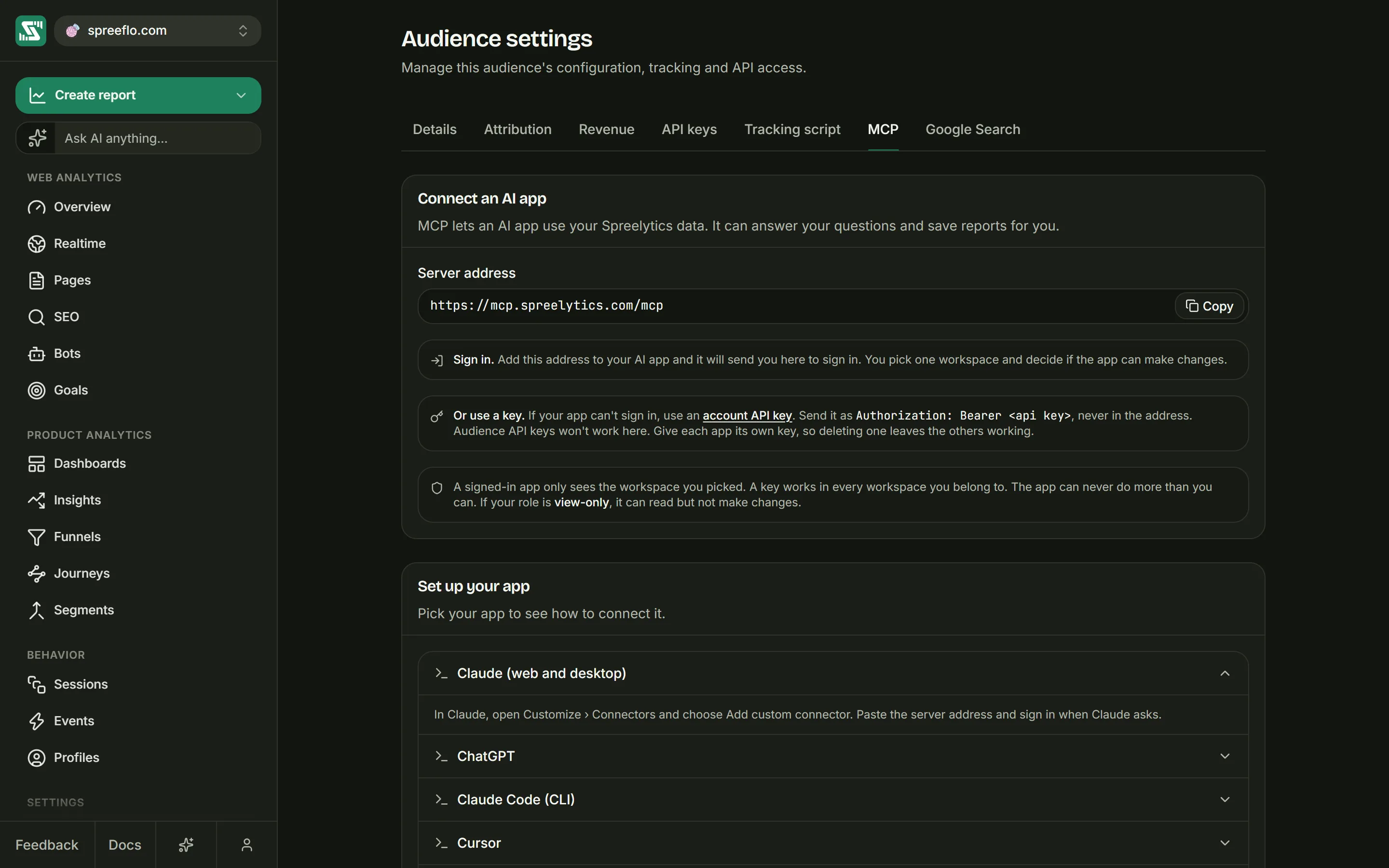
MCP lets an AI app use your Spreelytics data: "It can answer your questions and save reports for you." This tab has nothing to change; it shows how to connect.
Connect an AI app gives the Server address, https://mcp.spreelytics.com/mcp, with a copy
button, and two notes:
- Connect with an account API key, sent as
Authorization: Bearer <api key>, never in the address. Audience API keys do not work here. Give each app its own key, so deleting one leaves the others working. - "A key works in every workspace you belong to. The app can never do more than you can." If your role is view-only, the app can read but not make changes.
Set up your app lists the apps with ready-made instructions. Click one to open it:
| App | Where the setup goes |
|---|---|
| Claude Code (CLI) | A command to run in your terminal |
| Cursor | ~/.cursor/mcp.json |
| VS Code (Copilot) | .vscode/mcp.json |
| Windsurf | ~/.codeium/windsurf/mcp_config.json |
For Claude Code, the command is:
claude mcp add --transport http spreelytics https://mcp.spreelytics.com/mcp --header "Authorization: Bearer YOUR_API_KEY"
The other three show the JSON to put in their config file. MCP walks through each app and what an AI app can do once connected.
Google Search
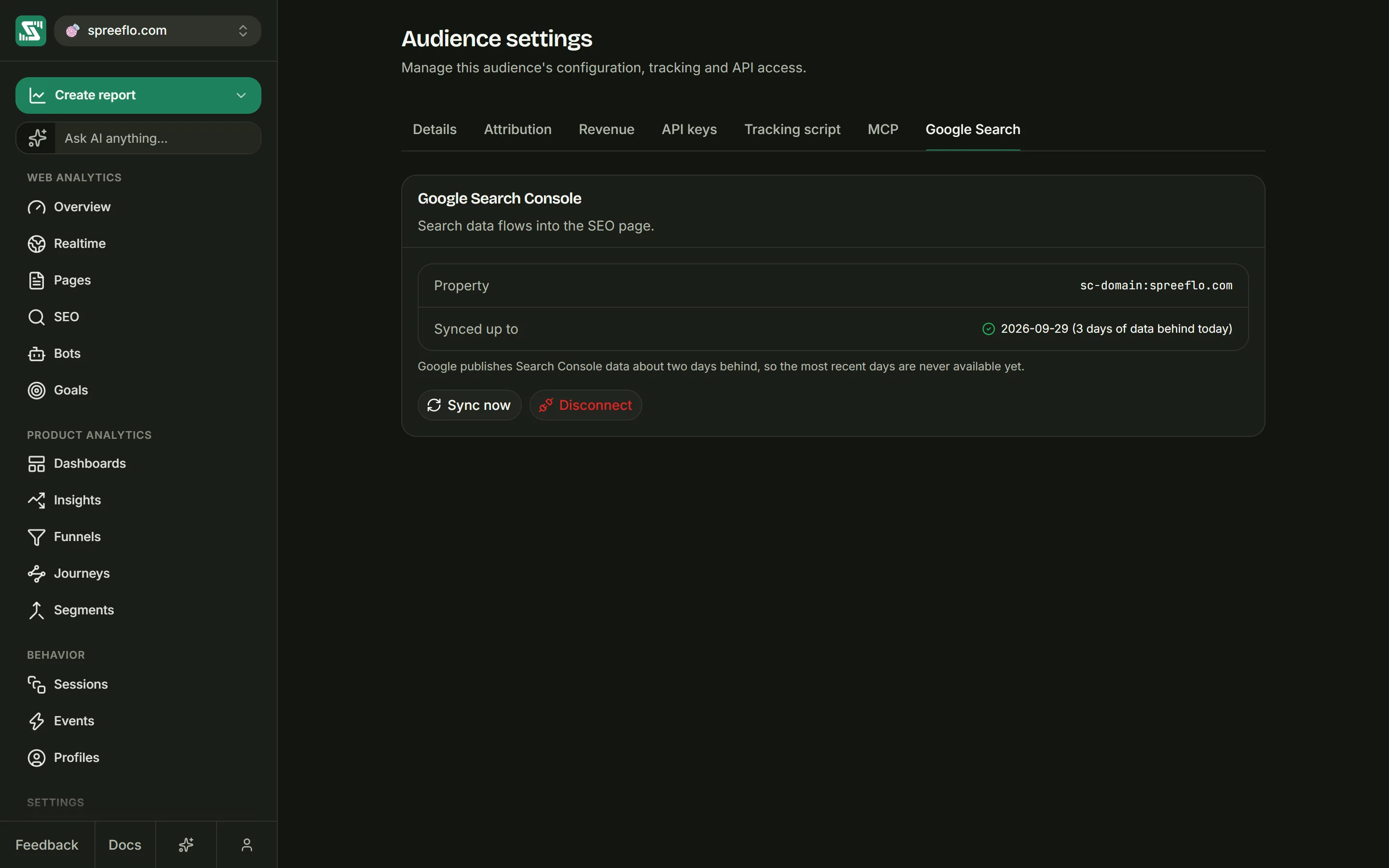
Connect Google Search Console to see the search terms, impressions and rankings that bring people to your site on the SEO page. Each audience connects its own Search Console property. Spreelytics asks Google for read-only access and never changes anything in your account.
The tab is always in one of four states:
| State | What the tab shows | What you can do |
|---|---|---|
| Not connected | "Connect Search Console to see queries, impressions and rankings on the SEO page." | Connect Google Search Console |
| Choosing a property | Choose a property: "Pick which Search Console property feeds this audience." | Pick one in Select a property…, then Connect property, or Cancel |
| Connected | "Search data flows into the SEO page.", with the Property and the date it is Synced up to | Sync now or Disconnect |
| Authorization expired | Authorization expired: search data stopped updating because Google revoked or expired the access | Reconnect or Disconnect |
Connecting. Click Connect Google Search Console. Google opens in a separate window (or in the same tab if your browser blocks pop-ups). Sign in with a Google account that can see your site in Search Console and allow access. Back in Spreelytics, the tab moves on to choosing a property. If Google reports a problem, the tab says "Google did not finish connecting. Please try again." If you close Google's window before finishing, the tab stays as it was.
Choosing a property. The list shows the properties that Google account can read in Search Console. If it has none, the tab says so: verify your site in Search Console first, or Cancel and connect a different Google account. Cancel removes the Google connection.
Syncing. The first sync pulls the last 90 days of search data. After that, Spreelytics pulls new data once a day on its own, and Sync now pulls it straight away. Synced up to gives the latest date with data and how many days behind today it is. Google publishes Search Console data about two days late, so the two most recent days are always missing; that is normal.
Changing property. There is no switch for this once connected. Click Disconnect, then connect again and pick the other property.
Disconnecting. Disconnect removes the connection and deletes the Search Console data already synced for that property, with no confirmation step. Connecting again starts over with a fresh 90-day sync.
Authorization expired. Google stops the access when it is revoked from the Google account or expires. Click Reconnect and sign in again: syncing resumes, and nothing already collected is lost.
Related
- Filter traffic: allowed domains, excluded traffic and everything else that keeps junk out.
- Revenue: connect payments and read revenue reports.
- Cookieless tracking: what the cookieless switch changes.
- MCP: connect an AI app with an account API key.