








Docs·Feature guides
SEO
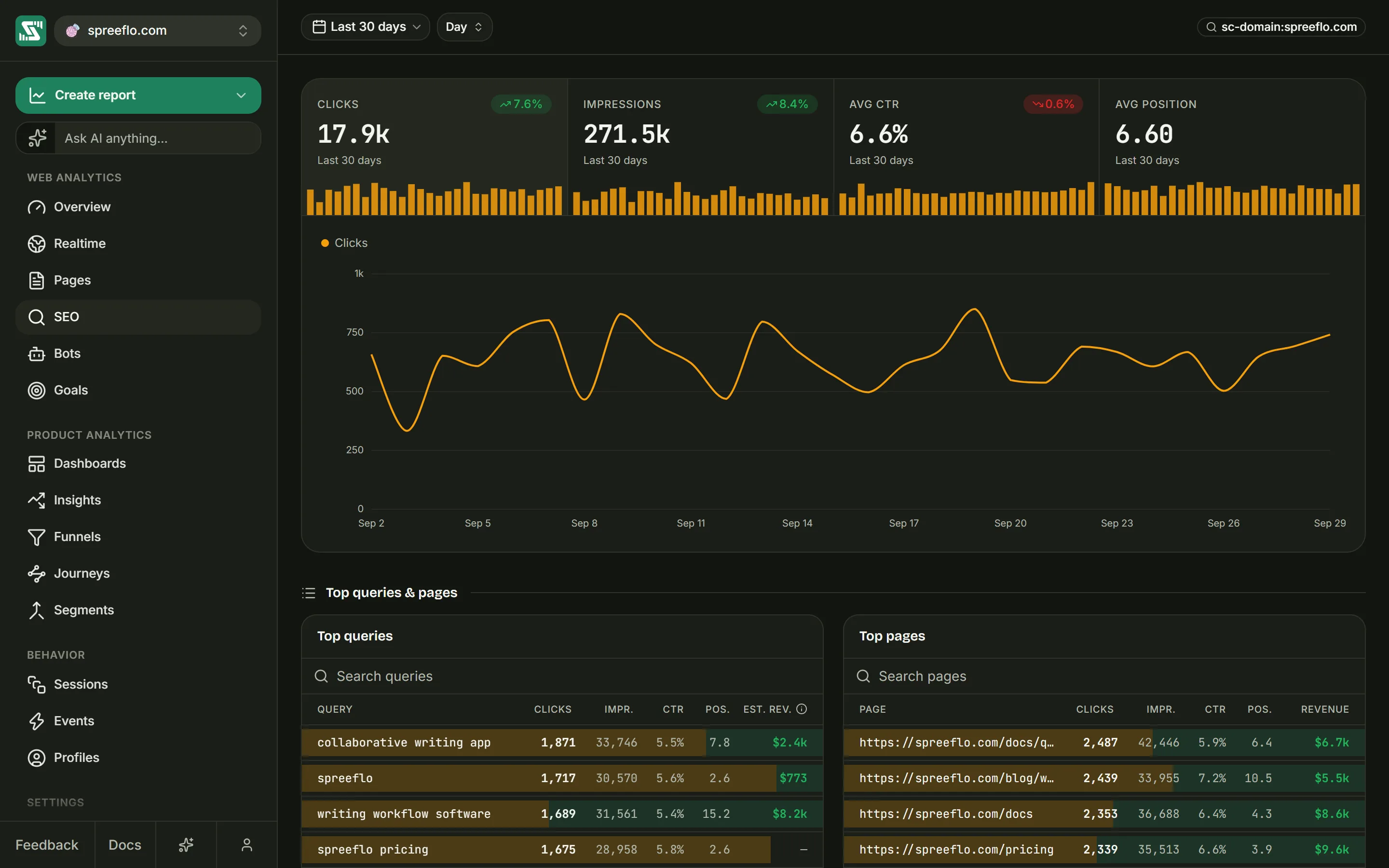
The SEO page shows how your site does in Google search. Its numbers come from Google Search Console, Google's free service that reports how often your pages appear in Google's results, how often people click them and where they rank. Spreelytics adds what Search Console cannot know on its own: the revenue those search visits brought in, and which pages have an obvious fix.
Connecting Search Console
The page needs a Search Console property connected to the audience, which an admin does in Settings → Google Search; see Audience settings. Access is read-only, and the first sync pulls the last 90 days of search data.
Until a property is connected, the page shows Connect Google Search Console with a Go to settings button instead of empty charts. Once one is connected, its name appears on the right of the toolbar. If Google's authorization later expires, the data already synced stays on this page; reconnect in the same settings tab to bring in new days.
The toolbar
The date range works as everywhere else. The interval offers Day, Week and Month: Minute and Hour stay greyed out, with the tooltip "This source reports daily data", because Search Console reports whole days.
There is no Filter button and no live visitor count. Search Console sends totals per day, query and page, with nothing about browsers, countries or traffic sources to filter by. Filters you set on other pages show here as grey pills and are ignored.
Google's two-day delay
Google publishes Search Console data about two days late. So the SEO page keeps the start of your range and moves its end back to two days before today. Last 7 days therefore shows five days of data.
A range that lies entirely inside those two days, such as Today, Yesterday or Last 24 hours, shows the single most recent day Google has published, and the chart explains that it has only one point to draw.
The headline numbers
Four cells sit at the top. Click one to draw it in the chart below; Clicks is drawn when the page opens.
| Cell | What it counts |
|---|---|
| Clicks | Clicks from Google's results to your pages |
| Impressions | How many times your pages appeared in Google's results |
| Avg CTR | Clicks divided by impressions over the whole range. CTR stands for click-through rate. |
| Avg Position | Where your pages ranked in Google's results, on average, where 1 is the top result. Days with more impressions weigh more. |
Each cell shows its total for the range, the range's name and a small bar chart with one bar per interval; point at a bar to read it. The change badge compares the range with the same number of days right before it, as a relative change. A lower position is a better ranking, so a falling Avg Position shows in green.
On the Week and Month intervals, the daily figures are added up into weeks (Monday to Sunday) or calendar months. Clicks and impressions are summed, the click rate is worked out again from those sums, and the position is averaged with each day weighted by its impressions. Averaging the daily rates directly would let a quiet day count as much as a busy one.
The chart says "No Search Console data in this period." when Google has nothing for the range, and "Only one bucket in this range." when the range and interval leave a single point to draw.
Top queries & pages
The section Top queries & pages holds two tables side by side, each 15 rows to a page, with a search box, page buttons, and a count in the footer such as "312 queries".
| Table | Columns |
|---|---|
| Top queries | Query, Clicks, Impr., CTR, Pos., Est. rev. |
| Top pages | Page, Clicks, Impr., CTR, Pos., Revenue |
Rows are ordered by clicks, then by impressions. A query or page that appeared in the previous period of the same length but not in this one stays in the list with zeros, so a drop is visible instead of vanishing. Point at a long query or address to read it in full. Search queries and Search pages search the whole list, not only the rows on screen, ignoring capitals.
The bars behind each row compare it with the largest figures on the screen: one bar for clicks and one for revenue. A row that earned nothing shows a dash in the money column.
Revenue on Top pages
Revenue is money Spreelytics measured itself. A visit counts as coming from a Google search when its channel is Organic Search and its source contains "google". For each page, Spreelytics adds up the revenue, in the range, of every visitor who landed on that page from a Google search. A visitor who landed on two pages that way counts toward both, and a visitor who landed on the same page twice counts once. Only pages that Search Console reports are listed.
Est. rev. on Top queries
Search Console reports no money, and Google hides the search term from your site, so no tool can see which query led to a sale. Est. rev. is an estimate, and its info icon says so: each page's revenue is split among the queries that sent it clicks, in proportion to those clicks, and a query's estimate is its share added up across all its pages.
For example, suppose /pricing earned $1,000 from Google visitors and Search Console reports 200
clicks to it: 120 from "analytics pricing", 40 from "spreelytics cost" and 40 from terms it does not
name. "analytics pricing" gets $600, "spreelytics cost" gets $200, and the last $200 goes to
Withheld queries.
Withheld queries
Search Console leaves out search terms that only a few people used. The revenue those unnamed terms account for is shown in a pinned row at the end of Top queries, labelled Withheld queries, rather than spread over the queries you can see. Every query's estimate plus this row adds up to the revenue of the pages.
The row is a total for the whole range, so it is the same on every page of the table. It is hidden while you search, because it would not add up with a filtered list, and it does not appear when there is nothing to show.
Opportunities
The section Opportunities lists the pages where search has an obvious next step, up to 50 of them, most valuable first. Each row has a badge, the page's address, the numbers the tip rests on and one line of advice.
| Badge | Appears when | Ranked by |
|---|---|---|
| Low click rate | The page had at least 100 impressions, an average position of 10 or better, and a click rate below half of what results at that position usually get | The extra clicks a typical rate would bring |
| Almost page one | The page had at least 100 impressions and an average position worse than 10 but no worse than 20, close to the first page of results | The clicks it would typically gain at position 10 |
| Buried | The page had at least 500 impressions, an average position worse than 20, and a click rate under 1% | The extra clicks a typical rate would bring |
| Visitors leave | At least 20 visits from Google search started on the page, and 70% or more of them were bounces | The number of bounced visits |
A page gets at most one of the first three badges, since their positions do not overlap, and it can also get Visitors leave. The search badges show the position, impressions and click rate; the Visitors leave badge shows the number of visits and the bounce rate.
"What results at that position usually get" comes from ballpark industry figures, not from your own data:
| Average position | Typical click rate |
|---|---|
| 1 or better | 28% |
| Above 1, up to 2 | 15% |
| Above 2, up to 3 | 11% |
| Above 3, up to 6 | 6.5% |
| Above 6, up to 10 | 3.5% |
| Beyond 10 | 1.2% |
A page Google lists under more than one address, for instance with and without a trailing slash, gets one tip, shown under the address with the most impressions. Google's addresses are matched to your own pages on the host name without "www." and the path without its query string, fragment or trailing slash.
When nothing qualifies, the section says "Nothing stands out".
Related
- Audience settings: connect Search Console and sync it.
- Pages: Search Console clicks beside your own page traffic.
- Revenue: where the revenue in these tables comes from.