








Docs·Usage
Tracking script
The tracking script is two short script tags. Once they are on your pages, Spreelytics records pageviews, visits, where visitors came from and how long they stayed, with no more code. Every report in the app reads from what this script sends, so it is the first thing to set up.
The snippet
<script src="https://cdn.spreelytics.com/cdn/sdk/spreelytics-loader.js"></script>
<script>
  Spreelytics.init({ client_key: "YOUR_CLIENT_KEY" });
</script>
The first tag loads a small loader. The second starts it with your audience's client key, and the loader then fetches the main script in the background. Until the main script arrives, the loader holds on to any calls your own code makes and replays them in order.
The client key is public on purpose. It can only send data to its own audience, so it is safe to have in your page source.
Where to find your key
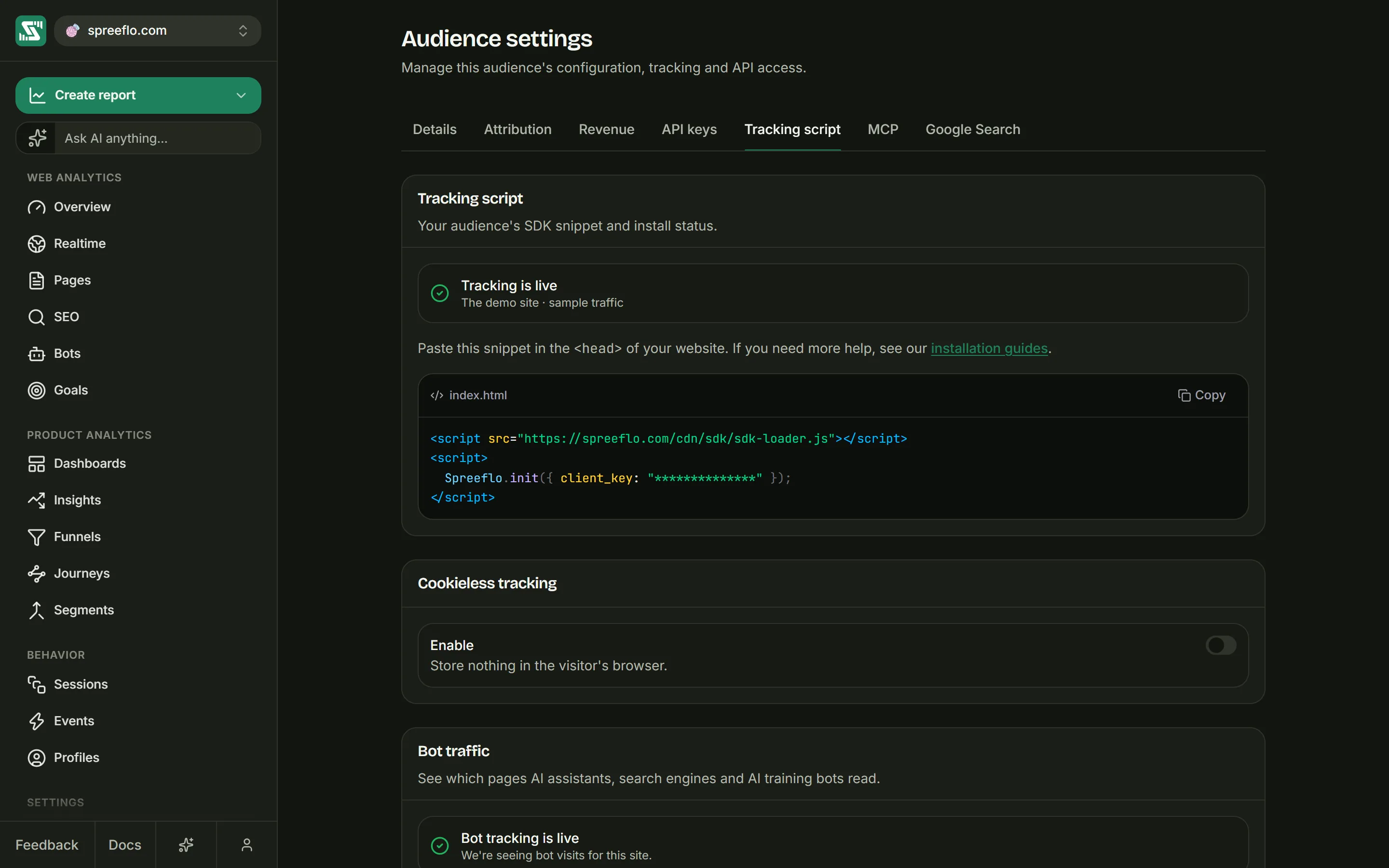
- Settings → Tracking script shows the install status. Until the script's first signal arrives, it also shows the snippet with your key filled in and a Copy button. After that it shows only the status.
- Settings → API keys shows the key at any time, as Client key under Site tracking key. Only admins can use the controls on that tab, but every member can read the key there.
- The Connect data step of the audience setup shows it too.
Each audience has its own key. A key copied from another audience sends your data to that audience.
Where to put it
Paste the snippet inside the <head> of every page you want counted. Keep the two tags together and
in this order, and put any code of your own that calls Spreelytics after them.
- Plain HTML pages. Paste it into the
<head>of each page. If the pages share a header template or include, as most site builders and CMS themes do, paste it there once. - A single-page app served from one
index.html, such as an app built with Vite or Angular. Paste it into the<head>of that file. Route changes are then counted by themselves, as described below. - A server-rendered framework. Put it in the root layout or document template that renders the
<head>of every page. If your framework only lets you add the script from code, see Loading from code.
Checking that it works
- Open your site in an ordinary browser window and load any page.
- In Spreelytics, open Settings → Tracking script. The status changes from Waiting for the first event to Tracking is live, with "Last seen" and how long ago underneath.
- If it still says it is waiting, click Verify. It checks five times, two seconds apart, and stops as soon as the script has reported in.
Every time the script starts on a page, it sends Spreelytics one small signal. Tracking is live means at least one has arrived for this audience. Verify looks for one sent in the last five minutes, so load a page of your site right before you click it.
Then open Realtime, which refreshes every 30 seconds. You should appear there as a live visitor.
If the status stays on waiting, see Troubleshooting. The usual causes are a
hostname missing from Allowed domains, an ad blocker in your own browser, or testing from
localhost.
What it records by itself
With no more code, the script records:
- a pageview for every page, including route changes in single-page apps
- visits, time on page and the end of each visit
- how far down each page visitors scroll
- clicks on elements you tag with
data-spree-track - the location, device, browser, operating system, referrer, channel and UTM tags of every visit
Clicks on links to other sites are recorded only once you turn on track_links.
Autocapture covers each of these in detail.
Single-page apps
There is no router code to add. The script notices route changes made through the browser's History
API (pushState, replaceState, and the back and forward buttons) and changes to the # part of the
address, and records a pageview each time the visitor reaches a new page. Apps built with React Router,
Vue Router, Next.js, Nuxt, SvelteKit or Angular's router work with the snippet alone.
Three things to know:
- You do not need to call
Spreelytics.page()from your router. If you do, the second call for the same page is ignored, so nothing is counted twice. - Hash routes share one row. Routes like
/#/settingsand/#/billingare recorded as separate pageviews, but Spreelytics stores only the path in front of the#, so both appear as/on the Pages report. Switch your router to history mode for one row per screen. - A new query string is not a new page. A search box that rewrites
?q=as someone types, or a jump to an#anchoron the same page, records nothing.
Options you will use most
Spreelytics.init() takes options next to the key:
Spreelytics.init({
  client_key: "YOUR_CLIENT_KEY",
  track_links: "outbound",
});
| Option | What it does |
|---|---|
track_links | Records link clicks. "outbound" records links to other hostnames, true records every link. Off by default. |
track_data_attributes | Records clicks on elements tagged with data-spree-track. On by default; false turns it off. |
cookie_domain | Sets which domain the visitor cookie belongs to. By default it covers your whole domain, so www.example.com and app.example.com share one visitor. |
redact_url | A function that rewrites page addresses before they leave the browser, for example to hide ids in paths. |
api_host | Sends the script's requests through your own domain. See Proxy guide. |
debug | true logs what the script does to the browser console. |
JavaScript SDK lists every option with its type and default.
Allowed domains
Spreelytics accepts data only from the hostnames on the audience's Allowed domains list. A new audience starts with exactly one entry: the domain you typed during setup. Requests from a page on any other hostname are refused, and nothing from that page is recorded.
The browser tells Spreelytics which page each request came from, in the Origin header (or Referer
when there is no Origin), and that page's hostname has to match an entry exactly:
www.example.comandexample.comare separate entries. If you typedexample.comduring setup and your site lives onwww.example.com, addwww.example.com.- Subdomains are not included.
app.example.com,blog.example.comandstaging.example.comeach need their own entry, and so does any preview site with a hostname of its own. There are no wildcards. - The port does not matter. A page on
example.com:8443matchesexample.com.
To change the list, open Settings → Details. You need the Admin role. Type a hostname into Allowed domains and press space or Enter. You can paste a full address, and it is reduced to the hostname. Click Save. The list cannot be saved empty: keep at least one entry, or turn on Allow all domains.
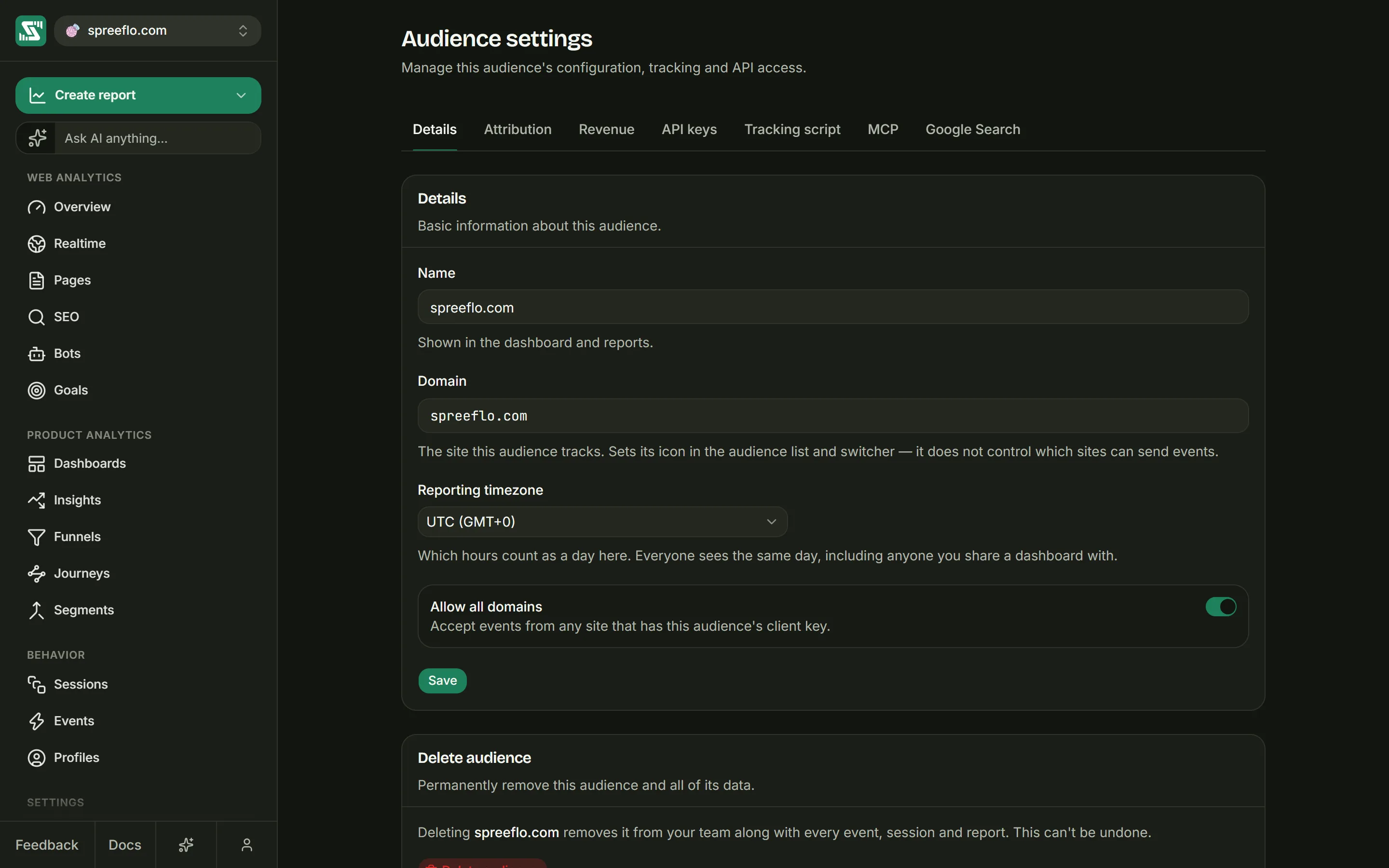
Allow all domains accepts data from any site that has your key. Because the key is public, anyone could then copy it into another site and send data into your audience, so the switch asks you to confirm first. Use it when the script runs on many domains you cannot list in advance, such as a widget on your customers' sites.
The Domain field on the same tab is something else. It sets the audience's icon in the audience list and the switcher, and has no effect on which sites can send data.
Content Security Policy
If your site sends a Content-Security-Policy header, allow these hosts:
| Directive | Hosts |
|---|---|
script-src | https://cdn.spreelytics.com, for the script files, the session replay recorder included |
connect-src | https://sdk.spreelytics.com, where the data goes |
The second tag of the snippet is an inline script. If your policy does not allow inline scripts, give
that tag a nonce or a hash your policy accepts, or move the Spreelytics.init(...) line into a file on
your own site and load it with a <script src> tag straight after the loader.
If you send the script's requests through your own domain with api_host, connect-src needs your
proxy's address instead of https://sdk.spreelytics.com.
Local development
Pages served from localhost are refused while Allowed domains has entries, and localhost cannot be
added to the list, because every entry needs a dot in it. There are three ways around this:
- Leave the script out of development builds, and load it in production only.
- Create a separate audience for testing and turn on Allow all domains there, so your test visits stay out of your real numbers.
- Open your development server at
http://127.0.0.1with its port, and add127.0.0.1to the Allowed domains of a test audience.
Spreelytics does not leave out visits from localhost, or from you and your team, by itself. On an
audience that accepts them, they are recorded like any other visit. Filter traffic
lists what is dropped automatically.
Related
- Troubleshooting: when the status stays on waiting, or data goes missing.
- Autocapture: what the script records by itself.
- JavaScript SDK: every method and option.
- Cookieless tracking: what the script stores in the browser.