








Docs·Settings
Billing
Spreelytics charges by events: each workspace has a plan, and the plan sets how many events all of its audiences can record together each month. The Free plan covers 100,000 events a month and includes every feature except session replay and the AI assistant. The Growth plan comes in eight sizes, from 250,000 to 50 million events, and adds both at every size, with a monthly allowance of session replays that grows with the size.
Who can see and change billing
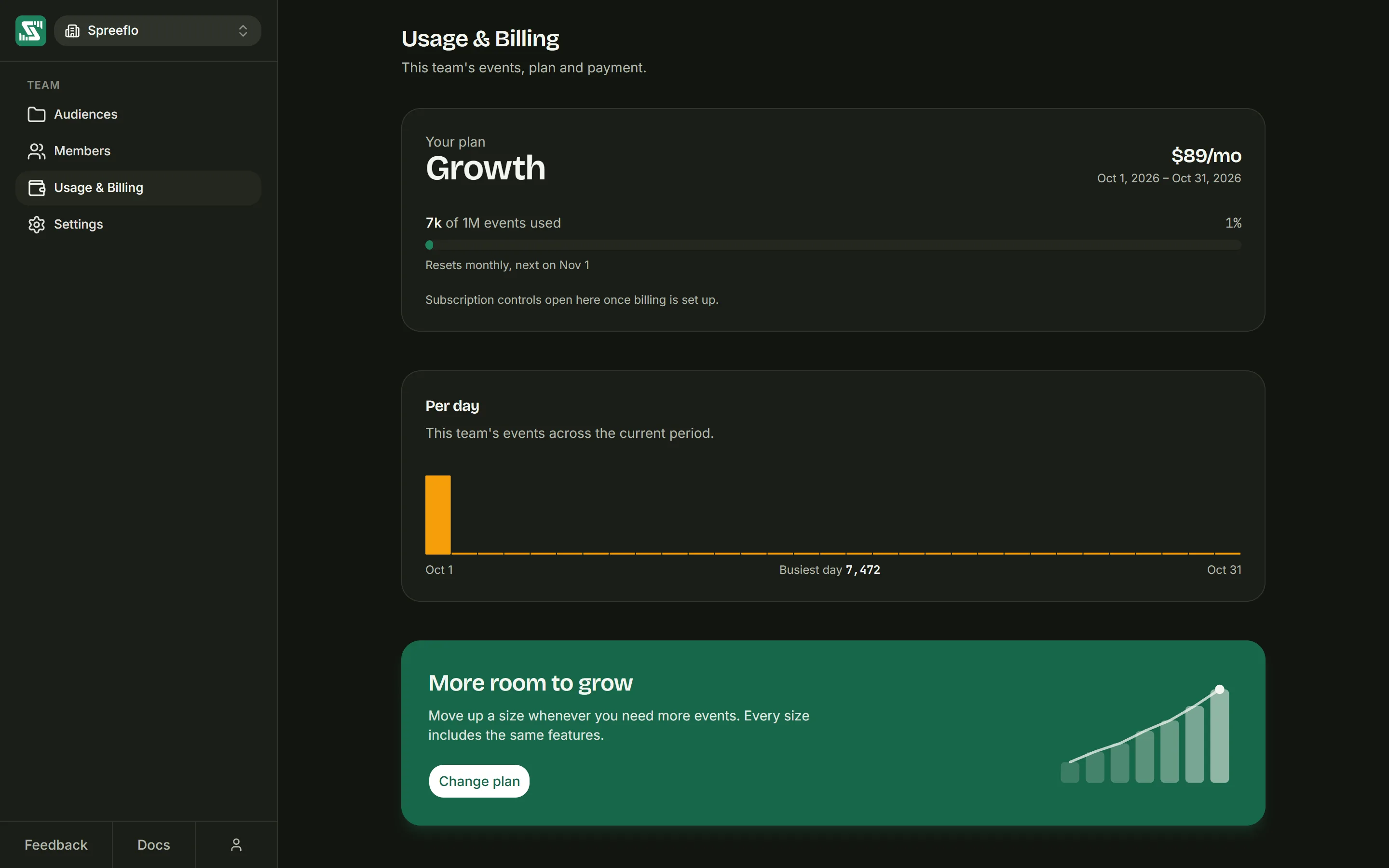
Open the workspace (Back to workspace at the bottom of the sidebar) and click Usage & Billing.
- Every member can see this tab: the plan, the events used and the per day chart.
- Only admins see the buttons that act on the plan (Upgrade plan, Change plan, Cancel plan, Resume plan, Invoices and payment) and the upgrade card. When a warning applies, a member who is not an admin is told that an admin of the workspace needs to act.
A plan belongs to one workspace. If you belong to several, each has its own plan and its own allowance, and switching workspace switches what this tab shows.
The plan card
| Part of the card | What it shows |
|---|---|
| Your plan | The plan name: Free, Growth, or Annual Growth when it is billed yearly. |
| The price | "Free", the monthly price such as $29/mo, or the yearly price such as $290/yr. |
| The dates | The current period, first day to last. |
| Events used | Events counted so far this period against the allowance, such as "12k of 100k events used", with the percentage and a bar. The bar is green, turns amber at 90% and red once you are over. |
| Session replays | On Growth, the visits recorded so far this period against the size's replays, such as "8k of 25k session replays recorded", with the percentage and a bar. Replays have their own allowance and never count as events. |
| Resets monthly, next on | The day the counter goes back to zero. |
The allowance is per month on every plan, including annual billing: a year is how often you pay, not how often the counter empties. On Free the period is the calendar month (in UTC). Once you pay, the period runs for a month from your billing day, so when you first subscribe the counter starts again from that day.
Warnings
The card adds a coloured message as usage climbs:
| When | What the card says |
|---|---|
| 90% of the allowance used | An amber note giving the percentage used this period. |
| Over the allowance | A red note saying the workspace is over its monthly events (and since when), that recording continues up to three times the allowance (one and a half times on sizes above 1M), and that a larger plan is needed. |
| Recording stopped | A red note saying new events are no longer being recorded until the period resets, and that a larger plan or an upgrade starts collecting again. |
The same warning appears as a bar across the top of every page in the app. For admins, the bar has a View plan button, or Upgrade now once recording has stopped, both leading here. The X on the bar hides it until the next period or until things get worse.
Spreelytics also emails the workspace's admins when usage passes 80%, 90% and 100% of the allowance, once each per period.
Per day
Under the plan card, the Per day chart shows the workspace's events for each day of the current period. Point at a bar to see its date and count. The line under the chart gives the period's first and last day and the Busiest day count, which is the quickest way to spot a sudden spike.
What counts as an event
The allowance counts what your sites and servers send, not what Spreelytics generates on its own:
| Counts toward the allowance | Does not count |
|---|---|
| Page views, including the ones the script records when a single-page app changes page | Scroll depth events, one of which the script sends automatically per page view |
Custom events sent with Spreelytics.track() | Outbound link clicks |
Clicks on elements tagged with data-spree-track | The end-of-visit pings the script sends when a tab is hidden or closed |
| Payments from a connected payment provider, and payments your server sends | Refunds of earlier payments |
| Payments from before you connected a provider, added with an import (see Import past payments) | |
Visits from AI crawlers recorded by the @spreelytics/ai-crawl package | |
| Traffic filtered out on arrival, such as bots, headless browsers and datacenter addresses | |
Identifying a visitor with identify() |
For example, a visitor who reads three pages, scrolls each one and clicks one link to another site uses 3 events: the three page views. Scroll events and link clicks are still recorded and reported; they are only left out of the count.
Every audience in the workspace adds to the same total. A workspace with two sites of 60,000 events each has used 120,000 events.
Going over the allowance
Going over does not stop your tracking straight away. It happens in two stages.
1. Over the allowance: still recording, partly hidden. Spreelytics keeps recording every event. But your charts and reports stop at the moment the allowance ran out, and the bar at the top of the page names the date after which nothing is shown. The events after it are stored, not shown. Moving to a size that covers them, or the start of the next period, shows everything again at once.
2. Far over: recording stops. At three times the allowance on sizes up to 1M, and one and a half times on larger sizes, Spreelytics stops recording the workspace's new page views and events until the period resets or you move up a size. Anything sent while recording is stopped is lost for good. The check runs every five minutes, so both the stop and the restart after an upgrade can take a few minutes to apply.
| Plan | Events a month | Recording stops at |
|---|---|---|
| Free | 100k | 300k |
| Growth | 250k | 750k |
| Growth | 500k | 1.5M |
| Growth | 1M | 3M |
| Growth | 2.5M | 3.75M |
| Growth | 5M | 7.5M |
| Growth | 10M | 15M |
| Growth | 20M | 30M |
| Growth | 50M | 75M |
Plans and prices
| Size | Monthly | Annual | Session replays a month |
|---|---|---|---|
| 100k events (Free) | Free | Free | None |
| 250k events | $29 | $290 | 25,000 |
| 500k events | $49 | $490 | 50,000 |
| 1M events | $89 | $890 | 100,000 |
| 2.5M events | $159 | $1,590 | 250,000 |
| 5M events | $239 | $2,390 | 500,000 |
| 10M events | $339 | $3,390 | 1,000,000 |
| 20M events | $519 | $5,190 | 2,000,000 |
| 50M events | $879 | $8,790 | 5,000,000 |
Prices are in US dollars. Paying yearly costs ten months' price for twelve, which the plan picker shows as "2 months free". Bigger sizes cost less per event: paying monthly, 250k works out at $0.116 per 1,000 events and 50M at $0.018.
Free needs no card and does not expire. It includes:
- Unlimited audiences and team members
- Unlimited dashboards, reports and charts
- Funnels, retention cohorts and user journeys
- Goals, revenue and attribution
- Full API and MCP access
Growth includes all of that and adds two things: session replay and the AI assistant. Every Growth size has the same features; the size only changes the allowances.
Session replay records how visitors use your site, one replay a month for every 10 events of the size. When a period's replays are used up, new visits are not recorded until the period resets. Nothing is charged on top, and your events are counted as before. On Free, the Session replay setting shows Upgrade plan in place of its switch.
The assistant can:
- Ask in plain English: describe what you want to know and get the chart back.
- It builds it for you: goals, funnels, segments, reports and whole dashboards, created on request.
- It drives the dashboard: applies filters to the page you are on and opens a person's profile from a prompt.
- Anomalies explained: says what moved, why it matters and what to do next.
On Free, the assistant's panel shows "AI is on the Growth plan" with an Upgrade plan button. Connecting your own AI app over MCP works on every plan.
How long your data is kept
Free keeps 13 months of analytics, so you can still compare a month with the same month a year before. Every Growth size keeps five years. On the 2nd of each month, analytics older than that are deleted. The first time Free is about to delete a month of yours, your team's admins get an email about two weeks before.
If you move from Growth to Free, your charts show the last 13 months straight away. The older data stays for 60 days in case you move back, and is then deleted.
Session replays are kept for 30 days on every size, separately from your analytics, and then deleted.
Choosing or changing a plan
Admins on Free see a More room to grow card under the chart, with the starting price of Growth, What Growth adds (session replay and what the AI does), and an Upgrade plan button. On a paid plan the same card offers Change plan, and the plan card has its own Change plan button. The card is hidden on the largest size.
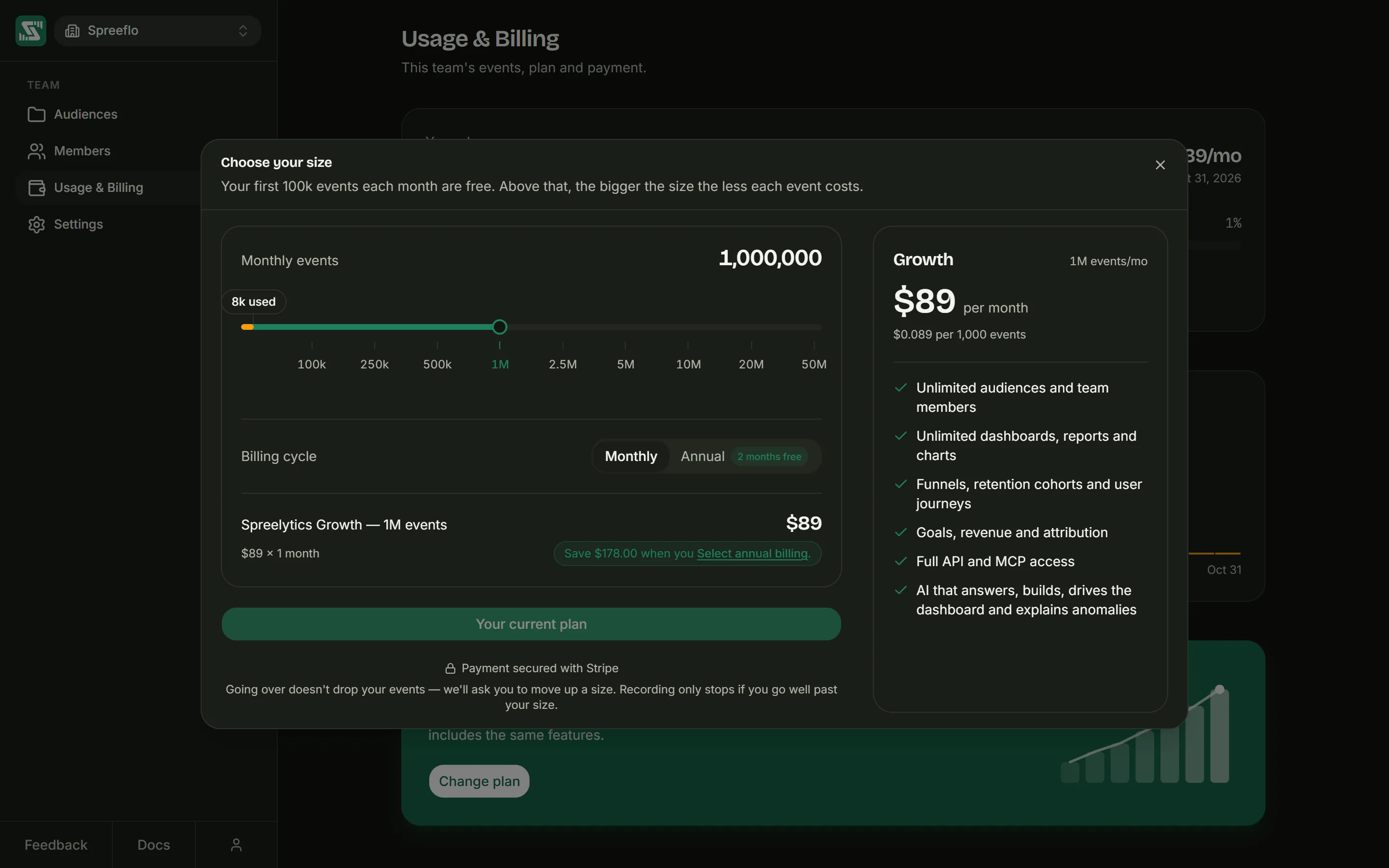
Either button opens the plan picker, Choose your size:
| Control | What it does |
|---|---|
| Monthly events | A slider with a stop for each size, from 100k to 50M. A marker above it shows how many events you have used this period. If you pick a size below that, the picker warns "Smaller than what you have already used this period." |
| Billing cycle | Monthly or Annual, with the "2 months free" badge on Annual. |
| The line item | The size, its price for one month or one year, and how much annual billing saves. |
| The summary | The plan's name, events a month, price, price per 1,000 events (or "Free forever, no card needed"), and what it includes. |
The main button changes with what you pick:
| Button | When | What happens |
|---|---|---|
| Continue to payment | You are on Free and picked a Growth size | Stripe's checkout opens. Pay there, and Stripe sends you back to Usage & Billing. |
| Change plan | You already pay and picked another size or billing cycle | Stripe opens on a page confirming the change. Stripe works out the difference for the rest of the current period and settles it when you confirm. |
| Your current plan | You picked the size and cycle you already have | Greyed out. |
To go from a paid plan back to Free, cancel the plan instead (see below).
Back from Stripe, a window confirms the result. It shows "Confirming your payment" (or "Applying your new plan" for a change) while Spreelytics applies it, which usually takes a few seconds, and it cannot be closed during that first wait. If it takes longer than about 30 seconds, the window says so, can be closed, and keeps checking. Once the plan is in place it shows "Payment successful" or "Plan updated" with the plan, its price and how it renews, and offers Back to dashboard or Stay on billing.
Cancelling and resuming
Cancel plan opens a window titled "Cancel your plan?". It starts with the date until which nothing changes, then lists what changes on that date:
- your allowance drops to the Free plan's 100k events a month;
- you lose the AI assistant;
- if you have used more than 300k events this period, a warning that on Free recording stops at 300k.
Click Keep my plan to back out, or Cancel plan to confirm. "Plan cancelled" confirms it. You keep the paid plan, and everything it includes, until the end of the period you paid for; it then does not renew and the workspace moves to Free.
Until that date the plan card shows Resume plan, with the note "Nothing is lost until then." Resume plan turns renewal back on with one click, and "Plan resumed" confirms that it will renew as normal.
Deleting a workspace is different: it cancels the plan at once (see Workspace settings).
Invoices and payment details
On a paid plan, admins see Invoices and payment on the plan card. It opens Stripe's billing portal for this workspace, where you can see and download invoices and change the card on file. When you leave the portal, Stripe brings you back to Usage & Billing. Payments are handled by Stripe; Spreelytics never sees your card number.
Related
- Workspace settings: the workspace a plan belongs to.
- Members and roles: billing controls need the Admin role.
- Track events: the custom events that count toward the allowance.
- Filter traffic: what is dropped on arrival and never counted.