








Docs·Feature guides
References
A reference is a dated note: a title, a day and a colour, with an optional description. Spreelytics draws it as a marker on your charts, so when a line jumps, the reason is written right there for everyone who reads the chart. References belong to the audience, so the whole workspace sees the same ones.
Typical references are a release, a price change, a campaign launch, a site outage or the day you installed a new tracking setup.
How references appear on charts
A reference draws a dashed vertical line in its colour, with a dot at the top, on the day it marks. When you hover the chart on that day, the dot grows and the tooltip gains a Reference section, or References when several share the day, with each one's colour, title and date. The description is not shown on charts.
- On a Week or Month interval, the marker sits in the week or month that contains its day.
- A reference outside the chart's date range is not drawn.
- References are drawn on the Overview's main chart, and on reports drawn over time: the Linear, Area, Histogram and Conversion charts, in the report builder and on dashboards. Other charts, such as the volume chart on the Events page or a bar or pie report, do not draw them.
The references list
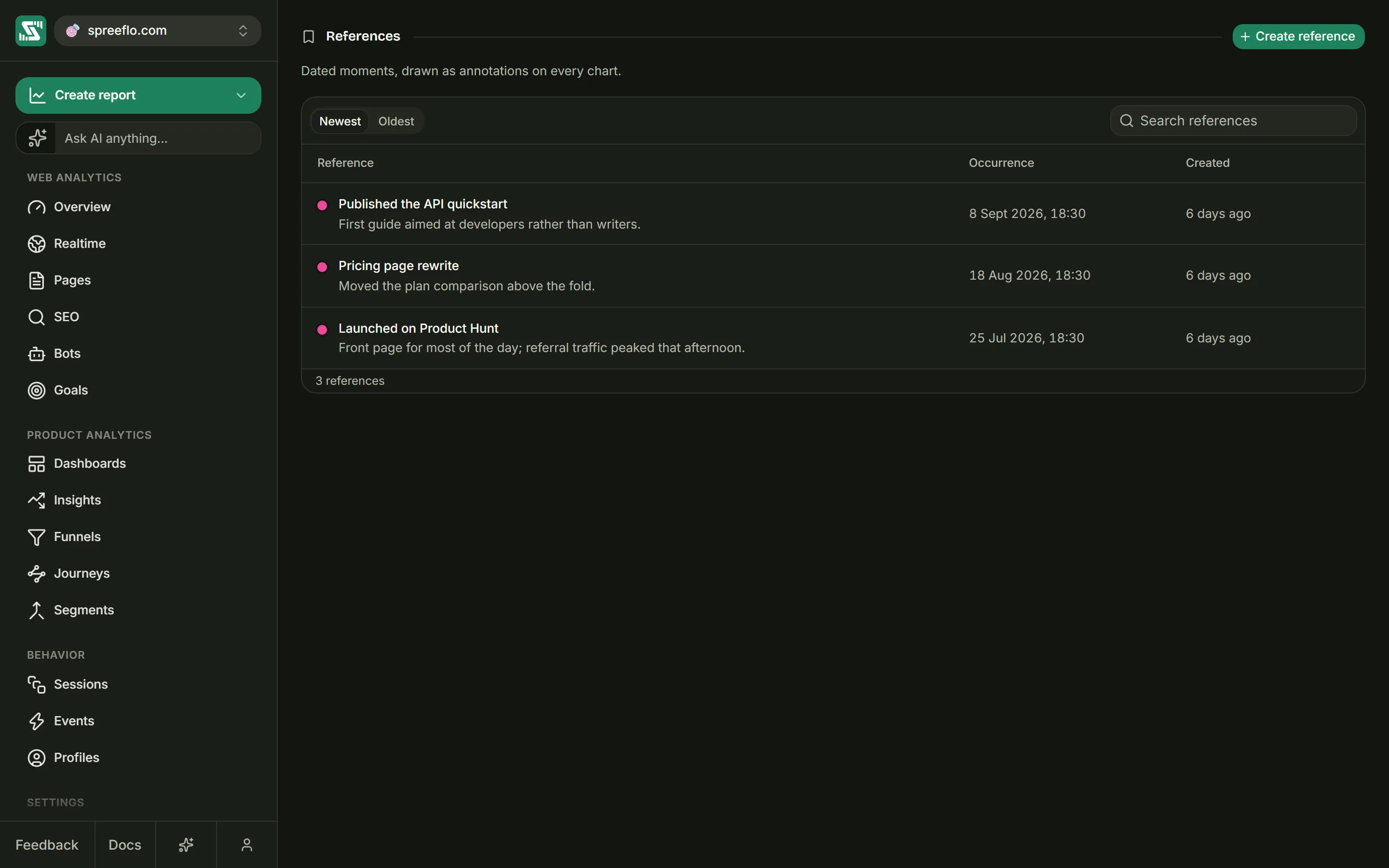
Open References, under Settings in the sidebar. The page has no date range or filters: it lists every reference the audience has.
- Newest and Oldest sort the list by the day each reference marks. References on the same day are ordered by when they were added.
- Search references matches the title and the description.
| Column | What it shows |
|---|---|
| Reference | A dot in the reference's colour, its title, and its description under it |
| Occurrence | The date and time it marks, in your browser's timezone, such as "12 Jun 2026, 12:00" |
| Created | When it was added: Today, Yesterday, a number of days ago, then a number of months ago |
The footer counts the references shown, such as 4 references.
References made with the form are stored at midday on the chosen day, in the timezone of whoever created them, which is why most show 12:00. References pinned from an insight are stored at midnight UTC. If your browser is set to a timezone west of UTC, such as one in the Americas, those show as the evening of the day before, and their marker sits on that earlier day.
Edit and delete
Hover a row to show its … menu, with Edit and Delete. Edit opens the same form, titled Edit reference, and Save changes stores your changes.
Delete asks you to confirm first. Deleting cannot be undone, and the marker disappears from every chart at once.
When the list is empty
No references yet means the audience has none, and editors and admins get a Create reference button there. No references match your search means the search hides every row.
Creating a reference
Click Create reference at the top of the page. The Create a reference window asks for:
| Field | What to enter |
|---|---|
| Title | Required. A short name such as "v2.0 launch". It is what charts show, so keep it short enough to read in a tooltip. Pressing Enter in this field saves the reference. |
| Date | The day the reference marks. It opens on today. A reference marks a day, not a time. |
| Colour | One of five preset colours, or Custom for any colour from a colour picker. New references start on the fourth preset. The form notes that charts draw the marker in this colour. |
| Description | Optional. What happened, for anyone reading the list later. It is not shown on charts. |
The preset colours adjust to the light and dark themes. A custom colour stays exactly as you pick it, so a very dark or very light one can be hard to see in one of the two themes.
Click Create reference to save. Without a title, the field says "Give the reference a title." and the window asks you to "Finish the highlighted fields first."
Other ways to create one
- From a chart in the report builder. Click a point on the chart and choose Create reference. The same window opens with the clicked day filled in. A mark that has no day, such as a pie slice, opens it on today.
- From an insight. Pin to charts on an insight card creates a reference titled after the insight, with its summary as the description, dated on the first day of the insight's window, in the default colour.
- From the sidebar. Create reference in the sidebar's create menu opens this page.
- From AI. The AI assistant, on the Growth plan, and an AI app connected over MCP can list, create, edit and delete references when you ask, for example "mark 3 March as the day we changed our prices". Making changes this way needs the Editor or Admin role, the same as in the app.
Who can do what
| Role | References |
|---|---|
| Viewer | Sees the list and the markers on charts |
| Editor | Also creates, edits and deletes references, including pinning insights |
| Admin | The same as an editor |
Viewers do not get the Create reference button or the row menus, and the server refuses changes from anyone with the Viewer role.
Related
- Insights: pin a detected change to your charts.
- Dashboards and reports: the reports that draw markers.
- Overview: the main chart draws markers too.