








Docs·Settings
Members and roles
People get into Spreelytics through a workspace. Everyone in a workspace is a member with one role, Viewer, Editor or Admin, and that role applies to every audience in the workspace. This page explains what each role can do, how to invite someone, and how to change or remove a member.
Every plan, Free included, allows any number of members.
The three roles
| What you can do | Viewer | Editor | Admin |
|---|---|---|---|
| See every audience, page, report, dashboard, session and profile in the workspace | Yes | Yes | Yes |
| Change the date range, filter, and open sessions, profiles and events | Yes | Yes | Yes |
| Ask the AI assistant questions (on the Growth plan) | Yes | Yes | Yes |
| Copy the tracking snippet and read the MCP setup in Settings | Yes | Yes | Yes |
| See the member list and the workspace's usage | Yes | Yes | Yes |
| Create your own account API keys | Yes | Yes | Yes |
| Create, edit and delete goals, funnels, segments, dashboards, reports and references | No | Yes | Yes |
| Have the AI assistant, or an AI app over MCP, create those for you | No | Yes | Yes |
| Run Check now on Insights | No | Yes | Yes |
| Show or hide the bot traffic card | No | Yes | Yes |
| Change Excluded traffic: the IP addresses, pages and profiles that are not counted | No | Yes | Yes |
| Change Settings: Details, Attribution, Revenue, API keys and Google Search | No | No | Yes |
| Turn cookieless tracking on or off | No | No | Yes |
| Make the Overview or a dashboard public with a share link | No | No | Yes |
| Create and delete audiences | No | No | Yes |
| Invite people, see pending invitations, change roles and remove members | No | No | Yes |
| Rename or delete the workspace | No | No | Yes |
| Buy, change or cancel the plan, and open invoices | No | No | Yes |
The app hides or greys out the controls your role cannot use, but the hiding is only a convenience: the server checks your role on every request. A role applies the same way through the API and MCP, so an AI app using a viewer's key can read but never change anything.
The invitation window describes the roles in one line each: Viewer is "Read-only across the workspace.", Editor is "Viewer, plus editing audiences and their content." and Admin is "Full access, including members, billing and workspace settings." Note that "editing audiences" means their content, such as goals and dashboards. An audience's own settings need the Admin role, apart from Excluded traffic and the bot traffic card switch.
A workspace always has at least one admin. The last admin cannot be changed to another role or removed; make someone else an admin first.
The Members tab
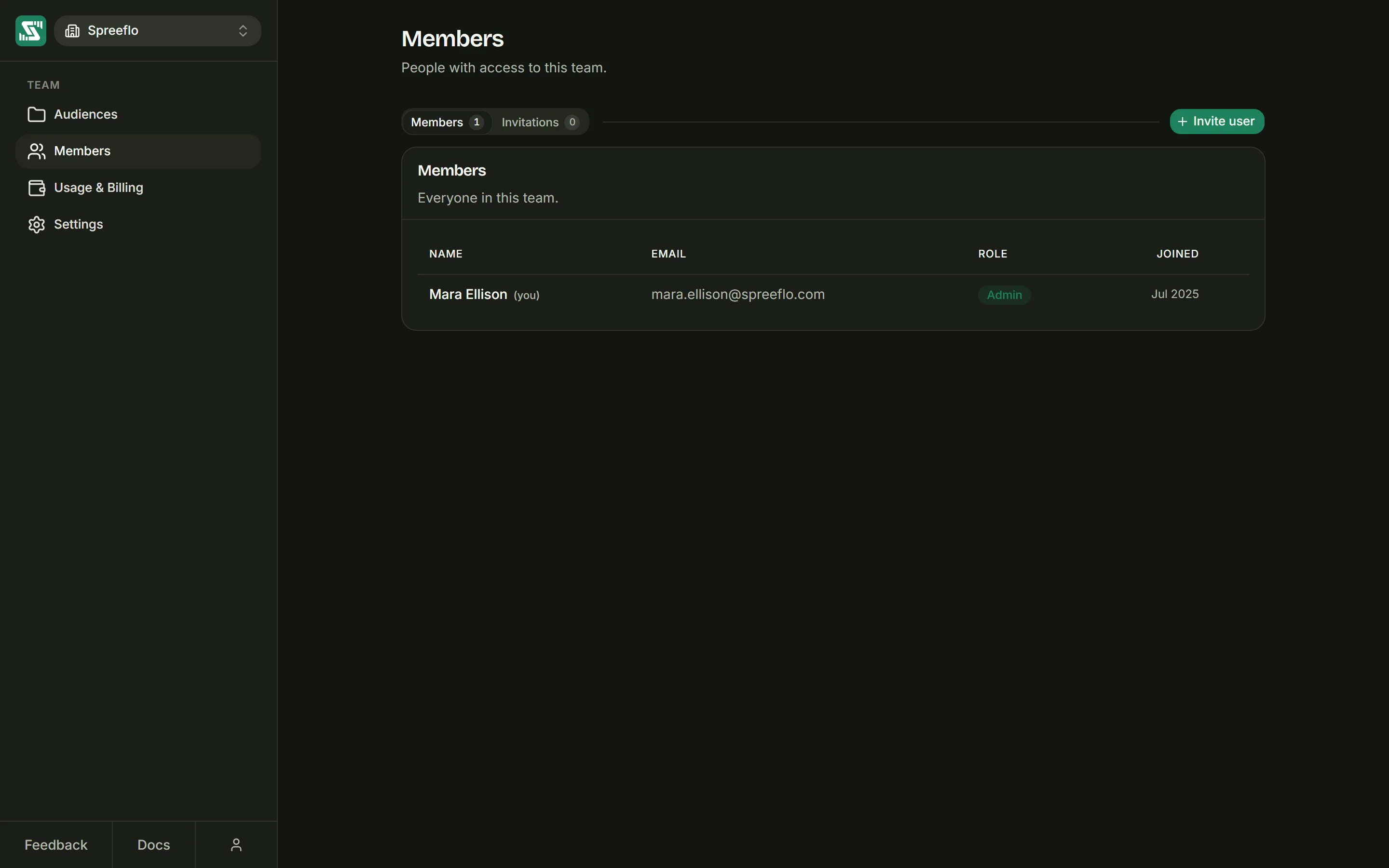
Open the workspace (Back to workspace at the bottom of the sidebar) and click Members. The tab switches between Members and Invitations, each with a count beside it.
The members table has four columns:
| Column | What it shows |
|---|---|
| Name | The member's name from their account. Your own row is marked "(you)". |
| The address they sign in with. | |
| Role | Viewer, Editor or Admin. Admins get a menu here to change it. |
| Joined | The month and year they joined. |
Every member can see the members list. Only admins see the Invitations list and the controls to change roles, remove people and invite.
Inviting a teammate
Click Invite user. Only admins can invite; for everyone else the button is greyed out, with the tooltip "Only org admins can invite".
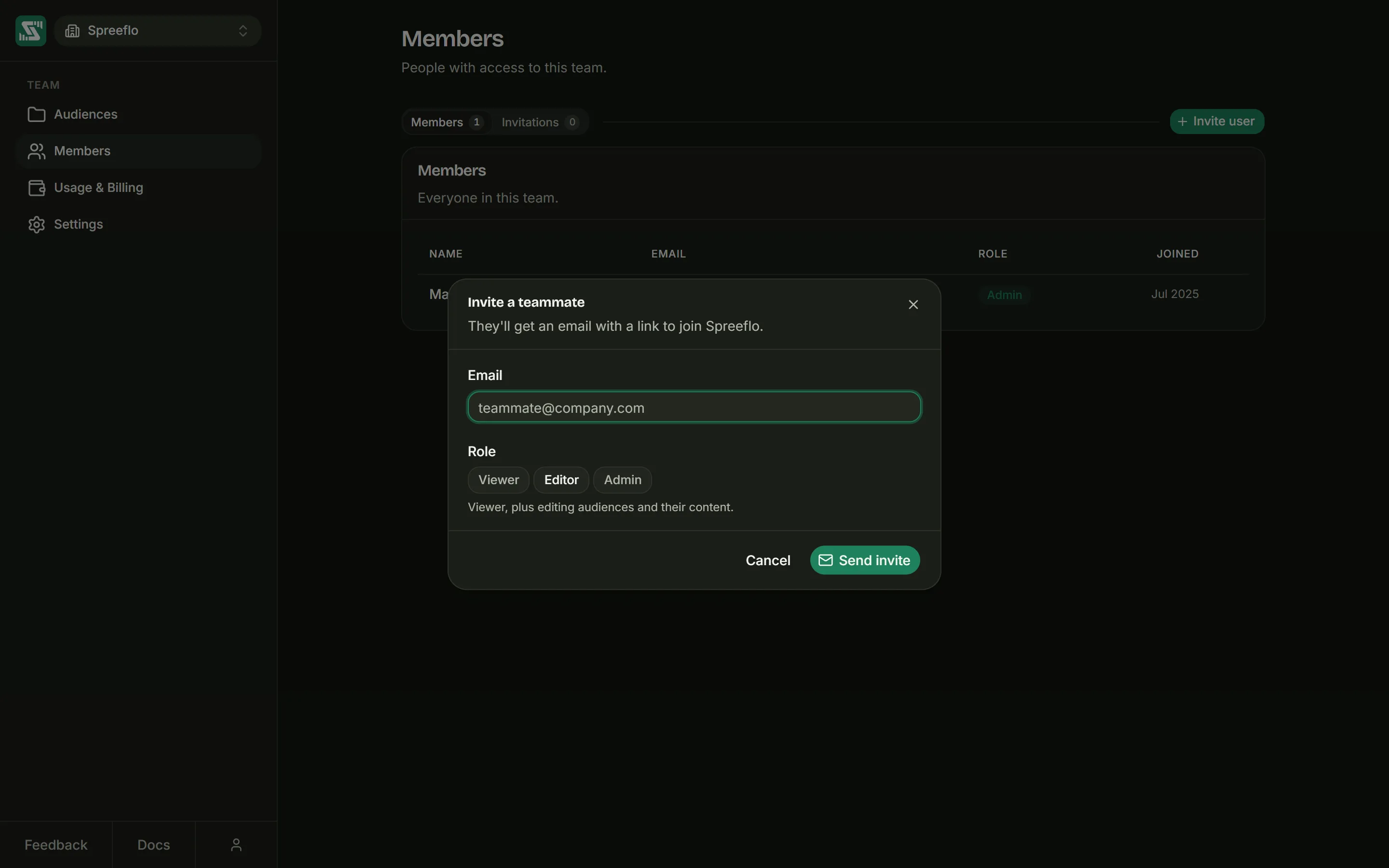
The Invite a teammate window says the person will get an email with a link to join the workspace. Fill in:
- Email: their address. The field suggests "teammate@company.com", and an address it cannot use shows "Enter a valid email address."
- Role: Viewer, Editor or Admin. Editor is selected to start with, and the line under the buttons describes the one you pick.
Click Send invite. "Invitation sent" confirms it, and the tab switches to Invitations so you can see the new row.
Two cases are refused, with the reason shown in the window:
- the address already belongs to a member of this workspace;
- the address already has a pending invitation. Resend or revoke that one instead.
The person does not need an account first. If they do not have one, they create it from the invitation.
Pending invitations
The Invitations list shows each invitation that is still waiting to be accepted, with its Email, its Role, and Expires, the month and year it runs out. Three buttons sit on each row:
| Button | What it does |
|---|---|
| Copy invite link | Copies the invitation's link, so you can send it another way, such as a chat message, when the email does not arrive. |
| Resend invite | Emails a fresh invitation with a new link and a new seven days. The old link stops working, including one you copied earlier. |
| Revoke invite | Withdraws the invitation at once. Anyone opening its link is told it was withdrawn. There is no confirmation step. |
An invitation expires seven days after it is sent. Expired invitations drop off the list; to try again, invite the same address again.
Accepting an invitation
The email's link opens the invitation page, which says who invited you, to which workspace, and with which role, for example "Dana invited you to join Acme as an editor.", along with the date the invitation expires.
- If you are signed in, click Accept invitation. You join straight away and land on the workspace's Members tab. The invitation goes to the account you are signed in with, whatever address it was sent to.
- If you are signed out, click Sign in to accept. After you sign in you come back to the invitation page to accept it. The same button lets someone new create an account.
Creating an account with Continue with Google brings you straight back to the invitation. Creating one with an email and a password sends you a verification link first. That link signs you in but does not return you to the invitation, so open the invitation link from your email again and click Accept invitation.
If you are already a member of the workspace, accepting changes nothing and you keep your current role.
From inside the app
Invitations sent to your account's email address also appear at the top of your Members tab, in a card headed "You have an invitation" (or "You have 2 invitations", and so on). Each row names who invited you and to which workspace, your role, and when it expires. Click Accept to join.
There is no button to decline. An invitation you ignore expires on its own after seven days.
When a link does not work
| The page says | What happened |
|---|---|
| "This invitation link isn't valid." | The link is incomplete or was never an invitation. Check you copied all of it. |
| That the invitation has expired | More than seven days passed. Ask the person who invited you to resend it. |
| "This invitation was withdrawn." | An admin revoked it, or resent it, which replaces the old link. |
| "This invitation has already been used." | Someone accepted it. If it was not you, tell an admin of the workspace. |
Changing a member's role
Admins see a role menu in the Role column of every other member's row. Pick Viewer, Editor or Admin and the change is saved at once, confirmed by "Role updated". The server applies the new role from the member's next request; their own screen shows the matching buttons once they reload the app.
You cannot change your own role. Ask another admin, or, if you are the last admin, make someone else an admin first.
Removing a member
Admins see a remove button (tooltip "Remove member") at the end of every other member's row. Clicking it removes the person at once. There is no confirmation step, so check the row first.
From that moment the person, and any API key they hold, can no longer reach the workspace. Goals, dashboards and everything else they created stay in place, because they belong to the audience, not to the person. You cannot remove yourself, or the last admin.
There is no button to leave a workspace yourself. Ask one of its admins to remove you.
Related
- Workspace settings: what a workspace holds and how to switch between them.
- Account settings: your name, your password and your account API keys.
- Billing: plan controls, which need the Admin role.
- Audience settings: every settings tab, and who can change it.