








Docs·Feature guides
Bots
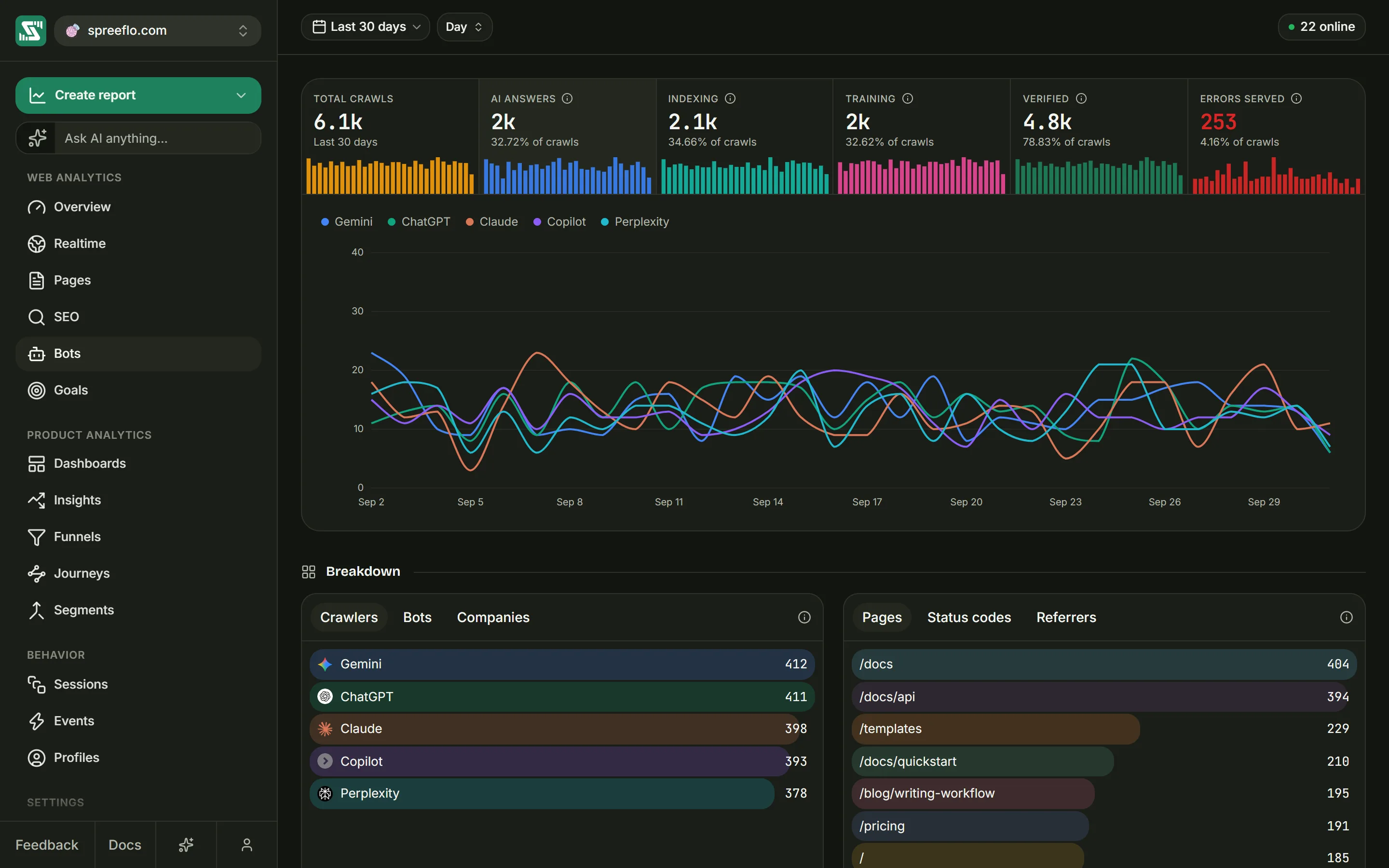
AI assistants, search engines and AI training crawlers read your site too, but they never run the tracking script, so they never show up as visitors. The Bots page shows them instead: how often they came, which crawlers they were, which pages they fetched, and what your server sent back.
Crawler hits are kept apart from your visitor data. They never count as visitors, visits or page views anywhere in the app.
Before you start
A crawler fetches the raw page and leaves without running any JavaScript, so only your server sees it. The page therefore needs a small add-on on your server that reports each crawler request; see AI crawler tracking for the setup.
Until the add-on has reported in, the page shows "No bot traffic tracked yet" with a Set up bot tracking button, which opens Settings → Tracking script. The page switches on as soon as the add-on starts up on your server and reports in, before the first crawler has even visited.
The toolbar
The toolbar has the date range and the interval, which sets the size of each point on the chart and each bar in the stat strip.
There is no Filter button. A crawler hit has no browser, country or traffic source to filter by, so filters set on other pages show here as grey pills and are ignored. The live visitor count on the right counts people, not crawlers.
The stat strip
Six cells run across the top. Each shows its total for the range, a line underneath, and a small bar chart with one bar per interval; point at a bar to read it. There are no change badges on this page.
| Cell | What it counts | The line underneath |
|---|---|---|
| Total crawls | Every crawler request reported in the range | The range's name |
| AI answers | Crawls in the AI answers category | Its share of all crawls |
| Indexing | Crawls in the Indexing category | Its share of all crawls |
| Training | Crawls in the Training category | Its share of all crawls |
| Verified | Crawls whose address matched the crawler's published address list | Its share of all crawls, or how many were spoofed |
| Errors served | Crawls your server answered with an error, a status of 400 or above | Its share of all crawls |
Click AI answers, Indexing or Training to show that category in the chart and in both breakdown cards. AI answers is selected when the page opens. The other three cells do not change anything when clicked.
The Verified number turns red when any crawl was spoofed, and Errors served turns red when it is above zero. Every cell except Total crawls has an info icon with a short explanation.
The three categories
The add-on sorts each request into a category by the crawler it comes from.
| Category | What happened |
|---|---|
| AI answers | An assistant fetched the page live, to answer someone's question there and then |
| Indexing | A search or answer engine crawled the page so that it can show or cite it later |
| Training | A crawler collected the page as material for training AI models. AI crawlers the add-on could not place in another category are counted here too. |
The difference matters. An AI answers crawl usually means a person asked an assistant something and your page was part of the answer. A training crawl may never lead to anyone reading your page.
Crawlers are named differently depending on the category. On AI answers a crawler is named after the product, such as ChatGPT, Gemini or Claude. On Indexing and Training it is named after the company that runs it, such as OpenAI or Google.
Verified and spoofed
Anyone can send a request that claims to be GPTBot or Googlebot; the name is only text in the request. So when a crawl is recorded, Spreelytics checks the address it came from against the list of addresses the crawler's company publishes.
Only OpenAI, Anthropic, Perplexity and Google publish such lists, so only their crawlers can be checked. A crawl from one of them whose address is on the list is Verified. A crawl that claims to be one of them but comes from an address off the list is spoofed, and the line under Verified counts those. Crawls from every other company cannot be checked either way, so a low Verified share is not a warning in itself.
The check happens once, when the crawl arrives, using the address your server's add-on reports. Spreelytics refreshes its copy of the published lists regularly, so later changes to them do not alter crawls already recorded.
Errors served
Errors served counts crawls your server answered with a status code of 400 or above: a page that was not found (404), a refused request (403), a server error (500) and so on. These are pages a crawler asked for and could not read, so an assistant had nothing from you to work with. The Status codes tab in the breakdown below shows which codes they were, and drilling into a code shows which pages returned it. A crawl with no status reported is not counted as an error.
The chart
The chart draws one line per crawler for the selected category, for the 8 crawlers with the most crawls in the range. Point at it to read each line's value for an interval. It says "No crawler traffic in this period." when there is nothing to draw, and "Only one bucket in this range." when the range and interval leave a single point; a shorter interval or a longer range fixes that.
Breakdown
The section Breakdown holds two cards. Both follow the category selected in the stat strip. Each tab has an info icon that explains what it lists.
| Card | Tab | Lists |
|---|---|---|
| First | Crawlers | The product or the company, named as described above |
| First | Bots | The exact crawler name the request carried. GPTBot and ChatGPT-User are both OpenAI, for training and for live answers. |
| First | Companies | The company that runs the crawler, with its products counted together |
| Second | Pages | The addresses crawlers requested, query string included |
| Second | Status codes | What your server returned |
| Second | Referrers | Where the crawler came from, when it said. Most crawlers fetch directly, which shows as "Direct / none". |
Each tab lists the top 25 rows with their crawl counts. Point at a row to see its share of the category's crawls. A row with no value shows as "Not set".
On Status codes a coloured dot marks each code: green below 300, amber from 300 to 399, red from 400 up, and grey for "Not reported".
Click a row to drill in. For every tab except Pages you then see the pages involved: the pages that crawler fetched, or the pages that returned that status code. On Pages you see the crawlers that fetched the page. The header shows the row's name and its number of crawls, the drill-down lists up to 15 rows, and the ✕ goes back. When a tab has no data it says "Nothing recorded for this dimension."
The card on the Overview
The Overview shows a smaller version of this page at the bottom: the same three categories as tabs, one chart with a list, and a Crawlers or Pages toggle. If you do not want it there, turn off Show the bot traffic card in Settings → Tracking script, or click Hide this card while the add-on is not set up. Hiding the card does not stop the add-on from recording, and it needs the editor or admin role.
Related
- AI crawler tracking: install the server add-on that feeds this page.
- Overview: the bot traffic card next to your visitor numbers.
- Audience settings: the Tracking script tab and the bot traffic card switch.