








Docs·Usage
MCP
MCP, the Model Context Protocol, is a standard way for an AI app to use another service's tools. Spreelytics runs an MCP server, so an AI app you already work in, such as Claude Code or Cursor, can read your analytics, answer questions about them, and create goals, funnels, segments, dashboards and notification rules for you. Everything it creates is an ordinary object that you can open, edit or delete in the app yourself.
What you need
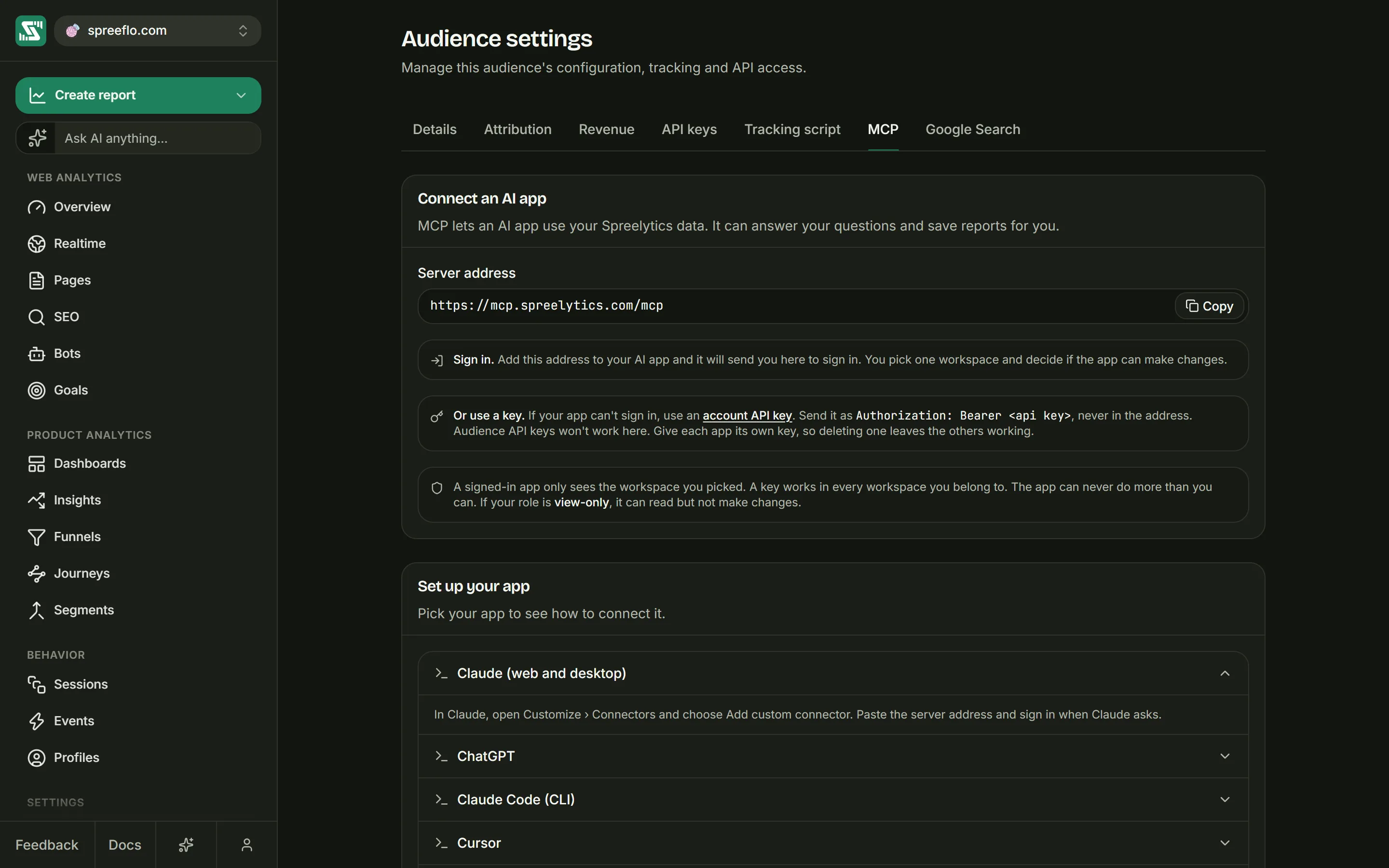
Two things: the server address and an account API key. Settings → MCP shows the address under Connect an AI app, with a link to the page where keys are made.
The server address is:
https://mcp.spreelytics.com/mcp
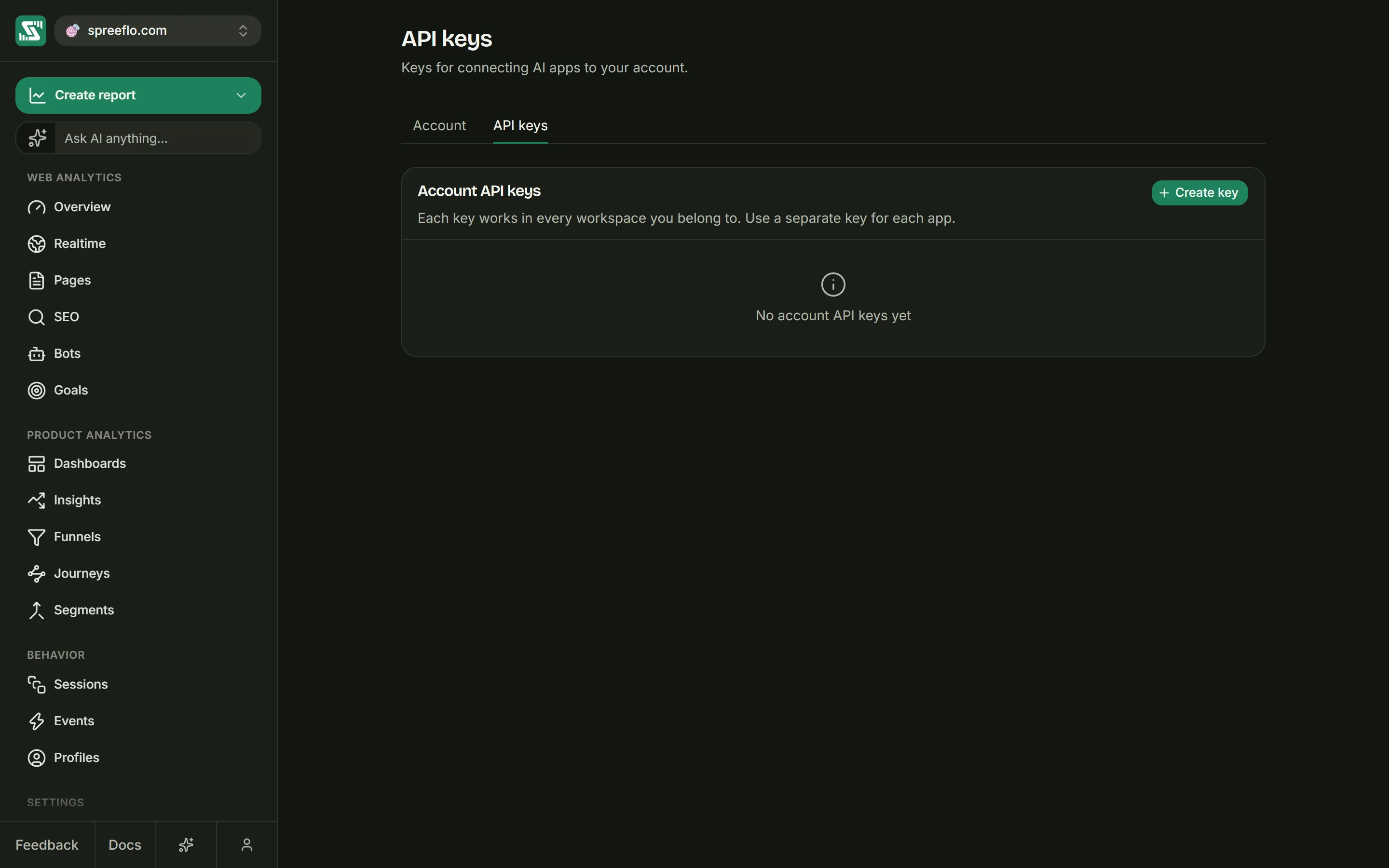
An account API key comes from Account → API keys. Click Create key, give it a Key name such as the app it is for, and click Create key again. The key appears in the list, hidden: the eye button shows it, and Copy key in the row's menu copies it. You can come back for it later.
Your AI app sends the key in a header, Authorization: Bearer <api key>, never in the address. Give
each app its own key, so that deleting one leaves the others working. To cut an app off, choose
Revoke in its key's menu. Anything still using the key stops working at once, and that cannot be
undone.
Audience API keys do not work here
Settings → API keys holds a different kind of key: audience API keys, which read one audience's data from your own server. The MCP server refuses them. A request with one gets a 401 error and the message "Invalid or missing credentials", the same answer as for a wrong or missing key, so if you see that message, check which kind of key you pasted.
What a key can reach
An account key acts as you. It works in every workspace you belong to, and it can read every audience you can read. The app can never do more than you can: every change is checked against your role in the workspace that holds the audience. If your role is Viewer, the app can read but not make changes, and the server does not offer it the tools that build.
Set up your app
Settings → MCP → Set up your app has the setup for four apps, ready to copy. Each one uses the
server address and your key. Replace YOUR_API_KEY with the key itself.
Claude Code (CLI)
Run this in a terminal:
claude mcp add --transport http spreelytics https://mcp.spreelytics.com/mcp --header "Authorization: Bearer YOUR_API_KEY"
Cursor
Add this to ~/.cursor/mcp.json:
{
  "mcpServers": {
    "spreelytics": {
      "url": "https://mcp.spreelytics.com/mcp",
      "headers": {
        "Authorization": "Bearer YOUR_API_KEY"
      }
    }
  }
}
VS Code (Copilot)
Add this to .vscode/mcp.json in your project:
{
  "servers": {
    "spreelytics": {
      "type": "http",
      "url": "https://mcp.spreelytics.com/mcp",
      "headers": {
        "Authorization": "Bearer YOUR_API_KEY"
      }
    }
  }
}
Windsurf
Add this to ~/.codeium/windsurf/mcp_config.json:
{
  "mcpServers": {
    "spreelytics": {
      "serverUrl": "https://mcp.spreelytics.com/mcp",
      "headers": {
        "Authorization": "Bearer YOUR_API_KEY"
      }
    }
  }
}
If a config file already lists other servers, add the spreelytics entry next to them.
Other apps
Any MCP app that can connect to a server over HTTP and send a custom header can use the same address
and header. The server answers POST requests only, and it keeps no session between them.
What it can do
The server offers 38 tools: 24 that read and 14 that build. Their names start with sply_. Your AI
app picks the tools on its own, so you never call them by name, but knowing what exists tells you what
to ask for.
Every tool works on one audience. The app first asks which audiences you have, because audience ids cannot be guessed from a name. Where a tool takes a date range and you do not give one, it looks at the last 30 days.
Find its way
| Tool | What it does |
|---|---|
sply_list_audiences | Lists the audiences your key can read, with their ids. Every other tool needs one. |
sply_get_event_catalog | Lists the event names, properties and sample values tracked in the audience over the last 90 days, so the app uses your real event names. |
Read your traffic
| Tool | What it does |
|---|---|
sply_get_overview | The headline numbers for a date range: visitors, sessions, pageviews, bounce rate, session duration and revenue, each with its change from the previous period. Its conversion rate is the share of visitors who paid. |
sply_get_top_pages | Your top pages, by visitors or by revenue. |
sply_get_breakdown | Visitors split by one dimension: channels, sources, referrers, any of the five UTM fields, countries, regions, cities, browsers, operating systems or devices. |
sply_list_sessions | Recent sessions: who, when, the entry page, duration, page count and whether it bounced. |
sply_get_journey | The most common paths through your site, forward from the entry page or backward from the exit. |
sply_run_chart | Runs a chart over your events without saving it: line, area, bar, pie, a single number, a funnel, a conversion rate over time, retention, or a flow of what people did next. Most questions end up here. |
Read conversions and trends
| Tool | What it does |
|---|---|
sply_get_goal_metrics | Each goal's conversions, conversion rate, revenue and average order value for the range. |
sply_list_funnels | Your funnels, with their completion rates. |
sply_get_funnel_report | One funnel in full: visitors and drop-off at each step, revenue per visitor, and the top sources and countries. |
sply_get_retention | The cohort retention grid from the Overview, by day, week or month. |
sply_compare_periods | One event metric (a count, unique people, a sum or an average) compared with the previous period of the same length, bucket by bucket, with the change in each. |
sply_find_anomalies | Charts one event metric over the range and flags each bucket that sits 2.5 or more standard deviations above or below the average of all the buckets. It needs at least three buckets, and it only looks at the one metric you ask about. |
Read people
| Tool | What it does |
|---|---|
sply_person_search | Finds a person by the start of their email address, at least two characters. |
sply_get_person_profile | One person's profile: the identifiers they are known by, and their totals. |
sply_get_person_timeline | One person's activity in time order, including the anonymous history from before they were identified. |
sply_people_query | Counts the people who meet up to five conditions at once, such as "paid at least 100" and "sent signup_completed at least twice", optionally split by the channel, country or source of their first visit. |
Read what you saved
| Tool | What it does |
|---|---|
sply_list_dashboards | Your dashboards. |
sply_list_reports | Your saved reports, optionally only those on one dashboard. |
sply_get_report_data | Runs one saved report now and returns its data. |
sply_summarize_dashboard | Runs up to eight of a dashboard's reports at once, so the app can sum up the whole board. |
sply_list_cohorts | Your segments and the rules behind each one. The tools call segments cohorts. |
sply_list_references | Your references: the dated notes drawn on every chart. |
sply_list_notification_rules | Your notification rules: what each watches for, its snooze, whether it emails the team, and whether it is paused. |
Build
| Tool | What it does |
|---|---|
sply_create_goal | Creates a goal on a page path, a custom event (with optional property conditions) or a scroll depth. See Goals. |
sply_create_funnel | Creates a funnel from goals that already exist, in the order given. |
sply_create_dashboard | Creates an empty dashboard, ready for reports. |
sply_create_report | Saves a chart as a report on a dashboard. The date range is saved as a rolling preset, so the report keeps updating. |
sply_update_report | Renames, resizes or moves a saved report, or changes the chart itself. |
sply_delete_report | Deletes a saved report. |
sply_update_dashboard | Renames a dashboard. |
sply_delete_dashboard | Deletes a dashboard, together with the reports on it. |
sply_create_cohort, sply_update_cohort, sply_delete_cohort | Create, change or delete a segment. |
sply_create_reference, sply_update_reference, sply_delete_reference | Create, change or delete a reference. |
sply_create_notification_rule | Creates a notification rule on events, a funnel, payments or goals, with filters, a snooze and email if you ask for them. |
sply_update_notification_rule | Renames a notification rule, changes what it watches for, its snooze or its email, or pauses and resumes it. |
Nothing that gets deleted can be restored, which is why the server tells AI apps to delete only what you have named and asked to remove.
In AI apps that support MCP Apps, some answers are drawn rather than written out: charts from
sply_run_chart and sply_get_report_data, the headline tiles from sply_get_overview, and ranked
tables from sply_get_top_pages and sply_get_breakdown. Other apps get the same answer as text.
What it cannot do
- Edit or delete goals and funnels. It can create them. Changing one is done in the app.
- Delete notification rules. It can create, change and pause them. Deleting one is done in the app.
- Change what was tracked. Collected events, sessions and people are only ever read.
- Touch settings, audiences, members or billing. Account settings, audience settings, creating or deleting audiences, inviting people and plans all stay with a person in the app.
- Do more than you can. A key acts as its owner, with the owner's role in each workspace.
There is also a limit on how many tool calls one workspace can make per minute. Past it, a call is refused with "MCP rate limit exceeded", and the app can try again a few seconds later.
The AI assistant inside Spreelytics
The app has its own assistant, with the same tools as the MCP server and two more that only make sense inside the app: it can apply filters to the page you are looking at, and open a person's profile. Open it from Ask AI anything… at the top of the sidebar, from the Ask AI button at the bottom of the sidebar, from Ask AI in the Create menu, or from Why did this happen? on an insight. Questions use the date range of the page you are on, unless you name one.
- It needs a paid plan. On the Free plan the panel opens, but shows "AI is on the Growth plan" with Upgrade plan. The MCP server is available on every plan, Free included.
- Viewers can ask, but not build. A Viewer gets answers and charts. The tools that create or change things are not offered to them.
- Each workspace has a monthly AI budget. When it runs out, the message box reads "AI budget reached for this month", with Set up MCP and Request more usage. An AI app connected over MCP runs on that app's own model, so it does not use this budget.
- Chats are kept. Previous chats lists earlier conversations, and New chat starts a fresh one.
Tips for good answers
- Name the audience. Say which site you mean, or ask the app to list your audiences first. Otherwise it has to guess, and a confident answer about the wrong audience is worse than none.
- Let it read the event catalog before it names an event. Event names are yours and case
sensitive. An app that assumes
signupwhen you sendsignup_completedreports zero rather than an error. - Give dates. "Last week" or "September" beats nothing, since without dates the tools look at the last 30 days.
- Say when you want to keep something. A question gets a chart that is not saved. Ask for a report on a dashboard when you want it to stay.
- Know which conversion rate you mean. The Overview's conversion rate is the share of visitors who paid. A goal's conversion rate is the share of people who completed that goal. Ask for the one you want.
Related
- Account settings: create and revoke account API keys.
- Members and roles: what Viewer, Editor and Admin can do.
- Dashboards and reports: the reports and boards an AI app builds.
- Goals: what a goal counts, before you ask an app to create one.