








Docs·Feature guides
Dashboards and reports
A report is one chart you build yourself from your events: a line over time, a ranked list, a funnel, a retention grid, a flow and more. A dashboard is a board of reports, arranged however you like. Every card on a dashboard is a report, and every report lives on a dashboard.
Dashboards belong to the audience you are in, and everyone in the workspace can see them. Building, saving and arranging need the editor or admin role, and sharing a board publicly needs the admin role.
The Dashboards list
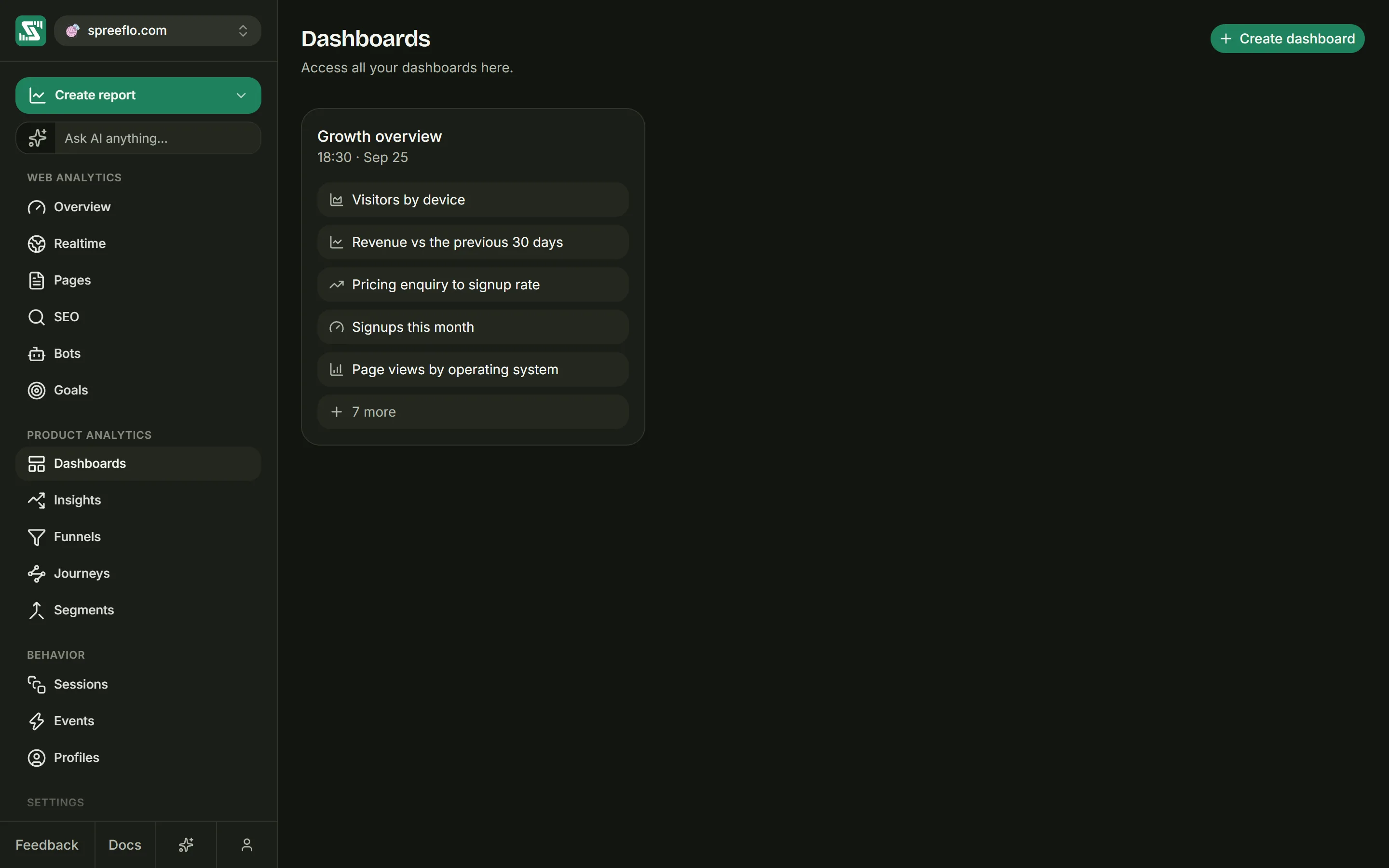
Open Dashboards in the sidebar. Each dashboard has a card with its name, when it was last updated, and the names of up to six of its reports with an icon for each chart type. A board with more than six shows five and a "more" chip with the rest's count, and an empty one says "No reports yet". Click a card to open the board.
Point at a card to reveal its … menu, with Rename and Delete. Deleting a dashboard asks first, because it deletes every report on it too, and it cannot be undone.
With no dashboards yet, the page says "No dashboards yet" and offers Create dashboard.
Creating and renaming a dashboard
Click Create dashboard at the top right, or Create dashboard in the sidebar's create menu. The Add dashboard window asks for a Name; Create saves it and opens the new, empty board. Rename opens the same window as Edit dashboard, with Save.
A dashboard
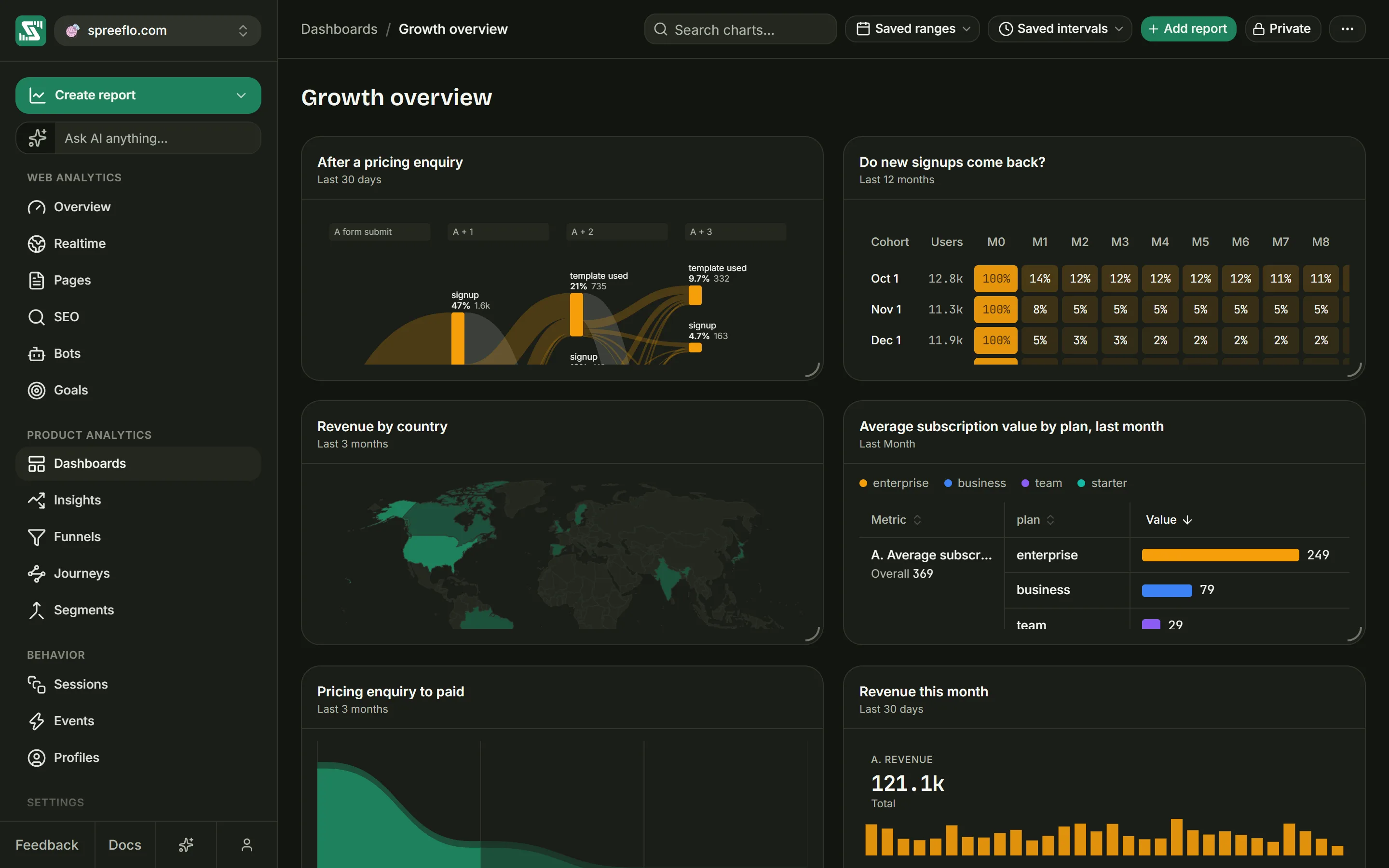
The bar along the top holds, from left to right:
- Dashboards / the board's name: the way back to the list.
- Search charts…, once the board has cards.
- The range menu and the interval menu, which override every card at once (see below).
- Add report, which opens and closes the Add a report panel.
- The Private or Public button, for admins.
- A … menu with Reset layout and Delete dashboard.
The board's name repeats as the heading above the cards.
Cards
Each card shows the report's chart under a header with:
- The report's name. Click it to open the report in the builder.
- The range the chart shows, under the name.
- A grip for dragging (tooltip Drag), which appears when you point at the card.
- A … menu with Duplicate, which adds a copy named "(copy)" at the bottom of the board, and Delete, which asks first and then deletes the report for good.
A card draws at most 10 series, the largest. Open the report to see and pick from the rest. If a card cannot load its chart, it says so and names the range it tried.
Moving and resizing cards
Drag a card by its grip to move it, and drag its bottom-right corner to resize it. Cards snap to the board's grid, and a new card starts at half the board's width. The layout saves itself a moment after you stop, for everyone who opens the board, so it needs the editor or admin role.
Reset layout in the … menu puts every card back to its default size and position, after asking first. The reports themselves are untouched.
One range and interval for the whole board
Every report keeps its own range and interval. The two menus in the bar override them for all cards at once:
- The range menu starts on Saved ranges, meaning each card keeps its own. Pick a preset, from Last 30 min to Last year, to show every card over that range instead. Last days and Custom range are not offered here.
- The interval menu starts on Saved intervals. Pick Minute, Hour, Day, Week or Month to use it on every card where it fits. Once a board range is chosen, intervals that do not suit it are greyed out. Without a board range, a card whose own range does not suit the chosen interval keeps its own.
A card whose range is overridden shows its saved range struck through, with the board's range beside it, and "· by Week" or similar when the board's interval applies. The overrides are not saved: they reset when you leave the board.
Searching the board
Search charts… shows only the cards whose names contain what you type. The ✕ in the box clears it. Cards cannot be moved while a search is active, so the layout cannot be rearranged by accident. When no card matches, Clear search brings them all back.
Filters on a dashboard
A dashboard has no Filter button, and the cards do not use the filters set on other pages: each report uses only the filters saved in it. Filter pills you set elsewhere still show in the bar, but they do not change the charts. To narrow a report, add a filter to it in the builder.
Sharing a dashboard
Admins can publish a board with the same Private and Public control as the Overview: Make public creates a link anyone can open without an account, and Make private, this link stops working destroys it. Publishing again gives a new address.
The link opens this board and nothing else. The viewer sees the board's name, the cards with their titles (which are not links), and "Powered By" with the Spreelytics logo at the bottom. Each card shows its own saved range. A viewer can move cards around on their own screen, but nothing they do is saved.
An empty board
A board with no cards says "This dashboard is empty", and the Add a report panel opens on its own.
The Add a report panel
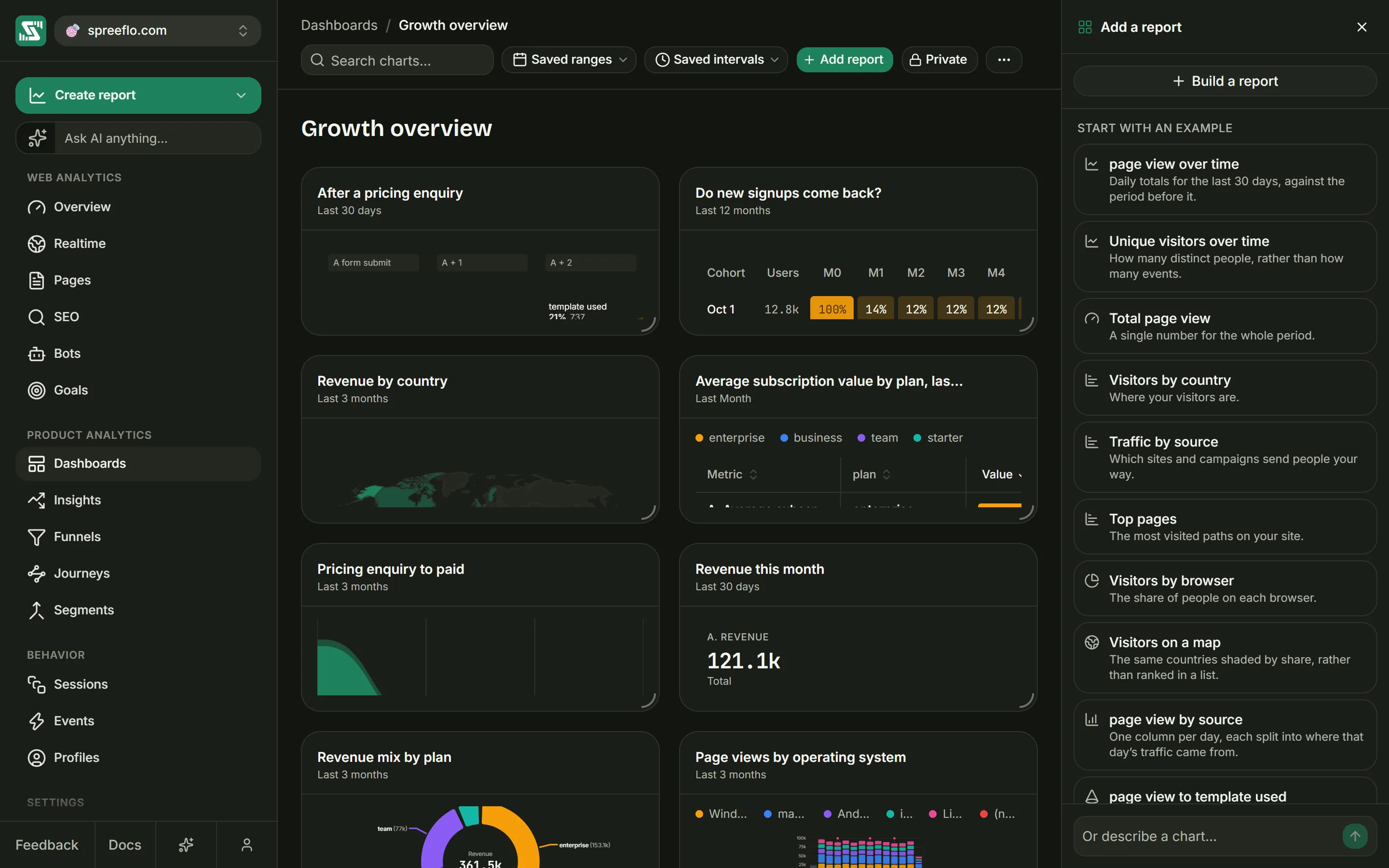
Add report opens a panel on the right of the board, titled Add a report:
- Build a report opens the report builder, set to save onto this board.
- Start with an example lists ready-made reports built from your own data. Click one to save it straight onto the board, as a new card at the end.
- Or describe a chart… at the bottom passes what you type to the AI assistant, which builds the report for you. The box appears only when the AI assistant is available to you.
The examples are built from your busiest event, meaning the one recorded most often, and the funnel, conversion and retention examples add your second busiest. Events the script sends on its own, such as session ends and scroll events, are ranked after every other event. Every example covers the last 30 days; the ones drawn over time use days, and the retention example uses weeks.
| Example | What it shows |
|---|---|
| over time | How many times the event happened each day, with the 30 days before as a comparison line |
| Unique visitors over time | How many distinct people did the event each day, with the comparison line |
| Total {event} | One number for the whole range |
| Visitors by country | People who did the event, ranked by country |
| Traffic by source | The event, ranked by the source of the visit |
| Top pages | The event, ranked by page |
| Visitors by browser | People who did the event, as a donut by browser |
| Visitors on a map | People who did the event, shaded on a world map |
| by source | One column per day, each split by source |
| to {next event} | A two-step funnel from your busiest event to your second busiest, with a 7-day window |
| conversion rate | The same two steps as a rate over time |
| Weekly retention | Of the people who did the first event, how many came back to do the second, in weekly cohorts |
| What happens after {event} | A flow of the next four things people did |
An example appears only when your data supports it. The country, source, page and browser examples need your busiest event to carry that detail, and the funnel, conversion and retention examples need at least two different events. With no events at all, the panel says there is nothing to chart from yet and leaves Build a report as the way in.
The report builder
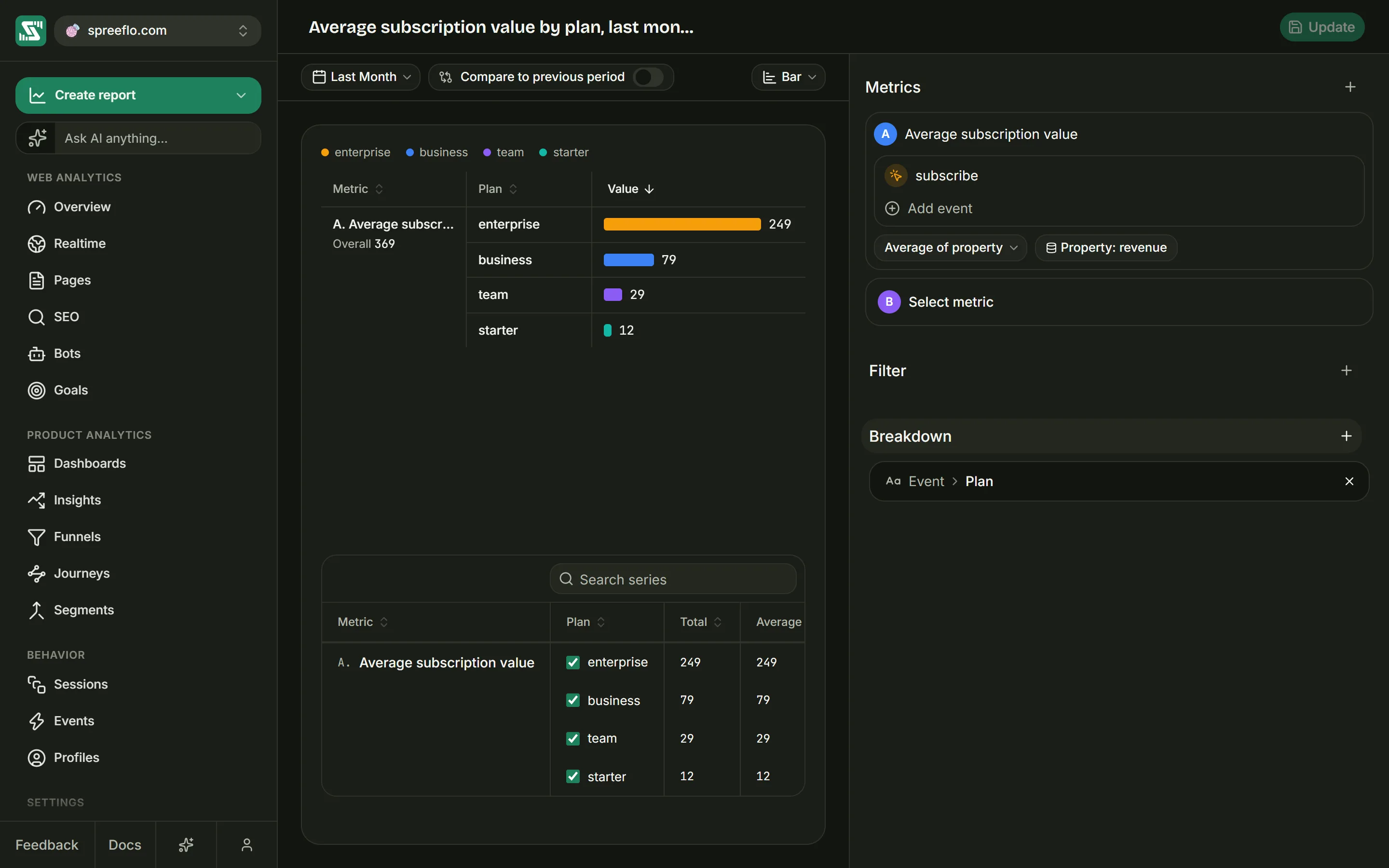
The report builder opens from Build a report, from a card's name, or from Create report in the sidebar's create menu. A new report starts as "Untitled report": a Linear chart over the Last 30 days by day, with one empty metric card reading Select metric. The chart redraws by itself as you change anything.
The page has three parts:
- The header, with the report's name (click it to rename) and Save or Update.
- On the left, a toolbar, then the chart and the table of numbers under it.
- On the right, a panel with the report's settings: Metrics, Filter and Breakdown. Drag its left edge to make it wider or narrower, between 480 and 900 pixels; this browser remembers the width.
The builder works in the audience's reporting timezone, set in Settings → Details, so "Today" and each day's bucket follow that timezone.
The toolbar
| Control | What it does |
|---|---|
| Range | The same picker as the page toolbar, including Last days and Custom range. It belongs to this report and is saved with it. |
| % / # | Retention only: show cells as shares or as numbers of people. Not saved. |
| Compare to previous period | Draws the period of the same length right before the range as a dashed line, for Linear, Area, Bar, Histogram and Metric. The tooltip shows both values and the change "from previous period". On Bar and Metric the change sits beside each total instead. |
| Stacked | Histogram only: stack the series into one column per interval instead of side by side. |
| Interval | The size of each point. Options that do not suit the range are greyed out. For Retention, an interval is also greyed when it would make more than 100 cohorts. Not shown for Bar, Pie, Map, Funnel and Sankey, which have no time axis. |
| Chart type | One of the eleven types below. |
Chart types
| Type | What it draws |
|---|---|
| Linear | A line per metric over time |
| Area | The same, with the area under each line filled |
| Bar | A ranked list of totals, one row per metric or per breakdown value |
| Histogram | Columns per interval, side by side or stacked |
| Pie | A donut of totals, each slice a metric or a breakdown value |
| Metric | A card per metric or breakdown value, with its total and a small bar chart |
| Map | Countries shaded by one metric |
| Retention | A grid of cohorts and how many came back in each later period |
| Funnel | How many people reached each step of a sequence, in order |
| Conversion | The rate at which people who did one event went on to do another, over time |
| Sankey | A flow of what people did before and after an event |
Switching type keeps your events. Turning several metric cards into a Funnel folds their events into one card of steps, and switching back unfolds them into one card each. A people, segment or formula metric is dropped when you switch to a type built from steps, and switching back does not restore it.
Metrics
Click Metrics to add a metric. The picker has categories on the left (All, Events, Profile, Segments and Formula), the choices in the middle, and a detail pane on the right that describes whatever you point at, with the name it is Tracked as and an Example where there is one. Events show a count beside them, so the busy ones are easy to tell apart, and the search box finds any item by name.
| Choice | Measures |
|---|---|
| An event | That event, counted the way you choose below |
| Active profiles | How many people were active in each period |
| A segment | How many of the segment's members were active in each period |
| New formula | Arithmetic over the other metrics |
A report can hold up to 20 metrics.
The metric card
Each metric gets a card with a coloured letter (A, B, C and so on, in order from the top) and a title made from what it measures, such as "Unique users of page view". The ⋮ menu has Rename, Duplicate and Remove, and the ✕ removes the card too. Drag a card to reorder it; its letter follows its new position.
An event card can hold several events. Add event adds another one, joined by "or", and the card then counts them together as one metric: "sign up or log in", counted once. Each event row has, on hover, a filter icon that adds conditions for that event alone ("where" rows, described under Filter), an ✕, and a ⋮ menu with Rename, Duplicate and Remove. Point at an event's name to see what it is.
How a metric is counted
Under an event card's events is a menu (headed Segment when open) that chooses how the events are counted:
| Option | Counts |
|---|---|
| All events | Every matching event |
| Unique users | Distinct people. Someone you have identified counts once across all their devices; anyone else counts once per browser. |
| Unique sessions | Distinct visits |
| Average users | Events per person: all events divided by unique users |
| One event per user | Each person's most recent matching event in the range, counted in the interval where it happened |
| Sum of property | The total of a number property on the events, such as an order value |
| Average of property, Max of property, Min of property | The average, highest or lowest of that number property |
The four property options add a Select property picker, which then reads "Property:" followed by the property you chose.
A total for the whole range (in the table, and on Bar, Pie, Map and Metric charts) is counted over the whole range, not added up from the intervals. So someone who visits on three days counts once in a range's Unique users, even though they appear in three daily points. All events, Sum of property and One event per user do add up, so for those the two agree.
Funnel, Conversion, Retention and Sankey count people, so they offer no choice here.
Formulas
A formula metric does arithmetic over the other metrics by their letters. Type an expression such as
A/B or (A+B)/C, using letters, numbers, +, -, *, / and brackets. The formula is worked out
for every interval, and separately for every breakdown value. Its total is the formula applied to the
totals, so A/B over a month is all of A divided by all of B. Dividing by zero gives 0.
The Visibility button lists the metrics the formula uses, as "Metric A" and so on. Untick one to hide it from the chart while the formula still uses it, which is handy for plotting a ratio without the two raw lines dwarfing it.
When a formula cannot be worked out, a message under it says why:
| Message | Meaning |
|---|---|
| "Enter a formula, for example A/B." | The box is empty |
| A message naming characters to remove | The formula holds something other than letters, numbers, + - * / ( ) and spaces |
| "Reference at least one metric by its letter, for example A/B." | There are no letters in it |
| "X does not match a metric in this report." | A letter has no metric at that position |
| "Unbalanced brackets." | An opening bracket has no closing one, or the other way round |
| "Two operators in a row." | Something like A*/B |
| "The formula starts or ends with an operator." | Something like A/B+ |
Letters follow position, so moving a metric card changes which metric a formula reads. Check your formulas after reordering. Formulas are not available on Funnel, Conversion, Retention and Sankey.
Filter
Filter adds a condition that applies to every metric in the report. To narrow a single event instead, use the filter icon on that event's row; its conditions appear under it after "where".
The filter picker has the categories All, Event, Profile and Segments, and searches with "Search to filter by…". Event holds what was recorded with each event, such as its page, source, location or device. Profile holds what you know about the person, such as their contact details and attributes. Segments lists your saved segments. The fields come in groups: Event, Page, Acquisition, Location, Device, Visit, Revenue, Properties, Contact and Attributes.
An event's own custom properties appear in the Properties group wherever an event is known: under a metric's event row, or after you add a report filter on the event's name, whose row then offers Add property.
Each filter is a row of property, operator, value and ✕. The operators depend on the kind of property:
| Property holds | Operators |
|---|---|
| Text | Is, Is not, Contains, Not contains, Starts with, Ends with, Regex, Is null, Is not null |
| A number or a date | Is, Is not, Greater than, Greater or equal, Less than, Less or equal, Is null, Is not null |
| True or false | Is, Is not, with True or False |
| A segment | In segment, Not in segment |
Regex matches a regular expression, a pattern language for text. Is null and Is not null check whether the property is missing or present, and take no value. Is and Is not take several values, picked from a list; the comparisons take one value, typed into "Enter value" or "Enter a number". Several segments in one In segment row mean any of them.
Drag filter rows to reorder them. Drag a filter onto Breakdown to split by its property instead of narrowing to it, and drag a breakdown onto Filter to do the reverse.
Breakdown
Breakdown splits each metric into one series per value of a property: page views by country gives a line per country. Its picker searches with "Search to split by…" and offers the same fields as Filter, apart from per-visit measurements that would make one series per distinct value, such as visit length. Each breakdown shows as a row naming where it came from and the property, with an ✕.
Add a second breakdown to split by both: each series is then one combination, named like "United States · Chrome". Choosing Segments splits by membership of your saved segments, the first 12 of them.
The chart starts with the 10 largest series drawn; the rest are listed in the table, unticked, so you can add any of them.
Breakdown is not offered for Funnel, Conversion, Retention and Sankey. Map is always split by country, so it needs none.
Options for each chart type
Funnel
A funnel is one metric card whose events are the steps, numbered and joined by "then". Add steps with
Add step; a funnel needs at least 2 and takes up to 8. The same event can appear twice with
different conditions: page view on /products, then page view on /checkout. The step is then named
after its event and its condition.
Two settings sit under the steps:
- Window: how long someone has to get from the first step to the last, as a number of minutes, hours or days. It starts at 7 days and goes up to 366 days. Someone who enters near the end of the range still gets their full window.
- Strict order: off by default. Steps always have to happen in order. With Strict order on, a step event done out of turn also ends someone's progress. In a funnel of product page, cart and purchase, a person who views a product, buys, and only then adds to the cart reaches step 1 with Strict order on and step 2 without it. Events that are not steps of the funnel never matter.
The table under the chart reads across: Property with a single Overall row, Total conv. (the share of people who started and finished), then for each step People and, from the second step on, Conv., the share of the previous step's people who reached it.
Conversion
A conversion is one card with two steps: the attempt, and what counts as converting. It has a Window like the funnel's, with the same 7-day default.
The chart draws one point per interval: of the people who first did the first event in that interval, the share who did the second within the window. An interval in which nobody did the first event shows 0%. The axis counts the intervals of the range as "Day 1", "Day 2" and so on, or "Week 1" for weekly intervals.
The table under it has Conversion (named after the two events, such as "Purchase after Sign up"), Avg rate (everyone who converted divided by everyone who started, not an average of the points), Total (people who did the first event) and Conversions (people who then did the second).
Retention
A retention report is one card with two steps: what starts the clock, and what counts as coming back. A person's cohort is the period of their first starting event in the range, and each column counts how many of them did the returning event that many periods later. The interval sets the period: Day, Week or Month. A finer interval is treated as Day.
Criteria sets how a return is counted:
| Option | Counts someone |
|---|---|
| On (the default) | Only in the period they came back, so a row can dip and recover |
| On or After | In every period up to their last return, so a row only falls |
Cells for periods that have not happened yet are left blank, and there is no table under the grid.
On an audience that uses cookieless tracking, or has used it before, an anonymous visitor gets a new id every day while it is on and can never look like someone coming back. For the cookieless stretch the grid counts identified people only, and a note above the grid says so.
Sankey
A Sankey report draws what people did around one starting event, hop by hop. Each metric card holds one starting event and draws its own flow, side by side with the others, up to 4.
Reach on each card sets how far the flow goes: from 0 steps before to 8 steps before (0 by default) and from 0 steps after to 8 steps after (4 by default). With both at 0, it follows 4 steps after. There is no table under a flow.
Map
A map takes one metric and shades each country by it. Pick a single metric and the split by country is done for you.
The table under the chart
Linear, Area, Bar, Histogram, Pie, Metric and Map reports have a table under the chart with one row per series:
- Metric: which metric the row belongs to.
- One column per breakdown, holding the row's value.
- Total, Average, Min and Max across the range, then one column per interval.
Click a heading to sort by it. Tick or untick a row to show or hide its series on the chart. Search series finds rows by name.
Clicking a point
In the builder, click a point on a line, a column on a histogram, a pie slice, a metric card, a funnel step or a retention cell for a small menu:
- View sessions opens a Sessions panel listing the visits behind what you clicked, 10 at a time, with a search box. For a point, a column or a retention cell it covers that interval; for a slice, a card or a funnel step it covers the whole range. It narrows the visits to the clicked series' breakdown values where a matching visit field exists, and for a funnel step to the visits in which that step's event happened. It does not apply the metric's own events or conditions, so the list can be wider than the number you clicked.
- Create reference opens the form for a new reference, a dated note shown on every chart, with the date of the interval you clicked filled in. A slice, a card or a funnel step has no single date, so there you pick the date yourself.
Saving
Save stays greyed out until the report has changed and has everything it needs to draw. On a new report it opens Create report:
- Report name, which starts as "Untitled report".
- Dashboard: a button for each dashboard, with the one you came from already chosen (or the first one, if you did not come from a board). New dashboard lets you name a new one on the spot.
- Save report saves it. You stay in the builder, now on the saved report, and a message "Saved to" the board's name offers View to open the board.
On a saved report the button reads Update and saves your changes in place, showing Saved for a moment. Viewers can open any report and change it to explore, but Save and Update are hidden for them, so nothing they do is kept.
If a link points at a report or board that has been deleted, or that belongs to another audience, the page says it is not available and offers Go to dashboards. Deleting a dashboard deletes the reports on it.
Who can do what
| Action | Role |
|---|---|
| Open dashboards and reports, use the board's range and interval menus, explore in the builder | Viewer, editor or admin |
| Create, rename and delete dashboards; add, duplicate and delete reports; save reports; arrange cards | Editor or admin |
| Make a dashboard public or private | Admin |
Related
- Overview: the ready-made board every audience starts with.
- Funnels: saved funnels built from goals, with their own page.
- Track events: send the events your reports count.
- References: mark launches and changes on every chart.