








Docs·Usage
Autocapture
As soon as the tracking script is on a page, it records a set of things with no code from you. This page covers each of them: what is sent and when, where it shows up in the app, and how to switch off the ones that can be switched off. The last part explains what Spreelytics works out on its own side for every visit, and what is not captured at all.
At a glance
| What | On by default | Counts toward your allowance | Switch |
|---|---|---|---|
| Pageviews, including route changes in single-page apps | Yes | Yes | Always on |
| Visits, time on page and the end of each visit | Yes | No | Always on |
| Scroll depth | Yes | No | Always on |
Clicks on elements tagged with data-spree-track | Yes | Yes, as custom events | track_data_attributes: false turns it off |
| Clicks on links | No | No | track_links turns it on |
| The online ping | Yes | No | Always on |
Options go into Spreelytics.init(), next to your key (see JavaScript SDK).
Pageviews
The script records a pageview as soon as it starts on a page, and another each time the visitor moves
to a new page in a single-page app: after pushState or replaceState, after the back and forward
buttons, and after a change of #/ route.
A pageview carries the page's address, its title and the referrer. Spreelytics stores the path without
the query string, the # part or a trailing slash, so /pricing/?plan=pro#faq is stored as
/pricing. The query string is still read for UTM tags and click ids first (see below).
A change of address only counts as a new page when the path changes, or the #/ route on a
hash-routed app. A new query string, or a jump to an #anchor on the same page, records nothing. Hash
routes are recorded as separate pageviews but stored under the same path, so /#/settings and
/#/billing both appear as /.
If Chrome prepares a page in advance (prerendering) before the visitor opens it, the script waits until the page is actually shown, and records nothing if it never is.
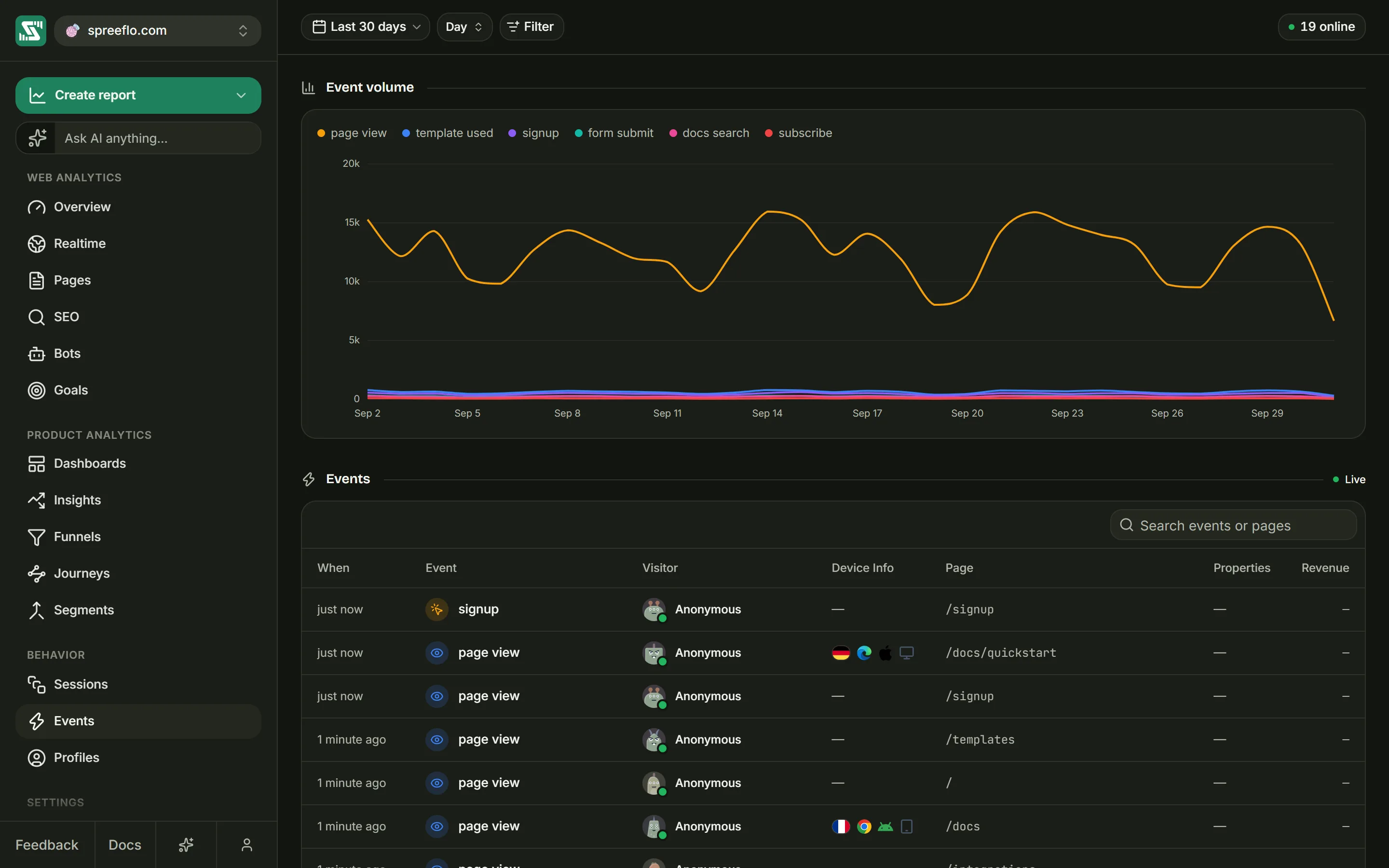
In the app: the visitor numbers on the Overview, the Pages page with its entry and exit pages, the timeline of each visit on Sessions, and the Page, Entry page and Exit page filters.
Visits, time on page and the end of a visit
A visit, also called a session, is one stay on your site by one visitor. In the default mode the script keeps the current visit in the browser tab, and a new visit starts:
- after 30 minutes without activity, where activity means a pageview, a custom event or a recorded click. Reading and scrolling do not count, so someone who reads one page for 40 minutes and then clicks through to another starts a second visit.
- on another subdomain of your site, which keeps a visit of its own, although the visitor stays the same.
- usually, when the visitor opens your site in a second browser tab.
Time on page counts only while the tab is visible. Switching to another tab or minimising the window pauses it, and coming back resumes it. The time on the last page of a visit is reported when the visitor leaves.
The end of a visit is reported every time the tab is hidden (switching tabs, minimising the window, locking the phone) and when the page is closed. Each report carries the visit's totals so far: pages, interactions, active time, the exit page and whether it bounced. It is sent in a way that survives the page closing. If the visitor comes back within 30 minutes, the same visit carries on, and the next report updates it.
Bounces. A visit is a bounce when it has one pageview and no interaction: no custom event, no tagged click and no link click. Time and scrolling do not change that, so a visitor who reads one article for six minutes and leaves is a bounce, while one who clicks a tagged button is not.
In the app: Session Time and Bounce rate on the Overview, the duration and bounce columns on Pages, and every visit on Sessions, where a bounced visit carries a bounce marker.
On a cookieless audience, Spreelytics follows visits on its own side instead, and measures a visit's length from its first request to its last rather than by visible time.
Scroll depth
On every page, the script keeps track of the deepest point the visitor has seen: the bottom edge of the window, as a share of the page's full height, from 0 to 100%. On a page three screens tall, a visitor who scrolls down by one screen has seen two of the three, so their depth is 67%. One who reaches the end has 100%.
When the visitor leaves the page, by moving to another page, hiding the tab or closing it, the script
sends one event named scroll with the depth, the page's path and its hostname. If they come back
to the tab and scroll further, it sends another one with the new depth. A visitor who never scrolls
sends nothing, and neither does a page short enough to fit on the screen.
Scroll events are not interactions, so they do not stop a visit from counting as a bounce, and they do not count toward your allowance.
In the app: scroll depth goals count the people who reached a given depth on a page (see Goals), and on the Events page the drawer of a scroll event shows its Scroll depth.
Clicks on tagged elements
Any element with a data-spree-track attribute sends a custom event when it is clicked. The
attribute's value is the event name. Add properties with data-spree-prop- followed by the property's
name:
<button data-spree-track="pricing_cta_clicked">Start free</button>

<a
  href="/signup"
  data-spree-track="plan_selected"
  data-spree-prop-plan="growth"
  data-spree-prop-position="pricing_table"
>
  Choose Growth
</a>
A click on the link sends plan_selected with the properties plan: "growth" and
position: "pricing_table".
Things to know:
- A click anywhere inside a tagged element counts, so a tag on a card also catches clicks on its icon and text. When tagged elements are nested, the innermost one sends the event.
- Elements added to the page later are covered too.
- Property values always arrive as text, because HTML attributes are text:
data-spree-prop-seats="12"sends"12", not12. - Browsers lower-case attribute names, so
data-spree-prop-planNamearrives asplanname. Write property names in lower case, with underscores between words. - These are ordinary custom events. They count toward your allowance, count as an interaction, and can
be used in goals and funnels like any event you send with
Spreelytics.track()(see Track events).
To switch them off, set track_data_attributes: false.
Clicks on links
Link clicks are off until you turn them on:
Spreelytics.init({
  client_key: "YOUR_CLIENT_KEY",
  track_links: "outbound",
});
"outbound"records clicks on links whose hostname differs from the page's. The comparison is exact, so links to your own subdomains count as outbound (fromwww.example.comtoapp.example.com), and so domailto:andtel:links, which have no hostname.truerecords every link click, your own navigation included.
Each click is sent as an event named Link Click with these properties:
| Property | Value |
|---|---|
href | The link's destination, without a trailing slash |
text | The link's visible text, trimmed |
id | The link's id, only when it has one |
Link clicks count as an interaction, so a visit with one is not a bounce. They do not count toward your allowance. On the Events page they appear as Link Click.
To attach your own properties to one particular link, use trackLink() (see
JavaScript SDK). If track_links also covers that link, each click is recorded twice.
The online ping
When a visitor comes back to a tab that was in the background, the script sends a small ping. It records no event. It only marks the visitor as active again, so they show up in the online count straight away. The "online" count in the toolbar and the Realtime page show visitors who were active in the last five minutes. There is no timer behind it: a visitor who leaves a page open without doing anything drops out of the count after five minutes.
What Spreelytics works out for every visit
The script sends the page's address, its title and the referrer. Everything else about a visit is worked out on Spreelytics's side, from the request itself.
Location
From the visitor's IP address, Spreelytics's edge network (Amazon CloudFront) looks up the country, region, city and time zone, and approximate coordinates that place the visit on the map and on the Realtime globe. Spreelytics stores those results with your data, not the IP address.
Device, browser and operating system
The device type (desktop, mobile or tablet) comes from CloudFront's device detection, which reads the
browser's User-Agent header. The browser and its version, and the operating system and its version,
come from the same header. A mobile browser is listed under its plain name, so "Mobile Chrome" appears
as Chrome: the device type already says it is mobile.
Screen size and browser language are not recorded.
Referrer and source
The referrer is the page that linked to yours, stored as its hostname and path, without the query string.
- Links between your own pages are not referrers: a referrer on the same hostname as the page, or on a
subdomain of it, is ignored. The reverse is not covered, so a visit to
app.example.comfrom a link onexample.comcounts as a referral fromexample.com. - A visitor coming back from a payment page on
stripe.com,paypal.com,paddle.com,lemonsqueezy.com,polar.shordodopayments.com, or a subdomain of one of them, counts as having no referrer, so a checkout round trip does not take the credit for the visit.
The source is the name of where the visit came from. Spreelytics takes it from the page address
first, from utm_source, then a source parameter, then a ref parameter, and from the referrer
only when none of them is there. Known sites get their usual names, such as Google, Facebook or
Hacker News, and AI assistants get theirs: ChatGPT, Perplexity, Claude, Gemini, Copilot, Meta AI,
You.com, Poe, Phind, Grok, DeepSeek and Le Chat. Any other site is named by its hostname without
www.. Capitalisation is evened out, so utm_source=google and a visit from google.com are both
Google.
Channel
Each visit is put into one of 19 channels: AI, Affiliates, Audio, Cross-network, Direct, Display, Email, Mobile Push Notifications, Organic Search, Organic Shopping, Organic Social, Organic Video, Paid Other, Paid Search, Paid Shopping, Paid Social, Paid Video, Referral and SMS.
The channel follows from the source, utm_medium, utm_campaign and two click ids. A few of the rules:
| Channel | When |
|---|---|
| Direct | No source and no medium. |
| AI | One of the AI assistants above, whatever the medium. |
A medium of email or e-mail, or a source of email or gmail. | |
| Paid Search | A search engine with a paid medium such as cpc or ppc, a visit from Google whose address carries a gclid, or a visit from Bing with an msclkid. |
| Organic Search | A known search engine, or a medium of organic, with no paid medium. |
| Organic Social | A known social network, or a medium such as social, with no paid medium. |
| Referral | Any other site, or a medium of referral, app or link. |
The channel and source of a visit's first page apply to the whole visit, so an event later in the visit, such as a purchase, is credited to how the visit began.
UTM tags and click ids
The five UTM tags, utm_source, utm_medium, utm_campaign, utm_term and utm_content, are read
from the page address and kept with the visit. Each is a breakdown and a filter of its own in the app.
gclid (Google Ads) and msclkid (Microsoft Advertising) are used to work out the channel.
What is not captured
The script does not record form submissions, JavaScript errors, page speed, file downloads (other than
as link clicks, when track_links covers the link), rage clicks, copying or video plays as events, and
there is no heatmap. When you need one of these as an event, send it with Spreelytics.track(). Clicks
and rage clicks do show in session replay, on the Growth plan,
beside the recording rather than as events in your reports. Bots and visits from data-center networks are dropped before they reach your
numbers (see Filter traffic).
Related
- Track events: send the actions autocapture cannot see.
- JavaScript SDK: the options that switch these on and off.
- Definitions: how visits, bounces and time are counted.