








Docs·Usage
Filter traffic
Not every request that reaches Spreelytics comes from a person on your site. A set of checks runs on every pageview and event before anything is stored, and drops traffic that is clearly not human. On top of that, you decide which websites may send events to an audience, with Allowed domains, and which visits not to count at all, with Excluded traffic. This page covers all three, and what is left for you to filter yourself.
What is dropped automatically
These checks run for every audience, and you cannot turn them off. A request that fails one is answered as if it had worked, so the script does not try again, and then it is thrown away. Nothing about it is stored, it never appears in a report, and it does not count toward your monthly events.
Automated browsers
Browsers driven by automation tools such as Selenium, Puppeteer and Playwright announce themselves
through a flag the browser sets, navigator.webdriver. When the script sees that flag, it does not
track at all. This happens in the browser, before anything is sent.
The script also holds back when a browser prerenders a page, which some browsers do in the background for a page they expect you to open next. Tracking starts only once the page is actually shown, so a prerendered page that nobody opens is never counted.
Bot and tool user agents
Every request carries a user agent: a short text in which the browser or program names itself. Spreelytics drops the request when the user agent identifies it as:
- a crawler or a fetcher, such as a search engine bot or a link preview service,
- a command-line tool or a code library, such as curl or python-requests,
- or anything containing
headless,lighthouse,phantomjs,puppeteerorplaywright, in any letter case. That covers headless browsers and page speed audits such as Lighthouse.
Datacenter addresses
People browse from homes, offices and phones. Scrapers and monitoring tools mostly run on cloud servers. So Spreelytics drops requests that come from the address ranges of these cloud providers: AWS, Google Cloud, Oracle Cloud, DigitalOcean and Linode. The ranges come from the lists each provider publishes, and they are refreshed every week.
- People on a VPN still count. Consumer VPN services often run on the same clouds, so a list of known VPN exit ranges is taken out of the dropped set.
- Only IPv4 addresses are checked. A request over IPv6 is never dropped by this check.
- Other hosts are not on the list, such as Azure, Hetzner, OVH or Cloudflare.
- The address checked is the one that connects to Spreelytics. If you send tracking through a proxy of your own, every request arrives from the proxy's address, and a proxy running on one of the clouds above has all of its traffic dropped. See the Proxy guide.
- The address is not stored with your data. This check uses it and keeps nothing.
Past your plan's limit
As a guard against runaway traffic, a workspace that goes far past its monthly allowance stops recording new pageviews and events until the period resets. The point where it stops is three times the allowance on plans of up to 1 million events, and one and a half times the allowance on bigger plans. On the Free plan's 100,000 events, that is 300,000. A banner at the top of the app says when it happens. See Billing.
Allowed domains
Your client key sits in your pages' source code, where anyone can read it. Without a guard, someone could copy the snippet onto their own site and fill your reports with their visitors. Allowed domains is that guard: a list of the hostnames allowed to send events to this audience.
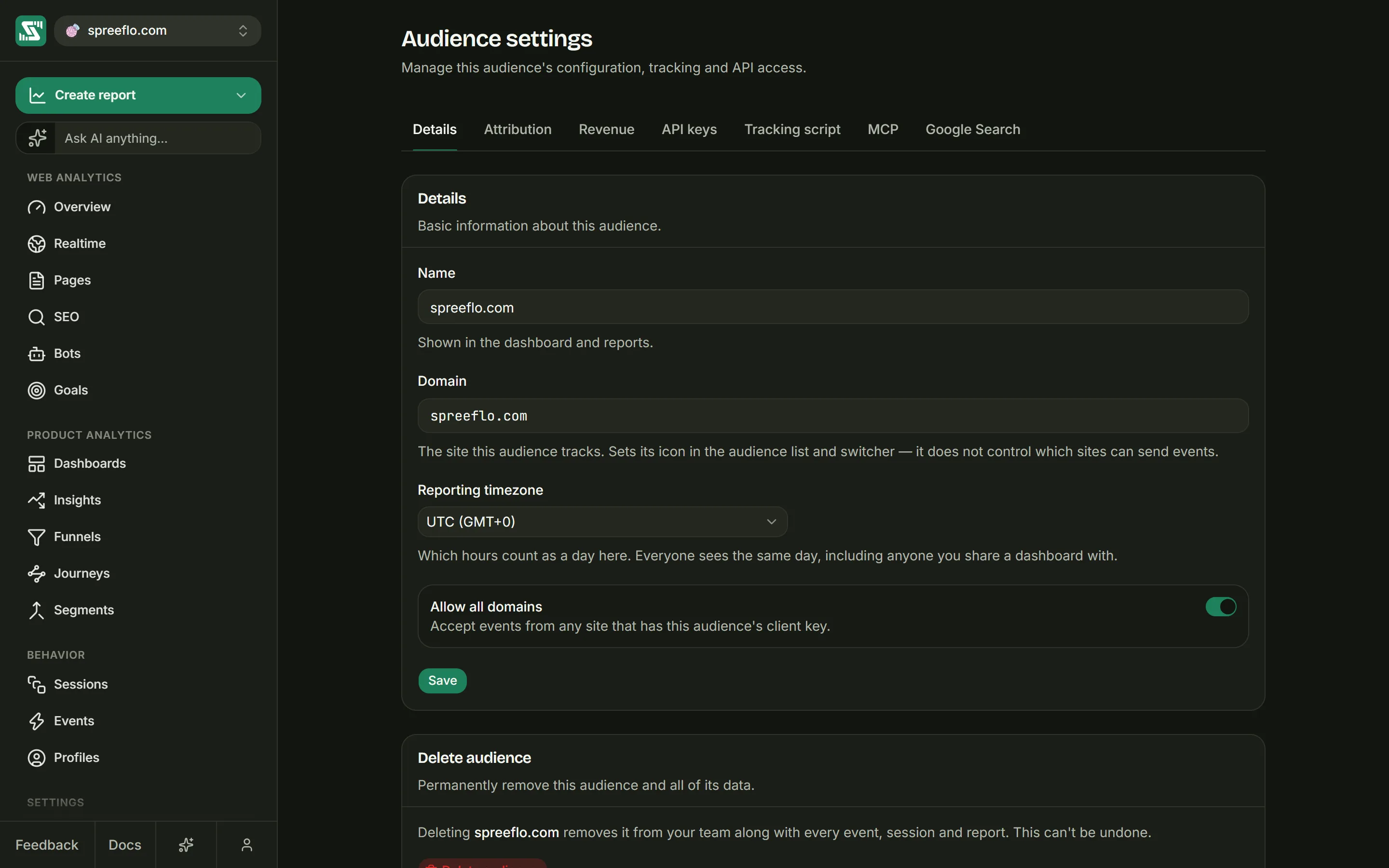
It lives in Settings → Details, and you need the admin role to change it. Editors and viewers see the settings locked, with the note "You need the admin role in this team to change these settings."
How it matches
For every request the script makes, Spreelytics reads the hostname of the page that sent it, from the
request's Origin header, or its Referer header when there is no Origin. That hostname must match
one entry in the list exactly.
wwwand the bare domain are separate entries. A list withexample.comrefuses pages onwww.example.com. If your site answers on both, add both.- Every subdomain needs its own entry.
example.comdoes not covershop.example.com. - There are no wildcards.
*.example.comis not accepted. localhostcannot be added, because an entry needs at least one dot. A copy of your site running onlocalhostis refused while the list is in use.
To add an entry, type a hostname and press space or enter. A pasted address is cut down to its
hostname, so https://www.example.com/pricing becomes www.example.com, and capital letters are
lowercased. The list displays each entry with https:// in front, but only the hostname is stored.
When a request is refused
Spreelytics answers with a 401 error and the message "Hostname not allowed", and records nothing. The
script does not show an error on your page. To spot it, open your browser's developer tools on the
Network tab and look at the requests to sdk.spreelytics.com.
The Domain field higher up on the same tab has nothing to do with this. It only sets the audience's icon in the audience list and the switcher, as its own description says.
The Allow all domains switch
Allow all domains turns the check off: "Accept events from any site that has this audience's client key." While it is on, the list is hidden and not checked. An empty list means the same thing.
Turning it on opens a window titled Allow all domains? with a Security Warning: "Any website will be able to send tracking data to your dashboard. This could allow malicious actors to pollute your analytics data." It names the cases where that is worth it: embedded widgets, such as booking or chat widgets, that run on your customers' websites; custom domains you would rather not add one by one; and multi-tenant apps where domains are added all the time. Choose Confirm or Cancel.
The change only takes effect when you click Save. When you turn the switch off again, the list comes back, and Save stays disabled until it holds at least one domain, with the note "Add at least one domain, or turn on “Allow all domains”."
What it does and does not stop
The list stops other websites from using your key in a browser, which is how almost all misuse would happen. A request made outside a browser can claim to come from any site, so treat the list as a guard, not a lock.
Excluded traffic
Settings → Excluded traffic leaves out traffic you choose, even from sites you allow: your own visits, your team's, or pages that are not for the public. Matching page views and events are dropped before anything is stored, like the checks above, so they never reach a report and do not count toward your monthly events.
| Rule | Example | Good for |
|---|---|---|
| IP addresses | 203.0.113.7, or a range such as 203.0.113.0/24 | An office or a team on a fixed address |
| Pages | /admin/* | Internal, preview and test pages |
| Profiles | Picked from a list, or Ignore this profile on a profile | You, a teammate or a test account, in every browser they are identified in |
Editors and admins can change it. Audience settings covers each rule in full, including who a profile rule reaches. Excluded traffic is not recorded by session replay either.
What is not filtered for you
Your own visits, before you excluded them
Excluded traffic applies from the moment you add a rule, so visits recorded before then stay in your reports. Three more ways to keep your own traffic out of your numbers:
- Hide your team with a segment, if you identify them. It works on past data too. For example,
make a segment whose rule is Email ends with
@yourcompany.com, then narrow any page with Filter → Audience → Segment, is not, and that segment. It only catches the browsers where your team members have been identified. - Do not start the script in your own browser. This also works with cookieless tracking, where a
profile rule cannot follow you from one day to the next. The script sends nothing until
Spreelytics.init()runs, so you can skip that call when a flag is set:<script src="https://cdn.spreelytics.com/cdn/sdk/spreelytics-loader.js"></script> <script> if (localStorage.getItem("skip_analytics") !== "1") { Spreelytics.init({ client_key: "YOUR_CLIENT_KEY" }); } </script>
Then, once in each browser you use, open the console on your site and runlocalStorage.setItem("skip_analytics", "1"). The flag name is yours to choose. - Use a separate audience for development and staging, so test traffic never lands in the audience you report on.
Local copies of your site
While Allow all domains is on, a copy of your site running on your own computer with the real snippet sends real events. For local testing, the tidiest setup is a separate audience for development, so test visits never mix with real ones.
Bots that act like people
A program that drives a normal browser from a home connection, without the automation flag, looks like a visitor and is counted. If you know the address it comes from, add it under Excluded traffic. There are no settings to exclude traffic by country or user agent.
AI crawlers
Crawlers from AI assistants and search engines fetch your pages without running the tracking script, so they never reach your visitor numbers in the first place. To see which ones read your site, add the small server add-on described in AI crawler tracking.
Related
- AI crawler tracking: record the crawlers that never run the script.
- Proxy guide: what changes when tracking goes through your own domain.
- Audience settings: every settings tab, Details and Excluded traffic included.
- Billing: your monthly allowance and what happens past it.