








Docs·Feature guides
Profiles
A profile is one visitor: a browser on a device, or, once you have identified them, the person behind every device they used. The Profiles page lists everyone who visited in the date range, and each profile page puts their details, their totals and their whole history in one place.
Identified and anonymous profiles
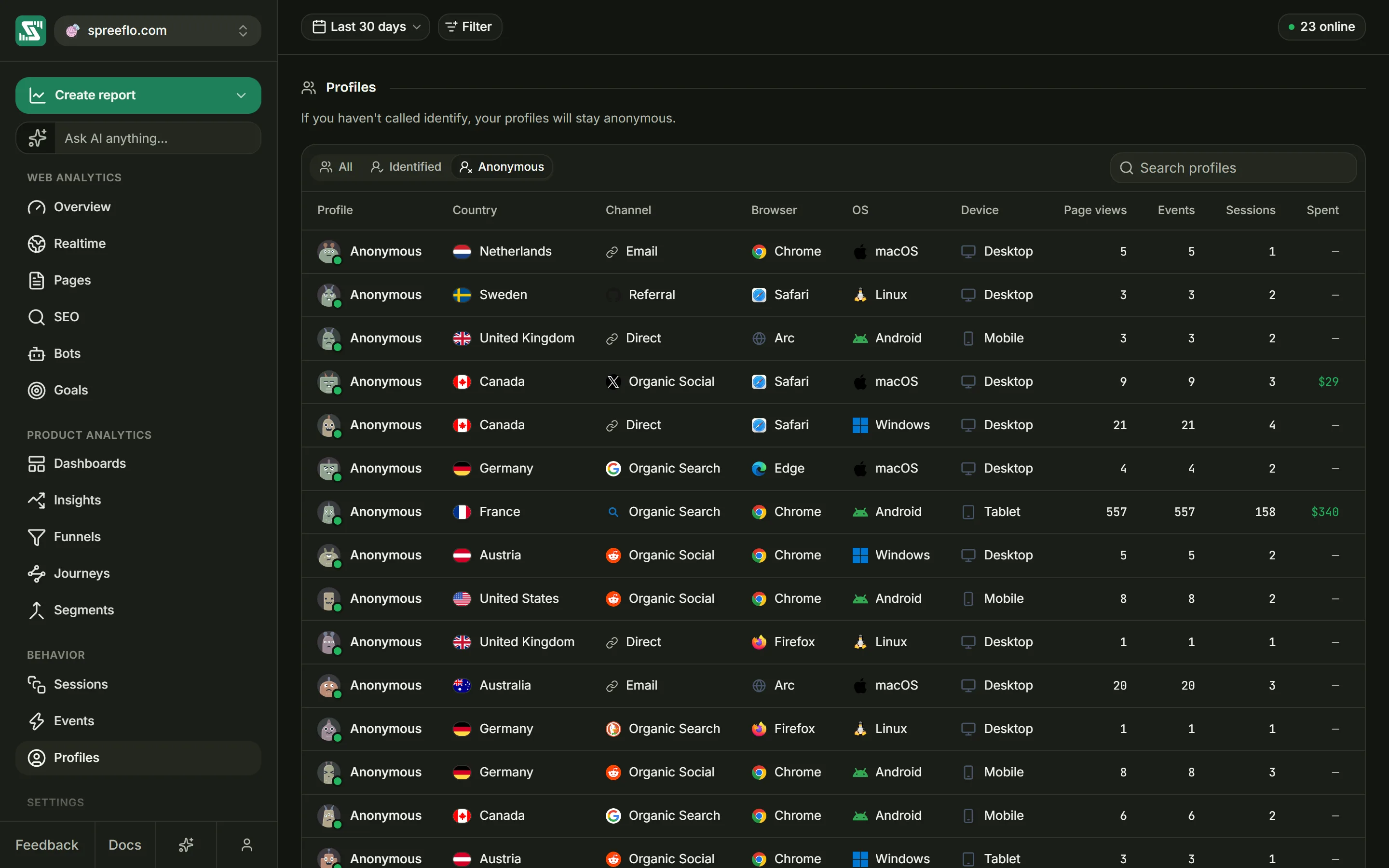
Until your site tells Spreelytics who someone is, they are anonymous: the tracking script gives their browser a random visitor ID, and that ID is how Spreelytics tells them apart. The page says so under its heading: If you haven't called identify, your profiles will stay anonymous.
When your site calls identify() with their email address (see Identify users),
the visitor is linked to a person, and the history already recorded on that browser comes along. A
person identified on their laptop and on their phone has both visitors linked, and their profile
covers both.
On an audience with cookieless tracking, anonymous visitors are only recognised for a short time, so one person can show up as several anonymous profiles. Identified people are not affected.
The list
The toolbar has the date range, Filter and the online count, with no interval. Every filter applies. The list holds everyone with a session that started in the date range and matches your filters, most recently active first.
- The tabs All, Identified and Anonymous narrow the list to one kind of profile.
- Search profiles matches an email address or a city.
- The list shows 25 profiles a page. The footer gives the total, such as 1,204 profiles, with page buttons beside it.
Each row is one visitor, which means one browser on one device. Someone you have identified on a laptop and a phone has two rows, and both open the same profile.
| Column | What it shows |
|---|---|
| Profile | An avatar, then the email address with a green tick (tooltip Identified visitor), or Anonymous. A green dot on the avatar means they were active in the last five minutes. |
| Country | A flag and the country name. Hover for the city as well. |
| Channel | The channel of their most recent visit, with the source's icon. Hover for the source. |
| Browser, OS, Device | What their most recent visit used |
| Page views | Every page they have viewed, all time |
| Events | Every event they have sent, all time, page views included |
| Sessions | Every session they have had, all time |
| Spent | All the money on their payment events, all time, or a dash |
| First seen | When their first session started, as a relative time. Hover for the exact date. |
| Last seen | When they were last active, counting the visits in the date range. Hover for the exact date. |
The counts are lifetime totals on purpose. The date range decides who is listed, and the row then describes the visitor as a whole: someone with three sessions ever shows 3, even if only one of them falls in the date range. The details in Country, Channel, Browser, OS and Device come from their most recent visit in the date range.
When nobody matches, the list shows No profiles match your search. You also see it when nobody visited in the date range.
Click a row to open the profile. An identified visitor opens their person's profile, which covers every device linked to them. An anonymous visitor opens the profile of that one browser.
The profile page
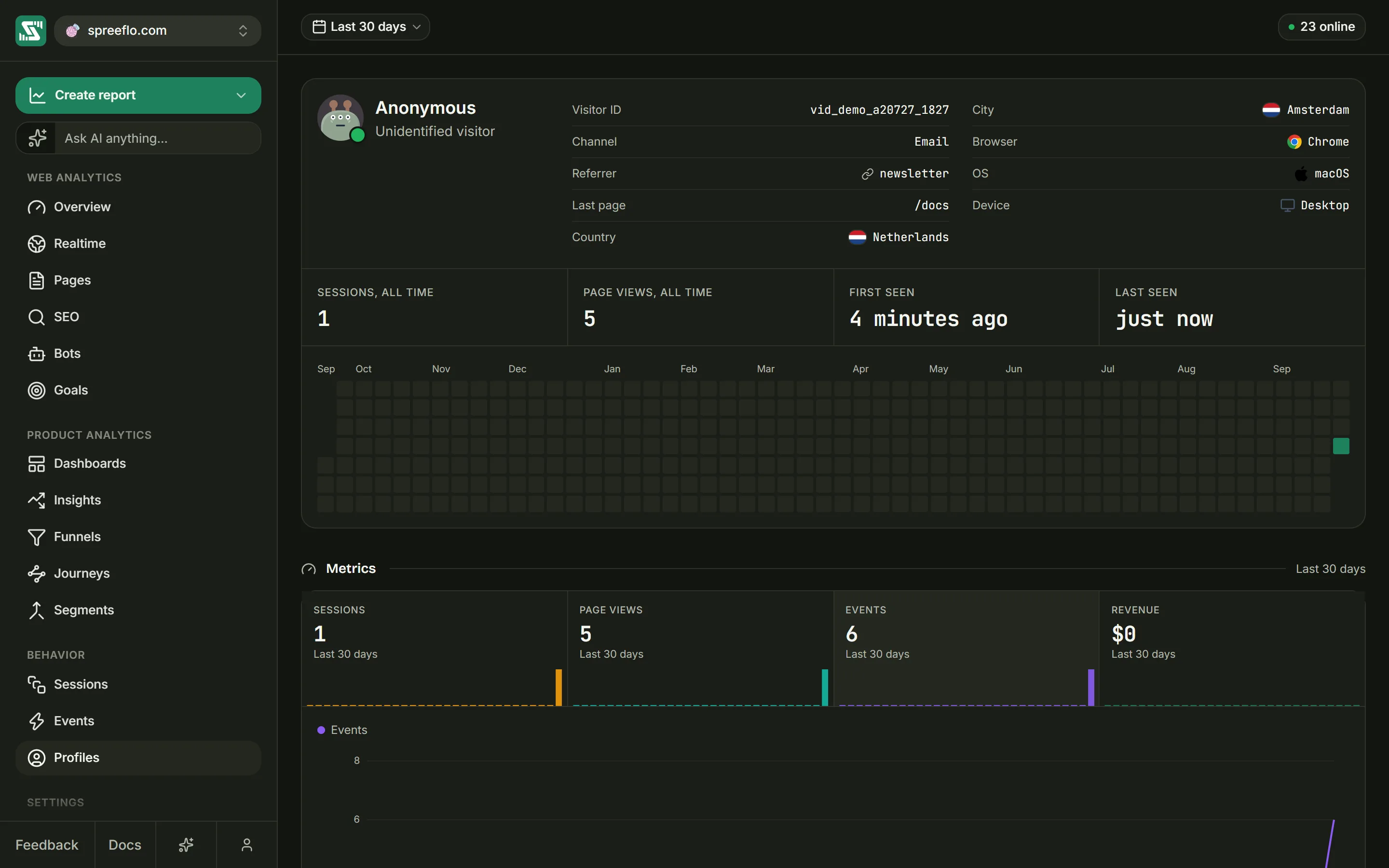
The toolbar has the date range and the online count. Filters do not apply to a single profile, so there is no Filter button, and pills set on other pages turn grey. The date range drives the Metrics cards and the Sessions and Timeline lists. The card at the top is all time and does not change with it.
Who they are
The top card starts with an avatar, which has a green dot when they were active in the last five minutes, and a name: their email address, or Anonymous. An identified profile has a green tick, with the tooltip Identified person on a person's profile or Identified visitor on a single visitor's.
The line under the name reads:
| Line | When |
|---|---|
| Customer | An identified profile with money on any of their events |
| Identified person | A person's profile with no payments |
| Identified | An identified visitor's own profile with no payments |
| Unidentified visitor | An anonymous visitor |
A person's profile also shows a badge for each identifier on record, such as the email address your
site passed to identify(). Hover a badge to see what kind of identifier it is and where it came
from.
Beside them, the details:
| Field | What it shows |
|---|---|
| Visitor ID or Person ID | The ID in the page's address: a visitor ID for an anonymous profile, a person ID for an identified one |
| Emails | Every email address the person was identified with (person profiles only) |
| First touch | The channel of the person's very first visit (person profiles only) |
| Channel, Referrer | Where their most recent visit came from |
| Last page | The last page of their most recent visit |
| Country, City | Where their most recent visit came from |
| Browser, OS, Device | What their most recent visit used |
Lifetime totals
A strip of tiles sums up their whole history:
| Tile | What it counts |
|---|---|
| Sessions, all time | Every session they have had |
| Page views, all time | Every page they have viewed |
| First seen | How long ago they first appeared |
| Last seen | How long ago they were last active |
| Lifetime spend | All the money on their payment events, shown only when there is some |
Activity grid
Under the tiles, a grid shows the last 53 weeks, one column per week, with Monday at the top. Each square is a day, and the more events that day, the darker it is, measured against their busiest day. Hover a square to see the date and how many events happened. Every event counts, page views included, except the end of a session. The grid always covers the past year, whatever the date range.
Metrics
The Metrics section shows the date range on its right. Four cards total this profile's activity in the date range, each with a small trend:
| Card | What it counts |
|---|---|
| Sessions | The sessions they had, counted per day. A session that runs past midnight counts on both days. |
| Page views | The pages they viewed |
| Events | Every event they sent, page views included, except the end of a session |
| Revenue | The money on their payment events |
Click a card to draw it on the chart below, one point per day, with days of no activity drawn as zero. Events is selected first. Unlike the cards on the Overview, these have no change badge.
Sessions and Timeline
The last section switches between two views of the same history, with the date range on the right.
- Sessions lists their sessions in the date range as session rows, the same ones as on the Sessions page: open one to see its info and timeline, and its replay when it was recorded. Search with Search this profile's sessions. It shows 25 a page, with a footer such as 25 of 40 sessions.
- Timeline lists every event in the date range, newest first, in the same table as the Events page without the Visitor and Device Info columns. Click a row for the event drawer. Search with Search this profile's events. It shows 25 a page, and reads No activity in this window. when there is nothing to list.
On a person's profile, both views cover every device linked to them.
A profile belongs to one audience. If you open a link to a profile from another audience, the app takes you back to the Overview.
Related
- Identify users: turn anonymous visitors into named people.
- Sessions: every visit, with the same session rows.
- Segments: save a group of people by what they did or who they are.