








Docs·Feature guides
Sessions
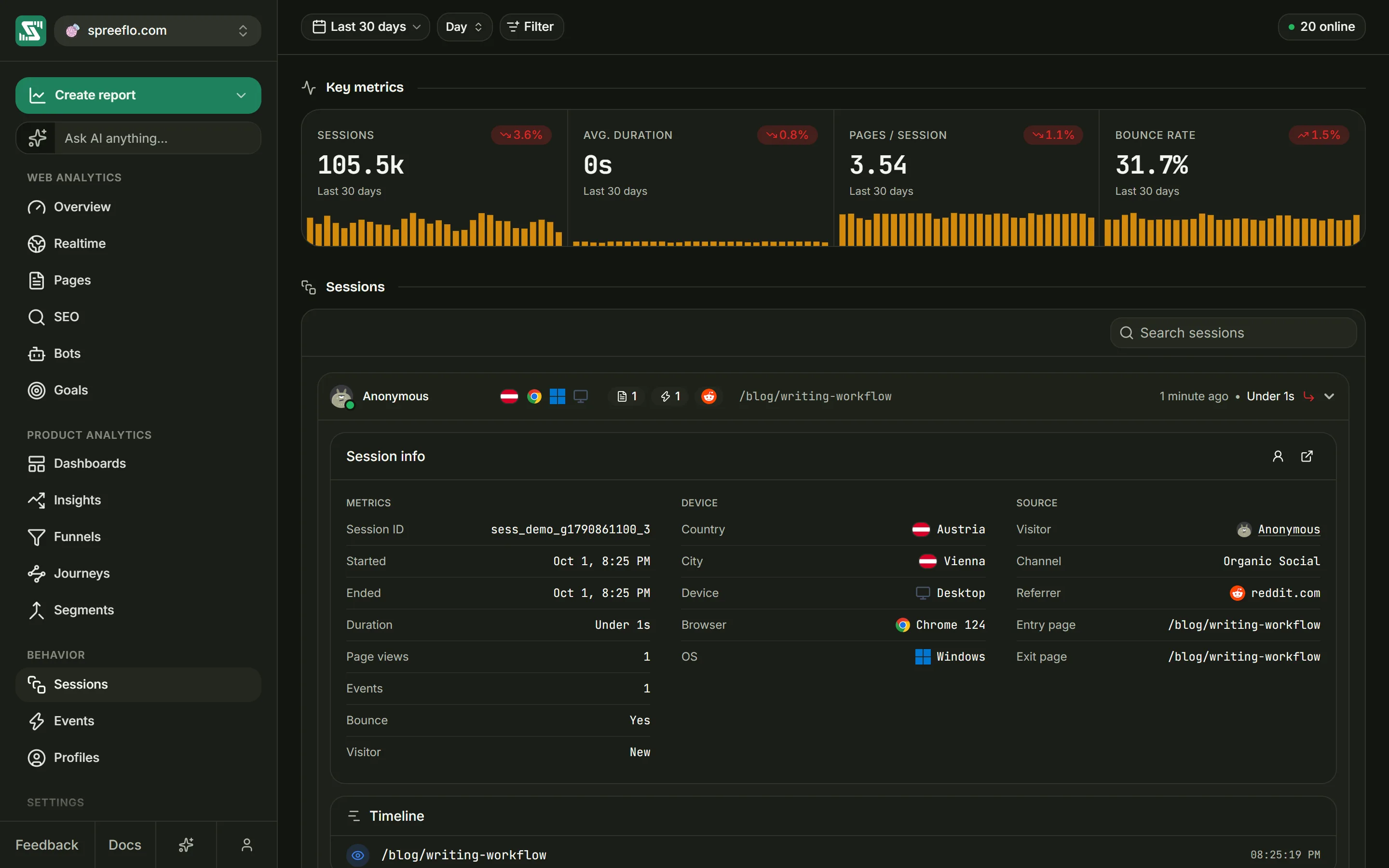
A session is one visit: everything a visitor did from arriving on your site until they had been inactive for 30 minutes. The Sessions page lists every session in the date range, newest first, so you can open any one of them and read what happened, in order.
A session here is what your tracking script recorded: the pages, the events and the time between them. On the Growth plan, with session replay on, a session can also have a recording of the visit, which opens from its row.
What counts as a session
A session ends after 30 minutes without activity, and each session belongs to one visitor, meaning one browser on one device. Definitions has the full rules, including how a bounce and a new visitor are decided.
The toolbar
The toolbar has the date range, the interval, Filter and the online count. The page lists the sessions that started inside the date range.
Every filter applies here, including Page, Event and Goal. A Goal filter set to is, for example, lists the sessions of the people who completed that goal in the date range.
Key metrics
Four cards sum up every session in the date range, with your filters applied.
| Card | What it is |
|---|---|
| Sessions | How many sessions started in the date range |
| Avg. Duration | The average length of those sessions, in minutes and seconds |
| Pages / Session | The average number of page views per session |
| Bounce Rate | The share of sessions that bounced. Lower is better, so a fall shows in green. |
How a session's length is measured depends on how the audience is tracked. With the standard script, it is the time the tab was visible, so time spent in another tab does not count. On an audience with cookieless tracking, it is the time from the session's first page view to its end. The length is filled in when the script reports the end of the visit, which it does whenever the visitor hides or leaves the tab, so a session that has not reported an end yet counts as 0 seconds.
A bounce is a session with one page view and no custom event or link click. Scroll events do not count, so reading one long page and leaving is still a bounce.
Each card also shows the change against the previous period of the same length, green when it went the right way and red when it did not. The badge is left off when the previous period has nothing to compare with. Under the value, a small bar chart has one bar per interval: hover a bar to read its value and date. The cards are for reading only and cannot be clicked.
The session list
Search sessions finds sessions by their entry page, the site's hostname, the visitor's email address or the visitor ID. The list shows 50 sessions a page, newest first. The footer reads, for example, 50 of 1204 sessions, with page buttons when there is more than one page.
Reading a row
From left to right:
| Part | What it shows |
|---|---|
| Avatar and name | The visitor's email address once you have identified them, with a green tick (tooltip Identified person), or Anonymous. The name links to their profile. A green dot on the avatar means the visitor was active in the last five minutes. |
| Location and technology | A flag, then browser, operating system and device icons. Hover each one for the city, region and country, the browser, the operating system, or the device type. Browser and operating system versions appear in these tooltips once the row has been opened. |
| Page views | A page icon and the number of pages viewed (tooltip Page views) |
| Events | A lightning icon and the number of events in the session (tooltip Events). This counts every event the session recorded, page views and scroll events included, so it is never lower than the page view count. |
| Source | The icon of the site the visit came from. The tooltip names the channel and the source, such as "Organic Search · Google", with Direct as the source when there was no referrer. |
| Entry and exit pages | The first page of the visit, then an arrow and the last page when it was a different one. Hover for the full address. This part is hidden when the list is narrow. |
| Start and duration | When the session started, then how long it lasted. Hover the row to see the start as a relative time instead, such as "2 hours ago". A session that has not reported an end yet shows Under 1s. |
| Replay marker | A green screen icon when the session was recorded (tooltip Has a replay). |
| Bounce marker | A red arrow when the session bounced. Its tooltip says the visitor left without a second page. |
| Chevron | Opens and closes the row |
The open row
Click a row to open it. Clicking the visitor's name opens their profile instead.
Session info comes first. Its header has two buttons: View profile opens the visitor's profile, and Open full session opens the session on a page of its own. The facts sit in three groups, and a group with nothing in it is left out.
| Group | Fields |
|---|---|
| Metrics | Session ID, Started, Ended (a dash while the session is still open), Duration, Page views, Events, Bounce (Yes or No) and Visitor: New for a visitor's first session, Returning after that |
| Device | Country, City, Device, Browser and OS, with versions, for whichever are known |
| Source | Visitor (their email or Anonymous, linked to the profile), Channel, Referrer (the source, or Direct), Entry page, Exit page, and UTM source, UTM medium and UTM campaign when the visit had them |
Below it, Timeline lists everything the session recorded, oldest first. The end of the session itself is not listed. When the session was recorded, Watch replay on the Timeline header opens the replay over the page.
- Each row starts with an icon. Its tooltip says Page view, or Event · followed by the event's name.
- A page view shows its path. Any other event shows its name with underscores turned into spaces,
so
signup_completedreads "signup completed". - An event's properties follow underneath as
key=valuepairs. A scroll event, for example, shows the depth the visitor reached on that page. - On the right is the time of day. Hover it for the full date and how far into the session it was, such as "+2:15 into the session".
- Under the time is the gap until the next row, such as 45s or 2m 10s. On a page view, that is roughly the time spent on the page. The last row has no gap, and a gap under a second is left blank.
The open row loads the first 200 events. A longer session continues on its own page.
No events found means the session has nothing to list. Session details are no longer available. means the session could not be loaded.
The full session page
Open full session goes to the session's own page:
- Sessions, at the top left, goes back to the list.
- Session info shows the same three groups.
- Visited pages lists each page and how many times it was viewed in the session.
- Event distribution counts each kind of event, with page views counted as "page view".
- Timeline shows the whole session, 200 events at a time, with Load more for the rest. When the session was recorded, Watch replay sits on its header.
The two lists on the left count the events loaded in the timeline, which is the whole session unless it has more than 200 events.
The date range and filters do not apply on this page. A session belongs to one audience: if you open a link to a session from another audience, or switch audience while looking at one, the app takes you back to the Overview.
Sessions elsewhere in the app
The same session row appears under a goal's Converted sessions on the Goals page, in the event drawer on the Events page, and on the Sessions tab of a profile.
Related
- Profiles: every session of one visitor or person.
- Events: every event as one stream, with the full record of each.
- Definitions: how sessions, bounces and visitors are defined.