








Docs·Feature guides
Pages
The Pages page is about content: which pages people read, which pages their visits start and end on, and whether each one is gaining or losing traffic. Four headline numbers sit at the top and a table of pages, with three tabs, fills the rest.
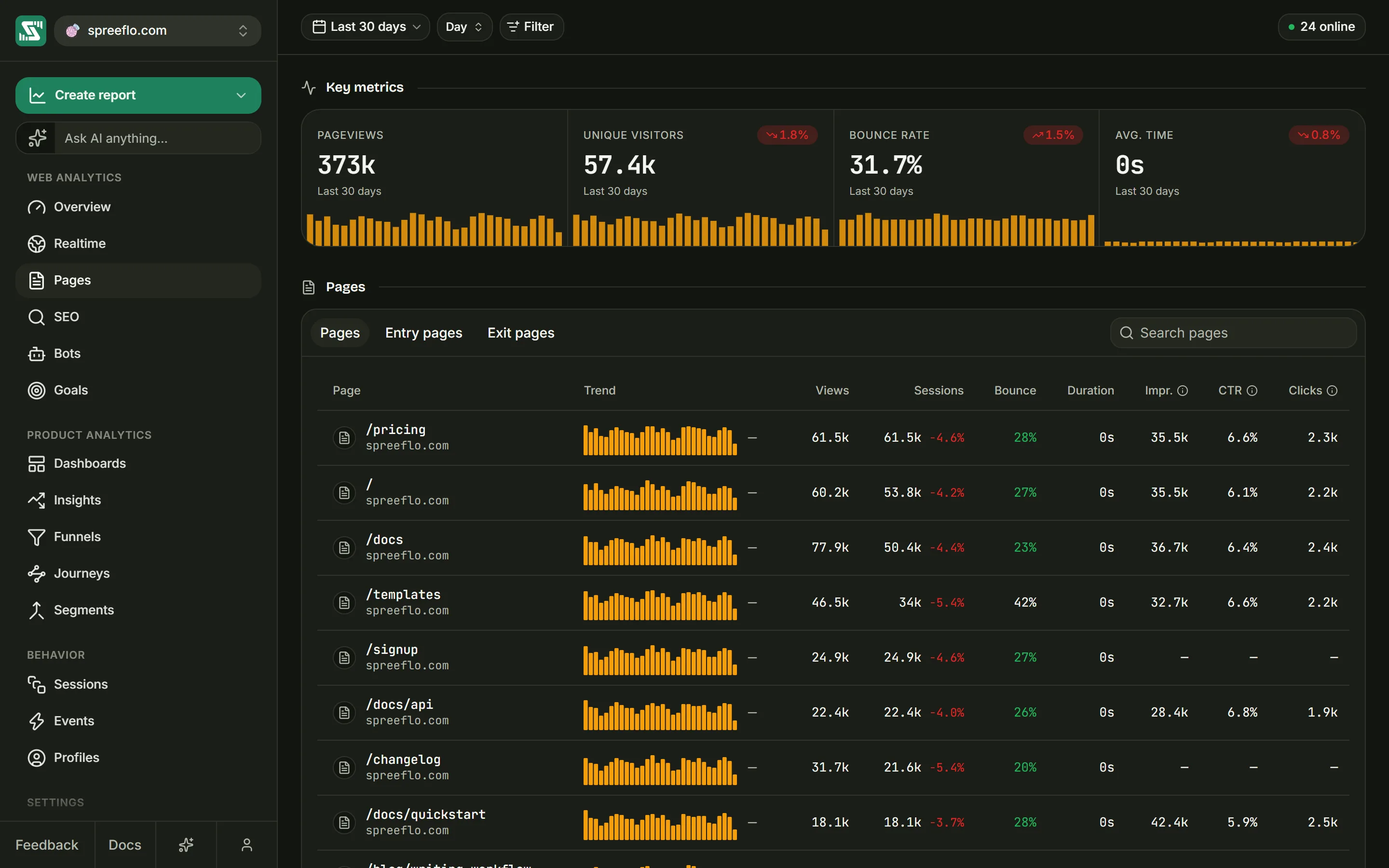
The toolbar
The toolbar is the same as on the Overview: the date range, the interval, Filter and the live visitor count. The interval sets the size of each bar in the small charts on this page, in the key metrics and in the Trend column.
Every filter dimension works here, and filters apply to the key metrics and to the table alike. A Page filter also narrows the Pages tab to the pages that match it. The only numbers filters do not touch are the Search Console columns, described below.
Key metrics
The section Key metrics has four cards. They only display numbers: clicking them does nothing. Point at the bars in a card to read each interval's value.
| Card | What it counts |
|---|---|
| Pageviews | Every page view in the range |
| Unique Visitors | Distinct visitors (browsers) with a visit that started in the range |
| Bounce Rate | The share of visits that were bounces: one page view and no other interaction |
| Avg. Time | The average length of a visit, shown as minutes and seconds |
The last three are the same numbers the Overview calls Visitors, Bounce rate and Session Time; the Overview guide explains how each is measured.
Unique Visitors, Bounce Rate and Avg. Time carry a change badge that compares the range with the period of the same length right before it. For Bounce Rate a fall is good and shows in green. Pageviews has no badge.
The pages table
The section Pages holds a table with three tabs: Pages, Entry pages and Exit pages. Each tab lists 10 rows at a time, with the number of rows found in the footer ("128 pages") and page buttons beside it. Each tab has a fixed order; clicking a column heading does not sort it.
Every tab starts with two columns:
- Page: the page's title over its path. A page that never reported a title shows its path over its host name instead. Point at a row and a small link appears that opens the page on your site in a new tab.
- Trend: a bar chart of the range with an arrow, described below.
Pages tab
Every page viewed in the range, ordered by how many distinct visitors viewed it. That count is not a column of its own.
| Column | Meaning |
|---|---|
| Views | How many times the page was viewed in the range |
| Sessions | How many visits viewed the page, with the change against the previous period beside it, or "new" if no visit viewed it then |
| Bounce | The visits that ended on this page, as a share of the page's views. It is worked out the same way as Exit rate on the Exit pages tab. |
| Duration | The average time spent on the page per view, counting only the views where that time could be measured |
| Impr., CTR, Clicks | Google Search Console figures, shown once Search Console is connected (see below) |
Entry pages tab
The pages that visits started on, ordered by entrances.
| Column | Meaning |
|---|---|
| Entrances | How many visits started on the page |
| Bounce | The share of those visits that were bounces: one page view and no other interaction |
| Avg. session | The average length of those visits, counting visits that have ended |
Exit pages tab
The pages that visits ended on, ordered by exits.
| Column | Meaning |
|---|---|
| Exits | How many visits ended on the page. A visit counts once it has ended. |
| Views | How many times the page was viewed in the range |
| Exit rate | Exits as a share of Views |
Colours
Bounce and Exit rate cells turn red at 55% or more and green at 32% or less. Values in between stay in the normal text colour.
The Trend column
Each row's Trend is a small bar chart of the range, one bar per interval, counting what the tab counts: views on Pages, entrances on Entry pages, exits on Exit pages. Point at a bar to read its date and value.
The arrow beside it compares the average of the first third of the bars with the average of the last third:
| Arrow | Tooltip | When |
|---|---|---|
| Up, green | "Upward trend" | The last third is higher by more than 5% of the first third's average |
| Down, red | "Downward trend" | The last third is lower by more than 5% of the first third's average |
| Flat | "Stable trend" | Any smaller change, or fewer than three bars |
The 5% margin keeps ordinary day-to-day noise from reading as a trend. A row shows a dash in this column until its trend has loaded.
Search and paging
Search pages finds pages whose path contains what you type, ignoring capitals. On the Exit pages tab it also matches the host name. A new search, or a switch to another tab, starts again from the first page of results. When nothing matches, the table says no pages were found.
Search Console columns
If the audience is connected to Google Search Console in Settings → Google Search (see Audience settings), the Pages tab gains three columns. Search Console is Google's free service that reports how your pages appear in Google's search results.
| Column | Meaning |
|---|---|
| Impr. | How many times the page appeared in Google's results |
| CTR | The share of those appearances that were clicked |
| Clicks | How many clicks from Google's results reached the page |
The info icon on each of these headings carries the caveats, and they matter:
- Google reports about two days late. The columns use the same range as the rest of the table, but stop two days before today, because Google has not published those days yet. A range that falls entirely inside those two days, such as Today or Yesterday, shows a dash in every cell rather than older figures.
- Filters do not apply. Google's numbers are for the whole page, whatever filters the rest of the table is using.
- A page Google has no figures for shows a dash.
Google reports full addresses, while Spreelytics keeps the host and the path of each page. The two are
matched on the host name in lower case without "www.", and the path without its query string,
fragment or trailing slash. So https://www.example.com/pricing/?ref=x and the row for
example.com/pricing are the same page.