








Docs·Feature guides
Events
The Events page shows everything your site sent, one event at a time. The chart at the top counts each kind of event over the date range. The table below lists every single event, newest first, with who sent it and what it carried, and it keeps itself up to date while you watch the first page. Click a row to read the whole event, along with the visit around it.
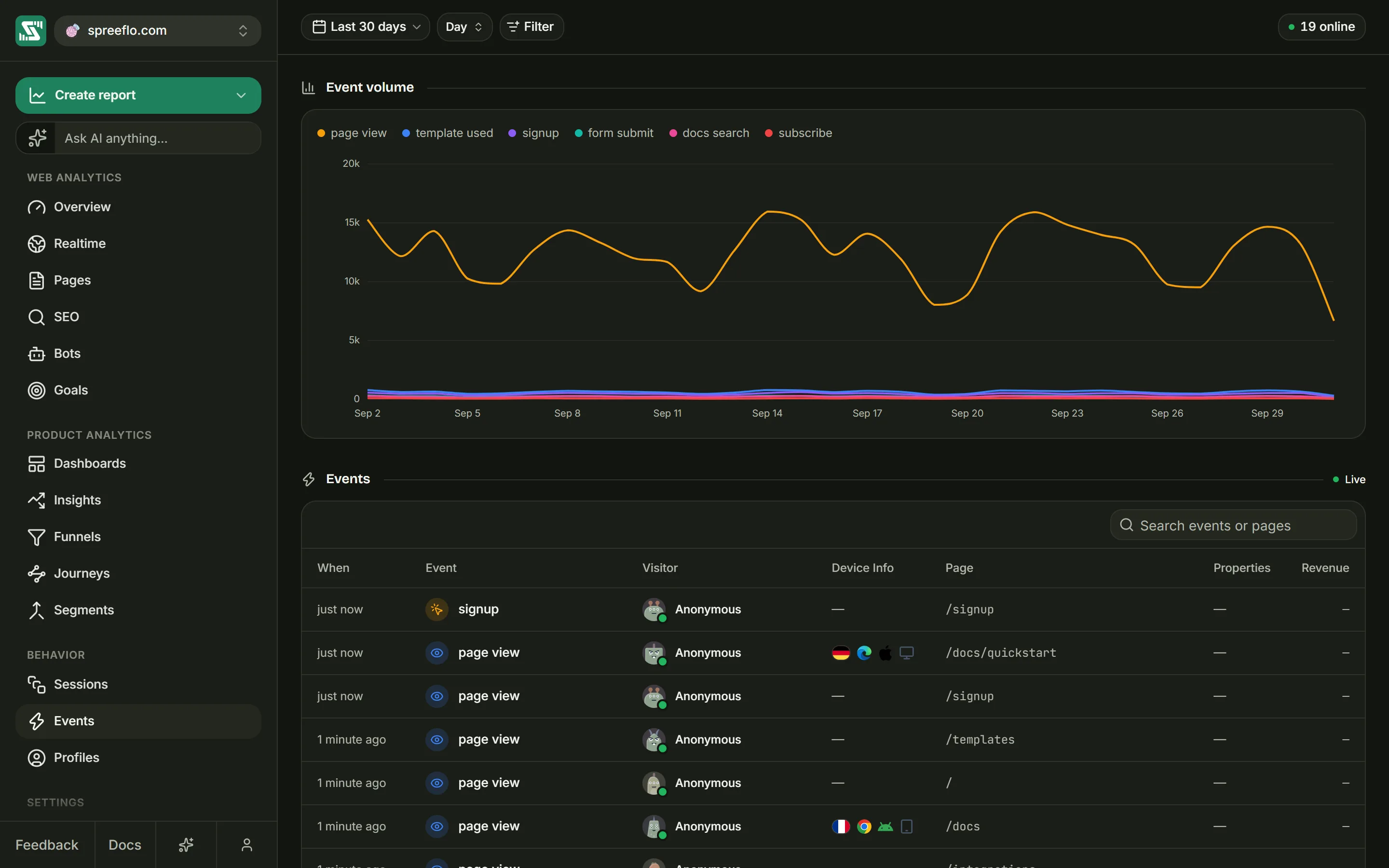
What you see here
This page shows every event recorded for the audience, not only your custom ones.
| Kind | Where it comes from | Shown as |
|---|---|---|
| Page views | Every page the script records | page view |
| Custom events | Spreelytics.track(), and clicks on elements tagged with data-spree-track (see Track events) | Their own name |
| Link clicks | Outbound link tracking, or trackLink | Link Click in the table, link click in the chart |
| Scroll | One per page view, sent when the visitor leaves the page | scroll |
| Session ends | Sent each time the visitor hides or leaves the tab, so one visit can have several | session end |
| Payments | A connected payment provider, or your server (see Revenue) | Their own name, such as purchase |
Names are shown with underscores replaced by spaces, so signup_completed reads "signup completed".
The stored name does not change.
Visits from AI crawlers and search engine bots are not events. They are counted separately, on the Bots page.
The toolbar
The toolbar has the date range, the interval, Filter and the online count. Every filter applies to both the chart and the table.
Event volume
The chart draws one line per event name, with one point per interval across the date range. The busiest event takes the first colour, and colours repeat after five, so with many lines, hover the chart: the tooltip lists every line by name with its value. Up to the 100 busiest names are drawn.
It counts the same events as the table, page views and session ends included. A scroll event comes with nearly every page view, so expect the scroll line to follow the page view line closely.
When there is too little to draw, the chart says so: No events in this range., or Only one bucket in this range. with "Pick a shorter interval, or a longer range, to see the trend." when everything falls into a single interval, such as Today at a Day interval.
The events table
Live and Paused
On the first page, the table refreshes itself every 30 seconds, and its header says Live, with the tooltip "Refreshing every 30 seconds". On any later page it says Paused and holds still, so rows do not shift while you read. The refresh also waits while the browser tab is hidden.
Search
Search events or pages matches the event's stored name or its page path, ignoring case. Two things to know:
- Names are matched as stored, with underscores. Type
signup_completedorsignup, not "signup completed". - Page views have no stored name, so find them by their path instead.
Columns
| Column | What it shows |
|---|---|
| When | How long ago the event happened, such as "5 minutes ago". Hover for the exact date and time. |
| Event | An icon for the kind of event, and its name |
| Visitor | The visitor's email with a green tick (tooltip Identified person), or Anonymous. The name links to their profile. A green dot on the avatar means the event happened in the last five minutes. |
| Device Info | Flag, browser, operating system and device icons, from the visit the event belongs to. Hover each one to name it. |
| Page | The page path. Hover for the hostname as well. Page views, scroll events and session ends have a page. Custom events, link clicks and payments show a dash. |
| Properties | How many properties the event carried, or a dash |
| Revenue | The amount on a payment event, in green, or a dash |
The table shows 50 events a page. The footer reads, for example, 50 of 8312 events, with page buttons beside it. No events in this range. means nothing was recorded in the date range with your filters.
The event drawer
Click any row to open that event in a drawer on the right. The row stays highlighted while the drawer is open, and the drawer's title is the event's icon and name. Close it with the X in its corner.
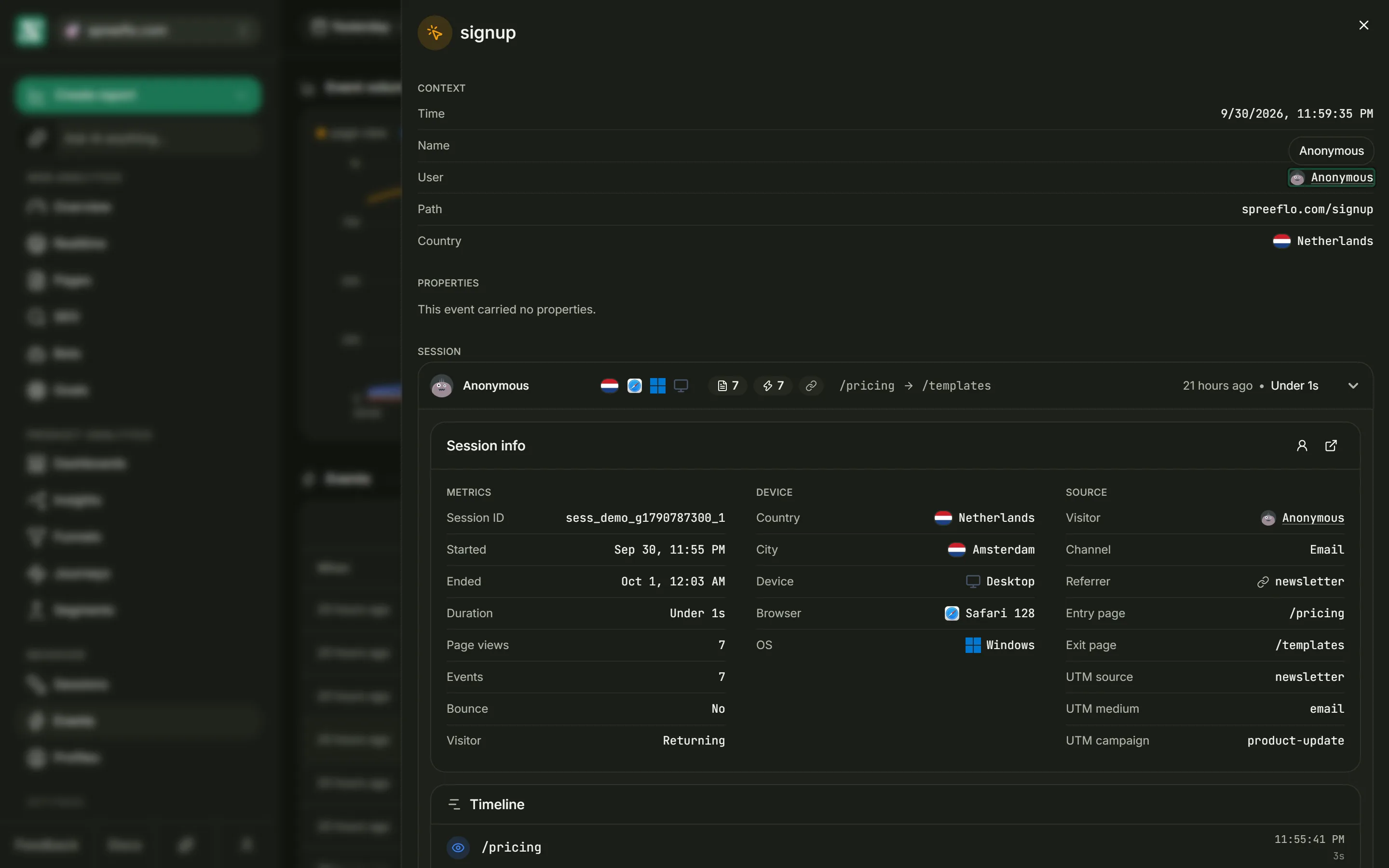
Context
| Field | What it shows |
|---|---|
| Time | The full date and time, in your browser's timezone |
| Name | The name as stored, with underscores, such as page_view |
| User | The visitor's email or Anonymous, linked to their profile |
| Path | The hostname and path, for events that have a page |
| Title | The page's title, on page views |
| Country | Where the visit came from |
| Scroll depth | On a scroll event, how far down the page the visitor got, in percent |
| Revenue | On a payment event, the amount |
A field with nothing in it is left out.
Properties
Properties shows the event's properties as JSON, with their number in brackets, such as
Properties (2). Every value is stored and shown as text. Nested properties arrive flattened into
dotted keys, so { plan: { name: "pro" } } is stored as plan.name. A scroll event carries
depth, path and hostname. A link click carries href, text and, when the link has one, id.
An event without properties shows This event carried no properties.
Session
Session shows the visit the event belongs to as an open session row: its Session info and its full Timeline, so you can see what came before and after the event. View profile and Open full session work here too. Sessions explains every field.
An event sent without a session, such as a payment your server recorded with no session ID, has no Session part. If the session cannot be found, it reads This session is no longer available.
Related
- Track events: send custom events and their properties from your site.
- Autocapture: what the script records without any code.
- Sessions: read whole visits rather than single events.
- Goals: count the people who sent an event as conversions.