








Docs·Usage
Segments
A segment is a saved definition of a group of people: everyone who bought something in the last 30 days, say, or identified people from Germany who arrived through your newsletter. Open a segment to see who is in it and export them, or use it as a filter to narrow almost any page in the app to those people.
A segment stores rules, not a list of names. Spreelytics works out who matches every time a segment is opened or used, so a segment never goes stale: people join as soon as they match and drop out as soon as they stop. The API calls segments cohorts (see the segment endpoints).
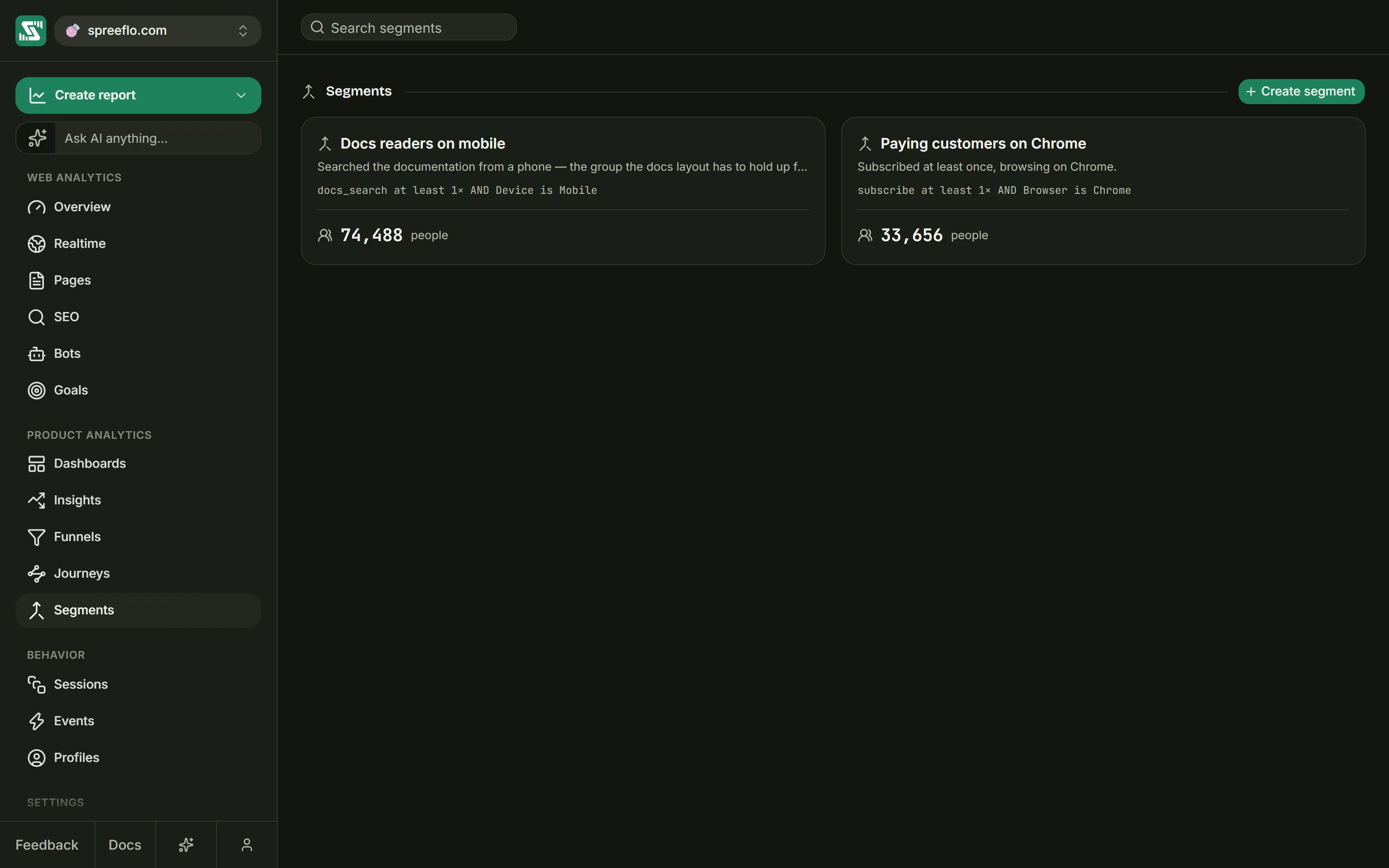
The Segments page
Open Segments in the sidebar, under Product Analytics. Every segment in the audience has a card with its name, its description, its rules written out on one line and the number of people it holds right now, counted over all time. Click a card to open the segment.
The bar at the top holds only Search segments, which matches names and descriptions. There is no date range on this page: a segment's rules carry their own time windows, so a date picker here would change nothing (see Who is in a segment over time).
Hover over a card for two buttons: Edit segment (the pencil) and Delete segment (the bin). These and Create segment need the Editor or Admin role in the workspace. Viewers can open and export every segment, but cannot create or change one.
Creating a segment
Click Create segment. The Create a segment window opens.
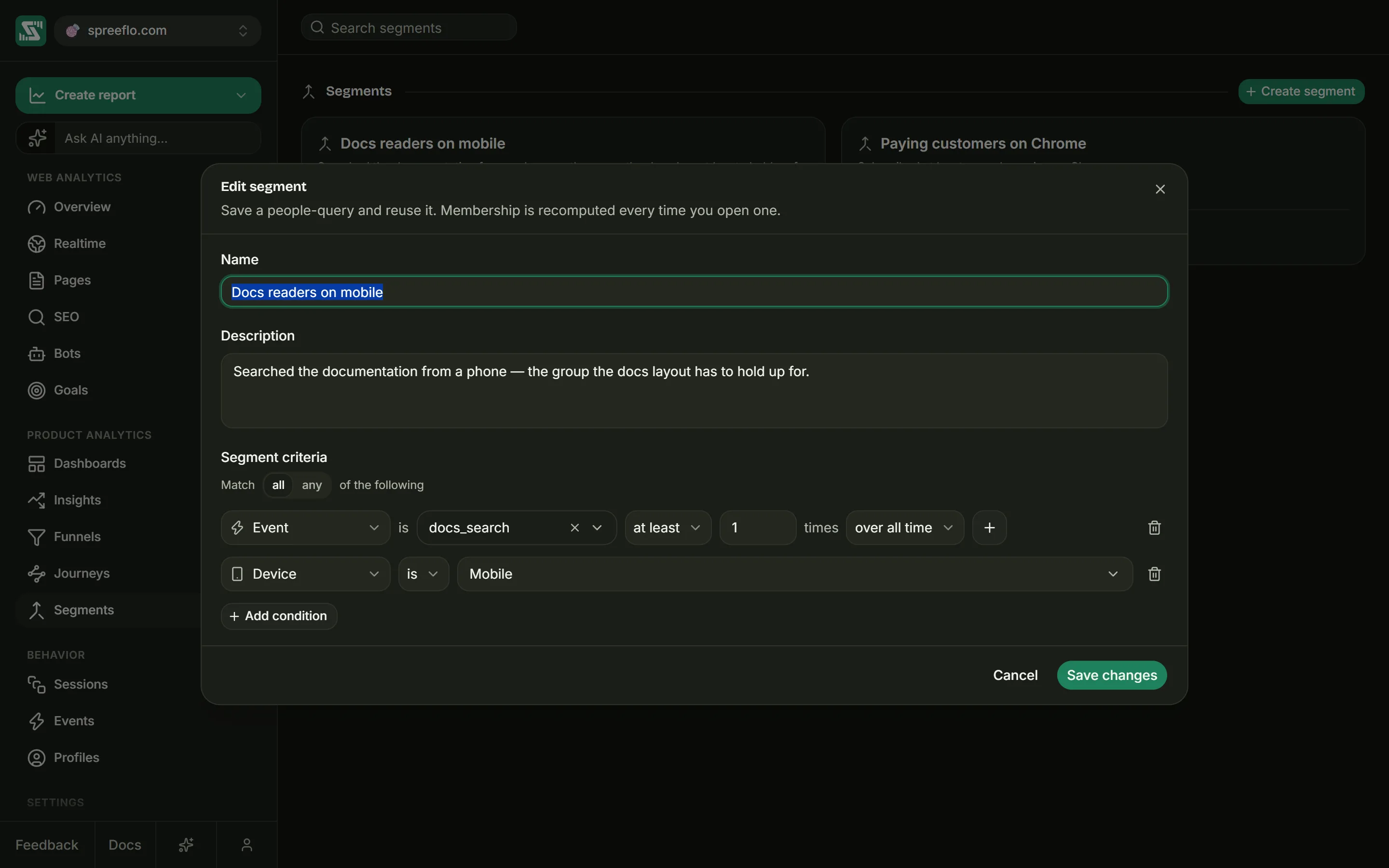
- Name is required. Two segments can share a name, so choose names you can tell apart.
- Description is optional. It shows on the segment's card and on its page, which makes it a good place to say why the group exists.
- Segment criteria holds the rules that decide who is in.
Click Create segment to save. The new segment appears in the list with its count.
Rules
Each rule is one line that reads as a sentence, such as "Country is US" or "Event is signup_completed at least 2 times in the last 30 days". The first box on the line picks what the rule tests, and the controls after it change to suit.
A new segment starts with one rule: Event is page_view at least 1 times in the last 30
days, which is everyone who viewed a page in the last 30 days. Change it or replace it.
Add condition adds another rule, up to 5 in all. It starts as an Event rule with no event picked. As soon as there are two rules, a line above them reads "Match all of the following", and you can switch all to any:
- With all, a person must match every rule.
- With any, matching one rule is enough.
The bin at the end of a line removes that rule. The last rule cannot be removed, since a segment needs at least one.
The first box offers these fields:
| Group | Fields | What the rule tests |
|---|---|---|
| Behaviour | Event | Whether the person did something, how many times and how recently |
| Location | Country, Region, City | Where their visits came from |
| Technology | Browser, OS, Device | What they visited with |
| Acquisition | Channel, Source, UTM source, UTM medium, UTM campaign | How their visits arrived |
| Contact | First name, Last name, Company, Company domain, Phone, Contact city, Contact state, Postcode, Contact country, Language | What is written on the person's record |
| Identity | Email, Identified | Whether, and how, you know who they are |
Picking a different field replaces the rule with a fresh one of that kind.
Event rules
An Event rule reads Event is event at least, exactly or at most number times time window.
The event. Pick it from Select an event, which lists the custom events your site has sent;
Search events narrows the list. Page views are not in the list. They are page_view, so type
page_view into the search box and choose Use "page_view". Typing works for any event name,
including one your site has not sent yet.
A rule counts page views and custom events: the ones your site sends with Spreelytics.track() or
data-spree-track (see Track events), and the purchase events that arrive from a
payment provider (see Revenue). Scroll depth and outbound link clicks are not
custom events, so a rule on scroll or on a link click matches nobody. A refund never counts as an
occurrence, so a refunded sale is still one purchase, not two.
How many times. at least, exactly or at most, followed by a number of 1 or more. All three only consider people who did the event at least once in the window, so at most 2 means once or twice, never zero. To find people who never did something, make a segment of the people who did, then filter by it with is not (see As a filter).
The time window. over all time, in the last 7 days, in the last 30 days, in the last 90 days, in the last 180 days or in the last year. A window counts back from the moment the segment is read: "in the last 7 days" means the seven days up to now, whatever date range you have picked elsewhere.
Only some occurrences. Once an event is picked, a + button appears at the end of the line. It
adds a where row under the rule, with a property, an operator and a value, and only occurrences
that match every row count. "Bought the Growth plan" is Event is plan_purchased at least 1
times in the last 90 days, where plan is growth. You can add up to 20 rows, and the bin on a
row removes it. The operators depend on the kind of value the property holds, the same as in a
goal's property conditions:
| Property holds | Operators |
|---|---|
| Text | is, is not, contains, does not contain, starts with, ends with, is set, is not set |
| A number | is equal to, is not equal to, is greater than, is less than, is set, is not set |
| True or false | is true, is false, is set, is not set |
| A date | is, is not, is after, is before, is set, is not set |
Visit rules: Location, Technology and Acquisition
These rules test the person's visits, all of them, over all time. The operators are is, is not, contains, does not contain, starts with and ends with.
- is, contains, starts with and ends with match when at least one of the person's
visits matched. Country is
FRkeeps anyone who ever visited from France. - is not and does not contain match when none of their visits did. Browser is not
Safarikeeps people who never visited with Safari.
is and is not compare the whole value, capital letters included. contains, does not contain, starts with and ends with ignore capital letters.
The value box reads Pick a value until you choose one. It opens the same picker as the Filter menu, listing the values recorded in the current date range with their visitor counts. Tick several values to match any of them, or type a value that is not listed: the list only covers the date range, while the rule looks at all time.
The picker's placeholder shows the shape a value takes:
| Field | Example values |
|---|---|
| Country | US, CA. Two-letter country codes: the list shows country names, but a value you type must be the code. |
| Region | California |
| City | Berlin |
| Browser | Chrome |
| OS | macOS |
| Device | Desktop, Mobile or Tablet |
| Channel | Organic Search |
| Source | Google |
| UTM source, UTM medium, UTM campaign | newsletter, email, launch |
Contact and Identity rules
Contact fields read the person's record, which you fill in with the attributes you pass to
identify() (see Identify users):
| Field | Filled by this identify() attribute |
|---|---|
| First name | first_name |
| Last name | last_name |
| Company | company |
| Company domain | website |
| Phone | phone |
| Contact city | city |
| Contact state | state |
| Postcode | zip |
| Contact country | country |
| Language | lang |
Contact rules take the same operators as visit rules and match values the same way. Only identified people have a record, so an anonymous visitor never matches is, contains, starts with or ends with on a Contact field, and always matches is not and does not contain.
Contact country is whatever text you sent, such as United Kingdom, not a code. It can also
differ from the Location group's Country: one is what the person told you, the other is where
their visits came from.
Email matches the addresses of people you have identified, ignoring capital letters. A person with several addresses matches if any one of them does.
Identified takes is or is not, followed by a choice of identified or anonymous. Identified is identified keeps the people you know by email; Identified is anonymous keeps everyone you do not.
When the form will not save
If something is missing when you click Create segment, the form shows "Finish the highlighted fields first." under the buttons and puts a message under the rule at fault:
| Message | What to do |
|---|---|
| Give the segment a name. | Fill in Name. |
| Pick an event. | Choose the event the Event rule counts. |
| How many times? Use 1 or more. | Set the count to 1 or more. |
| Enter at least one value. | Give the visit, Contact or Identity rule a value. |
| Every filter needs a value. | Fill in the value of a where row. Rows using is set, is not set, is true or is false need none. |
A where row with no property gets a message asking you to pick one or remove the row.
A segment's page
Click a segment's card to open it.
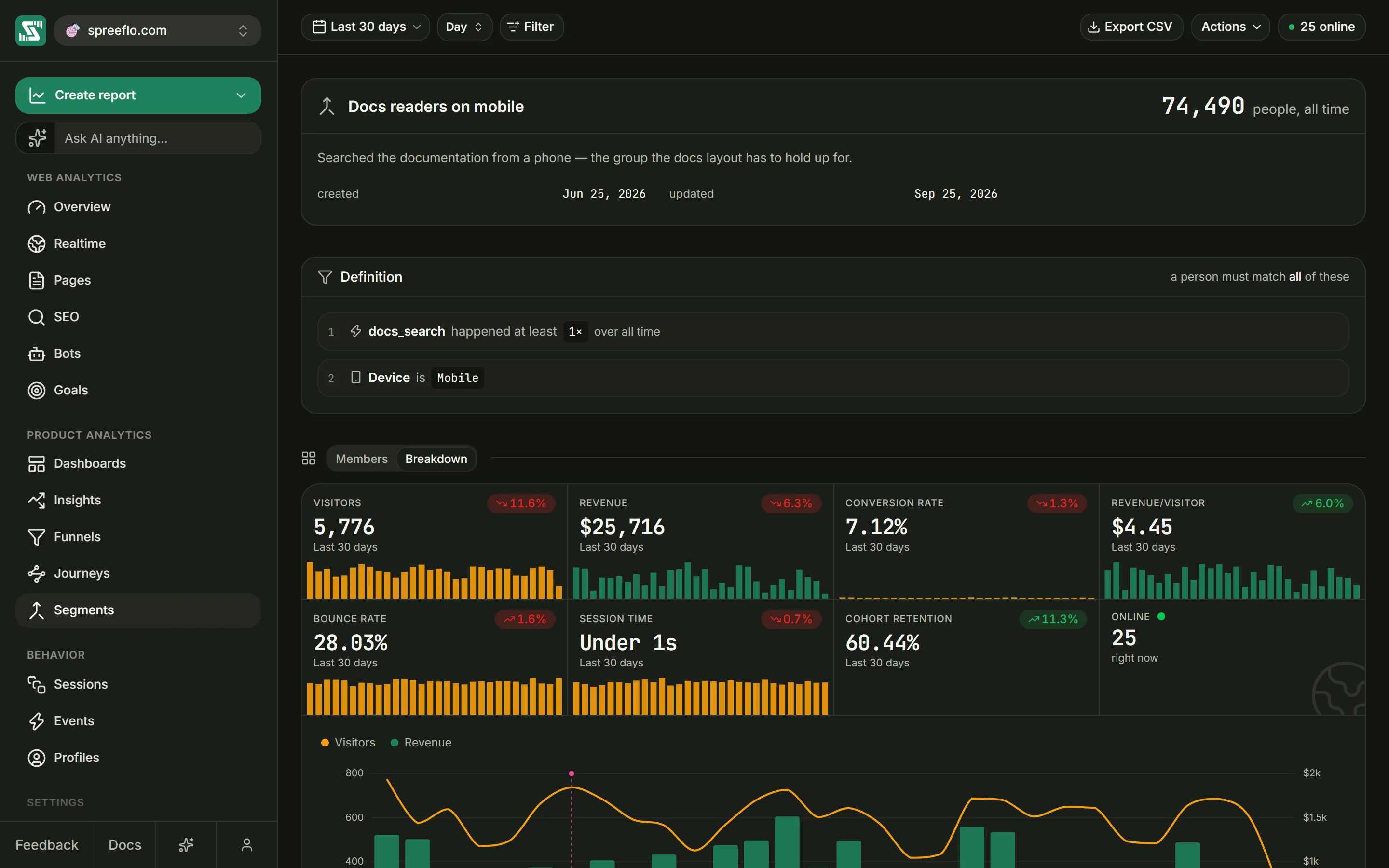
The toolbar has the date range, the interval and Filter, as on the Overview. On the right, Export CSV appears once the segment has members, and Actions holds Edit segment and Delete segment for editors and admins.
The header
The top card shows the segment's name, the number of people in it followed by people, all time, its description, and when it was created and last updated.
The count is of people, not visits. Someone you have identified counts once however many devices they used, and each anonymous visitor counts once. "All time" means the count ignores the date range: it follows the rules' own time windows instead.
Definition
The Definition card lists the rules, numbered. An Event rule reads like "signup_completed happened at least 2× in the last 30 days, 1 filter". With two or more rules, the card's header says whether a person must match all or any of them.
Members
The Members tab lists everyone in the segment, 25 to a page, with the total in the footer. Click a row to open that person's profile.
| Column | What it shows |
|---|---|
| Person | The person's name with their email underneath, or Anonymous for a visitor you have not identified. A tick marks identified people. |
| Country, Browser, OS, Device | An icon for their most recent visit; hover over it for the name. +N means their visits used N other values, listed when you hover. |
| Channel | The channel of their most recent visit, or Direct. +N means they also arrived by other channels, listed after "Also arrived by" when you hover. |
| Sessions, Events | Totals over all time |
| Spent | What they paid over all time, after refunds |
| Last seen | How long ago they were last active; hover for the exact time |
Search members finds identified people by name or email address. Anonymous visitors have neither, so search cannot find them.
A segment nobody matches shows "No one matches this segment yet".
Export CSV
Export CSV downloads the whole member list, not only the page on screen, as a file named after the
segment, such as power-users-members.csv. It follows the search box and any filters, and stops at
5,000 people. The columns are id, name, display, emails, identified, country, city,
channel, browser, os, device, sessions, pageviews, events, spent, first_seen and
last_seen.
Breakdown
The Breakdown tab shows the top of the Overview, its KPI strip, main chart and Breakdowns cards, counted only for this segment's members, over the date range and interval in the toolbar. Everything below the Breakdowns cards on the Overview is left out.
These numbers are visitors and sessions inside the date range, so they will not match the header's count of people over all time.
Filters on this page
A filter narrows the members list, the header count and the Breakdown tab together. A member stays in when any of their visits matches the filter, and the Country, Browser, OS, Device and Channel columns then describe their most recent matching visit. The date range does not change the member list or the count, only the Breakdown tab. Segment is not offered as a filter here, since the page already is one.
Using a segment elsewhere
As a filter
Open Filter, then Audience, then Segment. Choose is or is not, tick one or more segments by name, and click Save filter.
- With is, the page shows only the segment's members. With several segments ticked, it shows the members of any of them.
- With is not, the page shows everyone else: the people in none of the ticked segments.
The filter works on the Overview, Pages, Goals, Funnels, Journeys, Sessions, Events and Profiles. On Insights, SEO, Bots, a single session or profile, the Segments list and a segment's own page, its pill turns grey with the note "Filter not active for this page".
A segment filter keeps whole people. Every visit and event of each member counts, on every device you have tied to them, including activity from before they met the rules. Filter the Overview by a segment of buyers and you see what those buyers did on their way to buying.
In the report builder
The report builder has its own segment controls, each under a Segments category:
- Filter adds an In segment row, which you can switch to Not in segment. A row can hold more than one segment: In segment then keeps members of any of them, and Not in segment keeps people in none of them.
- Breakdown splits the chart by segment: one series for each of your 12 most recently created segments, plus (none) for everyone in none of them. Someone in two segments is counted once, under the newer one, so the series add up to the unsplit total.
- Metrics counts "How many of this segment's members were active in each period". The metric is titled "Total count of active profiles in" followed by the segment's name.
The builder itself is covered in Dashboards and reports.
Who is in a segment over time
A segment is worked out again every time it is read: when you open it, when a card on the Segments page loads its count, and when a page or report that filters by it loads. Editing the rules changes the segment everywhere at once.
Event rules move with the clock. Their windows count back from the moment of reading, so a member of "purchase at least 1 times in the last 30 days" drops out 30 days after their last purchase, without anyone touching the segment. over all time never drops anyone.
Visit, Contact and Identity rules look at all time. "Country is US" means at least one visit, ever, from the United States. These rules have no window, because "is in the US" is not a question about a date.
The date range never changes who is in a segment. On the segment's own page it only changes the Breakdown tab. When you filter another page by a segment, it only changes which of the members' activity is counted.
For example, take a segment with the one rule Event is purchase at least 1 times in the last 30
days, and filter the Overview by it with Last 12 months selected. You see twelve months of
activity from the people who bought something in the last 30 days, including their visits from long
before that purchase. Someone who bought in March and not since is not in the segment, even though
March falls inside the date range.
Editing and deleting
To change a segment, use the pencil on its card or Actions → Edit segment on its page. The Edit segment window works like the create window, with Save changes in place of Create segment. From then on, every count, member list, filter and report that uses the segment follows the new rules.
To delete one, use the bin on its card or Actions → Delete segment, then click Delete in the Delete segment dialog. Deleting cannot be undone. Filters and reports that still point at a deleted segment match nobody: a Segment is filter or an In segment row shows nothing, and the filter's pill shows the segment's id in place of its name. A Segment is not filter keeps everyone. Remove those filters once the segment is gone.
Creating, editing and deleting need the Editor or Admin role. Viewers can open segments, read their members and export them.
On a cookieless audience
On an audience using cookieless tracking, an anonymous visitor can only be recognised within one day. Each day they come back, they are a new person to a segment:
- Event rules that count across days see one day of an anonymous visitor's activity at a time. A rule like "at least 3 times in the last 30 days" misses someone who came once a day for three days.
- The people count reads higher than it would with the cookie, and the Members tab lists the same person as several Anonymous rows.
A visit becomes part of a person's history once you identify the visitor, so people you identify each time they sign in are counted correctly.
Related
- Goals: define your conversions, then compare them across segments with the Segment filter.
- Funnels: narrow a funnel to the members of one segment.
- Identify users: fill in the Contact fields that segment rules read.
- Profiles: every member opens as a profile.