








Docs·Usage
Goals
A goal is one thing you want visitors to do. Reaching your pricing page, sending a
signup_completed event and reading most of an article are all goals. Once a goal exists,
Spreelytics counts how many people completed it in whatever date range you pick, what share of your
visitors that is, and how much money those conversions brought in.
Goals are also what funnels are made of. Every funnel step is a goal, so create the goals you care about first and the funnels come almost for free.
A goal counts data you already have
A goal is a saved rule, not a new tracker. It changes nothing about what the script collects, and if the page or event it describes is already being recorded, there is nothing to add to your site.
When you create a goal, it is applied to everything already stored. A goal you make today shows last month's conversions as soon as you pick last month in the date range. The same goes for edits: change a goal's path or event and every date range, past ones included, is counted again with the new rule the next time the page loads.
Creating a goal
Open Goals in the sidebar and click Add goal. You need the editor or admin role in the workspace. Viewers can see every goal, but the button and the card menus are hidden for them.
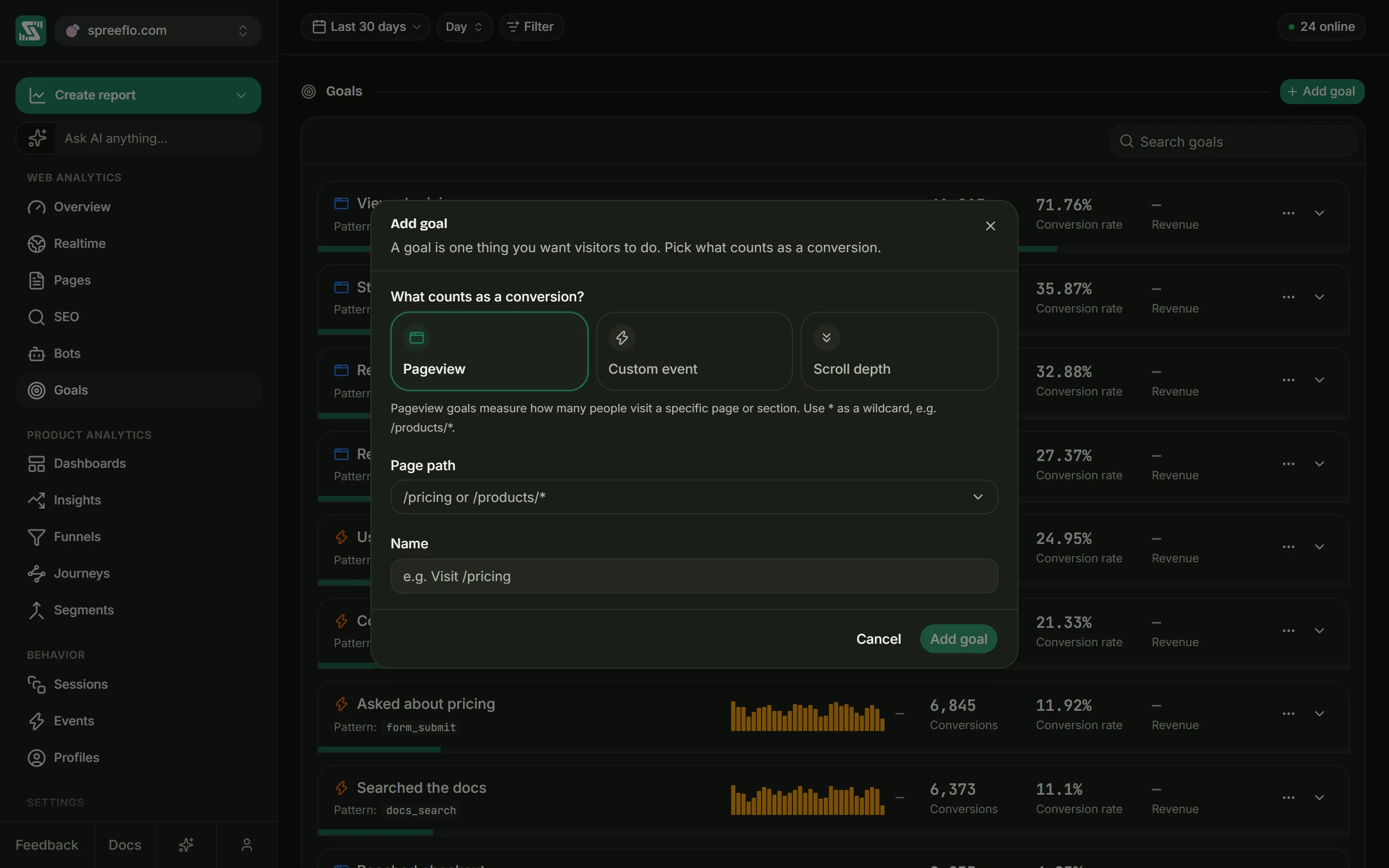
The window asks What counts as a conversion? and offers three types.
Pageview
Counts the people who viewed a page. Type the page into Page path. The field suggests paths it has already seen on your site, and you can also type one that has not been visited yet, such as a page you are about to launch.
The path is matched exactly, starting from the first slash, so /pricing matches /pricing and
nothing else. To cover a group of pages, use *. It stands for any run of characters, slashes
included:
| Page path | Matches | Does not match |
|---|---|---|
/pricing | /pricing | /pricing/teams, /en/pricing |
/blog/* | /blog/launch, /blog/2026/launch | /blog |
/docs/*/install | /docs/v2/install, /docs/v2/web/install | /docs/install |
*/checkout | /checkout, /en/checkout | /checkout/done |
Query strings and a trailing slash are ignored, on the pattern and on the recorded page alike. A
visit to /pricing/?plan=pro counts for a /pricing goal.
Custom event
Counts the people who sent a custom event: one your site sends with Spreelytics.track(), or a click
on an element tagged with data-spree-track (see Track events). Pick the event from
Event name. The list only offers custom events, so pageviews, link clicks and scroll events do
not appear in it.
Event names are matched exactly, and they are case sensitive: a goal on signup_completed does not
count Signup Completed.
Only some of an event's occurrences
Turn on Match specific event properties when only some occurrences should count. For example, a
goal on plan_purchased that only counts the event when its plan property is growth.
Each condition is a row with a property, an operator and a value. Add rows with Add filter, up to 20 of them. An event has to match every row to count. The operators on offer depend on the kind of value the property holds:
| Property holds | Operators |
|---|---|
| Text | is, is not, contains, does not contain, starts with, ends with, is set, is not set |
| A number | is equal to, is not equal to, is greater than, is less than, is set, is not set |
| True or false | is true, is false, is set, is not set |
| A date | is, is not, is after, is before, is set, is not set |
is set and is not set check whether the event carried the property at all, whatever its value.
Scroll depth
Counts the people who scrolled at least a given distance down a page. Set the Page path, which follows the same matching and wildcard rules as a pageview goal, and the Scroll depth from 0 to 100 percent, in steps of 5. It starts at 50%.
You do not need to set anything up for this. The script records how far down each page a visitor got and sends it when they leave the page (see Autocapture). A page short enough to fit on the screen cannot be scrolled, so it never produces a scroll event and a scroll goal on it never converts.
Naming the goal
Name fills itself in as you go, for example "Visit /pricing", "Trigger signup_completed" or "Scroll 75% on /blog/*". You can replace it with anything up to 200 characters. Two goals in the same audience cannot share a name.
Click Add goal to save. The goal appears in the list straight away, counted over the date range you already have selected.
Reading a goal card
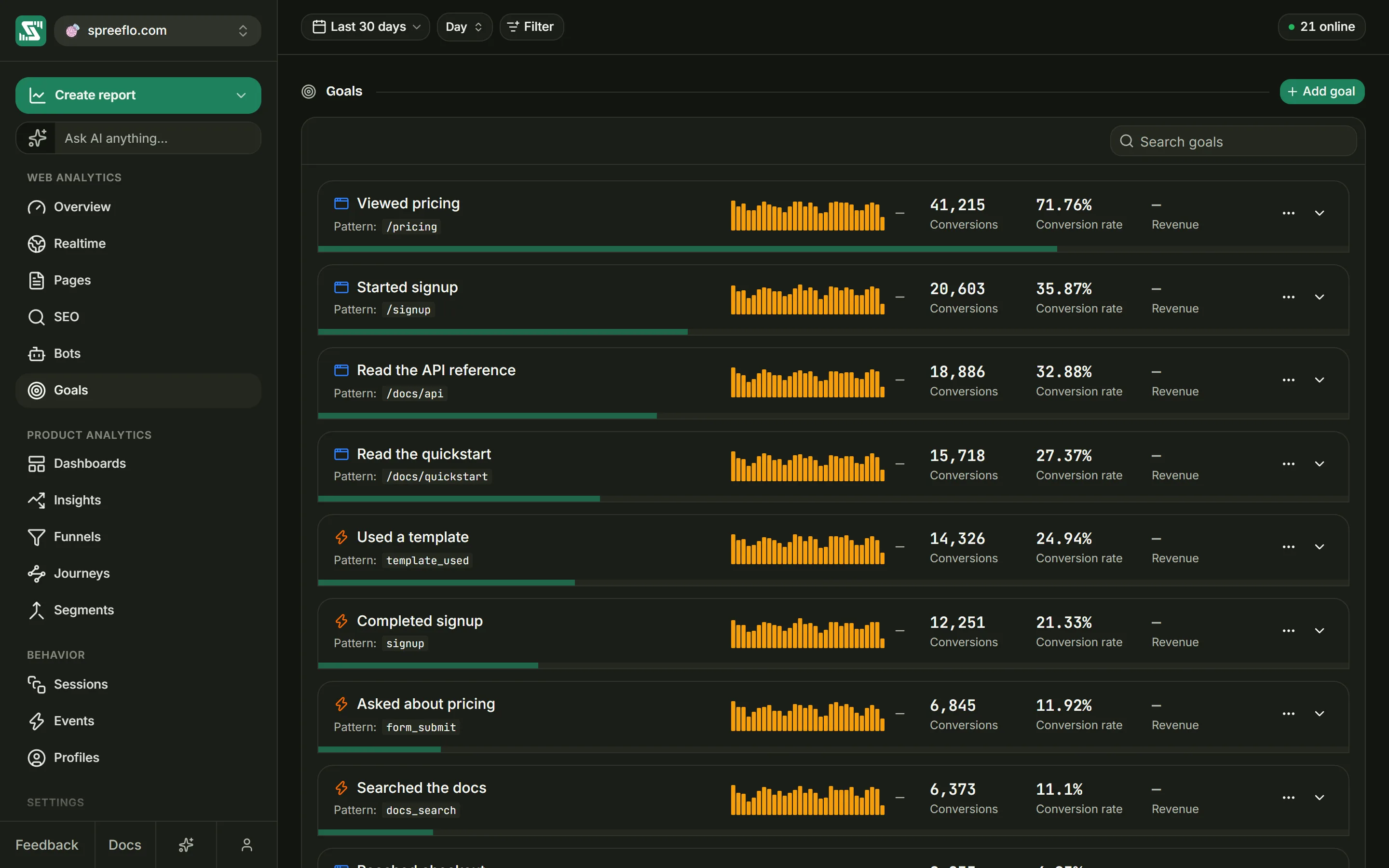
Each goal gets a card in the list.
| Part of the card | What it shows |
|---|---|
| The name and Pattern | What the goal matches: a path, an event name, or a scroll depth on a path. If the goal has property conditions, Property lists them. |
| The sparkline | Conversions over the date range, one point per interval. |
| Conversions | How many people completed the goal at least once in the range. Hover over it to see how many times it happened in total. |
| Conversion rate | Conversions as a share of everyone who was active in the range. The bar along the bottom edge of the card shows the same number. |
| Revenue | The money carried by the events this goal matched. Once any goal in the list has revenue, every card shows the column. |
A "person" here is someone you have identified, or an anonymous visitor if you have not. Someone who completes a goal on their phone and again on their laptop, after you have identified them on both, counts once.
Why a goal shows no revenue
Revenue on a goal is never estimated or assigned a value. It is the sum of the money on the events
the goal matched, and only payment events carry money: the purchase events that arrive from a
connected payment provider, and payments your server sends (see Revenue).
So a custom event goal on purchase shows revenue, while a pageview goal on /thank-you never
does, even though both mark the same sale.
The sessions behind a goal
Click a card, or the arrow on its right, to open it. Converted sessions lists the sessions of the people who completed the goal in the date range, newest first. It includes every session those people had in the range, not only the one where they converted, so you can see what they did before and after.
Each row is the same session card as on the Sessions page. Expand one to see where the visit came from, its device and location, and every page and event in order.
Edit, clone and delete
The … menu on each card has Edit goal, Clone goal and Delete goal.
Clone goal opens the form already filled in, named after the original with "(copy)" on the end. It is the fastest way to make several similar goals, such as one per pricing plan.
Deleting a goal cannot be undone. Any funnel that uses it as a step loses that step.
Filters and the date range
The Goals page has the same toolbar as the rest of the app: a date range, an interval and Filter. Filters on the visit, such as channel, source, a UTM field, country or browser, narrow every card at once, and so does a segment.
Page, entry page, exit page, event and goal filters do not apply on this page. They would fight the goals' own conditions instead of narrowing them, so their pills turn grey here with the note "Filter not active for this page".
Goals in the rest of the app
- On the Overview, the panel below the breakdowns opens on a Goals tab that draws each goal as a line and ranks them. Click a goal there for a short summary with Filter, Edit and a Show/Hide switch for its line. Goal visibility in the panel's header picks which goals are drawn.
- As a filter, open Filter, then Audience, then Goal. With is, the page shows only the people who completed that goal in the date range. With is not, it shows everyone else. It works on the Overview, Pages, Journeys, Sessions, Events and Profiles.
- In funnels, goals are the steps. See Funnels.
- From an AI app, a request like "track completed signups as a goal" creates one over MCP, or in the app's own AI panel.
On a cookieless audience
On an audience using cookieless tracking, an anonymous visitor can only be recognised within one day. Someone who completes a goal on Monday and again on Tuesday without being identified counts as two people, so over a range of several days, conversions and the conversion rate both read higher than they would with the cookie. Identified people are not affected.
Related
- Funnels: put goals in order and see where people drop off.
- Track events: send the custom events that event goals count.
- Revenue: connect payments so goals show what they earned.