








Docs·Usage
Track events
Pageviews arrive on their own once the tracking script is on your site. Everything else you care about, such as a signup, an upgrade or a download, is a custom event: a name you choose, plus optional properties that describe that one occurrence. You can send one from your own code, or tag an element in your HTML and let the script send it when someone clicks.
The script adds one global object to your pages, Spreelytics, and every call on this page goes
through it.
Send an event
One call, with the event name:
Spreelytics.track("signup_completed");
Add properties when the details matter:
Spreelytics.track("plan_purchased", {
  plan: "growth",
  billing: "annual",
  seats: 5,
});
Spreelytics.track() takes up to three arguments:
| Argument | Required | What it is |
|---|---|---|
name | Yes | The event name, as a string. It is recorded exactly as you send it. |
properties | No | An object with details about this occurrence, such as the plan or the price. |
attributes | No | Fields to save on the person who sent the event. Only used once the visitor is identified. See Update the person with the third argument. |
A few things to know before you rely on it:
- Call it after
Spreelytics.init(). A call made beforeinit()is dropped. A call made afterinit()but before the script has finished loading is queued and sent as soon as it is ready. - It never throws and returns nothing. If a request fails, nothing tells you, unless you add
debug: truetoSpreelytics.init(). Then the script logs what it does to the browser console. - Each event goes out in its own request, at the moment you call it. A small request is allowed to finish after the page is gone, so an event sent right before a redirect still arrives.
- Automated browsers send nothing. In a browser driven by Selenium, Puppeteer or Playwright the script does not track at all (see Filter traffic), so test in a normal browser.
What properties can hold
Properties are stored as pairs of a key and a value, and the type of each value decides how you can
use it later. A number can be compared with is greater than in a goal or a report filter, while
text cannot. So send numbers as numbers: seats: 5, not seats: "5".
| You send | It is stored as |
|---|---|
| A number | A number. |
true or false | True or false. |
| A string | Text, with three exceptions. The strings "true" and "false" are stored as true or false. A string written as an ISO date, such as "2026-10-01" or "2026-10-01T09:30:00Z", is stored as a date. A number inside quotes, such as "42", stays text. |
A JavaScript Date | It is sent as an ISO date string, so it is stored as a date. |
| A nested object | Flattened into dotted keys: { coupon: { code: "AUTUMN" } } becomes coupon.code. |
| An array of plain values | One value per item, all under the same key. |
| An array of objects | Each object's fields, under key[].field. |
null or undefined | Dropped. The key is not stored at all. |
Here is one event that uses all three shapes:
Spreelytics.track("order_placed", {
  coupon: { code: "AUTUMN", percent: 20 },
  tags: ["gift", "express"],
  items: [
    { sku: "TSHIRT-M", price: 25 },
    { sku: "MUG", price: 12 },
  ],
});
And the properties it stores:
| Property | Values |
|---|---|
coupon.code | AUTUMN |
coupon.percent | 20 |
tags | gift, express |
items[].sku | TSHIRT-M, MUG |
items[].price | 25, 12 |
Each request, properties included, can be up to 250 KB once it is encoded for sending. A bigger one is refused and the event is lost. The encoded form is larger than the data you pass in, so treat that as a ceiling you never get near: send ids and short labels, not whole documents.
Reserved property names
These names carry the details of payments, and Spreelytics reads them in a special way:
revenue.amount, revenue.currency, revenueReportingAmount, reportingCurrency,
transactionId, refunded, renewal, isFreeTrial, customerName, customerId
Do not use them for your own properties. Sending them from the browser does not record a payment,
and they are left out of the Properties tab on the Overview. Note that an object called
revenue with an amount inside flattens to revenue.amount, so it falls under this rule too.
Revenue only comes from a connected payment provider or from your server, as described in
Revenue.
Naming your events
There is no list of events to set up first. An event exists the moment it is first sent, which makes these habits worth keeping from day one:
- Name what happened, in the past tense.
signup_completed,plan_purchased,invoice_downloaded. - Pick one style and keep it. Names are case sensitive, so
plan_purchasedandPlan Purchasedare two different events, and a goal on one does not count the other. - Name the action, not the element.
checkout_startedstill makes sense after a redesign.blue_button_clickeddoes not. - Put the details in properties, not in the name. Send
plan_purchasedwith{ plan: "growth" }rather thangrowth_plan_purchased. You get one goal for every purchase, and you can still split it by plan.
On the Events page, underscores are shown as spaces, so signup_completed reads as "signup
completed". The name stored and matched is still the one you sent.
Update the person with the third argument
track() can also save fields on the person who sent the event, in the same call:
Spreelytics.track("plan_upgraded", { plan: "growth" }, { company: "Example Ltd" });
The third argument takes the same keys as Spreelytics.identify(), such as
first_name, company or country, and follows the same rules.
It only works for a visitor you have already identified. On an anonymous visitor the attributes are dropped, because there is no person yet to save them on. The event itself is recorded either way.
Track clicks without code
Add data-spree-track to any element and a click on it sends a custom event with that name. Add
data-spree-prop- attributes to give the event properties:
<button
  data-spree-track="trial_started"
  data-spree-prop-plan="growth"
  data-spree-prop-position="hero"
>
  Start free trial
</button>
A click on that button sends the same event as this call:
Spreelytics.track("trial_started", { plan: "growth", position: "hero" });
How it behaves:
- It is on by default. To turn it off, add
track_data_attributes: falsetoSpreelytics.init(). - The closest tagged element wins. A click on the icon inside a tagged button counts for the button. When tagged elements sit inside each other, only the innermost one sends an event.
- Elements added later work too. The script listens on the whole page, so content rendered after the page loaded needs nothing extra.
- Every value arrives as text.
data-spree-prop-seats="5"sends the text"5", not a number. The string rules above still apply, so"true"and"false"become true or false. When you need a real number, useSpreelytics.track()instead. - Attribute names are lowercased by the browser. HTML does not keep capital letters in attribute
names, so
data-spree-prop-planNamearrives asplanname. Use lowercase names with underscores, such asdata-spree-prop-plan_name. - An empty name sends nothing.
data-spree-track=""is ignored.
These clicks are ordinary custom events, so they count toward your monthly events like any
track() call.
Link clicks
Link clicks are not recorded until you turn them on in the snippet:
Spreelytics.init({
  client_key: "YOUR_CLIENT_KEY",
  track_links: "outbound",
});
track_links | What it records |
|---|---|
false (the default) | No link clicks. |
"outbound" | Clicks on links that point at a different hostname. |
true | Every link click, links to your own pages included. |
Prefer "outbound". Clicks between your own pages already show up as pageviews, so true mostly
adds a second copy of your own navigation.
What counts as outbound
The script compares the link's hostname with the page's hostname, exactly. That gives some results people do not expect:
- Your own subdomains count as outbound. A link from
www.example.comtoapp.example.comis recorded, because the two hostnames differ. wwwand the bare domain are different hostnames. A link fromexample.comtowww.example.comis recorded.- Links with no hostname count as outbound, such as
mailto:andtel:links. - Links to the same hostname are skipped, including jumps to an
#anchoron the page.
The Link Click event
Every recorded click is one event with the fixed name Link Click. You cannot rename it. It carries
these properties:
| Property | Value |
|---|---|
href | The full destination, with a trailing slash removed. |
text | The link's visible text, trimmed. |
id | The link's id attribute, only when it has one. |
Link clicks do not count toward your monthly events. A link click does count as interaction, so a visitor who lands on one page and clicks a recorded link is not counted as a bounce.
You can find link clicks on the Events page, in session timelines and in the report builder. Goals, the Event filter and segment rules do not offer them.
Track one specific link
To record clicks on one element, with your own properties, whether or not track_links is on:
Spreelytics.push(["trackLink", document.querySelector("#pricing-cta"), { position: "hero" }]);
Use the push form shown here. Spreelytics.trackLink() only exists once the full script has loaded,
so calling it earlier throws an error, while Spreelytics.push() works before and after.
It sends the same Link Click event, with your properties merged over href, text and id, so a
property of yours with one of those names replaces the collected value. Each element is set up once:
a second call on the same element is ignored.
Which events count toward your monthly events
Your plan includes a number of events each month (see Billing). Here is what counts toward it:
| Counted | Not counted |
|---|---|
| Pageviews | The scroll event the script sends once per page view (see Autocapture) |
Custom events from track() | Link Click events |
Clicks on data-spree-track elements | The session end the script sends when a visitor leaves or switches tabs |
| Payment events from a payment provider or your server | Refunds |
| Payments from before you connected a provider, added with an import (see Import past payments) |
Identifying a visitor is not an event, so it is never counted. Events that are not counted are still stored and still appear in your reports. The list above only decides what you pay for.
Where events show up
Once events arrive, they appear across the app:
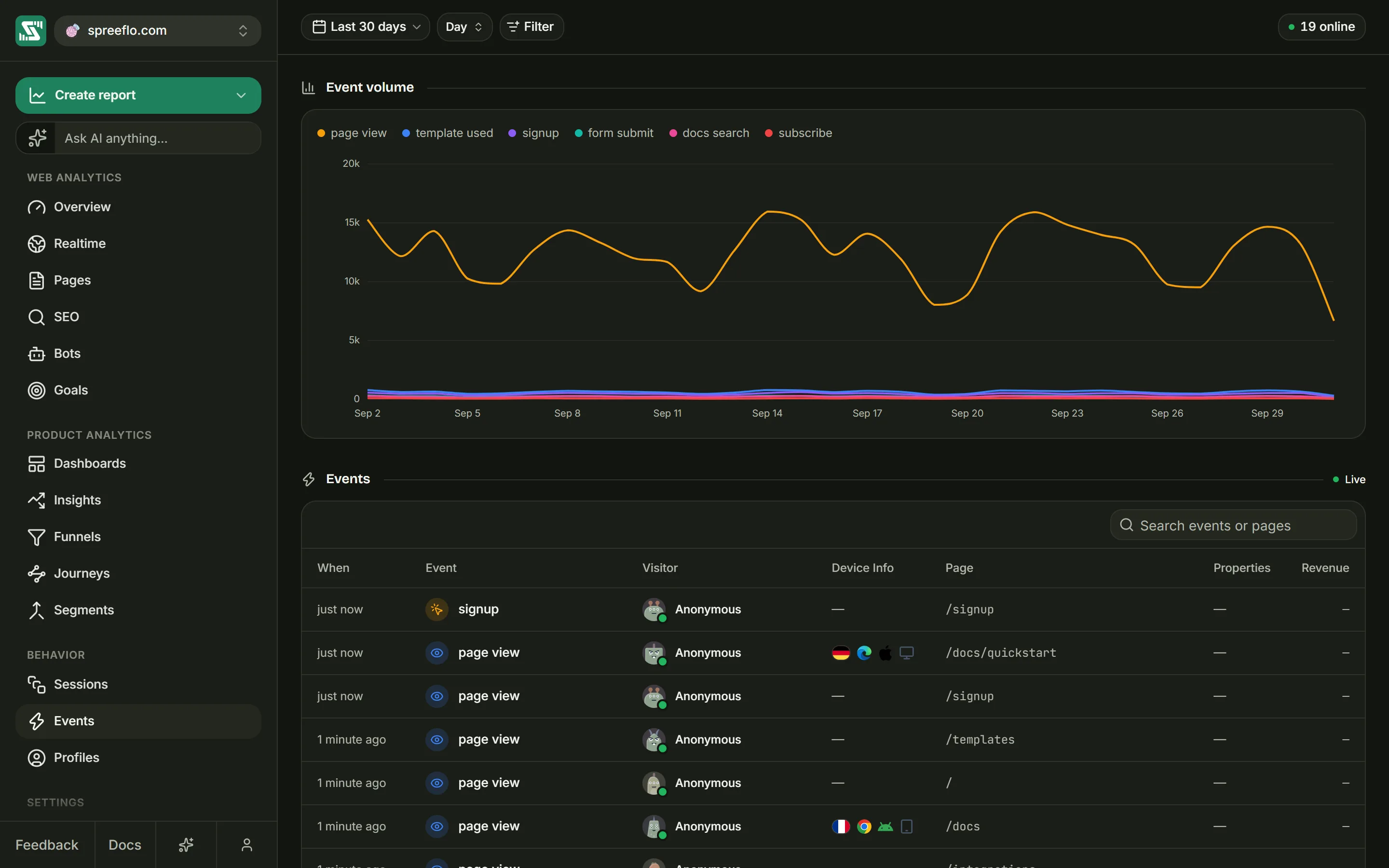
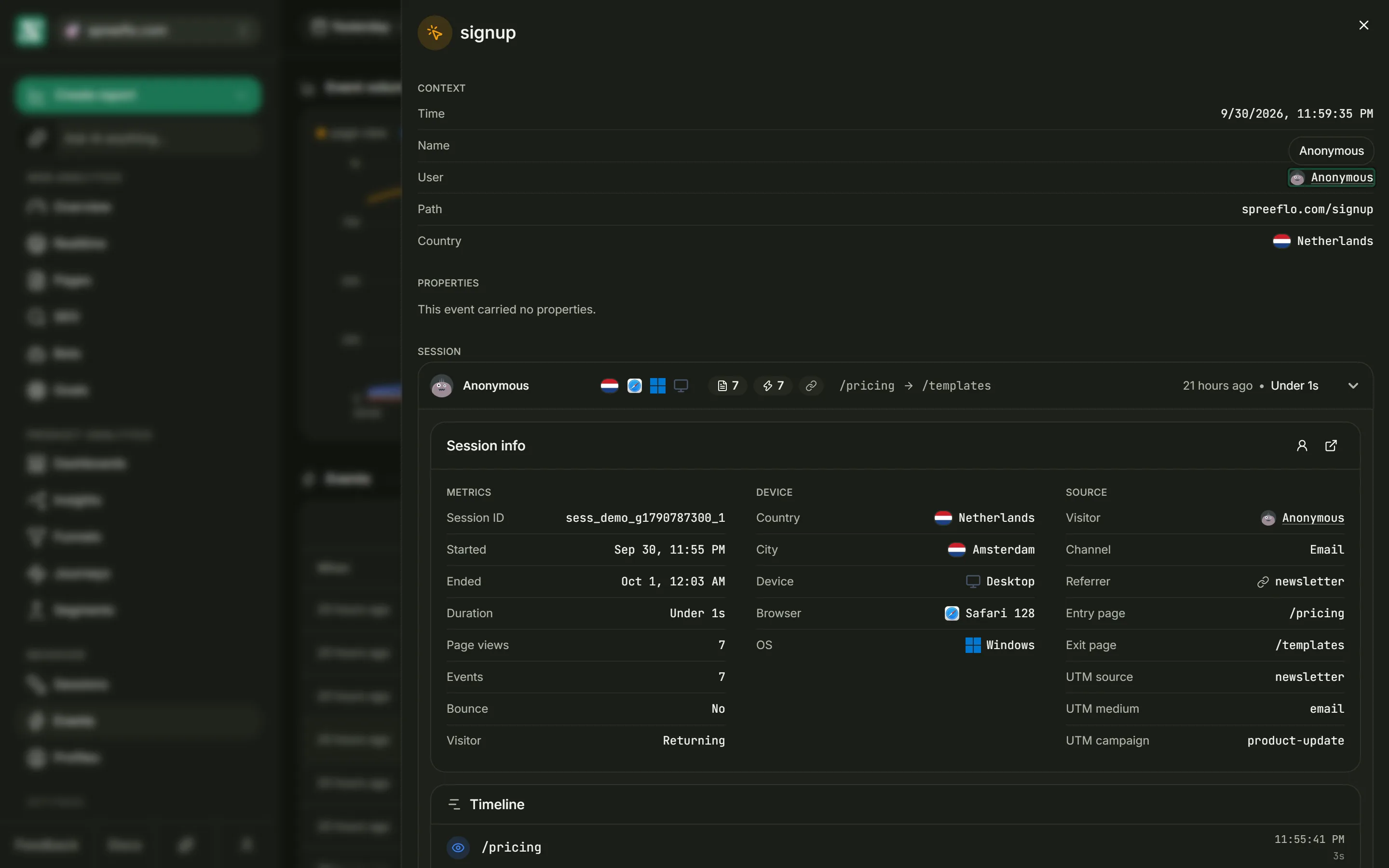
- The Events page lists everything the audience recorded, newest first, including pageviews and the events the script sends on its own. The Event volume chart above it draws one line per event name. Click a row to open the event in a side panel with its Context, its Properties and the Session it belongs to. See Events.
- The Events card on the Overview, among the breakdowns, ranks your custom events by how many
times each was sent in the date range. The automatic scroll event appears there as
scroll. Click a row to filter the whole page to that event. - The Properties tab on the Overview, in the panel below the breakdowns, lists every property your custom events carried in the date range. Pick one to see its values with Visitors, Events and a share of the total.
- Goals count the people who sent a custom event, optionally only when its properties match. See Goals.
- Segments can group people by what they sent: for example, everyone who sent
plan_purchasedat least once in the last 30 days. See Segments. - Filter → Content → Event narrows a page to the visits that included a given event.
- The report builder charts any event, split or filtered by its properties. See Dashboards and reports.
What is not tracked for you
The script records pageviews, scroll depth and, when you turn them on, link clicks. Form
submissions, JavaScript errors, video plays and file downloads (other than as link clicks) are not
recorded unless you send them with Spreelytics.track(). Spreelytics does not draw heatmaps. On the
Growth plan, session replay shows each visit's clicks beside
its events, without any tracking code.
Related
- Identify users: put a name to the people who send your events.
- Goals: count the people who sent an event, and the revenue it carried.
- Autocapture: what the script records without any code from you.
- JavaScript SDK: every option and method on the
Spreelyticsobject.