








Docs·Usage
Funnels
A funnel is an ordered chain of goals: visiting your pricing page, then starting a signup, then paying, for example. Spreelytics counts how many people went through each step in order, within a time limit you set, so you can see where they fall out and what the people who stay are worth.
Every step is an existing goal, and a funnel has 2 to 8 of them, so you need at least two goals before you can build one.
Why the steps are goals
A step needs an exact rule for what counts, and a goal is that rule: a page path with wildcards, a custom event with property conditions, or a scroll depth on a page. Because funnels reuse goals, a step means the same thing on the Goals page and in every funnel, and editing a goal updates every funnel that uses it.
Like a goal, a funnel counts data you already have. A funnel you make today shows last month's numbers as soon as you pick last month in the date range.
If the step you need is not a goal yet, create it on the Goals page first. With fewer than two goals in the audience, the Add funnel window says so and offers Add goal, which takes you there.
Creating a funnel
Open Funnels in the sidebar, under Product Analytics, and click Add funnel. You need the Editor or Admin role in the workspace. Viewers can see every funnel, but the button and the card menus are hidden for them.
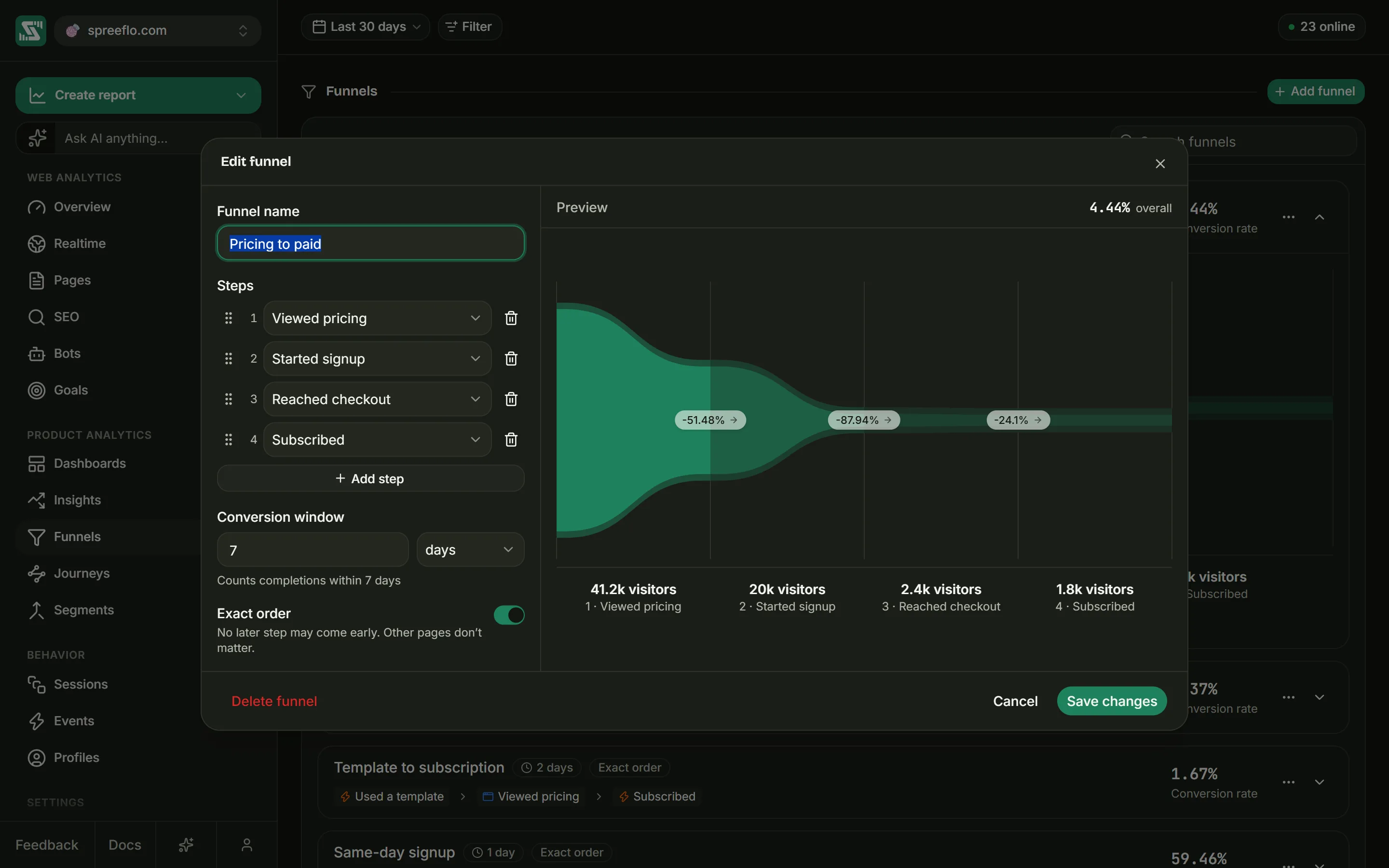
The window has the funnel's definition on the left and a live Preview on the right.
Funnel name
Up to 200 characters. Two funnels in the same audience cannot share a name; if the name is taken, the reason appears above the buttons when you save.
Steps
The form starts with two empty steps. Choose a goal for each one from Select a goal, which lists every goal in the audience by name.
- Add step adds a step at the end, up to 8.
- The bin removes a step. It is greyed out while the funnel has only two.
- To reorder, drag a step by its grip (the dotted handle on the left), or click the grip and press the up and down arrow keys.
Each goal can appear once. Picking the same goal twice shows "Each step must be a different goal."
Conversion window
A whole number and a unit: minutes, hours or days. It starts at 7 days and goes up to 366 days (8,784 hours, or 527,040 minutes). The line underneath reads back what will be saved, such as "Counts completions within 7 days". How people are counted explains what the window measures.
Exact order
Off unless you turn it on. Its description reads "No later step may come early. Other pages don't matter." It needs at least three steps; with fewer, it is greyed out with "Needs at least three steps to make a difference." In order and Exact order shows what it changes.
Preview
The preview scores the funnel as you build it, with the same counting as a saved funnel, over the date range and filters set on the Funnels page. Its header shows the overall conversion rate, such as "38% overall", and the chart below is the one the saved funnel will draw. Until two steps have a goal, it reads "Pick a goal for at least 2 steps to see the funnel."
Click Add funnel to save. The button stays greyed out until there is a name, every step has a goal, no goal is repeated and the window is a whole number of 1 or more.
How people are counted
Who enters
A person enters the funnel when they complete the first step inside the date range you have selected. Someone who completed the first step before the range started does not enter, even if they do the later steps inside it, unless they complete the first step again within the range.
The conversion window
The clock starts when someone completes the first step, and every later step has to happen before the window runs out. The window is measured from the first step, not from the step before: with a 7 day window, someone who visits your pricing page on a Monday has until the following Monday to finish every step.
If they complete the first step again later, the clock can start again from there, and the attempt that got furthest is the one that counts.
The later steps may fall after the end of the date range, as long as they are inside the window. With September selected and a 7 day window, someone who completes the first step on 29 September and the last on 3 October counts as converted.
In order and Exact order
Steps always count in order. Each funnel card shows In order or Exact order to say which rule applies:
- In order: a later step that happens early is ignored. It counts only if it happens again once the steps before it are done.
- Exact order: a later step that happens early ends the attempt, at the step reached so far.
Take a funnel with three steps: Visit /pricing, then Trigger signup_started, then Trigger signup_completed.
| What the person did, in this order | In order | Exact order |
|---|---|---|
| /pricing, /blog, signup_started, signup_completed | Reaches step 3 | Reaches step 3 |
| /pricing, signup_completed, signup_started | Reaches step 2 | Reaches step 1 |
| signup_started, /pricing, signup_completed | Reaches step 1 | Reaches step 1 |
In the second row, In order ignores the early signup_completed and counts the person at step 2
once signup_started arrives. Exact order stops at step 1 as soon as signup_completed comes
before signup_started. In the third row, the signup_started before /pricing counts in neither
mode, because nothing counts before the first step, and the step 3 event then comes before step 2.
With only two steps, the only thing that can come between them is a repeat of the first step, which breaks neither rule, so both settings give the same numbers. That is why Exact order needs a third step.
Other pages and events in between
They do not matter, in either mode. A funnel only looks at the events that match one of its steps, so
the visit to /blog in the first row of the table changes nothing.
Who counts as a person
Someone you have identified is one person across all their devices: if they visit your pricing page on their phone and pay on their laptop, they count as converted. Visitors you have not identified are counted by browser.
Reading a funnel card
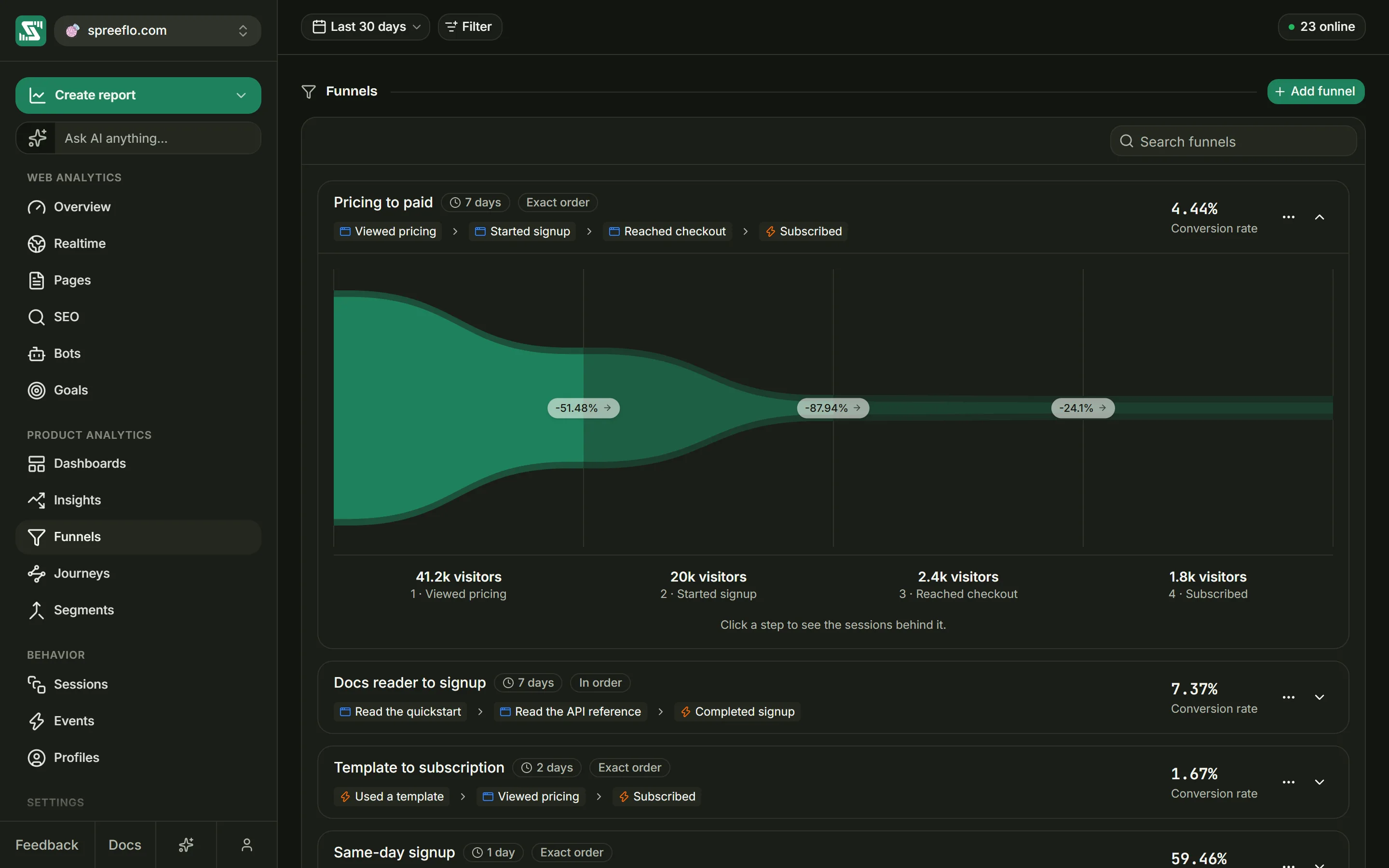
Each funnel is a card in the list. The first card is open when the page loads; click any other card, or the arrow on its right, to open it.
The card's header
| Part of the card | What it shows |
|---|---|
| The name | The funnel's name |
| The window badge | The conversion window, such as "7 days". Hover for "Visitors get 7 days to finish every step." |
| In order or Exact order | The ordering rule. Hover for what it means. |
| The step chips | The steps' goals, in order. Hover over one for its position and name, such as "Step 2 · Start signup", and the goal's type and what it matches. |
| Conversion rate | The share of the people who entered the funnel in the date range who finished every step |
| … | Edit funnel, Clone funnel and Delete funnel, for editors and admins |
The chart
The chart has a band for each step, as tall as the number of people who reached it. Between two bands, a chip such as "-42%" shows the share of people lost since the previous step. Under the chart, each step shows its number of people (labelled "visitors"), its position and its goal's name.
The hover card
Hover over a step's band for the details:
| Line | What it shows |
|---|---|
| The previous step | Its name and how many people reached it |
| Dropoff | How many people reached the previous step but not this one |
| This step | Its name and how many people reached it |
| Conversion | This step's people as a share of the previous step's |
| from start | This step's people as a share of the first step's. Shown from the third step on. |
| Step value | Revenue per person ("/visitor"): everything the people at this step paid, after refunds, from the moment they entered the funnel until their window ran out, divided by the number of people at this step. All their payments count, not only ones a step matched, so it usually rises further down the funnel. It is in your reporting currency (see Revenue). |
| Top sources | The three most common sources of the people at this step, with their share. It uses each person's first visit in the date range, and shows Direct when that visit had no source. |
| Top countries | The three most common countries of those first visits, with their share |
The first step has nothing before it, so its card starts with its own line.
The sessions behind a step
Click a step's band, or its label under the chart, to open its sessions below the chart. The list is headed with the step and its goal, such as Step 2 · Start signup, and the number of sessions. It holds the sessions of everyone who completed that step's goal in the date range, 10 to a page, and each one expands like a card on the Sessions page.
The list belongs to the goal, not to the funnel: it includes people who completed that goal without going through the steps before it, as the info icon next to the heading says. Click the step again, or the cross, to close the list. Until you pick a step, the card reads "Click a step to see the sessions behind it."
Filters and the date range
The Funnels page has the date range and Filter, but no interval: a funnel is a set of totals, not a line over time. The date range decides who enters, and every card and the preview follow it.
Filters on the visit, such as channel, source, a UTM field, country, browser or device, narrow every funnel at once. A step then counts only when it happened during a matching visit: with Channel is Paid Search, someone who started on a paid search visit and finished on a later organic one stops at the step they reached on the paid visit. A Segment filter keeps every step of the segment's members, whatever visit it happened in.
Page, entry page, exit page, event and goal filters do not apply here. They would fight the steps' own conditions instead of narrowing them, so their pills turn grey with the note "Filter not active for this page", and the page reminds you that page, event and goal filters do not apply to funnels.
Search funnels above the list matches funnel names and the names of their steps' goals.
Funnels on the Overview
On the Overview, the panel below the Breakdowns cards has the tabs Goals, Funnels, Properties, Journey and Users. The Funnels tab draws one funnel at a time, with its conversion rate and the date range above the chart, and lists every funnel on the right as "3 steps · 38% conversion rate". Hover over a funnel in the list to see its steps, click it to draw it, and use Manage to go to the Funnels page. The chart and its hover card are the same as on the Funnels page; to see a step's sessions, open the funnel there.
The panel is hidden on public share links.
Funnels in the report builder
The report builder has its own Funnel chart type, for questions you do not want to turn into goals first. Open Create report, pick Funnel as the chart type, and add the steps to the metric card with Add step:
- The steps are events, not goals: any event your site sends, page views included. Each step can carry
its own filter rows, such as a page view where the path is
/pricing. - The engine takes 2 to 8 steps.
- Under the steps, Window is the conversion window (minutes, hours or days, 7 days to start with, at most 366 days) and Strict order is the same rule as Exact order.
- The report's own filters and segments apply to every step.
Use it for one-off questions, or to put a funnel on a dashboard. A builder funnel draws the step counts with a table of conversion under the chart; its hover card has no Step value, Top sources or Top countries. Funnels made there do not appear on the Funnels page or on the Overview.
Edit, clone and delete
The … menu on each card has Edit funnel, Clone funnel and Delete funnel.
Edit funnel opens the same window, titled Edit funnel, with Save changes and a Delete funnel button. A change applies to every date range, past ones included, the next time the page loads.
Clone funnel opens the form already filled in, named after the original with "(copy)" on the end, and saves it as a new funnel. It is the quickest way to try the same steps with another window or with Exact order.
Delete funnel asks you to confirm. Deleting cannot be undone, and the goals the funnel chains are not affected.
Deleting a goal removes it from every funnel that uses it as a step. A funnel can be left with a single step that way, and its conversion rate is then 100% whenever anyone enters it: edit the funnel and add the missing step back.
On a cookieless audience
On an audience using cookieless tracking, an anonymous visitor can only be recognised within one day. Someone who completes the first step on Monday and the last on Tuesday without being identified looks like two people: one stuck at the first step, and one who never entered. The longer people usually take to finish, the more anonymous conversions are lost, so conversion rates read lower than they would with the cookie. Visits you identify are tied to the person, not the day.
Related
- Goals: create the goals that funnel steps are made of.
- Segments: narrow a funnel to the members of one segment.
- Revenue: connect payments so funnels show what each step is worth.
- Dashboards and reports: build event funnels in the report builder.