








Docs·Feature guides
Journeys
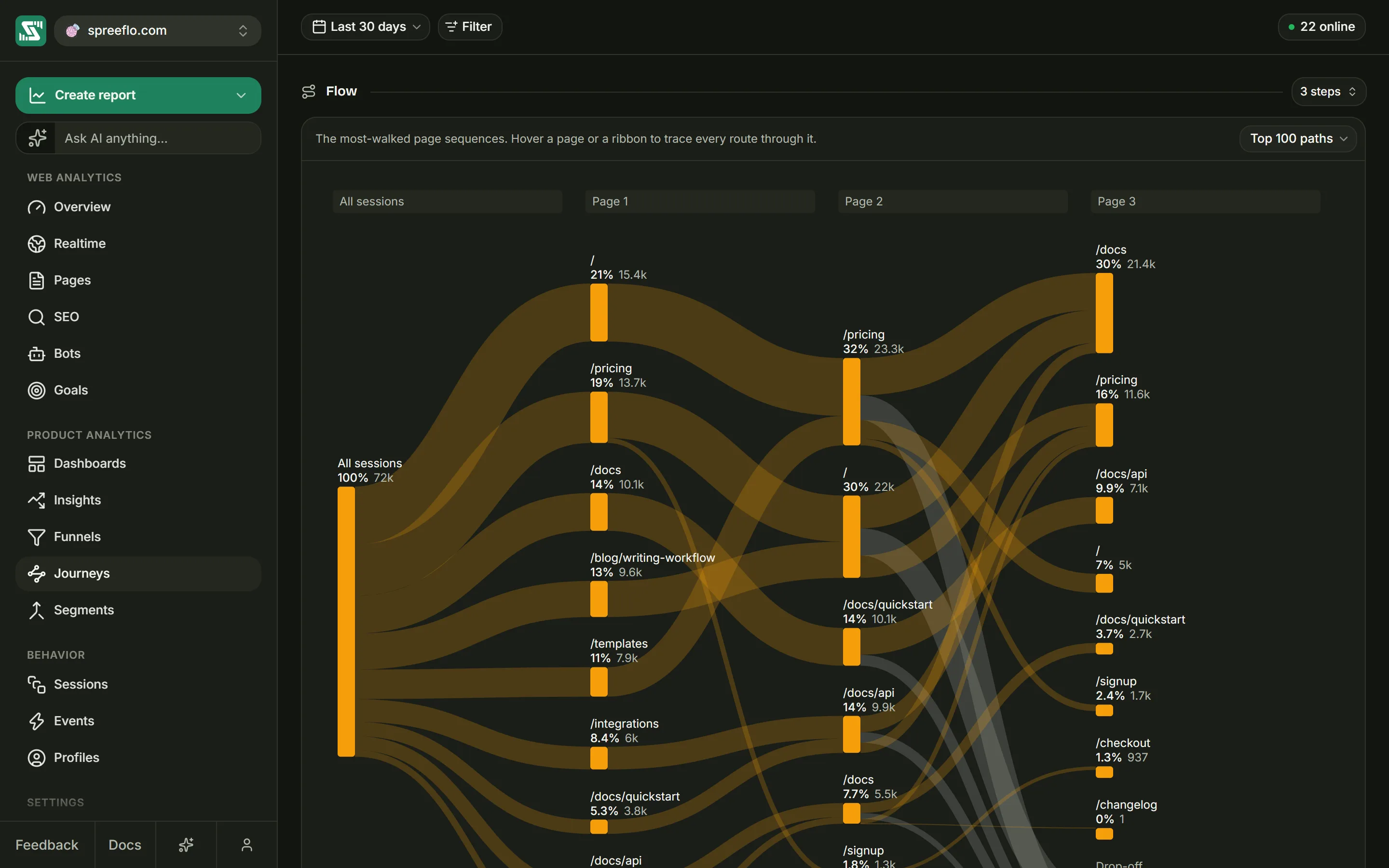
Journeys shows how people move from page to page. The Flow at the top draws the most common routes through your site all at once. The Step explorer below it follows one route a step at a time, forwards from the page a visit started on, or backwards from the page it ended on.
Both are built from the page views your tracking script already records. There is nothing to set up, and nothing on this page is saved or edited.
Toolbar and filters
The toolbar has the date range, Filter and the online count. There is no interval control, because a journey is an order of pages rather than a count over time.
Both sections follow the date range and these filters:
- Everything about the visit itself: channel, source, URL, the five UTM fields, browser, OS, device, country, region and city.
- Entry page and Exit page, to look only at visits that started or ended somewhere.
- Segment and Goal. A Goal filter set to is shows the routes of the people who completed that goal in the date range, which is a quick way to see what converting visitors did.
Page and Event filters do not apply here, because they would cut the very routes being drawn. Their pills turn grey, with the tooltip "Filter not active for this page".
Flow
How the diagram is built
- Spreelytics takes every session in the date range and lists its page views in the order they happened.
- The same page twice in a row counts once, so a reload does not add a step:
/pricing,/pricing,/signupbecomes/pricingthen/signup. Coming back to a page later is kept:/pricing,/docs,/pricingis three steps. - Sessions left with fewer than two pages are dropped. A visit that saw one page has no route to draw.
- Each remaining route is cut to its first pages, as many as the steps setting.
- Sessions with the same route are counted together, and the most common routes are drawn, up to the path limit.
Pages are compared by their path alone, without the domain or the query string.
Steps and path limit
- The steps control in the section header sets how deep the diagram goes: 2 steps, 3 steps, 4 steps, 5 steps, 6 steps or 8 steps. It starts on 3 steps, and shows only the current choice until you hover over it.
- The menu above the diagram sets how many different routes are drawn: Top 25 paths, Top 50 paths, Top 100 paths or Top 250 paths. It starts on Top 100 paths.
Both go back to these defaults when you leave the page.
Reading the diagram
The columns are headed All sessions, then Page 1, Page 2 and so on, one per step.
- All sessions is every session the diagram draws, meaning the sessions whose route made the path limit. It is not every session in the date range: one-page visits and less common routes are not in it. Every percentage on the diagram is a share of this column.
- Page 1 holds the pages those sessions started on, Page 2 the pages they saw next, and so on.
- Each box shows the page path, shortened if it is too long for the column, its share of All sessions and its number of sessions.
- A column names its eight busiest pages. The rest are added together into one row, which the diagram labels Other events even though they are pages.
- From Page 3 on, a grey Drop-off row counts the sessions whose route ended before this step. Every route drawn has at least two pages, so Page 1 and Page 2 never have one. It grows from column to column, because a session that ended earlier is still gone.
- The ribbons between columns are as thick as the number of sessions that took that step. Grey ribbons lead into Drop-off.
Hover to trace a route
- Hover a page box to light up everything that happened after it, together with the most common route that led to it. Everything else fades.
- Hover a ribbon to light up that one step. A tooltip shows the page it leaves with that page's session count, and the page it reaches with the number of sessions on this ribbon. Under them, Continued is the share of the first page's sessions that took this step, and from start is the share of All sessions. On a ribbon into Drop-off, Continued reads Stopped here.
For example, if 1,000 sessions are drawn and 400 of them have /pricing as Page 2, and 100 of
those go on to /signup, the ribbon from /pricing to /signup shows Continued 25% and
from start 10%.
Distinct paths
The footer reads, for example, 87 distinct paths: how many different routes the diagram is drawing. It is never more than the path limit. When it is lower, the diagram already holds every route there is for this date range and these filters.
Empty and error states
- "A journey needs a session that visited at least two pages. Widen the range, or clear a filter that's narrowing it." No session in the date range, with these filters, visited at least two different pages.
- "Couldn't load journeys." with Retry means the request failed.
Step explorer
Starting point or endpoint
The first card is Starting point: the pages sessions started on. Click the card's title to turn it into Endpoint, the pages sessions ended on, and click it again to turn it back. Each switch starts the chain over.
The direction decides what the next cards hold:
- From a starting point, the cards are 1 step after, 2 steps after and so on: where people went next.
- From an endpoint, they are 1 step before, 2 steps before and so on: where people came
from. Pick an endpoint such as
/thank-youto walk back from the end of a visit to the pages that led there.
Visitors, not sessions
Every row shows a number of visitors: someone who started two sessions on / counts once. The Flow
above counts sessions, so the two halves of the page can show different numbers for the same page.
A bar behind each row shows its size next to the busiest row in the card.
Choosing steps
Click a row to choose it. The next card opens with what those visitors did next, or before, from an endpoint.
- The chosen row turns solid, the other rows in the card dim, and a line joins the chosen rows from card to card.
- Once a card has a chosen row, its header shows a percentage: the visitors at that step as a share of the visitors at the starting point.
- The card waiting for a choice has a Search box that narrows its rows by path.
- A card loads 25 rows at a time. Scroll to the bottom of the card for more.
- Click a chosen row again to undo it. The cards after it close.
Steps here are the pages exactly as recorded. Unlike in the Flow, a reload is not merged, so a page can appear as the step after itself.
While a card has nothing to show, it displays a hint instead: No matching pages when the first card finds nothing, for example because of a search, Select a starting point to continue on the second card, and Select an event to continue on the cards after it.
Grouped pages
A row with a folder icon stands for a page and everything under it. A grouped /blog counts the
visitors on /blog or on any page whose path starts with /blog/. Hover the icon to see how many
different pages the group covers, as "Grouped pages: 12 pages with this prefix". The count includes
the page itself.
A grouped row only appears when the group covers more than one page and holds more visitors than
the page on its own, and / is never grouped. That is why a path can appear twice in one card, once
plain and once with the folder. Choosing a grouped row follows everyone in the group.
No further action
From the second card on, the list includes No further action: the visitors whose session ended at that point. From an endpoint, it counts the visitors whose session began there. Choosing it ends the journey, and no more cards open.
When nobody went any further at all, the next card shows No data instead of rows.
Conversion rate and Reset
Once you choose a page, the header changes from Explore user journeys to, for example, 3-step user journey, counting the pages you chose. Beside it, Conversion Rate is the share of the starting point's visitors who reached your last chosen step, with their number in brackets.
For example, 2,000 visitors started on /, 400 of them went to /pricing next, and 60 of those then
went to /signup. With all three chosen, the header reads 3-step user journey and
Conversion Rate: 3% (60). Choose No further action after /signup, and the rate shows the
share of the starting visitors who stopped there.
Once you have chosen a page, a button appears beside the rate (tooltip Reset). It goes back to a fresh Starting point card, facing forwards, with the search cleared. Changing the date range or a filter also starts the explorer over.