








Docs·Settings
Workspace settings
A workspace is the container everything else lives in: the audiences you track, the people who can see them, and the plan that pays for them. Most screens call it a workspace, and a few call the same thing a team, such as the Team heading in the sidebar and New team in the switcher. This page covers the workspace's Audiences and Settings tabs, and how to move between audiences and workspaces.
How workspaces, audiences and people fit together
- An audience is one site you track. It has its own tracking key, its own data and its own Audience settings. Goals, funnels, segments, dashboards and references belong to the audience they were made in.
- A workspace holds any number of audiences. Every member of the workspace can see every audience in it. There is no way to give someone access to one audience only.
- Each member has one role in the workspace, Viewer, Editor or Admin, which applies to all its audiences. See Members and roles.
- The plan belongs to the workspace. All its audiences share one monthly events allowance. See Billing.
- You can belong to several workspaces, with a different role in each. Your first one is created when you sign up.
Getting to the workspace
While an audience is open, the sidebar shows its analytics pages. Click Back to workspace at the bottom of the sidebar to leave the audience. The sidebar then shows the Team group with four tabs:
| Tab | What it holds | Address |
|---|---|---|
| Audiences | Every audience in the workspace, as cards. | /workspace?tab=projects |
| Members | The people in the workspace and pending invitations. See Members and roles. | /workspace?tab=members |
| Usage & Billing | Events used, the plan and payment. See Billing. | /workspace?tab=billing |
| Settings | The workspace name, your role, and deleting the workspace. | /workspace?tab=settings |
To go back into an audience, click its card on Audiences or pick it in the switcher at the top of the sidebar.
Audiences
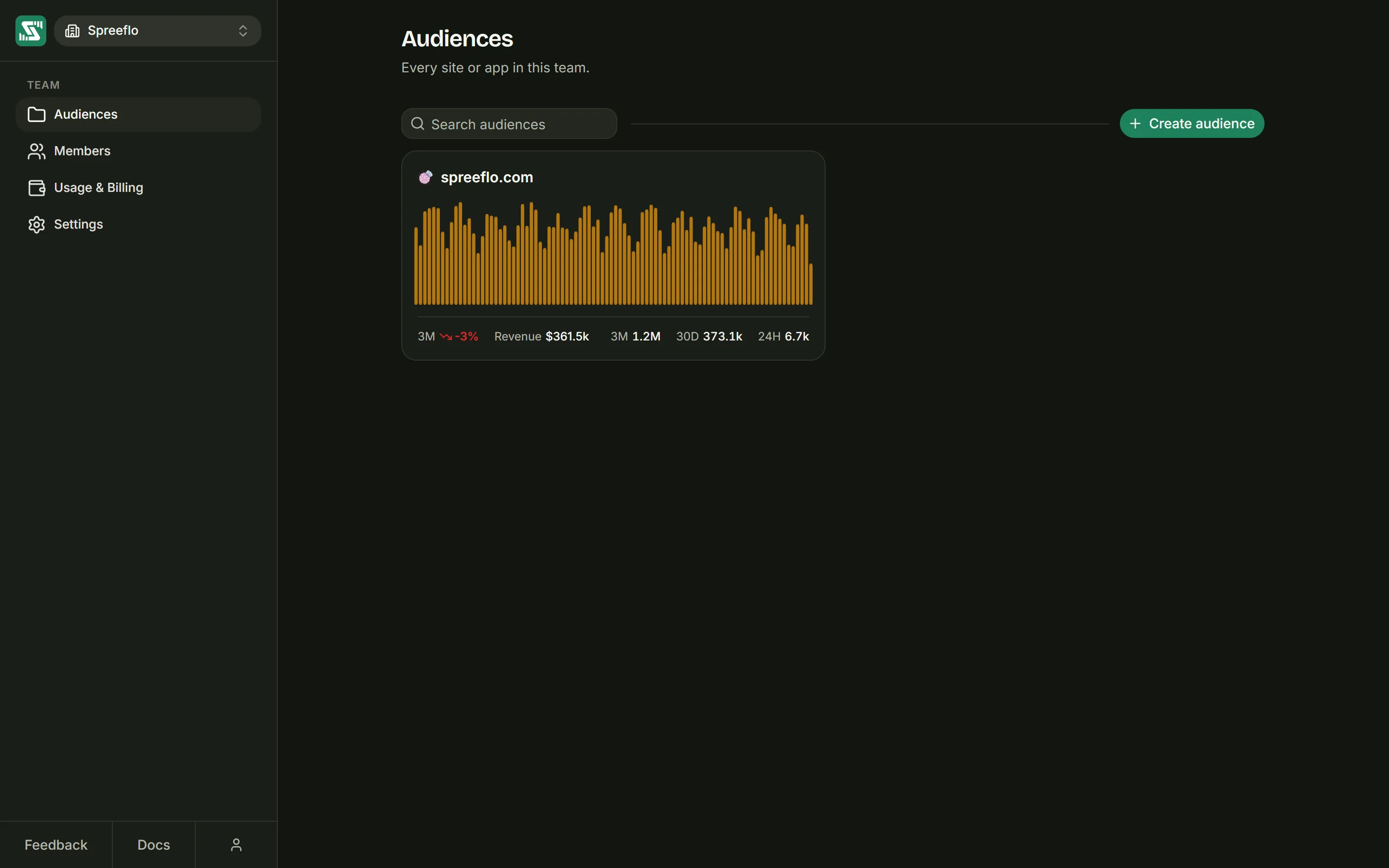
The Audiences tab lists every site in this workspace. Type in Search audiences to narrow the cards by name.
Reading an audience card
Each card shows the audience's icon (taken from its domain), its name, a sparkline of page views per day over the last 90 days, and a row of numbers:
| Number | What it counts |
|---|---|
| 3M with a percentage | How page views changed across the 90 days: the most recent 45 days compared with the 45 before them. Green when up, red when down. Hidden while the earlier 45 days have no page views to compare with. |
| Revenue | Revenue recorded over the last 90 days. Only shown when there is some. |
| 3M | Page views in the last 90 days. |
| 30D | Page views in the last 30 days. |
| 24H | Page views so far today. |
An audience with no page views in the last 90 days shows "No activity yet." over a faded chart, with the note that sessions will show up once tracking starts. To check an install, open the audience and go to Settings → Tracking script.
Click a card to open that audience on its Overview. Admins also see a gear button (Audience settings) when they point at a card, which opens that audience's settings.
Creating an audience
Click Create audience. Only admins of the workspace can create audiences. For everyone else the button is greyed out, with the tooltip "Only team admins can create audiences". Admins can also start from Create new audience in the switcher.
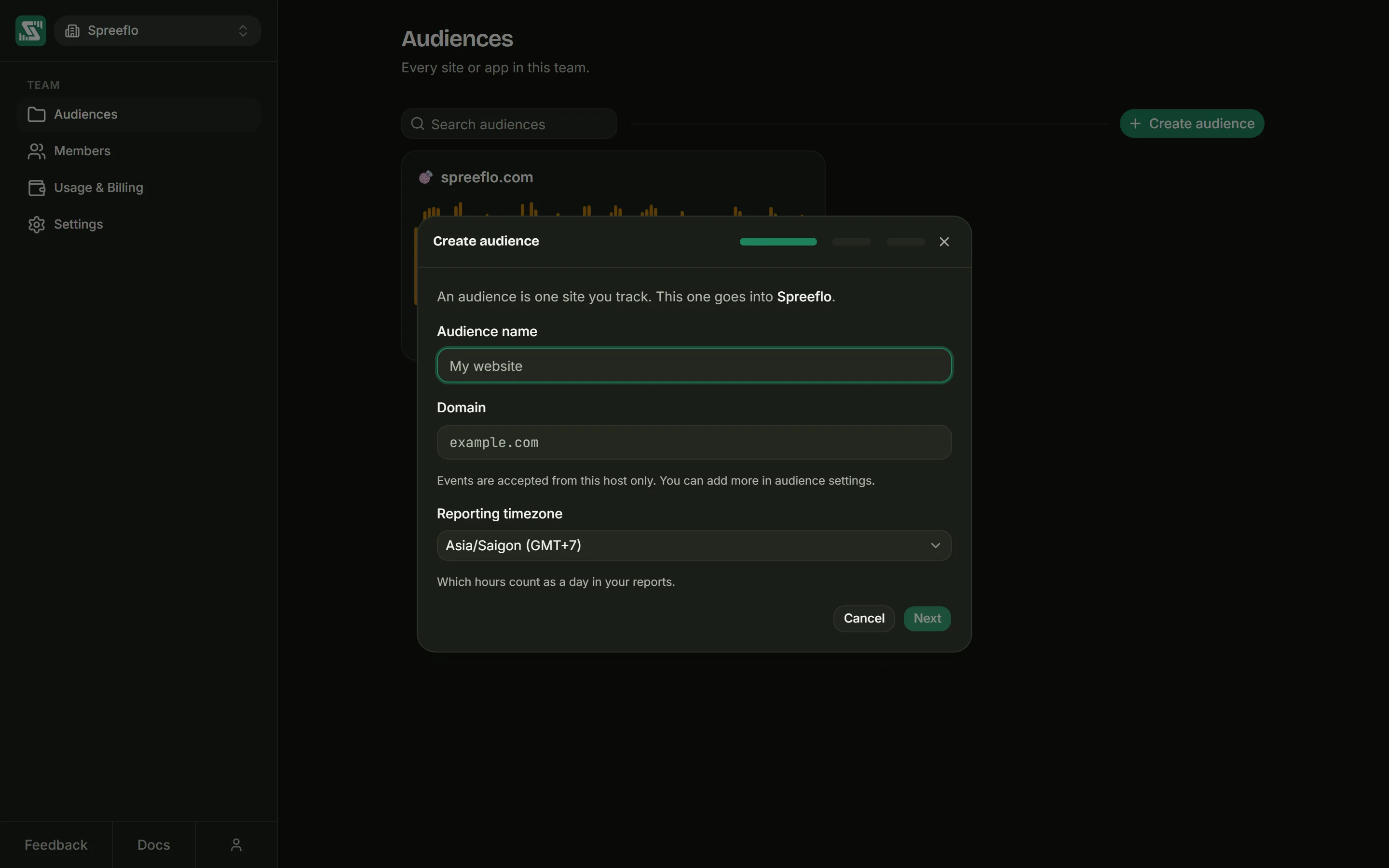
The window walks through three steps, named in its header with a progress bar beside them. It does not close when you click outside it: use the close button, Cancel or the Esc key.
Step 1, Create audience. The window says which workspace the audience goes into, then asks for:
| Field | What to enter |
|---|---|
| Audience name | Required. Shown in the dashboard and the switcher. The field suggests "My website". |
| Domain | Required. The site's address, such as example.com. You can paste a full address: the https://, the path and any port are dropped. A name without a dot, such as localhost, is refused with "Enter a domain like example.com." |
| Reporting timezone | Preset to your browser's time zone. It decides which hours count as one day in your reports, and you can change it later in Audience settings. |
The note under Domain reads "Events are accepted from this host only. You can add more in audience
settings." The domain becomes the audience's only allowed domain, exactly as typed, so example.com
does not cover www.example.com. Add the other hosts your site uses under Settings → Details
(see Filter traffic).
Click Next. This creates the audience and its tracking key there and then, so from this point the audience exists even if you close the window.
Step 2, Connect data. The window shows the tracking snippet with your key already in it, and a
Copy button. Paste it into the <head> of your site (the Tracking script guide
covers every way to install it), then click Next. There is no way back to step 1, because the
audience has already been created.
Step 3, Verify. Open your site in another tab. The window checks for the script's first report every few seconds while it shows "Waiting for events…". When it arrives, the window says "Successfully connected" and offers Your dashboard. You can also click Skip for now and check later under Settings → Tracking script, or Back to see the snippet again.
Switching audience and workspace
The switcher at the top of the sidebar shows the open audience, or the workspace's name when no audience is open. Click it to open a menu with two parts:
- Audiences: the audiences in the current workspace, with a tick on the open one. Admins also get Create new audience here.
- Teams: every workspace you belong to, with a tick on the current one, and New team at the bottom.
Picking an audience from the workspace opens its Overview. Picking one while you are already inside an audience keeps you on the same page, now showing the new audience's data. The exception is a page about one record, such as a single dashboard, report, segment, profile or session: that record does not exist in the other audience, so you land on the Overview instead.
Picking a workspace reloads the app inside it, on its Audiences tab.
Creating a new workspace
New team opens the same three-step window as creating an audience, with one extra choice at the top of step 1:
- Create new workspace asks for a Workspace name (the field suggests "Acme Inc"). Anyone can create a workspace, and you become its admin.
- Use existing workspace lets you pick one of your workspaces from Workspace and adds the new audience to it. You need to be an admin of the workspace you pick.
Either way, the window then asks for the audience's name, domain and time zone, because a workspace starts with its first audience. A new workspace starts on the Free plan.
Settings
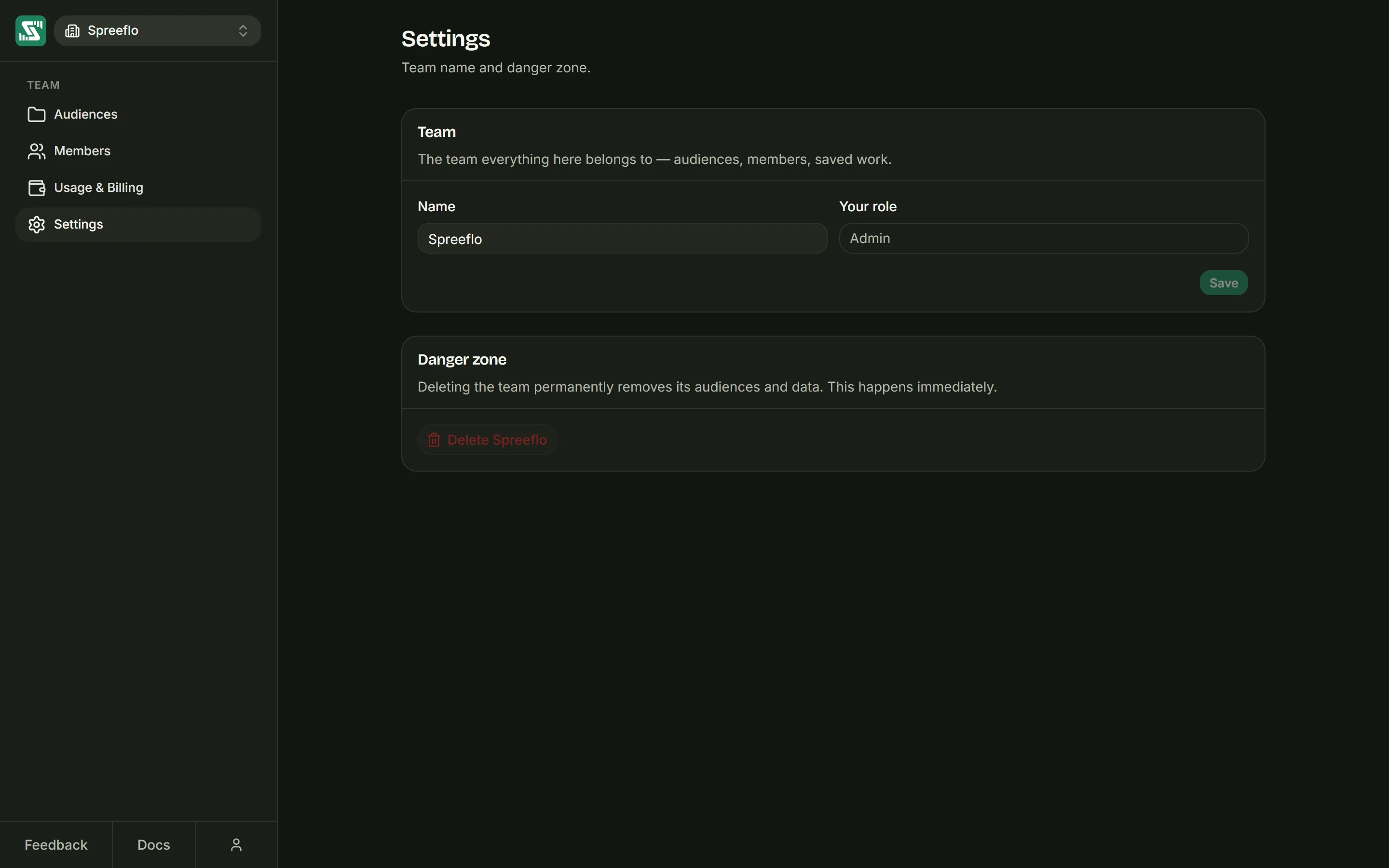
Team
| Field | What it does |
|---|---|
| Name | The workspace's name, shown in the switcher and in invitations. Only admins can edit it. |
| Your role | Your own role in this workspace: Viewer, Editor or Admin. Read only. |
Save turns on once the name has changed and is not empty, and "Team renamed" confirms it.
Deleting a workspace
The Danger zone section says it plainly: "Deleting the team permanently removes its audiences and data. This happens immediately." Only admins can use it.
Click Delete followed by the workspace's name. The button changes to Click again to confirm; click it within four seconds to go ahead, or wait and it resets. Deleting the workspace:
- cancels its paid plan straight away, if it has one;
- deletes every audience in it, along with all of their data;
- removes every member and every pending invitation.
It cannot be undone. When it finishes, the app moves you into another of your workspaces. If the paid plan cannot be cancelled for some reason, nothing is deleted and the workspace stays as it was.
The button is greyed out, with the tooltip "You need at least one team", when this is the only workspace you belong to. To delete it, create or join another workspace first.
Related
- Members and roles: invite people and choose what each one can do.
- Billing: the plan and events allowance a workspace shares.
- Audience settings: settings for one audience, including deleting it.
- Tracking script: install the snippet from step 2.