








Docs·Feature guides
Overview
The Overview is the first page you see when you open an audience. It puts the numbers most people check every day on one screen: how many people visited, what they spent, where they came from, what they looked at, which goals they completed and which crawlers read your pages.
Every card on the page answers for the same date range and the same filters, which you set in the toolbar at the top. Change them once and the whole page follows.
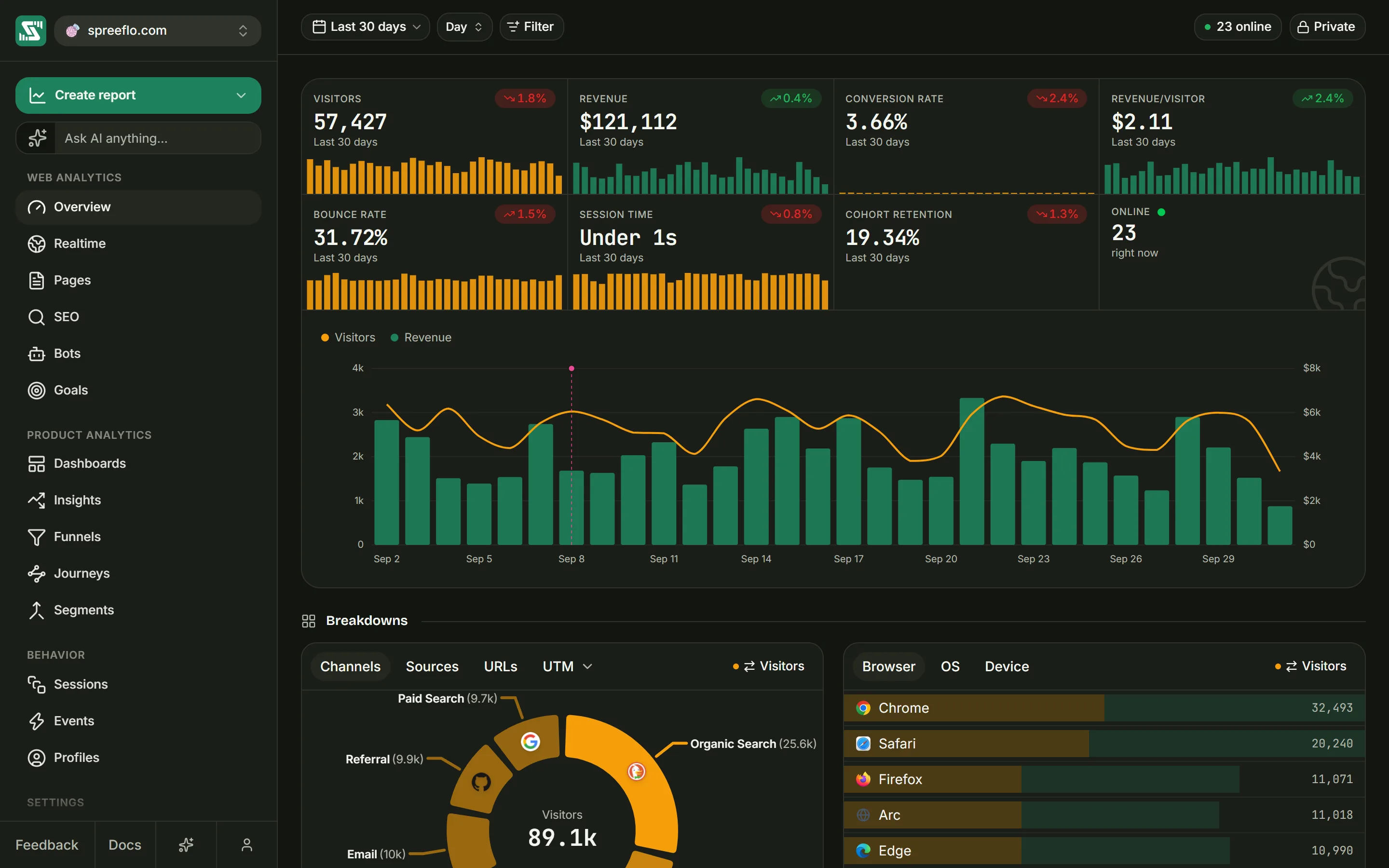
The toolbar
The toolbar stays at the top of the page while you scroll. On the left are the date range, the interval picker and Filter. On the right are the live visitor count and, if you are an admin, the Private or Public button. Any filters you have set show as pills on a second row.
Most pages in the app carry the same toolbar. The date range, the interval and the filters belong to you rather than to the page: they follow you from page to page, and they are kept in the page address, so a link you copy opens the same view for a teammate.
Date range
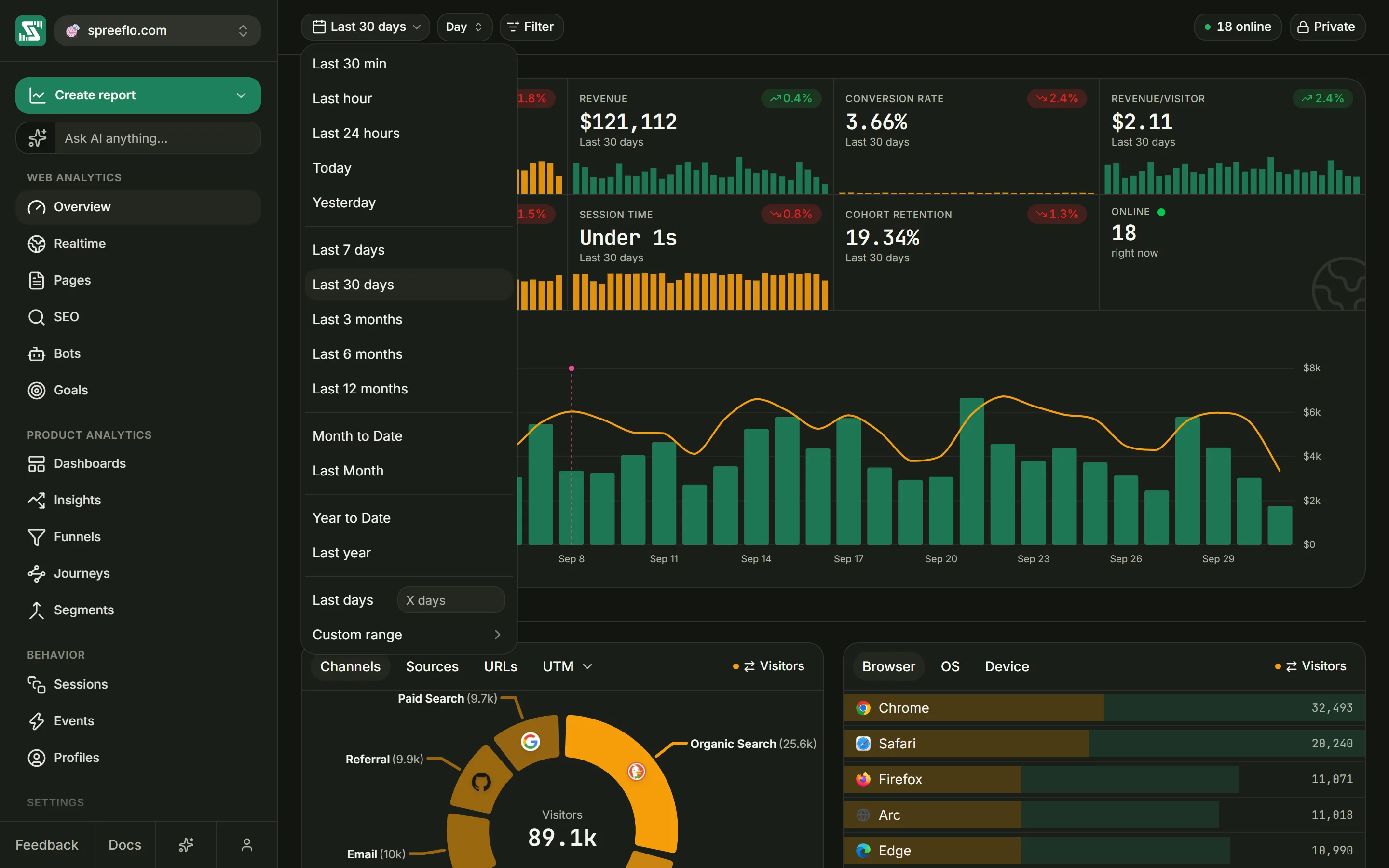
Click the date button, which reads Last 30 days until you change it, and pick a range. Each preset also sets the interval, which you can change afterwards.
| Preset | Covers | Interval it starts on |
|---|---|---|
| Last 30 min | The 30 minutes up to now | Minute |
| Last hour | The 60 minutes up to now | Minute |
| Last 24 hours | The 24 hours up to now | Hour |
| Today | Since midnight, by your computer's clock | Hour |
| Yesterday | The whole of yesterday | Hour |
| Last 7 days | Today and the 6 days before it | Day |
| Last 30 days | Today and the 29 days before it | Day |
| Last 3 months | Today and the 89 days before it | Day |
| Last 6 months | The 182 days up to and including today | Week |
| Last 12 months | The 365 days up to and including today | Month |
| Month to Date | From the 1st of this month to today | Day |
| Last Month | The whole of the previous calendar month | Day |
| Year to Date | From 1 January to today | Month |
| Last year | The whole of the previous calendar year | Month |
Two more options sit under the presets, and both start on the Day interval:
- Last days: type a number of days from 1 to 730 and press Enter, or click the Press chip beside the field. The range covers today and the days before it, that many days in all, and the button then reads "Last 45 days" or whatever you typed.
- Custom range: opens a two-month calendar. Click a start date, then an end date, and click Apply. Both dates are included, and the button shows them.
Interval
The interval is the size of each point or bar on the page's charts: a minute, an hour, a day, a week or a month. The picker shows only the current choice until you point at it, then opens to show Minute, Hour, Day, Week and Month.
An interval that does not suit the range stays in the list but is greyed out, and pointing at it tells you it is not available for that range. Minute buckets across a year, or Month buckets across a single day, would not draw anything you could read.
| Interval | Available for |
|---|---|
| Minute | Last 30 min and Last hour only |
| Hour | Last 30 min, Last hour, Last 24 hours, Today, Yesterday and Last 7 days |
| Day | Every range |
| Week | Every range except the six listed for Hour |
| Month | Every range except Last 30 min, Last hour, Last 24 hours, Today and Yesterday |
Weeks run from Monday to Sunday.
Filter
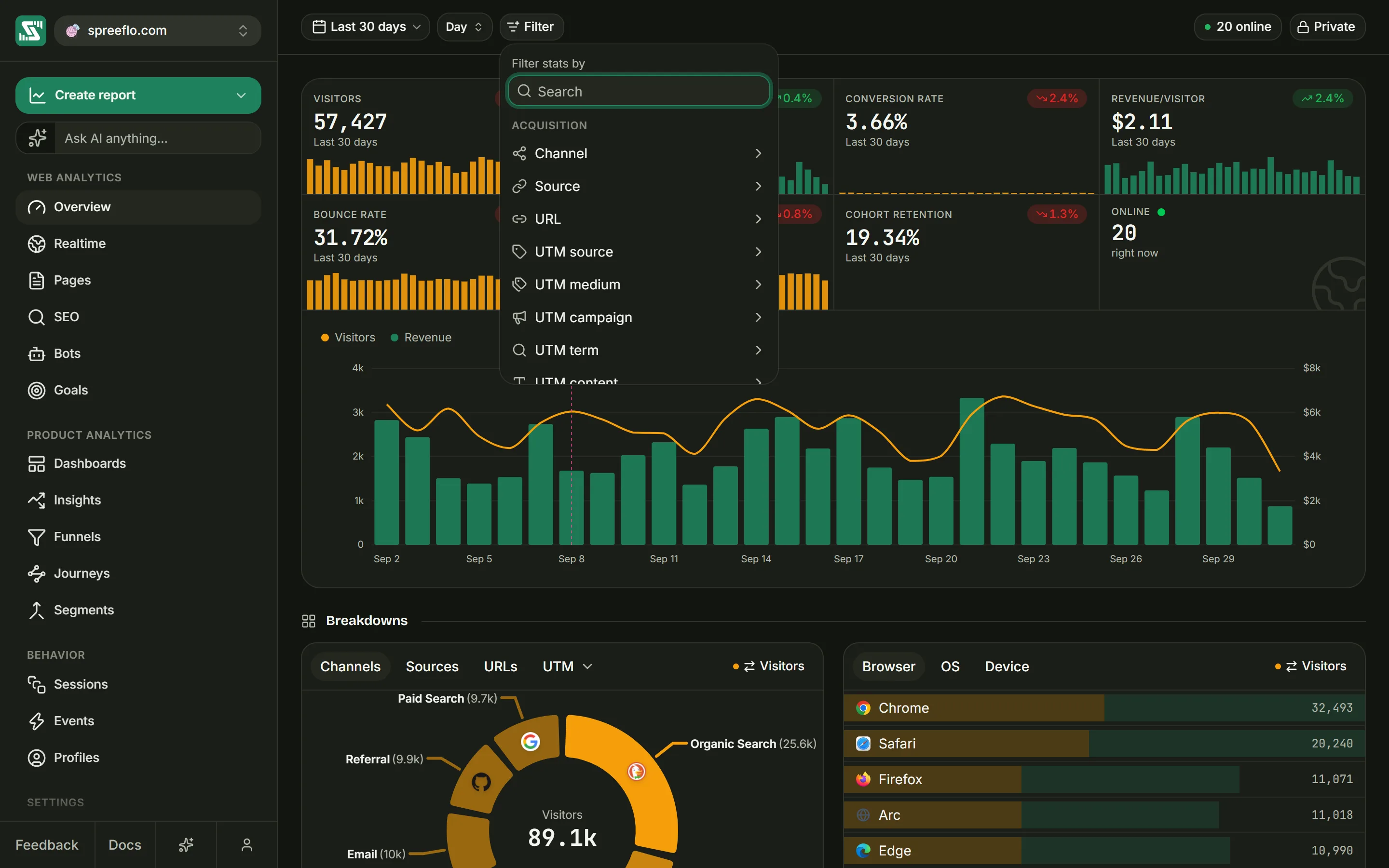
Click Filter to narrow the page to part of your traffic. The popover, headed "Filter stats by", lists what you can filter on in groups, and Search at the top finds one by name. Pick a dimension, choose an operator and the values, then click Save filter.
| Group | Dimensions |
|---|---|
| Acquisition | Channel, Source, URL, UTM source, UTM medium, UTM campaign, UTM term, UTM content |
| Technology | Browser, OS, Device |
| Locations | Country, Region, City |
| Content | Page, Entry page, Exit page, Event |
| Audience | Segment, Goal |
A few of these need a word of explanation:
- Channel is the kind of traffic, such as Organic Search or Direct. Source is the site that sent the visit, and URL is the address of the page that linked to you. The acquisition fields, UTM values included, are read once per visit, from the page the visit started on.
- Page keeps every visit that viewed a matching page, not only the page views themselves. Event works the same way for visits in which a matching event happened. Entry page and Exit page match the first and the last page of a visit.
- Segment keeps the people in a saved segment. Goal keeps the people who completed a goal in the date range. Both offer only is and is not.
The operators:
| Operator | Keeps |
|---|---|
| is | Values that exactly match one of the values you picked |
| is not | Everything except the values you picked |
| contains | Values that contain any of the pieces of text you give, ignoring capitals |
| does not contain | Values that contain none of them, ignoring capitals |
| starts with | Values that start with any of them, ignoring capitals |
| ends with | Values that end with any of them, ignoring capitals |
| is set | Visits where the field has a value |
| is not set | Visits where the field is empty, for example visits with no UTM source |
is set and is not set apply the moment you choose them, because there is no value to pick.
The value list depends on the dimension. For the Acquisition, Technology and Locations dimensions it shows the values tracked in the date range, with a visitor count beside each. For Page, Entry page, Exit page and Event it lists every page or event ever recorded on the audience, and for Segment and Goal your saved segments and goals by name. The list searches as you type, so it is not limited to the values that fit on screen.
With is and is not you pick from the list. With contains, starts with and ends with you can also type any text and press Enter, or click the "Use" row that appears above the list. An empty value shows as "Direct / Not set". If the dimension is already filtered, its counts ignore that filter so that you can add a second value, and a note under the search box says so.
Each dimension gets one pill, and a visit has to match every pill to count. Inside one pill the values are alternatives: "Country is France, Germany" keeps visits from either country.
A pill has four parts: the dimension, the operator, the values and an ✕. Click any of the first three to change that part in place. The ✕ removes the filter, and Clear all next to the pills removes every filter at once.
Some pages cannot use some dimensions. There the pill turns grey, with the tooltip "Filter not active for this page", and the page ignores it. The filter is not lost: go back to a page that uses it and it applies again.
You can also add a filter without opening the menu. Clicking a row in a breakdown card or in its Details list, a country on the map, a source in the Channels donut, or Filter in a goal's summary adds an is filter for it. If that dimension already has an is filter, the new value joins it.
Live visitor count
The chip on the right reads, for example, "12 online". It counts visitors with activity in the last 5 minutes, refreshes every 30 seconds while the browser tab is in view, and ignores the date range and the filters. Click it to open Realtime.
Sharing the Overview
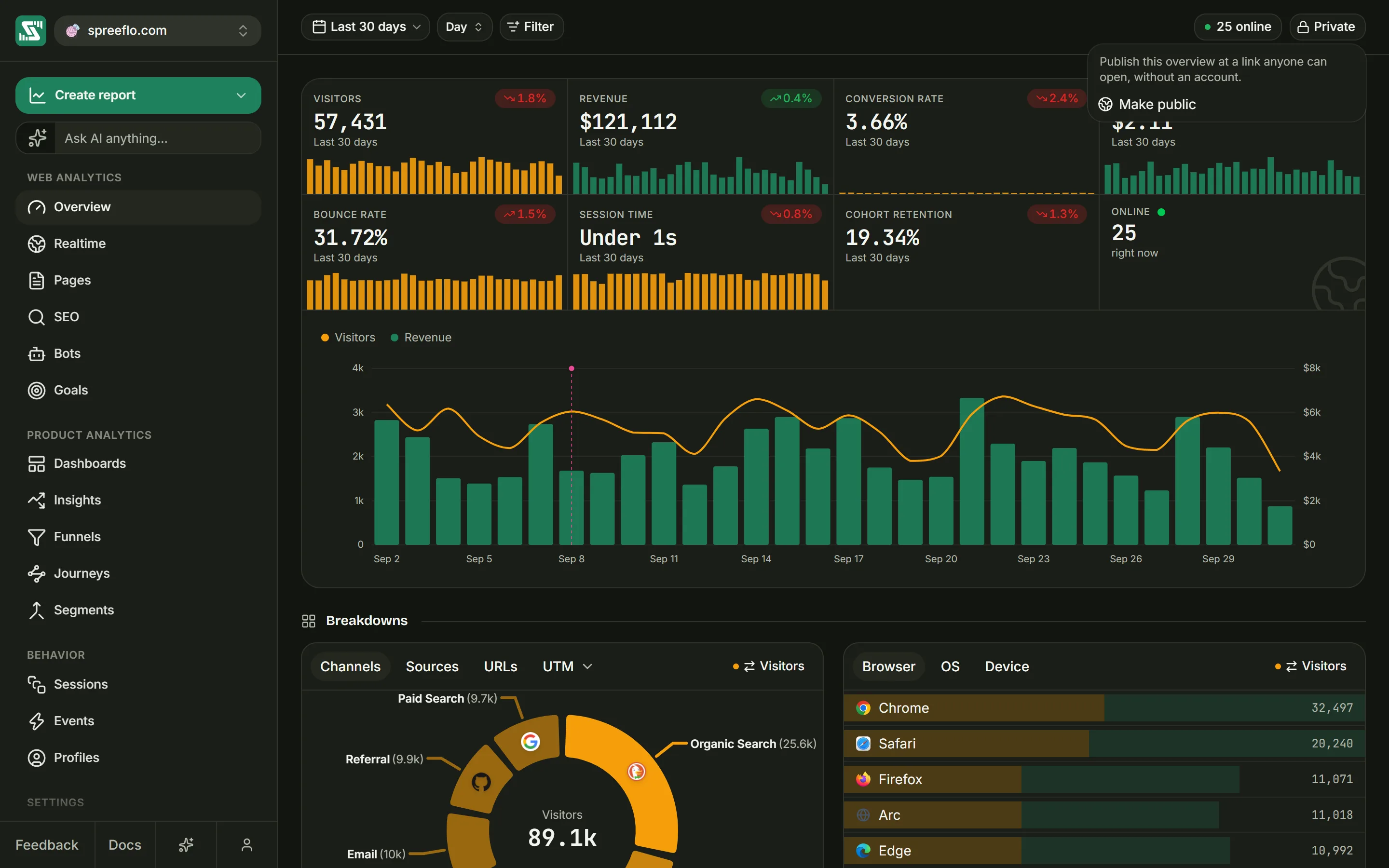
Admins see a Private button with a lock, or a green Public button once the page is shared. Click it and choose Make public to publish the Overview at a link that anyone can open without an account. The menu stays open and shows the link to copy, Open the shared view, and Make private, this link stops working.
Making the page private deletes the link rather than pausing it. If you make the page public again you get a new address, and anyone opening the old one sees "This dashboard isn't available".
Someone who opens the link sees the audience's name at the top, the headline metrics with their chart and the breakdown cards, with "Powered By" and the Spreelytics logo at the bottom. There is no sidebar and no toolbar, so the page opens on the last 30 days, by day, with no filters. The goals panel and the bot traffic card are left out, the Online cell does not open Realtime, and clicking a row does not filter. Nothing on a shared page can be changed.
The headline metrics
The row of cells under the toolbar holds eight numbers: Visitors, Revenue, Conversion rate, Revenue/visitor, Bounce rate, Session Time, Cohort Retention and Online.
Each cell shows the number for the whole range, the range's name under it, and a small bar chart with one bar per interval. Point at a bar to read that interval's value; the line underneath changes to the interval's date. Cohort Retention has no bar chart.
| Metric | What it counts |
|---|---|
| Visitors | Distinct visitors with a visit that started in the range |
| Revenue | The money from payments recorded in the range, after refunds, in your reporting currency |
| Conversion rate | The share of visitors who made at least one payment in the range |
| Revenue/visitor | Revenue divided by Visitors |
| Bounce rate | The share of visits that were bounces |
| Session Time | The average length of a visit |
| Cohort Retention | The share of the range's visitors who had visited before the range began |
| Online | Visitors with activity in the last 5 minutes |
Visitors
A visitor is one browser. Someone who visits on their phone and on their laptop counts twice here, even after you have identified them. A visit, also called a session, is one sitting: it ends after 30 minutes without activity, and the next page view or event starts a new one.
On an audience using cookieless tracking, an anonymous visitor gets a new id every day, so someone who comes back on three days counts as three visitors over a longer range.
Revenue
Revenue is the sum of the payments made in the range, with refunds taken off, converted into the reporting currency set in Settings → Revenue. Payments arrive from a connected payment provider or from your server; see Revenue. A payment counts on the day it was made, whichever visit it followed.
Conversion rate
On this page, converting means paying. Conversion rate is the share of the range's visitors who made at least one payment in the range; a refund is not a payment. A payment that is not linked to any visitor still adds to Revenue, but it cannot add to the conversion rate. Each goal has its own conversion rate on the Goals page.
Bounce rate
A visit is a bounce when it had one page view and no other interaction: no custom event, no tracked link click and no outbound link click. Scrolling does not count as an interaction. The script reports the verdict when the visitor hides or leaves the page, so a visit still open in a tab is not a bounce yet. On a cookieless audience the server applies the same rule itself.
Session Time
With the standard script, Session Time counts how long the pages were in view in the visitor's browser, added up across the visit. Time spent in a background tab does not count. On a cookieless audience it is the time from the start of the visit to the moment it ended. Like the bounce, it is reported when the visitor hides or leaves a page.
Cohort Retention
The number in this cell is a returning-visitor rate: of the visitors in the range, the share whose first visit to this audience came before the range started. On a cookieless audience anonymous visitors get a new id every day, so they rarely look like returning visitors and the number reads low.
The grid you get by clicking the cell measures something different; see the Cohort Retention grid below.
Online
The same live count as the chip in the toolbar: visitors with activity in the last 5 minutes, whatever the date range says. Click the cell to open Realtime.
The change badge
Every cell except Online can carry a badge with the change against the previous period: the stretch of the same length that ends where your range begins. For Last 7 days that is the 7 days before them. For Today at 3 pm it is the 15 hours before midnight, not the whole of yesterday.
The badge shows the relative change, not the gap between two percentages. A bounce rate that falls from 50% to 40% shows 20.0% with a downward arrow, not 10. Green means the change is good and red means it is bad. For Bounce rate a fall is good, so a downward arrow there is green. There is no badge when the previous period's value was zero, since there is nothing to compare with, or when nothing changed.
The chart
Click a cell to draw that metric in the chart under the row. Click the selected cell again to go back to the default chart, which draws visitors as a line and revenue as bars, each on its own axis.
| Selected cell | Chart |
|---|---|
| None (the default) | Visitors as a line, revenue as bars |
| Visitors | Three lines: Visitors, Sessions (visits) and Returning (visitors whose first visit came in an earlier interval) |
| Revenue | Revenue as bars, one per interval |
| Conversion rate, Revenue/visitor, Bounce rate, Session Time | One line |
| Cohort Retention | The retention grid described below |
Point at the chart to see each series' value for that interval. On the visitor and revenue charts the tooltip also lists Top sources: the sources that sent the most visitors, or earned the most revenue, in that interval. Revenue by source is credited with the attribution model chosen in Settings → Revenue. On the revenue chart the tooltip shows the amount Refunded as well.
Charts across the app mark each reference, a dated note such as a launch, with a dashed line, and the tooltip names any reference that falls in the interval.
The Cohort Retention grid
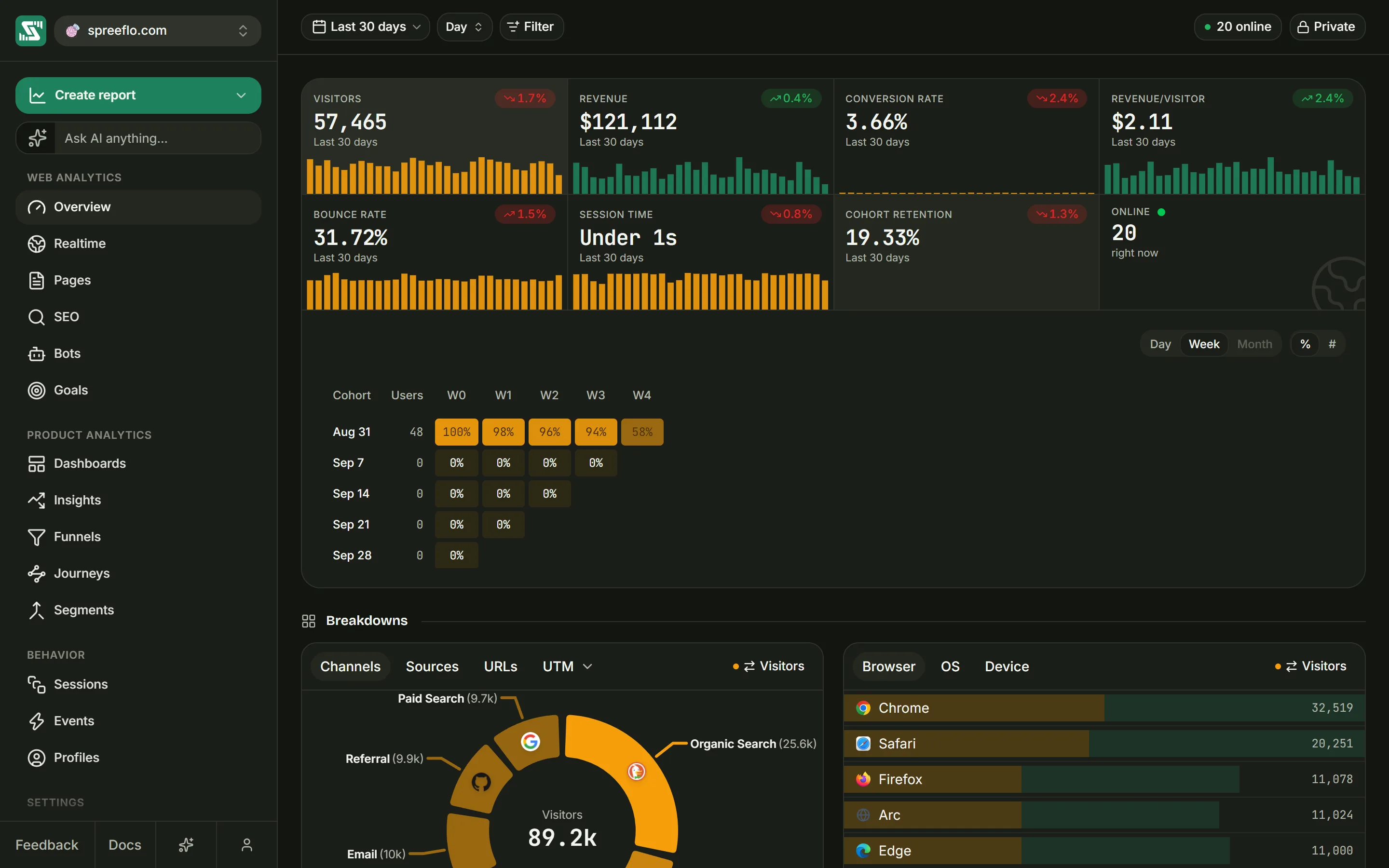
Each row is a cohort: the identified people first seen in the same day, week or month of the range. Cohort names the period and Users says how many people are in it. The columns count periods after the cohort's own: D0, D1 and so on for days, W0 and W1 for weeks, M0 and M1 for months.
A cell counts the cohort's people who visited in that period or in any later period inside the range. So column 0 is always the whole cohort, and a row can only fall from left to right. Cells for periods after the end of the range are blank. Filters narrow the visits the grid looks at.
Two controls sit above the grid:
- Day, Week and Month set the length of a cohort period. Week is the default. A period is greyed out when the range is too short to hold two cohorts of it (14 days for Week, 60 for Month), or when it would make more than 100 cohorts.
- % and # show each cell as a share of the cohort or as a number of people. The shading is the same either way.
Point at a cell to see the cohort's dates, the period's dates, how many people "returned" and what share of the cohort that is.
Breakdowns
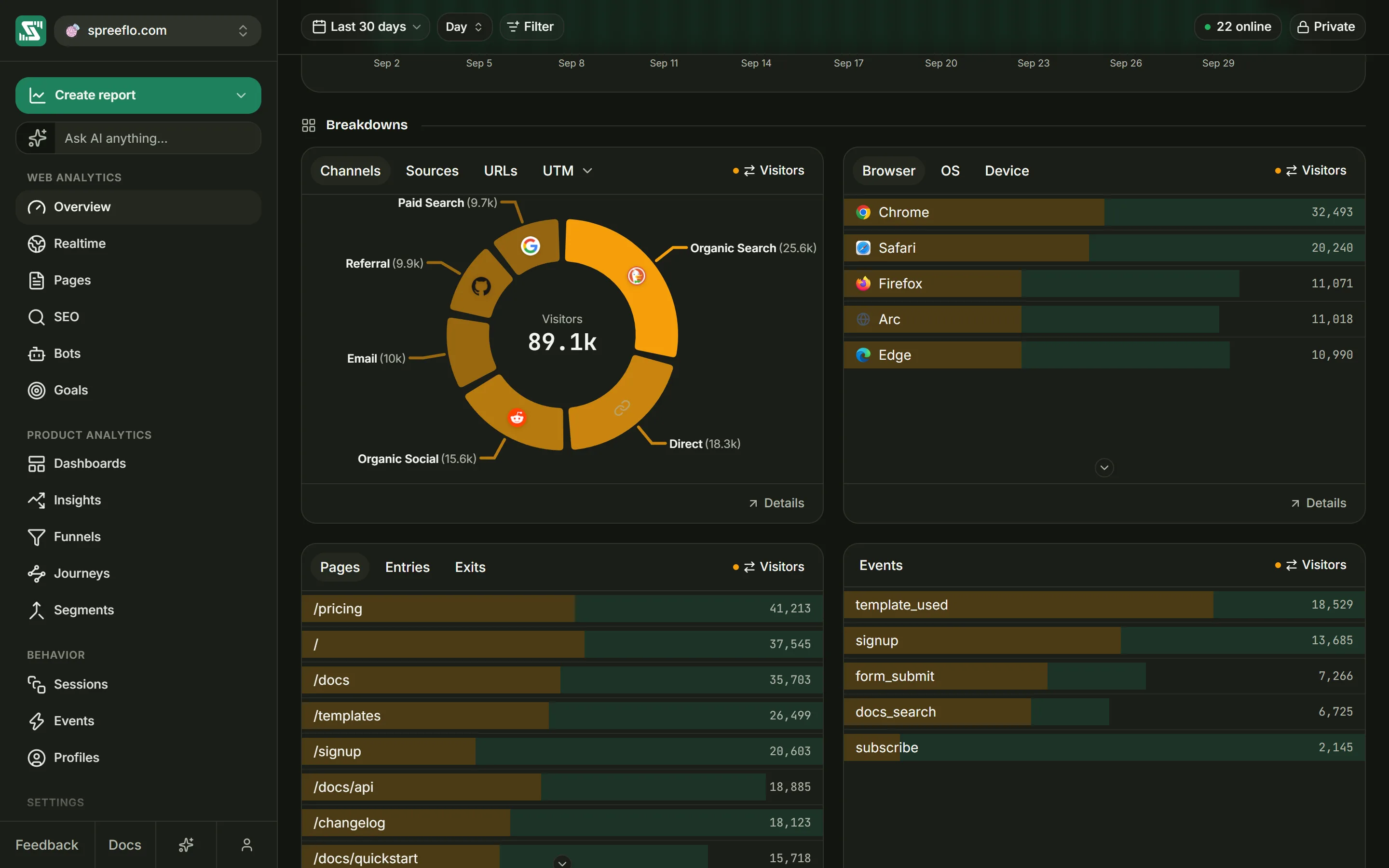
Under the heading Breakdowns are six cards, two to a row. A card has no title of its own: its tabs are the header.
| Card | Tabs | Each row counts |
|---|---|---|
| Acquisition | Channels, Sources, URLs, UTM | Visitors |
| Technology | Browser, OS, Device | Visitors |
| Pages | Pages, Entries, Exits | Visitors who viewed the page, visits that started on it, visits that ended on it |
| Events | Events | How many times the event happened |
| Locations | Countries, Regions, Cities | Visitors |
| Map | Map | Visitors per country, as a shaded world map |
The UTM tab opens a short menu of Source, Medium, Campaign, Term and Content, and then reads "UTM · Source" or whichever you picked.
The Events card lists named events, such as the ones your site sends with Spreelytics.track(),
most frequent first. Page views and link clicks are not listed there.
The Technology and Locations cards, and the Acquisition tabs other than Channels, list their top 10 rows; the Pages and Events cards list their top 20. A row with no value reads "Direct / Not set" on the Acquisition, Technology and Locations cards and "(none)" on the Pages and Events cards. The bars behind each row compare it with the top row, one bar for its count and one for its revenue.
Visitors or revenue
Every card has a toggle on the right that reads Visitors or Revenue, with the tooltip "Showing visitors. Click to show revenue." Switch it to rank the rows by revenue and show money instead of counts. On Channels, Sources, URLs and the UTM tabs, revenue is credited to sources with the attribution model in Settings → Revenue, so changing the model moves revenue between those rows. See Revenue for how the models work.
Hover and click
Point at a row for a card with its Visitors (or Entrances, Exits or Events on those tabs), Revenue, Revenue/visitor and % of total. % of total is the row's count as a share of all visitors in the range.
Click a row to filter the whole page by it. Clicking Chrome on the Browser tab adds the filter "Browser is Chrome", and clicking a row on Entries adds an Entry page filter.
Details
Details at the foot of a card opens the full list, up to 100 rows, as a table with the name, the count and the revenue, ordered the way the card is. The search box looks within those rows. Click a row to filter by it; the window closes.
Channels
The Channels tab is a donut: one slice per channel, sized by visitors or revenue, with the label and the total in the middle. Point at a slice for its numbers and its Top sources. Click a slice to open that channel's sources, then click a source to filter the page by it. The button at the top left, labelled with the channel's name, takes you back.
Map
Countries are shaded by visitors or by revenue. Point at one for its numbers, and click it to filter by Country. The map does not zoom. Details lists every country.
The goals panel
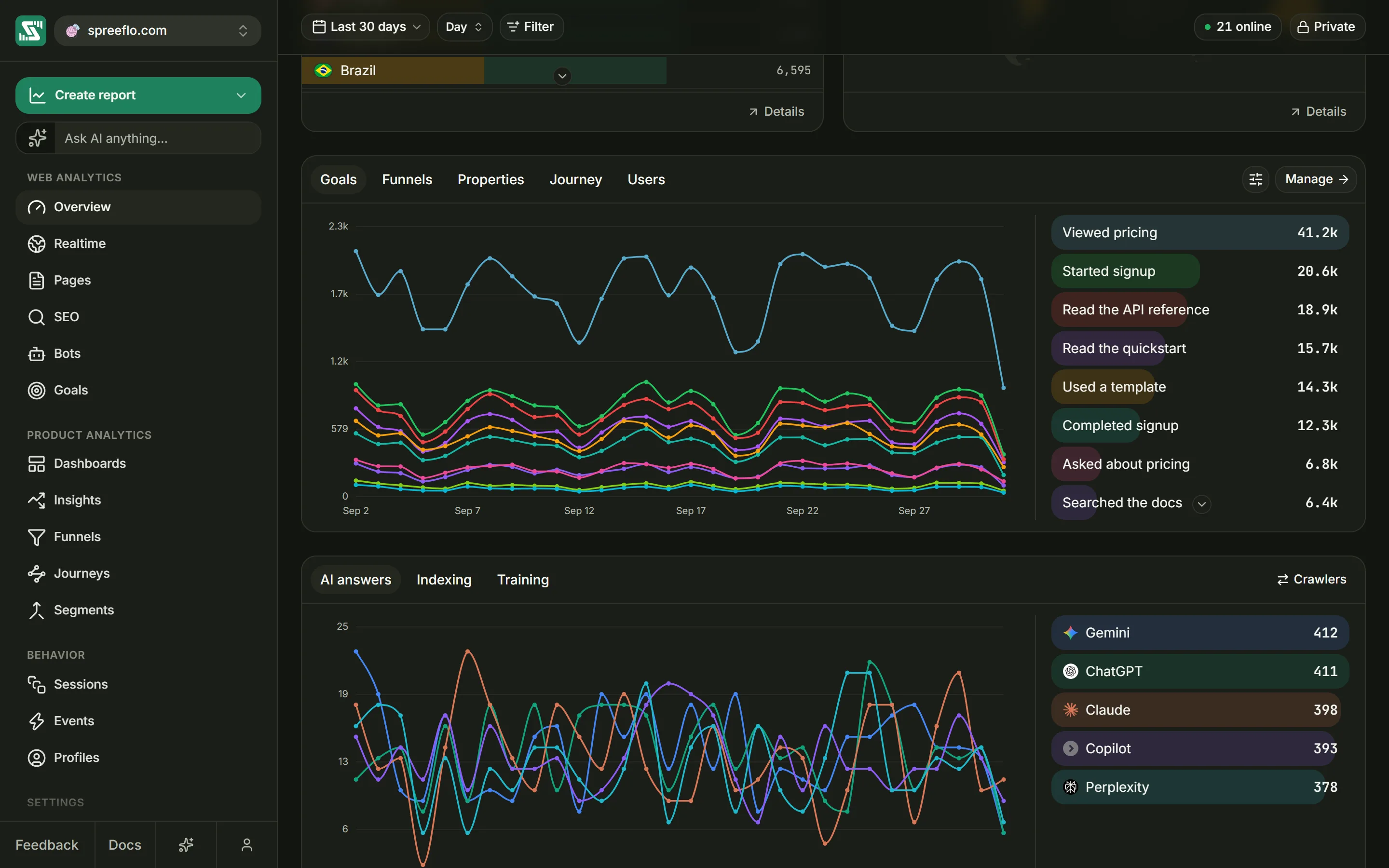
Below the breakdowns is a panel with five tabs: Goals, Funnels, Properties, Journey and Users. It only shows data. Goals and funnels are created and edited on their own pages, and Manage at the top right opens the page that belongs to the tab: Goals, Funnels, Journeys or Profiles.
Goals
On the left, one line per goal, counting conversions in each interval. On the right, the goals ranked by conversions; point at one to see its conversion rate. A conversion is a person who completed the goal at least once in the range; see Goals.
The sliders button in the header (Goal visibility) lists every goal with a tick box, plus Hide all or Show all, so you can choose which lines are drawn. A hidden goal's row fades and shows an eye button that brings its line back.
Click a goal to swap the list for its summary: the range, how many unique visitors completed the goal and what share of all visitors that is. For a custom event goal the summary also lists the event's other properties, each with how many times it was sent; click one to see its values. They come 10 properties to a page. Three buttons sit underneath:
- Filter adds a Goal filter for the whole page.
- Edit opens the goal on the Goals page.
- Show or Hide draws or removes the goal's line.
The ✕ in the corner goes back to the list.
Funnels
The first funnel is drawn when the tab opens, with its overall conversion rate and the range above it. The list on the right shows every funnel with its number of steps and its conversion rate. Point at a funnel to see its steps, and click it to draw it. If a Page, Event or Goal filter is set, a note says those filters do not apply to funnels. See Funnels.
Properties
The properties that custom events carried in the range. The names are listed on the right, 10 to a page; click one to see its values on the left:
| Column | Meaning |
|---|---|
| Visitors | Distinct visitors who sent that value |
| Events | How many times it was sent |
| % | The value's visitors as a share of every visitor who sent the property at all |
Values come 10 to a page, and an empty value shows as "(none)". Payment fields are left out. This tab follows the date range but not the filters.
Journey
A flow diagram of the 50 most common page paths through a visit. The control in the header sets how many steps to follow: 2 steps, 3 steps (the default), 4 steps, 5 steps, 6 steps or 8 steps. The first column is "All sessions", then "Page 1" and so on. Point at a page or a ribbon to trace every route through it. A visit has to view at least two pages to appear. The full version, with more controls, is on Journeys.
Users
The visitors seen in the range, most recently active first, 10 to a page:
| Column | Shows |
|---|---|
| Visitor | Their email if you identified them, otherwise "Anonymous", with a Revenue badge if they have ever spent money, plus their city or country, device, OS and browser |
| Source | Where their latest visit in the range came from |
| Spent | What they have spent in total, all time, after refunds |
| Last seen | When they were last active in the range, with a dot for each of the last 6 days shaded by activity |
Click a row to open a panel at the bottom of the screen. On the left are the visitor's details and a link to their profile (View profile). In the middle is everything they did, newest first and grouped by day: "Viewed page", "Paid" and "Triggered event", where an event with properties has a button to show them. The list ends with "Found via referrer" and the source, or "Landed directly". On the right are their total page views, what they have spent, the minutes of their last visit, and an Activity grid of the last 18 weeks, from Less to More.
The bot traffic card
At the bottom of the page is a card for AI crawlers and search engines. It has no heading: its tabs AI answers, Indexing and Training sit at the top, with a toggle on the right that reads Crawlers or Pages.
Crawlers do not run the tracking script, so this card needs a small add-on on your server; see AI crawler tracking. Until the add-on has reported in, the card explains that and offers Set up bot tracking, which opens Settings → Tracking script, and Hide this card.
Once data arrives, the card draws one line per crawler for the chosen category, the top 8, with a ranked list of the top 12 beside it. Point at a row to see its share of the category's crawls. The toggle switches both to pages: which pages crawlers fetched most. Click a row to see the pages that crawler fetched, or the crawlers that fetched that page; the ✕ closes that view. When the range holds a single interval, the chart is left out and the list takes the full width.
The card follows the date range and the interval, but not the filters: a crawler hit has no browser, country or traffic source to filter by. Crawler hits never count as visitors anywhere else on the page. The Bots page has the full picture.
Hide this card turns off Show the bot traffic card in Settings → Tracking script, where you can turn it back on. Hiding the card changes nothing about what is collected. It is a setting for everyone on the audience, so it needs the editor or admin role.
Related
- Realtime: watch visitors as they arrive.
- Goals: create the goals the panel draws.
- Revenue: connect payments so revenue and conversion rate fill in.
- Filter traffic: what is left out before anything is counted.