








Introduction
Spreelytics is web and product analytics in one app. A small script on your site records pageviews, visits and the events you send, and every report reads from that one stream of events: the traffic numbers on the Overview, goals and funnels, retention, journeys and the timeline of a single person. Payments from your payment provider arrive on their own and are credited to the traffic that brought each buyer. A separate package on your server records the AI crawlers that read your pages, which a browser script never sees. You can also ask questions about your data in plain English, in the app or from your own AI app.
The quickest way to see what that looks like is the live demo. It is the full app on a sample site, and it needs no account. You can open every page and try every control, but nothing you change is saved, and the AI assistant is switched off there.
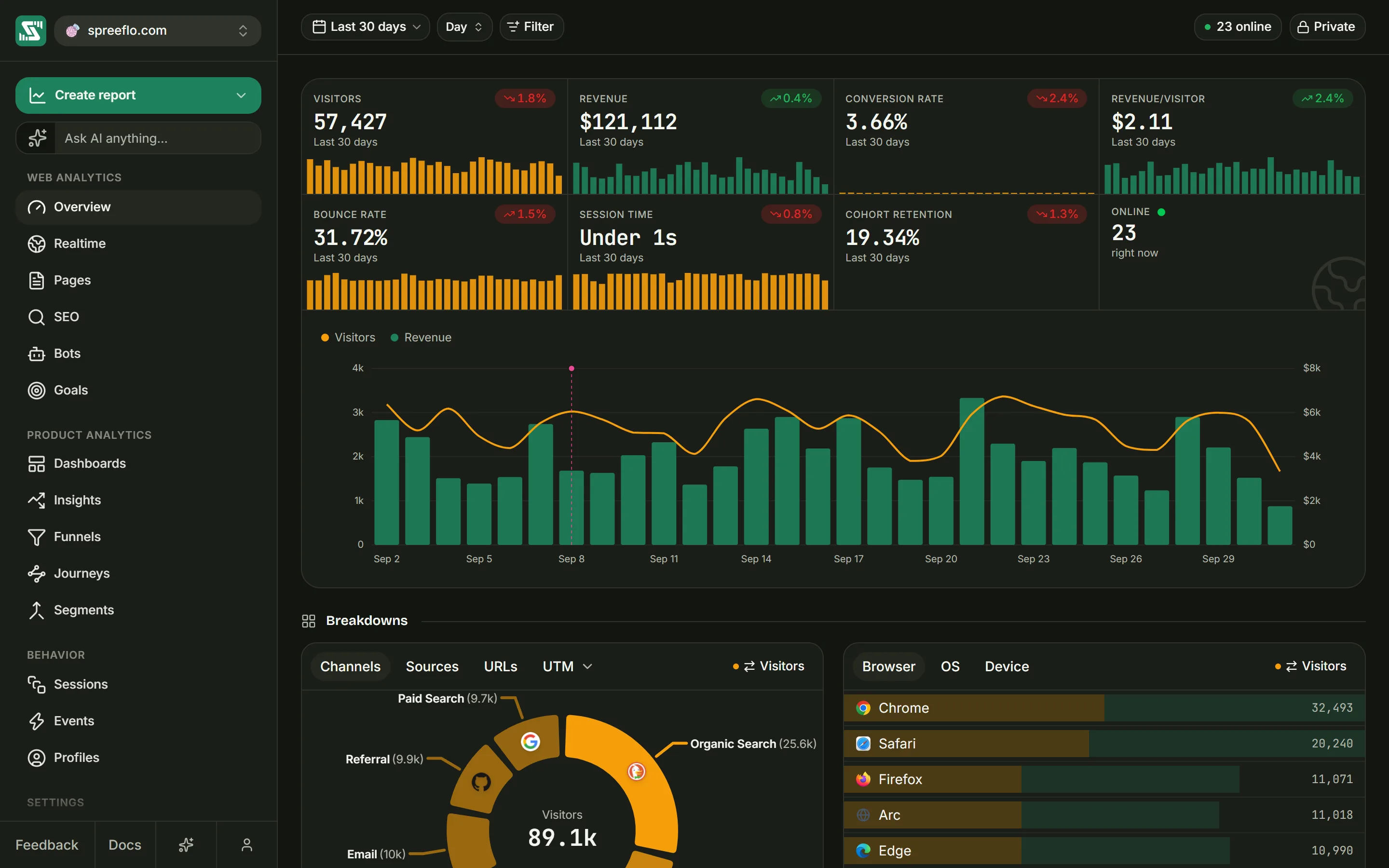
What you can do with it
- Web analytics. Visitors, visits, bounce rate and visit length, broken down by channel, source, referrer and the five UTM tags, plus pages, countries, browsers, operating systems and devices. Realtime shows who is on the site right now. With Google Search Console connected, the SEO page shows the searches that bring people to you.
- Product analytics. Goals, funnels with the drop-off at every step, segments of people defined by rules, retention, journeys drawn as a flow diagram, and dashboards built from saved reports in eleven chart types. Insights points out unusual changes in your numbers.
- Revenue. Connect Stripe, Paddle, Polar or Lemon Squeezy and payments arrive by themselves, credited to the source and channel that brought each buyer. Credit goes to the last touch by default, or is shared evenly across every interaction inside a lookback window you choose.
- Session replay. On the Growth plan, watch recordings of real visits, with each visit's page views, clicks and events listed beside the recording. What visitors type stays masked. See Session replay.
- AI crawlers. AI assistants, search engines and training bots fetch your pages without running JavaScript. A small package on your server records them, and the Bots page shows which pages they read.
- AI. The assistant in the app, on the Growth plan, answers questions in plain English and can build goals, funnels and dashboards for you. Over MCP, AI apps such as Claude Code, Cursor, VS Code (Copilot) and Windsurf can read the same data and save reports, using an account API key.
Where to start
- Tracking script: add the script to your site. Everything else depends on it.
- Autocapture: what the script records with no extra code.
- Track events: send signups, upgrades and other actions that pageviews cannot show.
- Identify users: tie a visitor to a person by email, across devices.
- Goals and Funnels: count conversions and see where people drop off.
- Revenue: connect a payment provider.
- Overview: the main page of the app, part by part.
- Cookieless tracking: what the script stores, and how to store nothing.
- MCP: connect an AI app to your data.
- API reference: send data from your server and read your numbers over HTTP.
Getting started
Setting up takes three things: an account, an audience for your site, and the tracking script on your pages.
Create an account
Go to app.spreelytics.com/auth and click Sign up below the sign-in form. Enter your email address and a password of at least 8 characters, then click Create account. Spreelytics emails you a verification link: open it to activate the account, then sign in. If the email does not arrive, Resend the link sends another one.
You can also click Continue with Google. An account made this way signs in with Google from then on and has no password.
Every new account comes with a workspace of its own. A workspace is the group that owns your audiences, your members and your plan.
Create audience
The first time you sign in, Spreelytics takes you to a setup page with three steps: Create audience, Connect data and Verify. An audience is one site you track.
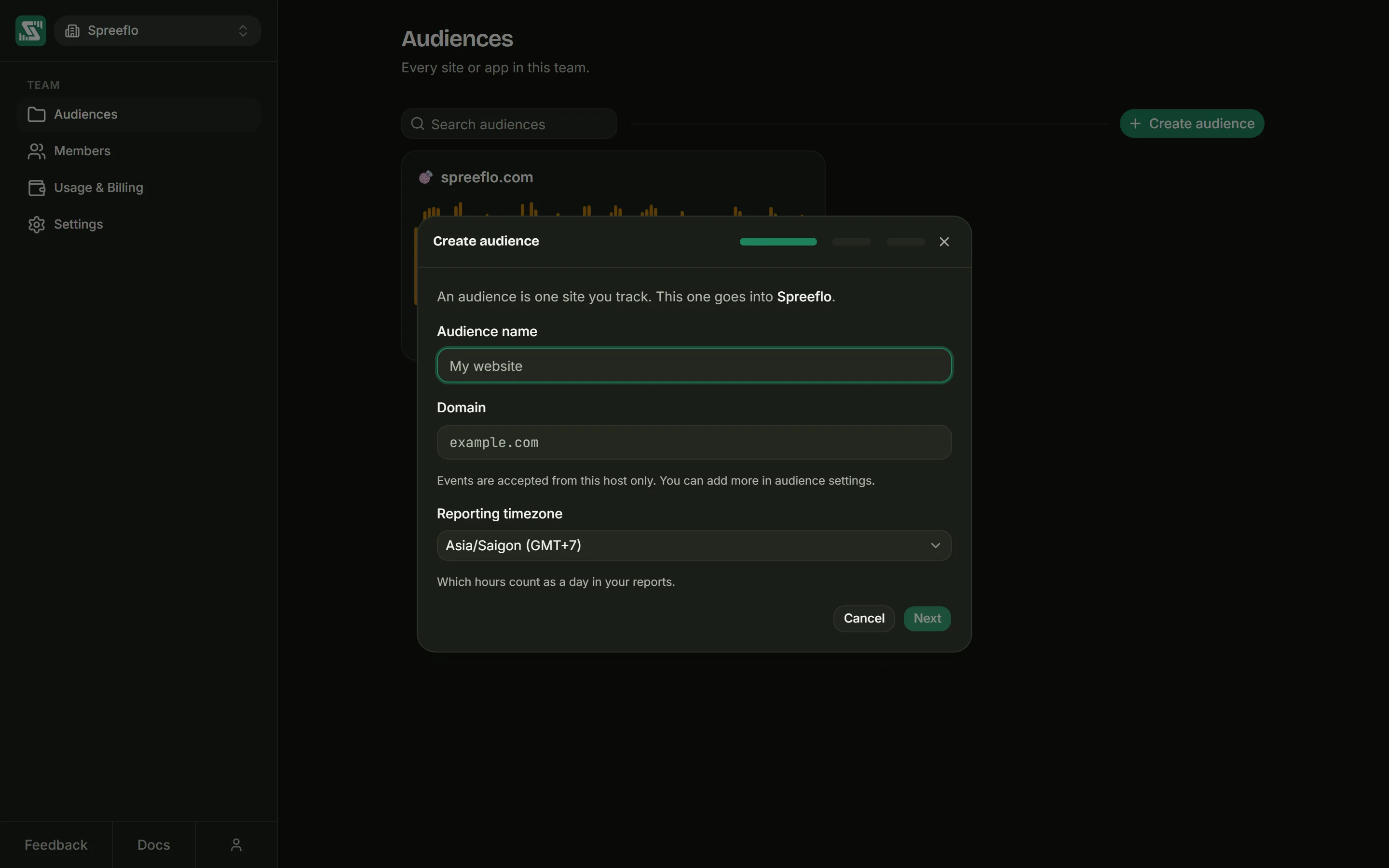
| Field | What to enter |
|---|---|
| Workspace name | Optional. Renames the workspace that came with your account, for example to your company's name. |
| Audience name | What the app calls this site, such as "Marketing site". |
| Domain | The site's hostname, such as example.com. You can paste a full address: the https://, the path and the port are removed. |
| Reporting timezone | Which hours count as a day in your reports. It starts as your browser's time zone. |
The domain matters more than it looks. As the note under the field says, "Events are accepted from
this host only. You can add more in audience settings." The hostname you type becomes the only entry
in the audience's Allowed domains, and data from any other hostname is refused. If you type
example.com but your site lives at www.example.com, nothing is recorded until you add
www.example.com under Settings → Details. Allowed domains
explains the rules.
Choose the timezone with care as well. You can change it later under Settings → Details, but that moves the boundary of every day in the audience's history.
Click Next. This creates the audience and its tracking key. There is no way back to this step afterwards, so correct any typo later in Settings → Details.
Connect data
This step shows the audience's Client key and the tracking snippet with the key already filled
in. Click Copy, paste the snippet into the <head> of every page of your site and deploy it.
Tracking script shows where it goes in common setups. Then click Next.
Verify
The last step listens for the script's first signal. Open your site in another browser tab and load a page. Within a few seconds, "Waiting for events…" changes to "Successfully connected". Click Your dashboard to open the Overview.
If the script is not on your site yet, click Skip for now. Until its first signal arrives, Settings → Tracking script keeps showing the snippet and the install status, so you can finish later. If this step keeps waiting, see Troubleshooting.
More audiences
Admins can add audiences at any time. Open the audience switcher at the top of the sidebar and click Create new audience, or go to Workspace → Audiences and click Create audience. The same three steps open in a window.
Words to know
- Audience: one site or app you track, with its own key, settings and data. Other tools often call this a project.
- Workspace: the people who share a set of audiences and a plan. Some screens call it a team. Each member is a Viewer, an Editor or an Admin.
- Visitor: one browser. By default the script recognises it when it comes back, as long as it returns within a year of its last visit.
- Session: one visit by one visitor. It ends after 30 minutes without activity.
- Person and profile: a person is a visitor you have identified by email address, and several visitors, such as a phone and a laptop, can belong to one person. The Profiles page lists people and anonymous visitors alike, each with a profile page of their own.
- Event: one recorded action: a pageview, a click, or a custom event your code sends.
- Goal: one thing you want visitors to do, such as reaching your pricing page. A goal is counted from the events you already have.
Definitions gives the exact rules behind every number in the app.
What Spreelytics does not do
Spreelytics does not draw heatmaps, and session replay records websites only, not mobile apps. It has no feature flags or A/B tests. It is a hosted service: it is not open source, and you cannot run it on your own servers.
Related
- Tracking script: add the script and check that it works.
- Autocapture: everything the script records by itself.
- Definitions: what each number in the app means.