








Docs·Usage
Revenue
Spreelytics records revenue from your payment provider, not from the browser. Connect Stripe, Paddle, Polar or Lemon Squeezy and every payment and refund arrives on its own. Pass the visitor id into your checkout as well, and each payment is tied to the visit that led to it, so you can see which channels, campaigns and pages bring in money, not only traffic.
Revenue is optional. Everything else in the app works without it, and the money columns stay empty.
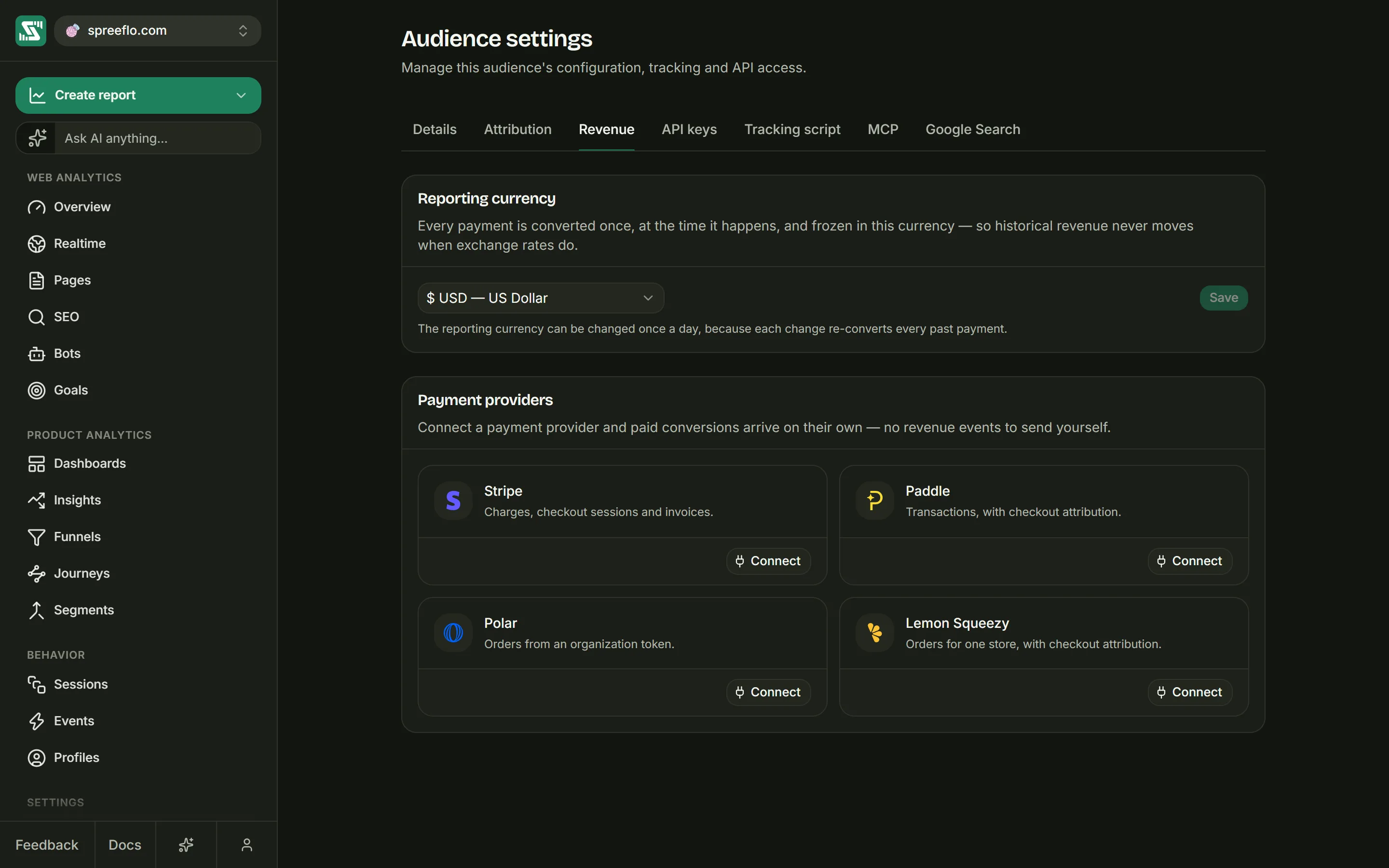
Connecting a payment provider
Open Settings → Revenue. Changing anything here needs the Admin role; other roles see the tab with its controls disabled and "You need the admin role in this team to change these settings."
Under Payment providers, each provider has a card. Click Connect, paste the credential into the drawer that opens (Connect Stripe, Connect Paddle and so on), and click Connect again. The button stays greyed out until every field is filled in.
| Provider | What to paste | Permissions it needs |
|---|---|---|
| Stripe | Restricted API key: a live restricted key, starting rk_live_ | Webhook Endpoints set to Write, and Checkout Sessions, PaymentIntents, Invoices and Charges set to Read. The Open Stripe button in the drawer opens Stripe's new key page with all five already picked. Spreelytics reads Checkout Sessions to show product names for one-time payments. A read-only key fails to connect, because Spreelytics has to create the webhook. |
| Paddle | API key from Paddle Billing. Paddle keeps its keys under My account → Settings → Authentication, on the API keys tab. | Write for Notification settings (notification_setting.write), and Read for Transactions and Adjustments (transaction.read and adjustment.read) |
| Polar | Organization access token. The organization is worked out from the token. | The webhooks:write, orders:read and refunds:read scopes. A scope is a permission you tick when you create the token. |
| Lemon Squeezy | Store ID and API key | None to pick: Lemon Squeezy keys have no permissions. Store ID is the store whose orders you want to record. |
Some of these permissions are only needed to import past payments:
PaymentIntents, Invoices and Charges on Stripe, Transactions and Adjustments on
Paddle, and orders:read and refunds:read on Polar. A key without them still connects, and new
payments still arrive. An import checks for them when you start it, and the message names any that
are missing. You can also have them checked before connecting (see
Starting an import).
Connecting does three things:
- It checks the credential with the provider. If the provider rejects it, a message gives the provider's reason.
- It creates a webhook in your provider account that sends Spreelytics each payment and refund, so there is no URL or signing secret for you to copy. In Stripe and Paddle the webhook is labelled "Spreeflo revenue attribution (auto-provisioned)", and in Polar "Spreeflo revenue attribution". Leave it in place: deleting it in your provider's dashboard stops payments arriving. The exception is an old webhook that an expired key could not remove (see below).
- It stores the credential encrypted. Spreelytics uses it to create that webhook, to remove it when you disconnect, and to read your past payments when you import them. Stripe and Lemon Squeezy credentials are also used to look up the product names that some payments arrive without. No credential ever needs permission to move money.
The card then reads "Connected" with the date and active, and offers Import past payments and Disconnect. Each audience can have one connection per provider; connect more than one provider if you take payments through several.
The webhook only sends payments made after you connect. For the ones made before, see Import past payments.
Disconnect removes the webhook from your provider account and stops new payments arriving. Revenue already recorded stays.
Paddle API keys expire after 90 days, unless you picked another date when you made the key. The webhook keeps working without the key, so new payments still arrive, but an import on an old connection may say that Paddle no longer accepts the key. Make a new key and connect Paddle again with it (Disconnect, then Connect). An expired key can't remove the old webhook, so afterwards delete the older "Spreeflo revenue attribution (auto-provisioned)" destination in Paddle yourself and keep the newer one.
Lemon Squeezy keys last a year, and the same applies when one runs out. In Lemon Squeezy the webhook
has no name, so under Settings → Webhooks delete the older of the two whose address contains
/webhooks/payments/lemonsqueezy/. With either provider, the older webhook is the one whose
deliveries now fail.
Import past payments
An import adds the payments you took before you connected a provider, so your revenue doesn't start on the day you connected. Each one is recorded the same way the webhook records a new payment, under the provider's own id for it, so a payment that both the import and the webhook see is counted once.
Starting an import
On a connected provider's card in Settings → Revenue, click Import past payments. Like everything on this tab, it needs the Admin role. The window that opens, such as Import past payments from Stripe, asks how far back to go: Last 3 months, Last 6 months, Last 12 months or Last 24 months. Pick one and click Start import.
- The import ends at the moment you connected, because the webhook has every payment after that.
- Only ranges that start before you connected are offered. If you connected five months ago, for example, the shortest choice is Last 6 months.
- Ranges count back from today, and only the part before you connected is imported. In that example, Last 6 months adds about one month of payments.
- The button only shows while the provider has no import, and so does the menu in the connect drawer. The button is also hidden once a provider has been connected for more than 24 months, because every range would then start after you connected.
You can also pick a range in the connect drawer, where the Import past payments menu above Connect starts on Don't import. When you do, the key is checked for the read permissions an import needs before Spreelytics connects, and the drawer names any that are missing.
What an import brings in
- The same kinds of payments the webhook records (see What arrives), from the start of the range up to the moment you connected.
- Refunds of those payments, including refunds made after you connected.
- Payments in other currencies, each converted at the exchange rate of its own day (see Currency).
Imported payments don't set off notification rules, and they don't count toward your plan's monthly events (see Billing).
If you already sent some of these payments from your server under your own ids, the import records them a second time, because duplicates are only caught by id. See Duplicates and transaction ids.
Linking imported payments to people
An imported payment is linked to a person in the same two ways as a new one:
- Your checkout recorded which visit it came from, with the visitor id in the payment's metadata (see Tying each payment to a visit).
- Its email matches someone you have identified.
Any other imported payment still counts toward revenue, with no traffic source, like any payment without a visitor id.
Lemon Squeezy includes your custom checkout data, which holds the visitor id, in its webhooks but not in its list of past orders. So imported Lemon Squeezy payments are linked by email only.
A Paddle payment doesn't include the buyer's email, so imported Paddle payments are linked only through the visit your checkout recorded.
While it runs
The card shows how far the import has got, such as "Importing payments: Oct 2025, month 1 of 13". It works through one calendar month at a time, oldest first, then checks for refunds made since you connected. You can leave the page: the import runs on our servers.
When it finishes, the card says what it added, such as "Imported 1,204 payments and 9 refunds. Already recorded: 3." The last number counts what Spreelytics already had, which was not added twice.
If an import stops
The card says why the import stopped, and offers Resume and Remove import.
- Resume carries on from the month the import was in. Payments it had already added are not added twice.
- The key is checked when you start an import, and the reason shows in the window or drawer you started it from. If you connect from the drawer and the import then can't start, the reason shows in a message that stays up for about ten seconds, and the card offers Import past payments.
- A missing permission can only stop an import on a resume, and then the card names it. Paddle and Stripe let you change a key's permissions after creating it, so add the missing ones to the same key, then try again. Polar's scopes are fixed when a token is made, so make a new token that includes them, and connect Polar again with it.
- If the provider no longer accepts the key, for example because it expired, make a new key and connect the provider again with it.
To connect a provider again, click Disconnect on its card, then Connect. An import started before you reconnected can't resume, and the card says so. Click Remove import, then import again.
While a provider is disconnected, its payments don't reach Spreelytics. An import runs up to the moment you reconnected, so importing after you reconnect fills that gap. If you already had an import, the card asks you to remove it first, even a finished one.
Removing an import
Click Remove import on the card, then Remove to confirm. This deletes the payments the import added and all their refunds, including any that came in through the webhook. Payments recorded since you connected stay, and you can import again afterwards. Remove import shows once an import has finished or stopped, not while it runs.
Each provider keeps one import. To import a different range, remove the current import first, then start a new one.
Limits
- Paddle Classic. Its history can't be imported. Only Paddle Billing payments can, and a Paddle Billing key can't read Classic data.
- Stripe and Paddle. A payment created before the start of the range but paid after it is skipped, such as an invoice paid on a later retry.
- Lemon Squeezy. Several partial refunds of one payment show as one refund. A partial refund is dated when the payment last changed, not when it was refunded. Imported renewals are named after the subscription's current plan, even if the customer was on another plan when they paid.
What arrives
Each payment arrives as an event named purchase. It carries the amount and currency, the provider's
id for the payment, the customer's email when the provider sends one, and the visitor id if you passed
it at checkout (see Tying each payment to a visit).
| Provider | Recorded as a purchase | Marked as a renewal |
|---|---|---|
| Stripe | Paid Checkout payments, PaymentIntents paid without Checkout, and paid invoices, which include a subscription's first charge and each renewal | Invoices for a new billing cycle |
| Paddle | Completed transactions | Recurring subscription transactions |
| Polar | Paid orders | Orders for a new billing cycle |
| Lemon Squeezy | New orders (one-time purchases and a subscription's first charge) and later subscription payments | Renewal payments |
- A payment of 0, such as the first invoice of a free trial, is recorded as a
purchaseof 0 and marked as a free trial. It does not count toward the Overview's Conversion rate, because nothing was paid. - With Stripe, payment methods that take time to clear, such as SEPA debits, are recorded when the money is confirmed, not when the checkout closes.
- A payment is an event like any other, so it appears wherever events do: on the Events page, in a goal
on
purchase, in a segment rule and in the report builder.
Refunds
Refunds, full or partial, come off the sale they belong to.
- A refund is recorded on the day it happens, as a negative amount converted at the same exchange rate as the original sale. The sale's day keeps its revenue, and the refund's day goes down.
- Every revenue number in the app is after refunds. On the Overview's revenue chart, a dashed outline on top of a bar shows what was refunded in that period, and the tooltip lists it as Refunded.
- A refund never counts as a payment, a conversion or a goal completion, and it is never more than what is left of the sale.
- Paddle refunds count once Paddle approves them.
Two things are not covered:
- Disputes and chargebacks. They do not come off revenue.
- Refunds of payments made before you connected, since there is no recorded sale to take them off. Importing those payments brings in their refunds too.
Refunds always come off your revenue totals. They also come off the buyer's spend, and off revenue in a view filtered by channel, country or segment, whenever the sale was tied to someone. A refund that names no buyer, as Paddle's and Polar's often don't, gets the sale's buyer.
In the channel, source and UTM lists, a refund comes off the visits that earned its sale, even if the buyer came back another way before asking for it. A refund of a sale made more than one attribution window before the dates you're looking at comes off the Direct row.
Tying each payment to a visit
The visitor id is what links a payment to the visits before it, and through them to channels, sources
and campaigns. Read it in the browser when the visitor starts checking out, and send it into the
payment's metadata under the keys spreelytics_visitor_id and spreelytics_session_id.
// In the browser, when the visitor clicks to pay
const ids = {};
const visitorId = Spreelytics.getVisitorId();
const sessionId = Spreelytics.getSessionId();
if (visitorId) ids.spreelytics_visitor_id = visitorId;
if (sessionId) ids.spreelytics_session_id = sessionId;
// Send `ids` to your server along with the checkout request
getVisitorId()returnsnulluntil the script has loaded, and on a cookieless audience until the script's first exchange with the server. Read it when the visitor clicks to pay, not when the page loads, and leave the key out when it isnull.- The session id is optional. It ties the payment to the exact visit; without it, the visitor id still ties it to the visitor.
Where the ids go depends on how you take the payment:
| Where the payment happens | Where to put the ids |
|---|---|
| Stripe Checkout, one-time payment | Both the session's metadata and payment_intent_data.metadata. Stripe sends two events for one payment and the first to arrive is the one recorded, so both need the ids. |
| Stripe Checkout, subscription | subscription_data.metadata. Every paid invoice of the subscription, renewals included, carries it. |
| Stripe PaymentIntent without Checkout | The PaymentIntent's metadata |
| Stripe Payment Link | It cannot carry them, because the link is the same for every visitor. Payments still arrive, but are not tied to a visit. |
| Paddle | customData when you open the checkout with Paddle.js. It arrives as custom_data on the transaction. |
| Lemon Squeezy | Custom checkout data: checkout[custom][spreelytics_visitor_id]=… on a checkout link, or under checkout_data.custom when you create the checkout through the API. It arrives as custom_data. |
| Polar | metadata on a checkout you create through Polar's API. Polar copies it onto the order. Checkout links cannot carry it. |
| Your own server | visitorId and sessionId in the request (see Sending payments from your server) |
A Stripe Checkout session for a one-time payment, created on your server with the ids from the browser:
const session = await stripe.checkout.sessions.create({
  mode: 'payment',
  line_items: [{ price: 'price_123', quantity: 1 }],
  success_url: 'https://example.com/thanks',
  metadata: ids,
  payment_intent_data: { metadata: ids },
});
A Paddle checkout, opened in the browser:
Paddle.Checkout.open({
  items: [{ priceId: 'pri_123', quantity: 1 }],
  customData: ids,
});
Payments without a visitor id
A payment is never rejected for a missing visitor id. It is recorded, and it counts in your revenue totals.
- If it carries an email address that belongs to someone you have identified, it is added to that person's profile and spend.
- It cannot be credited to a channel. The Channels list counts it under Direct, the Sources list under Direct/None, and the URLs and UTM lists leave it out.
- It is not part of the Overview's Conversion rate, which is the share of visitors who paid, and it drops out of revenue as soon as a filter is on, because a filtered view only counts payments from visitors whose visits match the filter.
Sending payments from your server
For a provider that is not listed, invoices you send yourself or deals closed by hand, send each
payment to POST /1.0/revenue with an account API key (Account → API keys) as a Bearer token.
Record a payment is the full reference.
| Field | Required | Notes |
|---|---|---|
audienceId | yes | The audience the payment belongs to |
eventName | yes | The name it is recorded under, such as plan_purchased |
revenue.amount | yes | 0 or more |
revenue.currency | yes | A three-letter code such as USD |
transactionId | yes | Your id for the payment |
visitorId, sessionId | no | Tie it to a visit |
email | no | Tie it to someone you have identified |
name, customerId, renewal, isFreeTrial | no | Kept with the payment |
timestamp | no | ISO 8601. Defaults to now, and cannot be in the future. |
A refund is the same transactionId sent again with refunded: true and a positive amount, never a
negative one. With a refundId, the amount is that one refund; without it, the amount is the total
refunded so far.
Duplicates and transaction ids
Each transaction id is recorded once per audience. A second payment with the same id is skipped, so providers retrying a webhook never count a payment twice.
The check looks at the id and nothing else. If a provider is connected, its payments already arrive on their own, so do not also send them from your server: the same sale sent again under your own order id counts twice. If you do need to send one of those payments yourself, use the id the connection records:
| Provider | Transaction id it records |
|---|---|
| Stripe | The PaymentIntent id (pi_…) for a one-time payment, the invoice id (in_…) for a subscription charge |
| Paddle | The transaction id (txn_…) |
| Polar | polar_order_ followed by the order id |
| Lemon Squeezy | ls_order_ followed by the order id for a purchase or a subscription's first charge, ls_subinv_ followed by the subscription invoice id for later charges |
Attribution
Attribution decides which channel, source or campaign gets the credit for a payment. Set it per audience in Settings → Revenue, which also needs the Admin role.
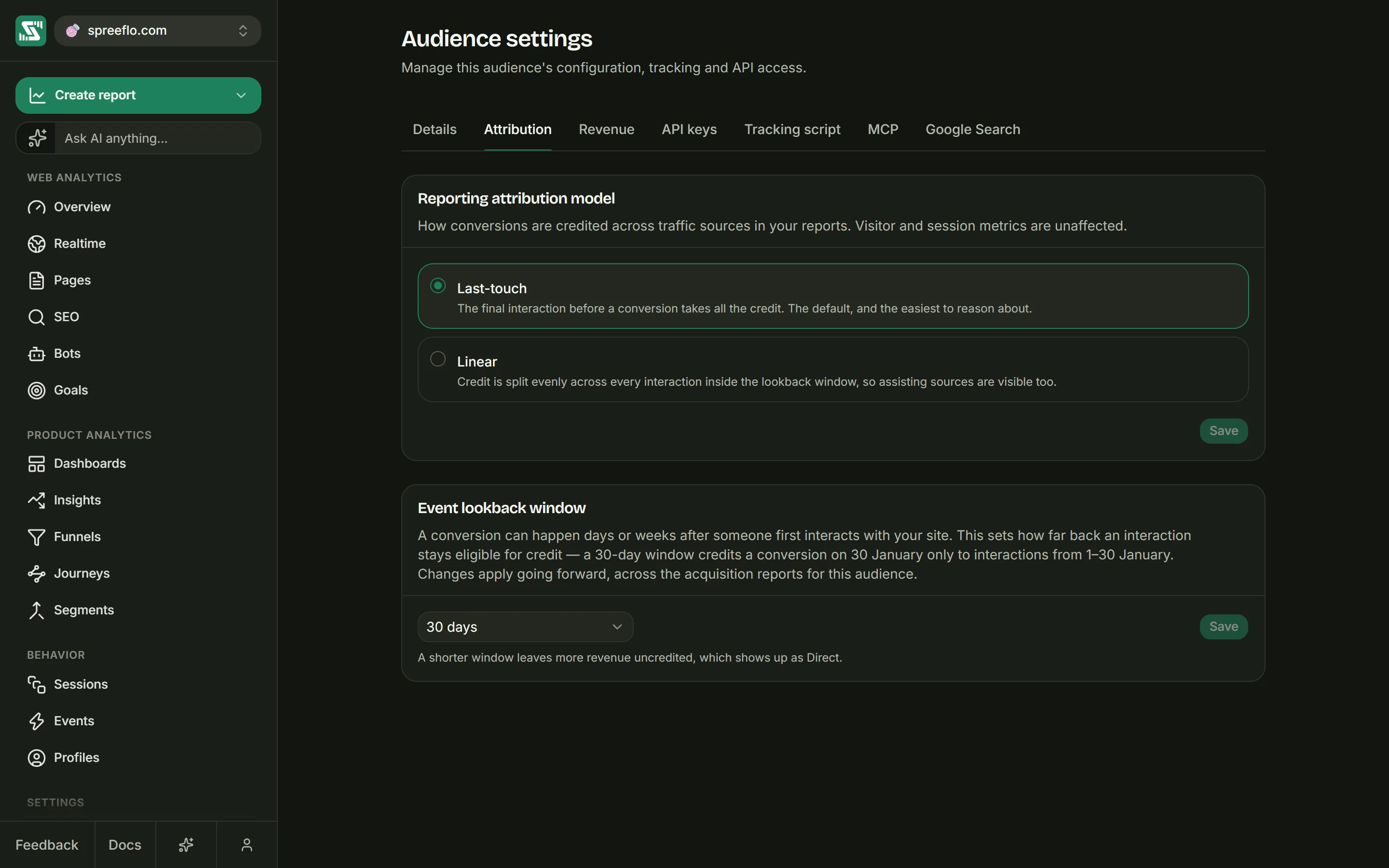
The tab has two settings, each with its own Save:
- Reporting attribution model: Last-touch, the default, gives all the credit to the most recent visit before the payment. Linear splits the credit evenly across every visit inside the lookback window.
- Event lookback window: how far back before a payment a visit can still take credit. Choose 1, 7, 14, 30, 60 or 90 days; it starts at 30.
How the credit is worked out
For each payment, Spreelytics takes the visits of the same visitor in the lookback window before the payment and leaves out the direct ones: a typed address, a bookmark, or a link that sent no referrer. Last-touch gives the whole payment to the latest visit left; Linear shares it equally among them. If no visit is left, the payment goes to Direct.
So a direct visit never takes the credit. Someone who found you on Google and came back later by typing your address is still Google's sale.
For example, a visitor finds you through a Google search on 1 March, clicks a link in your newsletter
tagged with utm_medium=email on 9 March, and on 11 March types your address and buys for $90. With
the default 30 day window:
| Model | Organic Search | Direct | |
|---|---|---|---|
| Last-touch | $0 | $90 | $0 |
| Linear | $45 | $45 | $0 |
With a 7 day window only the newsletter visit is close enough, so both models give Email the $90. With a 1 day window neither visit is, and the $90 goes to Direct. The window counts visits from the same browser as the payment, so visits on another device do not take credit, even for someone you have identified.
Where it applies
The model and the window decide the revenue on the Acquisition card's Channels, Sources, URLs and UTM tabs, when you switch the card from visitors to revenue, and the Top sources in the revenue chart's tooltip. They never change the total: the Channels and Sources lists always add up to the Revenue figure, with the part no visit can take on Direct and Direct/None. The URLs and UTM lists add up to the part that came from tagged or referred visits. Visitor and session numbers are not affected.
Both settings are applied each time a report loads, so a change also re-credits the payments you already have, in every date range. A short window leaves more revenue uncredited, which shows up as Direct, and a window much shorter than the time your customers take to buy turns Linear into something close to Last-touch, because only the last visit is left inside it.
Currency
Reporting currency at the top of Settings → Revenue is the currency every revenue number is shown in: USD, the default, EUR, GBP, AUD, CAD, JPY, SGD, INR or VND.
Payments can arrive in other currencies. Each one is converted once into the reporting currency, at the exchange rate for the day it happened (by UTC date), and then frozen, so past revenue does not move when rates do. The original amount and currency are kept with the payment. Rates are updated once a day. A payment in a currency with no known rate is kept with its original amount, but does not count toward revenue while no rate is known.
The reporting currency can be changed once every 24 hours. Saving a new one re-converts every past payment in the background, each at the rate for its own day. While that runs, the tab shows "Re-converting past revenue into EUR. Historical totals stay in the previous currency until this finishes." Until a day has passed, the tab says when it was changed and when you can change it again.
Where revenue shows up
- Overview: Revenue, Revenue/visitor (revenue divided by visitors) and Conversion rate (the share of visitors who paid) in the KPI strip, revenue bars on the main chart, and a switch from visitors to revenue on every Breakdowns card. In the panel below the Breakdowns cards, the Users tab shows what each person Spent, with a Revenue badge for people who paid.
- Goals: Revenue on each goal card, the money on the events the goal matched.
- Funnels: Step value in each step's hover card.
- Profiles: Spent in the list, and Lifetime spend and a Revenue chart on each profile, with the payments in its timeline.
- Segments: Spent in a segment's Members tab.
- Events: a Revenue column, and Revenue in the event drawer.
- SEO: Revenue for pages people reached from search, and Est. rev. for search queries.
- Workspace → Audiences: Revenue on each audience card.
Browser events never carry money
Spreelytics.track() cannot record revenue. A revenue property on a browser event is kept with the
event as a property and adds nothing to any revenue number.
If a provider is connected and you also track the checkout in the browser, give that event another
name, such as checkout_completed. A browser purchase carries no money, so it would show on the
person's timeline as a second purchase of 0 and add to the total conversions of a goal on purchase.
On a cookieless audience
On an audience using cookieless tracking, an anonymous visitor can only be recognised within one day. A payment can therefore only be credited to the buyer's visits from that same day; their visits on earlier days belong to a different visitor id, so more revenue shows up as Direct. A payment that carries the email of someone you have identified is still added to that person.
Related
- Goals: a goal on
purchaseshows how much its conversions brought in. - Record a payment: the full reference for sending payments from your server.
- Audience settings: the other settings tabs.
- Cookieless tracking: how cookieless mode changes visitor ids.